
The values in this guide illustrate configuration relationships only. Actual values depend on the vehicle, installation position, and work area. Validate them on site before sending the configuration.
Prepare for deployment
Camera installation
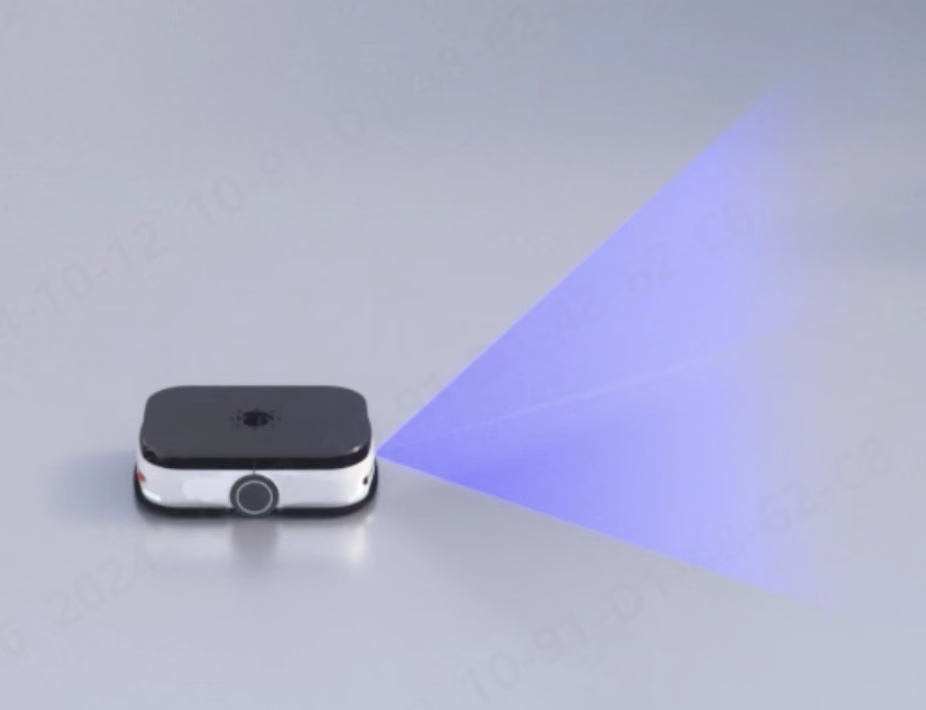
Underride AMR installation
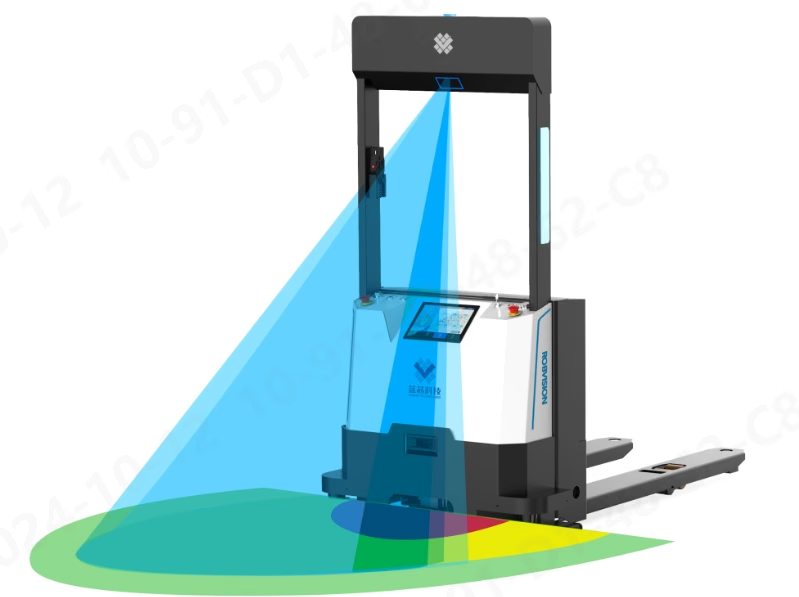
Forklift installation
Connect the camera
1
Configure the host network
The factory camera address is
192.168.100.82. Configure the computer’s Ethernet adapter on the same subnet.2
Connect and verify imaging
Open LxCameraViewer, discover and open the camera, and confirm that the depth map and point cloud display correctly.
3
Change the camera address when needed
In Other tools → Network → IP configuration tool, change the IP address. The camera restarts after the change. If the camera moves to another subnet, update the computer’s Ethernet address as well.
Tune imaging
In 3D settings and Filter settings, verify image quality. For legacy obstacle-avoidance configurations, a high-exposure value of650, low exposure of 200, and low-signal threshold of 10–20 can be used as a starting point. S10 normally requires only a glare level of 1. For non-standard installations, confirm the settings with technical support before deployment.
Configure the obstacle-avoidance algorithm
1
Enable the algorithm
In Application algorithm, select the always-on mode. For S10, select Obstacle avoidance algorithm. For other supported models, select Obstacle avoidance algorithm 2.0.
2
Choose the region type
Choose a rectangular or sector-shaped region for the vehicle. S10 does not support sector-shaped regions; using one can produce incorrect results.
3
Set extrinsics and regions
Set the camera extrinsics first, then configure the obstacle-avoidance regions. When extrinsics change, the other regions use the new values.
4
Send and verify
Send the parameters, then verify warning, alarm, and shielded areas in the point-cloud view and output status.
Camera extrinsics
Set the mounting height first, then fine-tune roll and pitch until the ground is level in the point-cloud view. Select Send parameters when finished.
Obstacle-avoidance regions
The number of supported region groups depends on the switching method:
Back up verified values in
Tools\\params\\<camera ID>\\avoidance.json. You can apply the file to another vehicle of the same type with Load configuration from file.
Communication and status output
Configure the obstacle-avoidance regions and extrinsics in the host application before using a field bus or network protocol. Except for the API, most communication methods switch parameter groups; use the host application or API for detailed parameter settings.I/O has the highest priority. While I/O is active, other methods cannot change the current parameter group, but they can still update default or temporary parameters. The host application and API set default parameters; UDP, CAN, and RS485 normally set temporary parameters. Behavior after power loss depends on how the latest configuration was saved.
API
Windows, Linux, and ARM applications can call obstacle-avoidance APIs through the SDK. After installing the Windows host application, the SDK and examples are available in its installation directory. The obstacle-avoidance example is inSample\\C\\application_obstacled. For S10, avoid switching parameter groups at a high frequency through the API; use UDP or I/O instead.
RS485 (M4 Pro only)
Use Modbus RTU with a recommended baud rate of9600. Read the two input registers starting at address 108 (0x6C) with function code 0x04 to obtain the current obstacle-avoidance result. Write a single register at address 106 (0x6A) with function code 0x06 to switch parameter groups.
UDP and TCP
Messages are sent as hexadecimal frames. For UDP, send the connection-establishment message first. After the connection is established, the camera sends results at the image frame rate.
The default remote UDP port is
6688. Switching parameters requires load time; avoid rapid switching because it can reduce the image frame rate and result refresh rate.