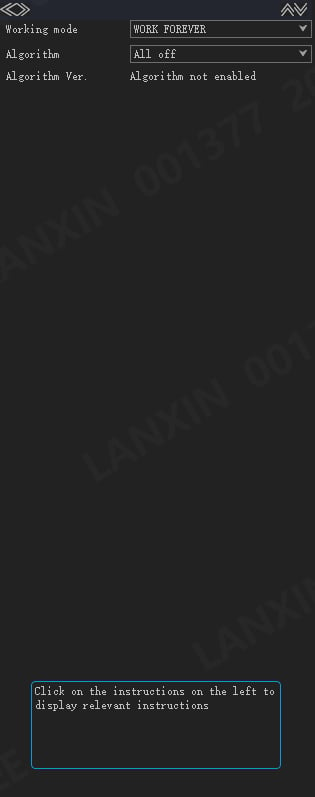
These instructions apply to LxCameraViewer. For AW3, use the platform user manual. Screenshots are from the English V2.0 manual; available controls depend on the camera and installed version.
Network and interfaces
Change the camera IP address
Change the camera IP address
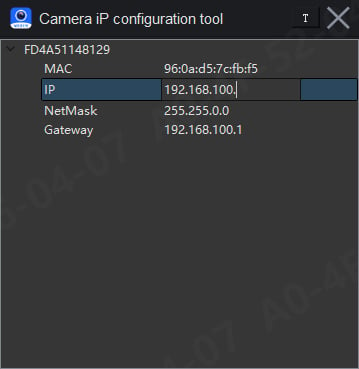
- Open Others → IP configuration tool and identify the camera by its ID or MAC address.
- Double-click the IP address, subnet mask or gateway to edit it. Press Enter to confirm; click elsewhere to cancel.
- Keep the host and camera on the same subnet with different IP addresses. Refresh the device list and reconnect using the new IP.
Set the CAN baud rate and CAN ID
Set the CAN baud rate and CAN ID
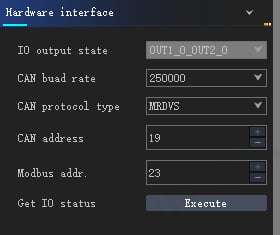
- Open the camera and go to Basic → Hardware interface.
- Set CAN baud rate and CAN address (CAN ID) to match the installation.
- Use the same baud rate across the bus, then confirm that the receiver gets data with the expected ID.
Versions and firmware
Check software, firmware and algorithm versions
Check software, firmware and algorithm versions
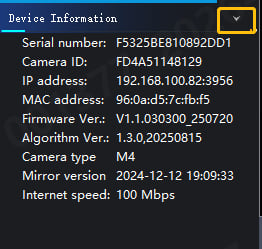
- Open the camera and check its firmware, algorithm and mirror versions under Device Information.
- Open About to check the LxCameraViewer and SDK versions.
- Record each version separately with the camera model. Version numbers in screenshots are examples, not upgrade recommendations.
Upgrade camera firmware
Upgrade camera firmware
- Confirm that the supplied
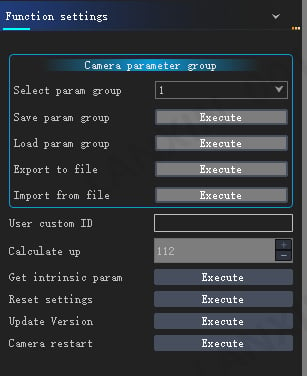
.binfirmware package matches the camera model and record the current version. - Open Basic → Function settings and select Update Version → Execute. Choose the firmware file and open it.
- Keep power and networking connected. Wait for the camera to reconnect, then verify its version and image output.
Imaging and algorithm operation
Read camera intrinsics
Read camera intrinsics
- Open the camera and go to Basic → Function settings.
- Select Get intrinsic param → Execute to read the camera’s intrinsic parameters.
- Use parameters for the actual camera and image configuration, rather than values from another device or an example.
Enable RGB-D alignment
Enable RGB-D alignment
- Open an RGB-capable camera and stop streaming.
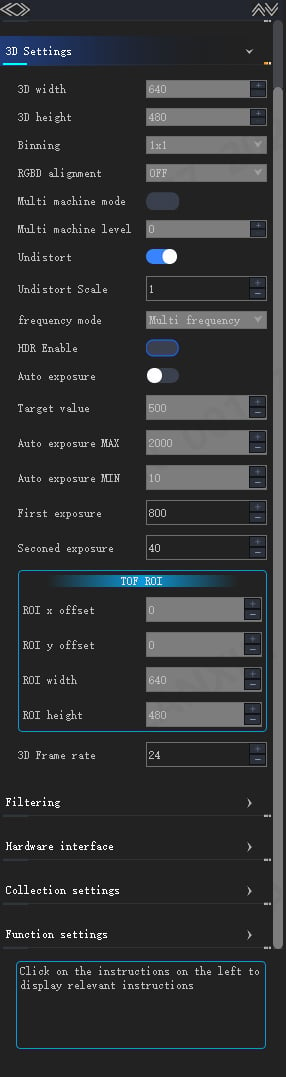
- In Basic → 3D Settings, enable RGBD alignment.
- Restart streaming and check RGB and depth output. Depth and amplitude dimensions should match RGB dimensions. If no data arrives, check the software error code.
Keep an algorithm running after disconnecting
Keep an algorithm running after disconnecting
- Open Algorithm and select an installed, licensed algorithm.
- Set Working mode to WORK_FOREVER if required, then verify the results.
- Disconnect LxCameraViewer and confirm that the receiving system still gets results. Exit always-on mode and stop streaming before changing restricted settings such as alignment.