
Document version: V1.0; revision date: 2024-10-12.
Overview
The MRDVS Camera SDK for Linux includes C/C++, Java (HTTP service), ROS, and ROS 2 examples. The examples show the basic SDK workflow; add application-specific logic and error handling for your project. Complete the environment setup, installation script, and sample-directory checks first. Then follow the compilation and execution section for your target language. The appendix lists installation methods for common dependencies and test packages.System and environment
Compatible systems and dependency versions
The following Linux systems are supported. The default program versions are listed below:2.2 Check the system version and application version
2.2.1 Check the system version

- Main version number: 5
- Version number: 15 [Odd numbers are development versions, even numbers are stable versions]
- Revision number: 0 [Number of modifications]
- Nth revision of this version: 97
- Kernel version: #107~20.0.4.1, usually the system version is the kernel version
2.2.2 Check Cmake version

2.2.3 Check Gcc version

2.2.4 View Opencv version

2.2.5 Check Pcl version
2.2.6 View ROS version


2.3 Build a basic development environment
You need to update the installation list before installation: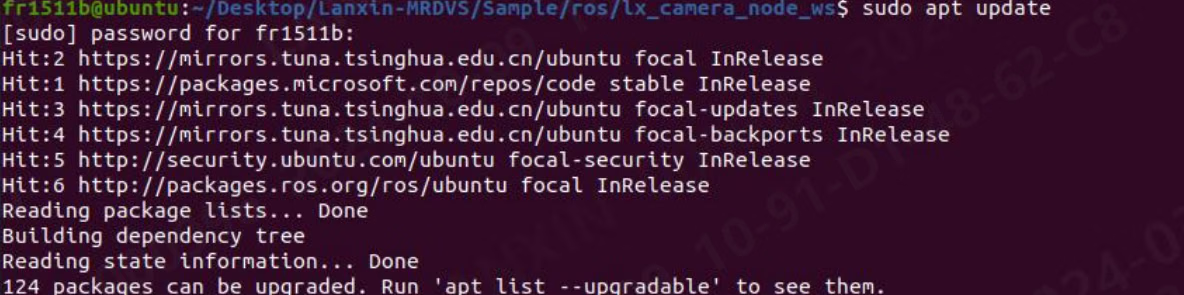
2.3.1 Install Cmake

2.3.2 Install Gcc

2.4 Build optional development environment
2.4.1 Install Opencv [can display camera images]
![Install Opencv [can display camera images] related icons](https://mintcdn.com/mrdvs/tL-WJIR2I7zXpd8i/images/developers/camera-sdk-linux-examples-install-opencv-can-display-camera-images.avif?fit=max&auto=format&n=tL-WJIR2I7zXpd8i&q=85&s=2d198482de6242a7b996cf46e67a11e5)
2.4.2 Install Pcl [can display point cloud]
![Install Pcl [can display point cloud] related icons](https://mintcdn.com/mrdvs/tL-WJIR2I7zXpd8i/images/developers/camera-sdk-linux-examples-install-pcl-can-display-point-cloud.avif?fit=max&auto=format&n=tL-WJIR2I7zXpd8i&q=85&s=d3a7769cccce429095b1c579bfee93b1)
Prepare the sample code
3.1 Execute the installation script
- Unzip the Lanxin-MRDVS file and enter the Lanxin-MRDVS folder

- Right click to open the console
- Execute install.sh script

- Enter the /opt/ directory to check whether the installation is successful.

- If the folder can be found, the installation is successful.
- If the installation fails, you need to manually add it to the opt directory.
- Execute the set_socket_buffer_size.sh script

- At this point, the installation script has been completely executed!
3.2 Sample code introduction
Enter the Sample directory. The directory contents are as follows:
- The C folder contains C and C++ related code
- The Java folder contains an http server for indirectly calling the sdk
- The Ros folder contains an example of ros
- The Ros2 folder contains an example of ros2
3.2.1 C and C++ sample code
Enter the C directory. The directory contents are as follows:
- application_obstacle: Obtain camera stream data and enable obstacle avoidance algorithm, output algorithm results
- application_pallet: Obtain camera stream data and enable the pallet algorithm, output algorithm results
- arm_local_camera: Call the SDK in the camera [ARM] and obtain the stream data
- frame_callback: Use callback method to obtain camera stream data
- multi_cameras: open multiple cameras and get streaming data
- single_camera: Open a single camera and get streaming data
- single_camera2: Get frame data through structure
3.2.2 Java sample code
Enter the java directory. The directory contents are as follows: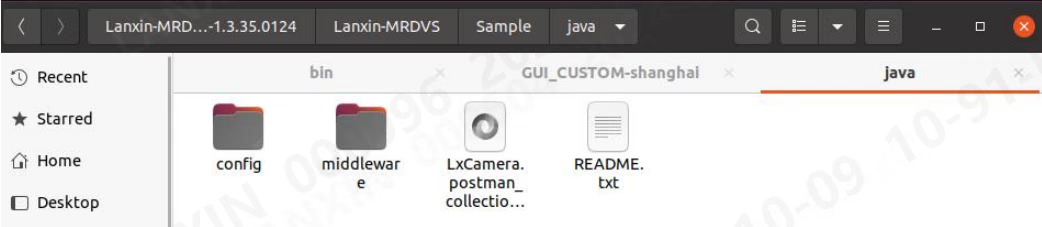
- Config: Server-related configurations are stored in the folder
- Middleware: server theme
- LxCamera.postman_collection.json: postman configuration file
- README: java virtual server usage tutorial
3.2.3 ROS sample code
Enter the ros directory. The directory contents are as follows: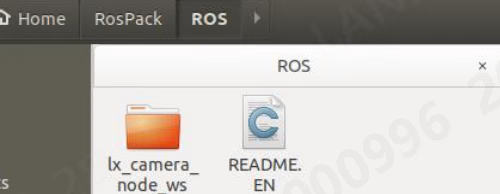
- lx_camera_node_ws: The folder contains a standard ros driver
- README.EN: explains in English how to compile a node and create a new node
3.2.4 ROS2 sample code
Enter the ros2 directory. The directory contents are as follows: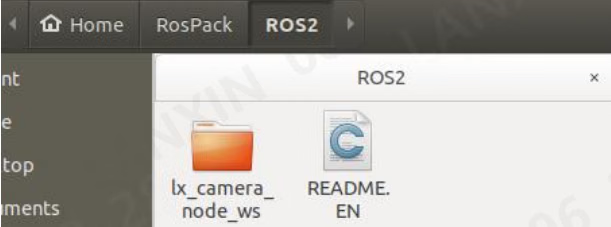
- lx_camera_node_ws: The folder contains a standard ros2 driver
- README.EN: explains in English how to compile a node and create a new node
3.2.5 ros-v1pro sample code
Enter the ros-v1pro directory. The directory contents are as follows: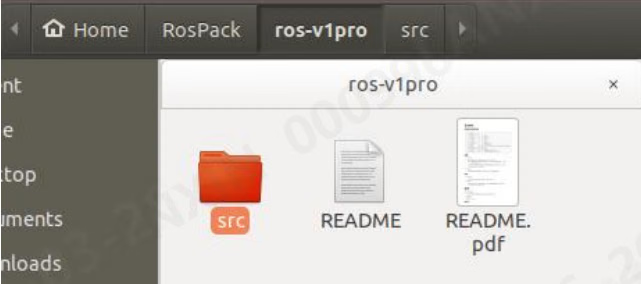
- src: The folder contains a standard ros driver
- README: explains how to use this node
- README.pdf: explains how to use this node
Compile and run the samples
4.1 Compiling and running C and C++ sample code
Go to the C folder in the example:
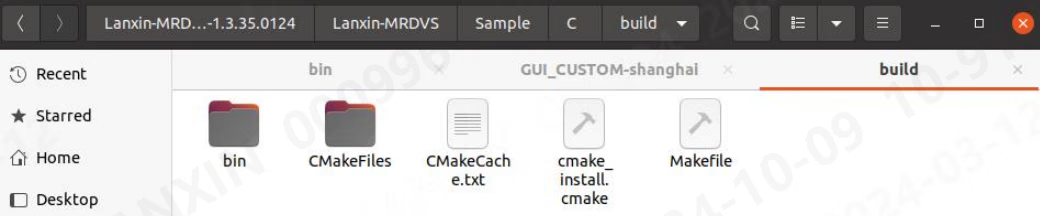
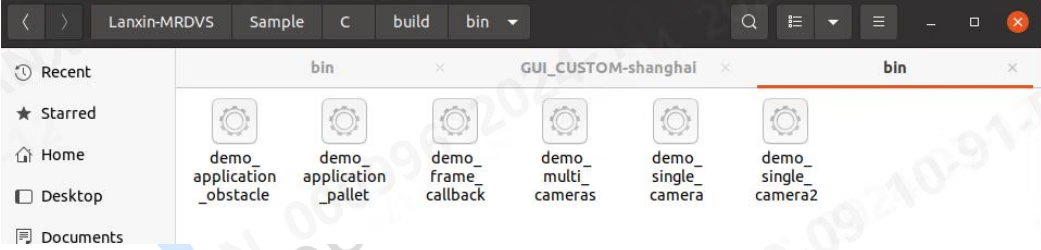
4.2 java sample running process
Java is different from other sample codes. It does not directly provide source code. It provides an http server and a postman example. If you need to control the camera indirectly through http, you can select the java example and enter the java folder. The folder content is as follows: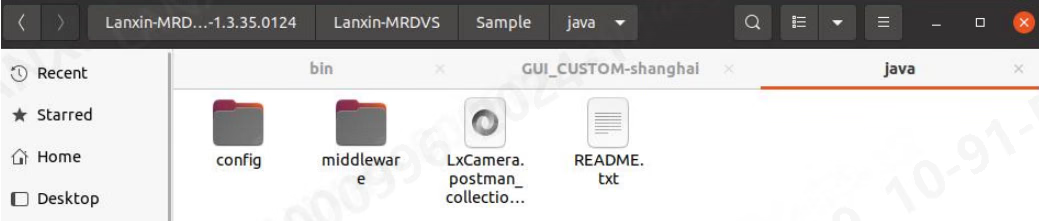
- Enter the config folder and modify the http_sever_host field and http_sever_port field in the Configs.json file:
- Enter the middleware folder and execute the start.sh script to enable the transfer server

- Use postman to open the LxCamera.postman_collection.json file to send data to the sample port
4.3 Compiling and running ROS sample code
Enter the ROS folder, open a console, and run: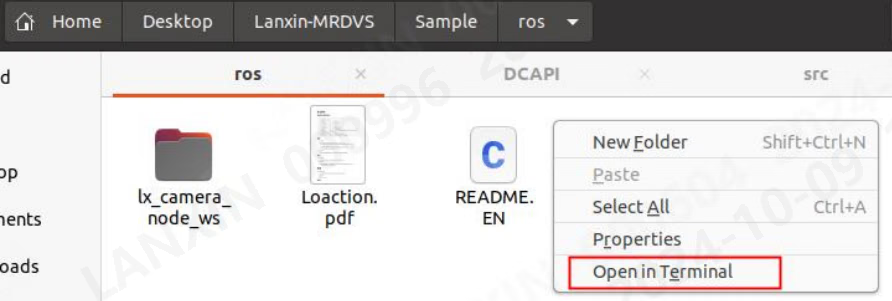

lx_camera_node_ws folder, and run:


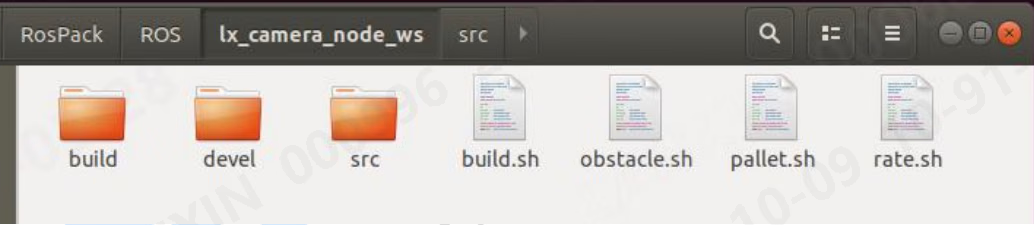
roslaunch:
4.4 Compiling and running ROS2 sample code
Enter the ros2 folder. The contents of the folder are as follows: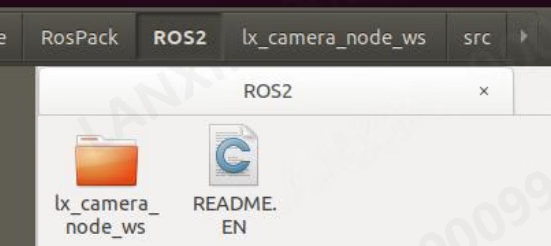

ros-pcl dependency package. Replace foxy with the ROS 2 distribution installed on your system:
lx_camera_node_ws directory and build the project:

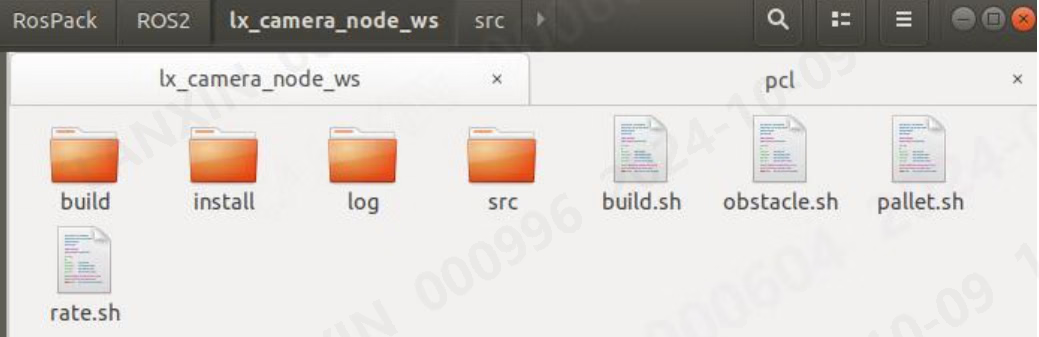
ros2 launch:
4.5 Compilation and operation of ros-v1pro sample code
ros-v1pro is a dedicated ros driver for the V1PRO camera. There is a README.pdf in the ros-v1pro folder that describes the driver in detail. This document only gives a brief introduction to it: Enter theros-v1pro folder and compile it:


- roslaunch lx_camera_ros localization.launch
- roslaunch lx_camera_ros mapping.launch
- roslaunch lx_camera_ros sensor_sim.launch
Sample code reference
In this section, all codes and pseudocode will be divided into several parts. Generally speaking, everything in a section belongs to the same file. Except for special files with detailed explanations, the source code files only explain the general modules. Detailed explanations are commented in the code.5.1 C and C++
5.1.1 CMakeLists
5.1.2 application_obstacle and application_pallet
5.1.3 arm_local_camera
5.1.4 frame_callback
5.1.5 multi_cameras
5.1.6 single_camera
5.1.7 single_camera2
5.2 java
The Java example provides only an HTTP server, so the description is only a description of the interface and message format. Use postman to open the sample file as shown below: The messages are all in post mode. Before sending, remember to change the IP to the server’s IP, but do not modify the URL. The URL is hard-coded internally in the server. The response message format and content are both in the body. The interface provided in the example is as follows: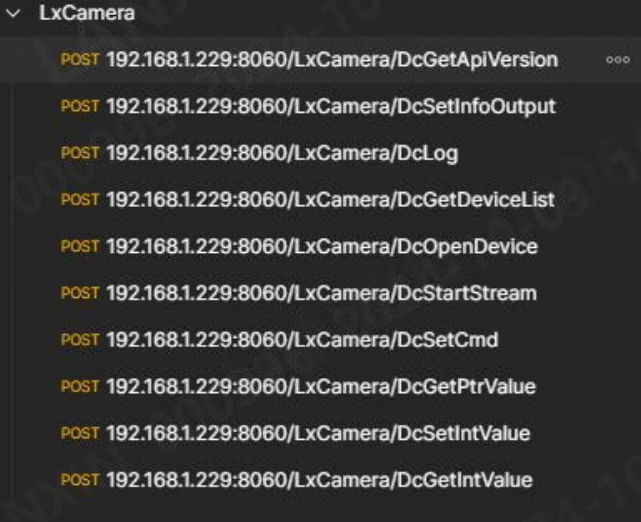
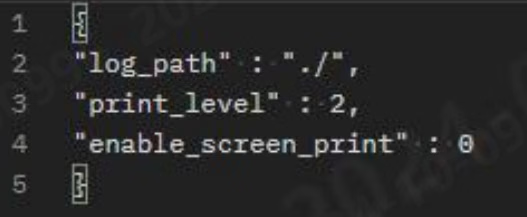
- log_path: path of log output
- print_level: log printing level
- enable_screen_print: whether the log is printed on the console
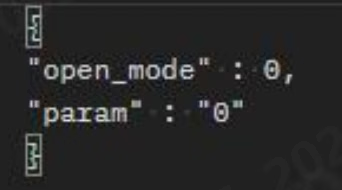
- open_mode: open the camera mode
- param: parameters for opening the camera
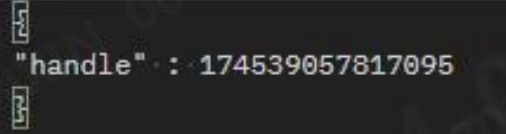
- handle: The handle of the camera, which will be returned in DcOpenDevice
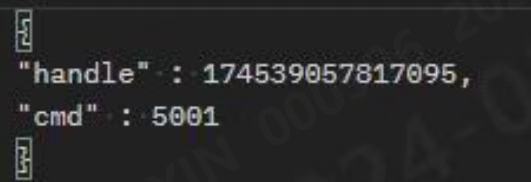
- handle: the handle of the camera to be set
- cmd: command number
- handle: the handle of the camera to be set
- cmd: command number
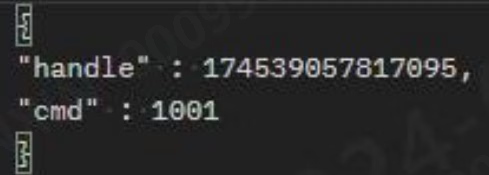
- handle: the handle of the camera to be set
- cmd: command number
- value: the value to be set
- handle: the handle of the camera to be set
- cmd: command number
- Please see the table below for other relevant instructions:
5.3 ROS1 & ROS2
In the ros description, we will not talk about the driver source code, but about the content corresponding to the configuration in the launch file, how to adjust the configuration, and how to send and subscribe to messages. The provided ros node already contains most of the functions, so it is not recommended to directly modify the driver source code. If you have special needs, you can first understand the code flow in the C++ example and then modify the driver source code. When executing the ros driver, you must ensure that the versions of opencv and pcl in the system default path are unique, otherwise an error will occur when linking the ros library, which may cause compilation failure or runtime crash.5.3.1 ROS1 launch file description
5.3.1.1 All launch files
- There are the following files in the src/launch folder:
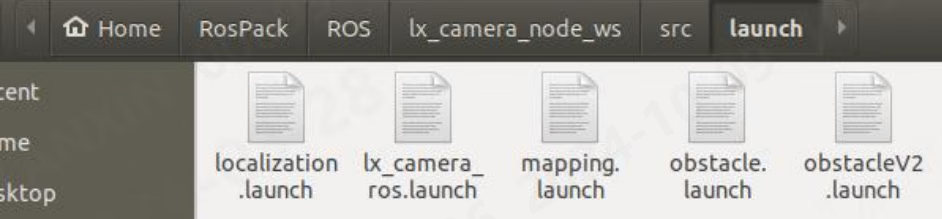
- localization.launch: Run file for visual positioning nodes
- lx_camera_ros.launch: running file of ordinary nodes
- mapping.launch: running file for visual positioning mapping
- obstacle.launch: running file of obstacle avoidance algorithm
- obstacleV2.launch: running file of obstacle avoidance algorithm V2
- pallet.launch: pallet algorithm running file
- sensor_sim.launch: running file for simulating positioning data
- You can execute different functions of the node by running different launch files. Except for localization, mapping and sensor, the parameter contents are the same in all nodes, but the configuration is different. This will be introduced in detail in the following sections. For a detailed introduction to the parameters of the three launch files of localization, mapping and sensor, please see the introduction in the ros-v1pro node.
5.3.1.2 Camera IP, stream configuration, working mode configuration, point cloud unit, etc.
- ip: The camera IP that needs to be connected. If it is 0, the first one will be connected by default.
- log_path: SDK log storage path, the absolute path needs to be filled in
- is_xyz: whether to push point cloud data
- is_depth: whether to push depth data
- is_amp: whether to push intensity map data
- is_rgb: whether to push RGB image data
- lx_work_mode: work mode
- lx_application: whether to enable the algorithm, 0: off, 1: obstacle avoidance algorithm, 2: pallet algorithm, 3: positioning algorithm, 4: obstacle avoidance algorithm V2
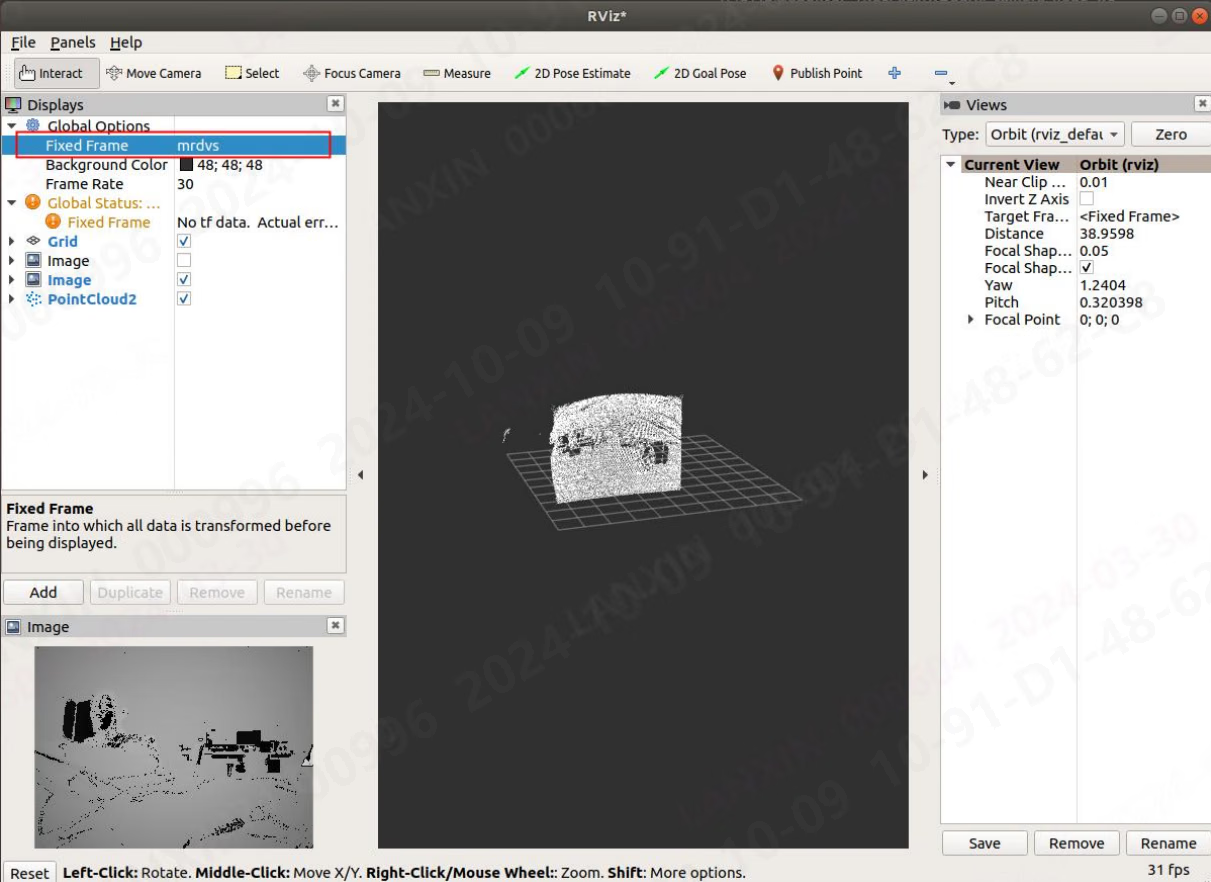
- lx_tof_unit: point cloud unit, 1 is meter, 0 is millimeter, needs to be changed to 1 when viewing with rviz
5.3.1.3 Camera pose configuration
The rotation angle and translation vector of the point cloud can be configured.- X: X translation amount of the camera from the center of the point cloud
- Y: Y translation amount of the camera from the center of the point cloud
- Z: Z translation amount of the camera from the center of the point cloud
- Yaw: the angle of rotation of the point cloud around the Z axis
- Roll: The angle of rotation of the point cloud around the X-axis
- Pitch: The angle of rotation of the point cloud around the Y axis
5.3.1.4 Whether to use launch configuration
You can choose whether to use the camera parameter configuration in the launch file.- raw_param: 0: use the configuration in the camera, 1: use the configuration in the launch file
5.3.1.5 2D parameter configuration
- lx_2d_binning:0:1x1,1:2x2,2:4x4
- lx_2d_undistort: 2d anti-distortion, 0: off, 1: on
- lx_2d_undistort_scale: 2D anti-distortion coefficient
- lx_2d_auto_exposure: 2D automatic exposure, 0: off, 1: on
- lx_2d_auto_exposure_value: 2D automatic exposure target intensity
- lx_2d_exposure: 2D exposure value
- lx_2d_gain: 2D gain
5.3.1.6 3D parameter configuration
- lx_rgb_to_tof: RGB alignment
- lx_3d_binning:0:1x1,1:2x2,2:4x4
- lx_mulit_mode: multi-machine mode, which can eliminate multi-machine interference, 0: off, 1: on
- lx_3d_undistort: 3d anti-distortion, 0: off, 1: on
- lx_3d_undistort_scale: 3D anti-distortion coefficient
- lx_hdr: hdr, 0: off, 1: on
- lx_3d_auto_exposure: 3D automatic exposure, 0: off, 1: on
- lx_3d_auto_exposure_value: 3D automatic exposure target intensity
- lx_3d_first_exposure: 3D high points
- lx_3d_second_exposure: 3D low points
- lx_3d_gain: 3D gain
5.3.1.7 Maximum and minimum depth
- lx_min_depth: minimum depth
- lx_max_depth: maximum depth
5.3.2 ROS2 launch file description
5.3.2.1 All launch files
There are the following files in the src/launch folder: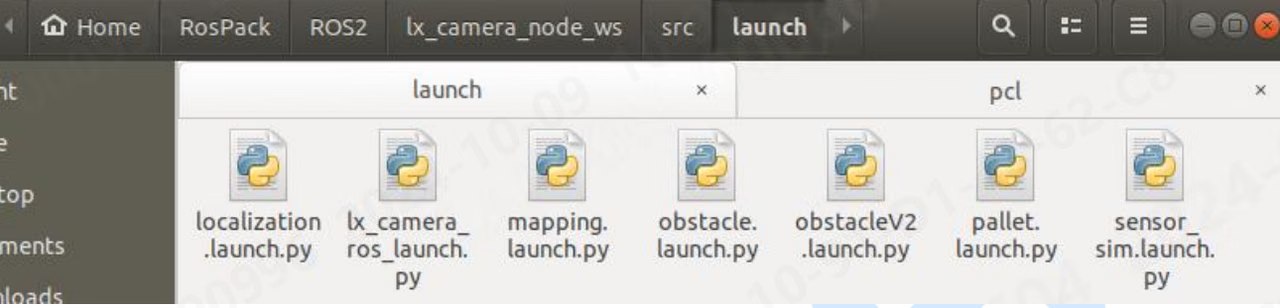
- localization.launch.py: running file of visual positioning node
- lx_camera_ros.launch.py: running file of ordinary node
- mapping.launch.py: running file for visual positioning mapping
- obstacle.launch.py: running file of obstacle avoidance algorithm
- obstacleV2.launch.py: running file of obstacle avoidance algorithm V2
- pallet.launch.py: pallet algorithm running file
- sensor_sim.launch.py: running file for simulating positioning data
5.3.2.2 Camera IP, stream configuration, working mode configuration, point cloud unit, etc.
- ip: The camera IP that needs to be connected. If it is 0, the first one will be connected by default.
- log_path: SDK log storage path, the absolute path needs to be filled in
- is_xyz: whether to push point cloud data
- is_depth: whether to push depth data
- is_amp: whether to push intensity map data
- is_rgb: whether to push RGB image data
- lx_work_mode: work mode
- lx_application: whether to enable the algorithm, 0: off, 1: obstacle avoidance algorithm, 2: pallet algorithm, 3: positioning algorithm, 4: obstacle avoidance algorithm V2
- lx_tof_unit: point cloud unit, 1 is meter, 0 is millimeter, needs to be changed to 1 when viewing with rviz
5.3.2.3 Camera pose configuration
The rotation angle and translation vector of the point cloud can be configured.- X: X translation amount of the camera from the center of the point cloud
- Y: Y translation amount of the camera from the center of the point cloud
- Z: Z translation amount of the camera from the center of the point cloud
- Yaw: the angle of rotation of the point cloud around the Z axis
- Roll: The angle of rotation of the point cloud around the X-axis
- Pitch: The angle of rotation of the point cloud around the Y axis
5.3.2.4 Whether to use launch configuration
You can choose whether to use the camera parameter configuration in the launch file.- raw_param: 0: use the configuration in the camera, 1: use the configuration in the launch file
5.3.2.5 2D parameter configuration
- lx_2d_binning:0:1x1,1:2x2,2:4x4
- lx_2d_undistort: 2d anti-distortion, 0: off, 1: on
- lx_2d_undistort_scale: 2D anti-distortion coefficient
- lx_2d_auto_exposure: 2D automatic exposure, 0: off, 1: on
- lx_2d_auto_exposure_value: 2D automatic exposure target intensity
- lx_2d_exposure: 2D exposure value
- lx_2d_gain: 2D gain
5.3.2.6 3D parameter configuration
- lx_rgb_to_tof: RGB alignment
- lx_3d_binning:0:1x1,1:2x2,2:4x4
- lx_mulit_mode: multi-machine mode, which can eliminate multi-machine interference, 0: off, 1: on
- lx_3d_undistort: 3d anti-distortion, 0: off, 1: on
- lx_3d_undistort_scale: 3D anti-distortion coefficient
- lx_hdr: hdr, 0: off, 1: on
- lx_3d_auto_exposure: 3D automatic exposure, 0: off, 1: on
- lx_3d_auto_exposure_value: 3D automatic exposure target intensity
- lx_3d_first_exposure: 3D high points
- lx_3d_second_exposure: 3D low points
- lx_3d_gain: 3D gain
5.3.2.7 Maximum and minimum depth
- lx_min_depth: minimum depth
- lx_max_depth: maximum depth
5.3.3 Unique theme description
Since the unique topic types of ROS1 and ROS2 are the same, ROS1 is used as an example here. There are the following files in the src/msg folder: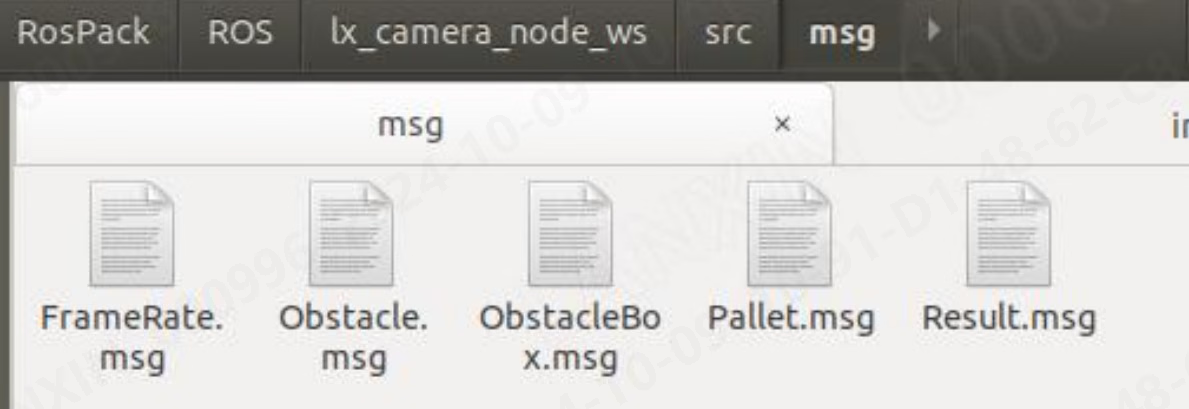
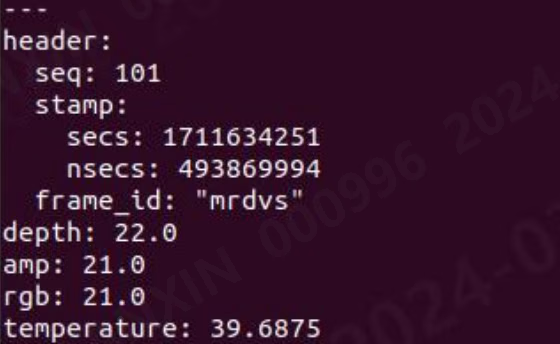
5.3.3.1 FrameRate.msg
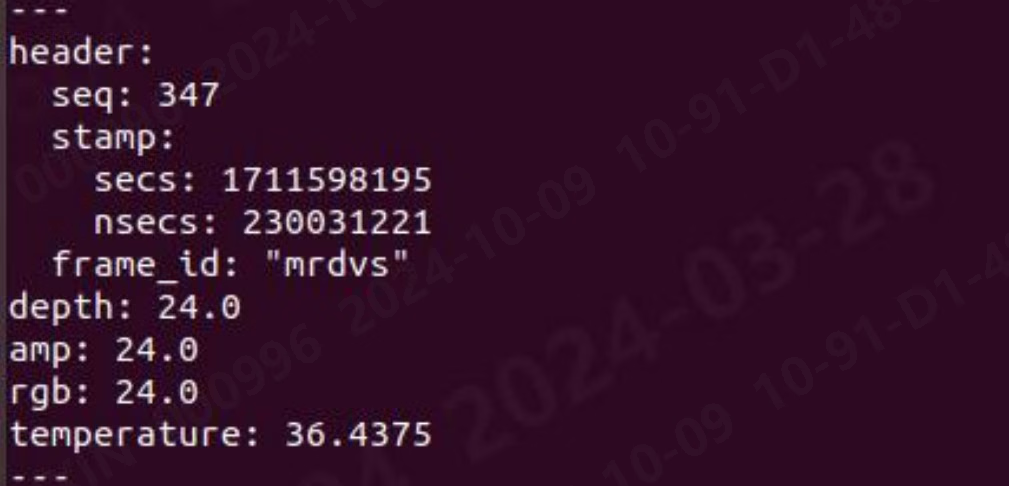
This node outputs frame rate information. The message format is as follows: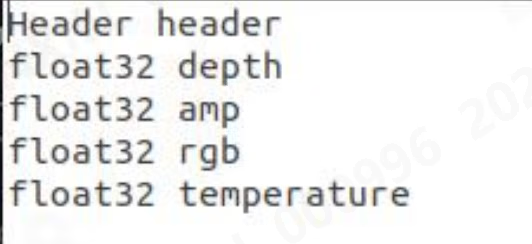
- header: frame information and timestamp of the current data
- depth: When the depth map is turned on, output the depth map frame rate
- amp: When the intensity map is turned on, output the intensity map frame rate
- rgb: When rgb is on, output rgb frame rate
- temperature: output camera temperature
5.3.3.2 Obstacle.msg
obstacle outputs information related to the obstacle avoidance algorithm results. The obstacle message format is as follows: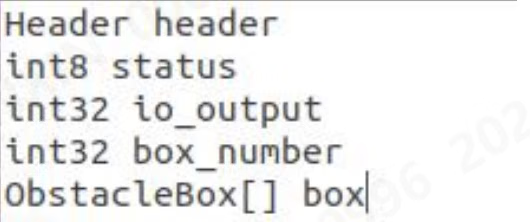
- header: frame information and timestamp of the current data
- status: status information returned by obstacle avoidance
- io_output: Obstacle avoidance information output by the io interface
- box_number: number of obstacles
- box: obstacle information, variable length array, the length is determined by box_number
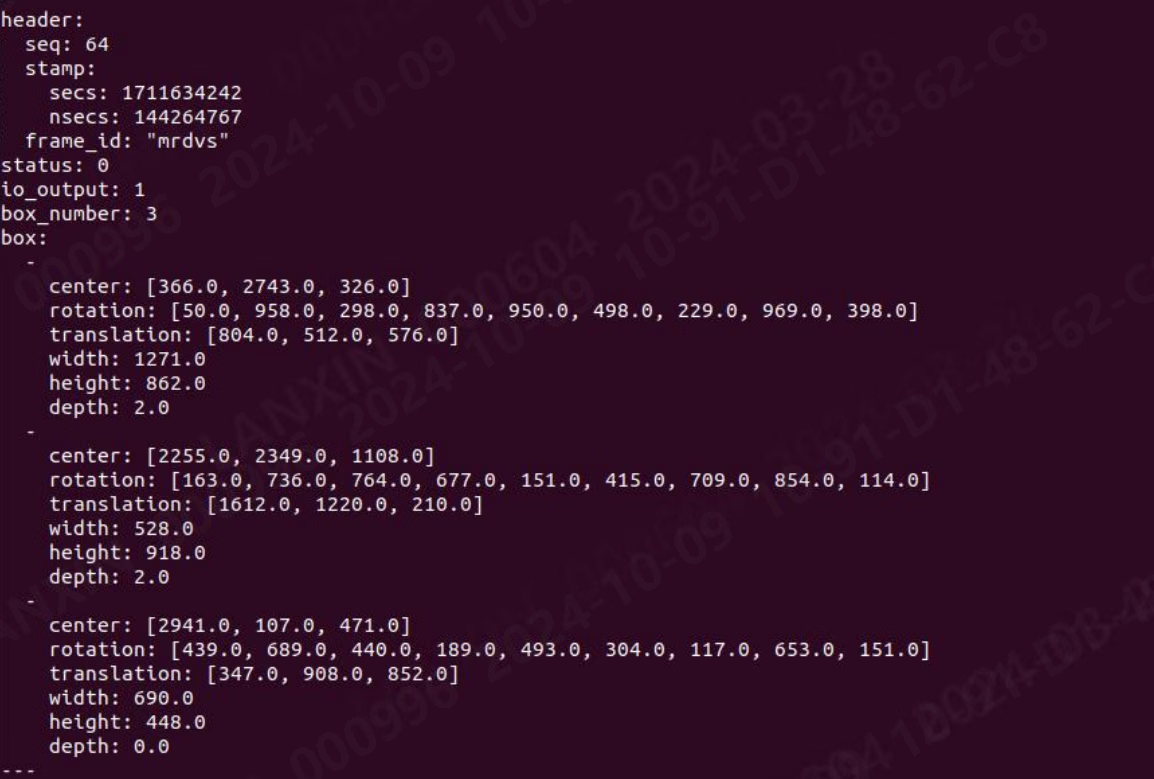
5.3.3.3 Obstacle_box.msg
obstacle_box outputs obstacle-related information, and the obstacle_box message format is as follows: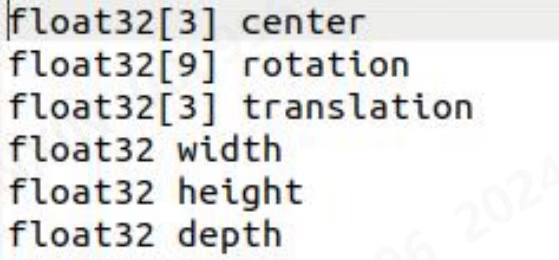
- center: the center of mass of the obstacle in the point cloud
- rotation: rotation matrix of obstacle point cloud
- translation: translation vector of obstacle point cloud
- width: width of the obstacle frame
- height: height of obstacle frame
- depth: the depth of the obstacle frame

5.3.3.4 Result.msg
The return value obtained after sending the command message to the servic in the node is stored in Result: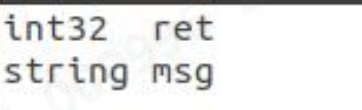
- ret: the return value obtained by executing the SDK
- msg: Description of the return value obtained by executing the SDK
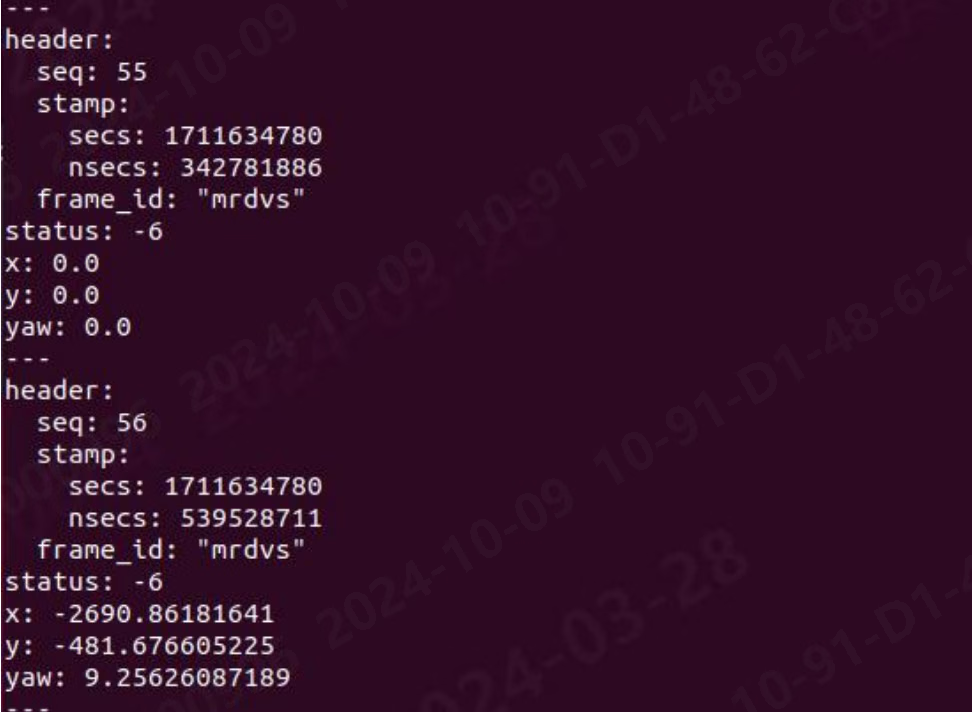
5.3.3.5 Pallet.msg
The pallet outputs information related to the pallet algorithm results. The pallet message format is as follows: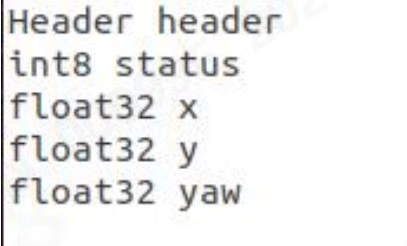
- header: frame information and timestamp of the current data
- status: status information returned by pallet recognition:
- x: X distance between the tray and the optical center of the camera
- y: Y distance between the tray and the optical center of the camera
- yaw: theta angle between the center of the tray and the optical center of the camera
5.3.4 Unique Service Description
Since the unique service types of ROS1 and ROS2 are the same, ROS1 is used as an example here. There are the following files in the src/srv folder: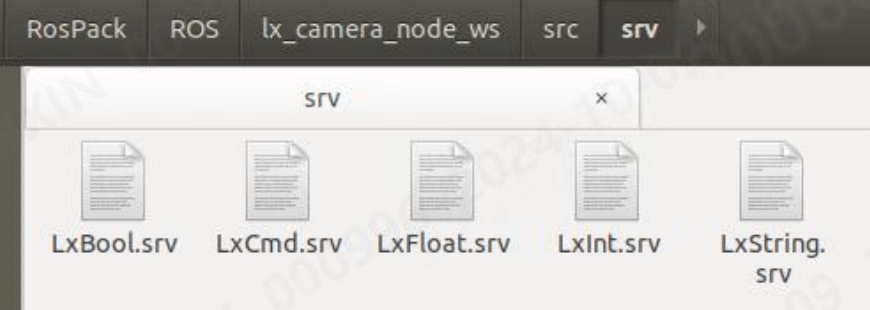
5.3.4.1 LxBool.srv
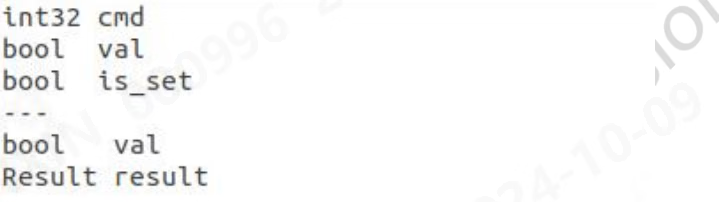
- cmd: the parameter number that needs to be obtained or set
- val: the value set when setting
- is_set: Whether to set the parameter. When it is true, the value in val will be set to the camera. When it is false, the value of this parameter will be read from the camera and displayed.
- val: The value of the camera’s current parameter returned when getting or setting it
- result: the value and information returned by calling the SDK interface
5.3.4.2 LxCmd.srv
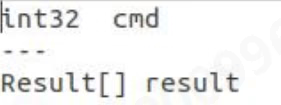
- cmd: The parameter number that needs to be obtained or set. When it is 0, all parameter numbers will be returned.
- result: the value and information returned by calling the SDK interface, cmd may have multiple return values
5.3.4.3 LxFloat.srv
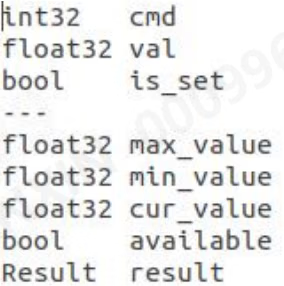
- cmd: the parameter number that needs to be obtained or set
- val: the value set when setting
- is_set: Whether to set the parameter. When it is true, the value in val will be set to the camera. When it is false, the value of this parameter will be read from the camera and displayed.
- max_value: the maximum value that can be set for this parameter
- min_value: the minimum value that can be set for this parameter
- cur_value: the current value of this parameter in the camera
- available: whether this parameter supports setting
- result: the value and information returned by calling the SDK interface
5.3.4.4 LxInt.srv
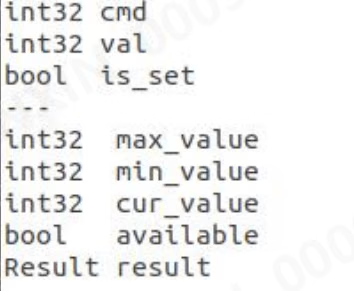
- cmd: the parameter number that needs to be obtained or set
- val: the value set when setting
- is_set: Whether to set the parameter. When it is true, the value in val will be set to the camera. When it is false, the value of this parameter will be read from the camera and displayed.
- max_value: the maximum value that can be set for this parameter
- min_value: the minimum value that can be set for this parameter
- cur_value: the current value of this parameter in the camera
- available: whether this parameter supports setting
- result: the value and information returned by calling the SDK interface
5.3.4.5 LxString.srv
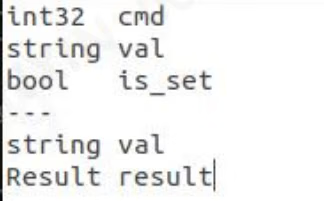
- cmd: the parameter number that needs to be obtained or set
- val: the value set when setting
- is_set: Whether to set the parameter. When it is true, the value in val will be set to the camera. When it is false, the value of this parameter will be read from the camera and displayed.
- val: The value of the camera’s current parameter returned when getting or setting it
- result: the value and information returned by calling the SDK interface
5.3.5 Description of topic subscription methods
5.3.5.1 Subscription frame rate, tray algorithm, obstacle avoidance algorithm output data
Subscribe Frame Rate In the lx_camera_node_ws directory, enter: bash rate.sh

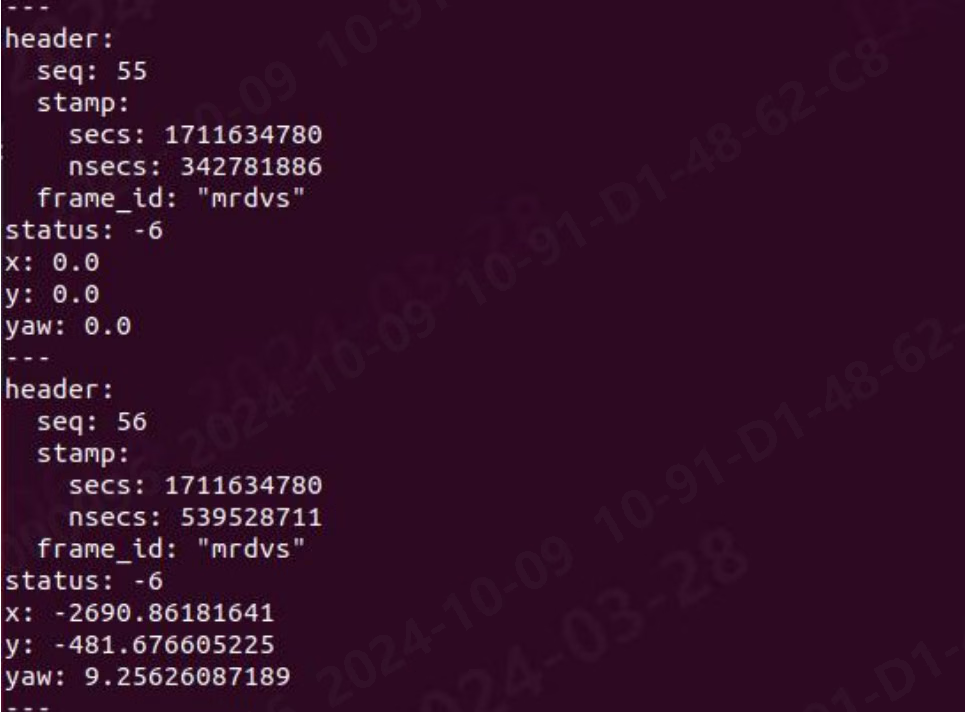

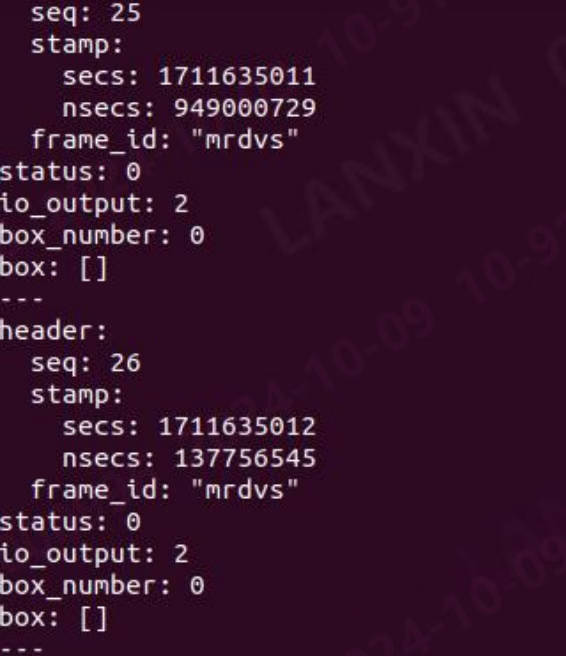
5.3.5.2 Subscribe to image data (ROS1)
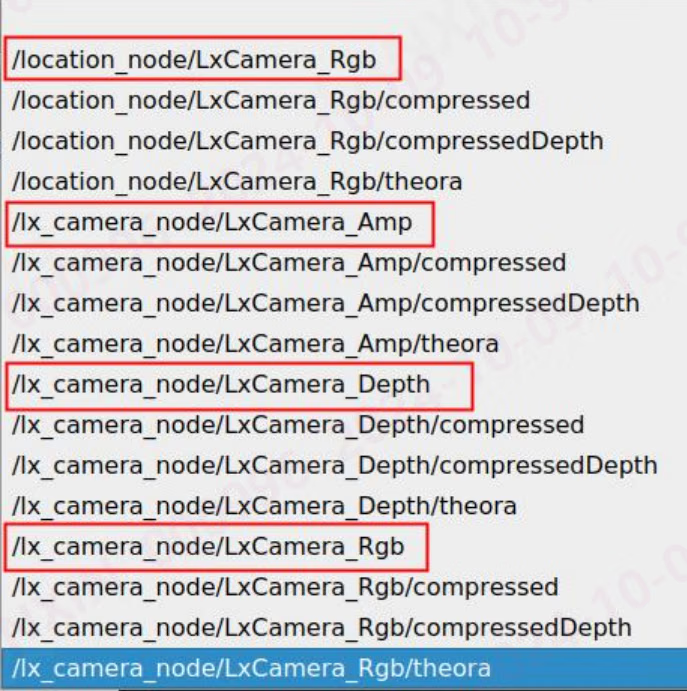
You can view the image information output by the node through the image tool that comes with ros: Console input command: rqt_image_view After entering the command, the following window will pop up: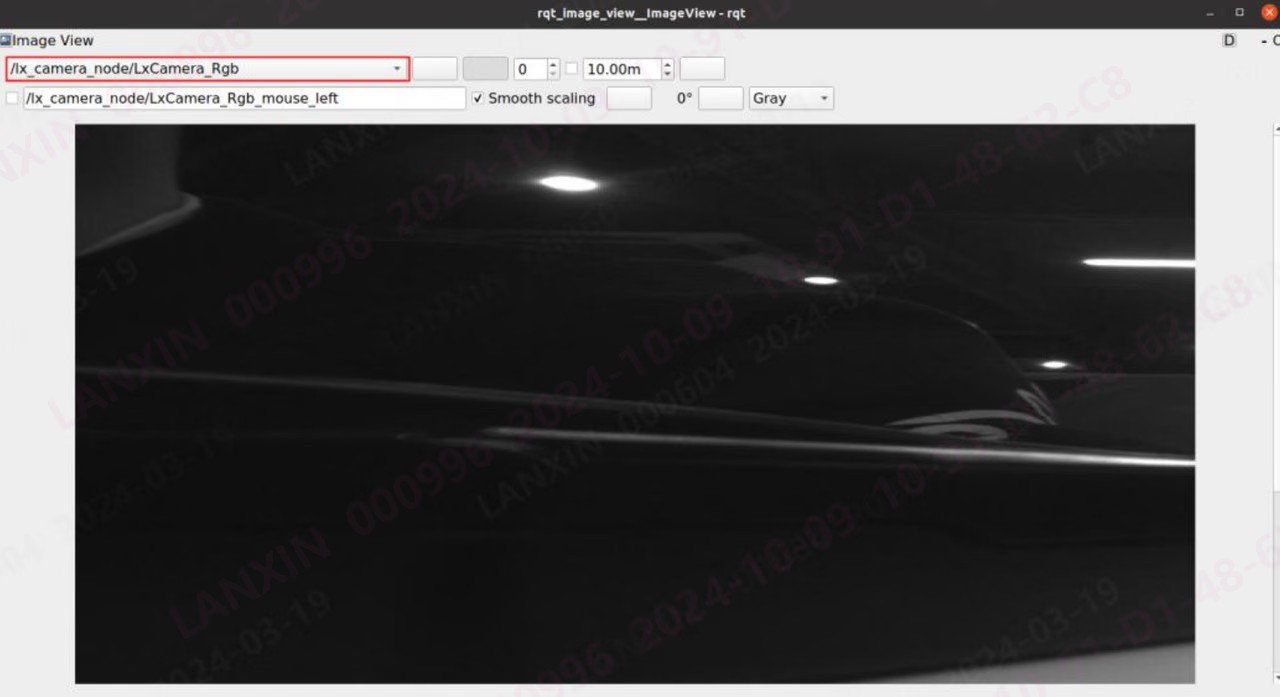
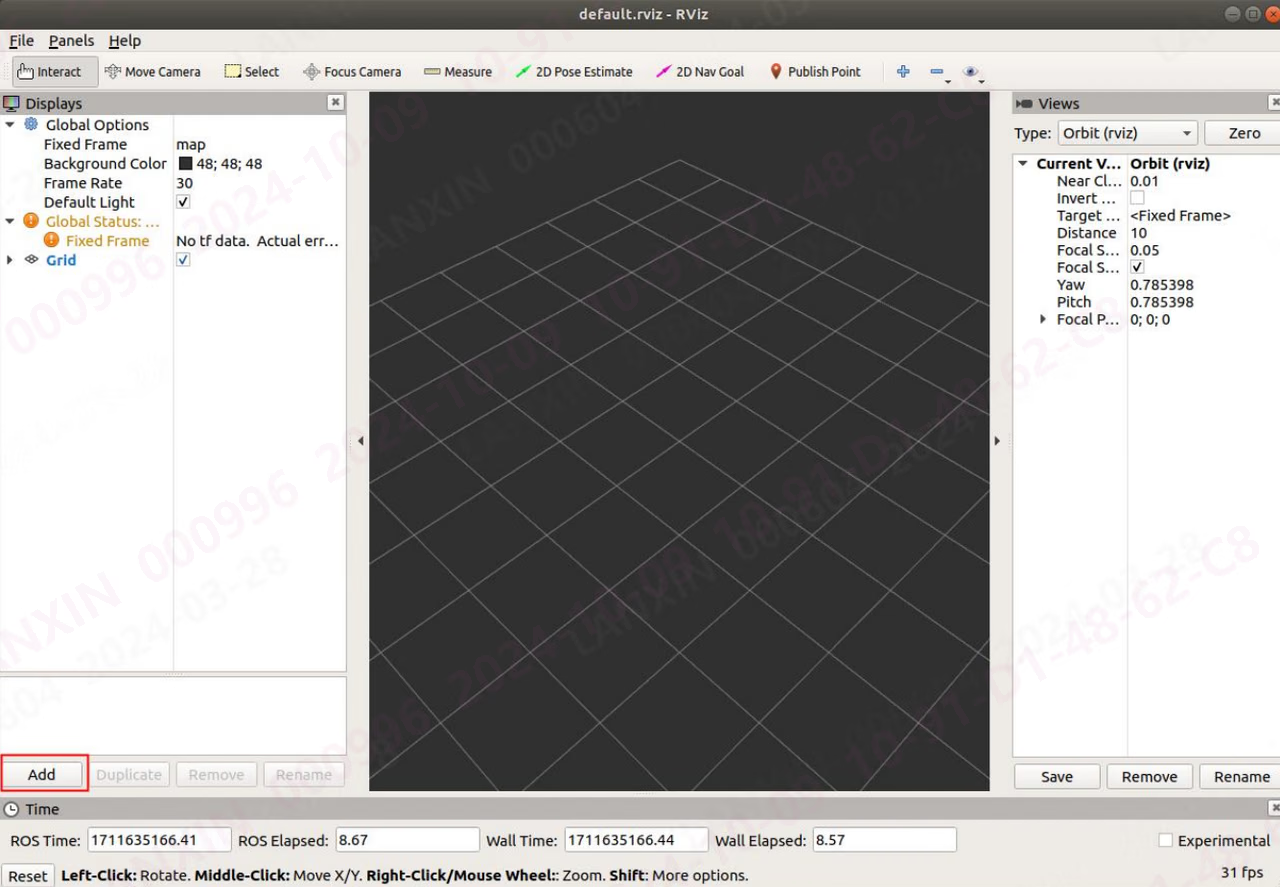
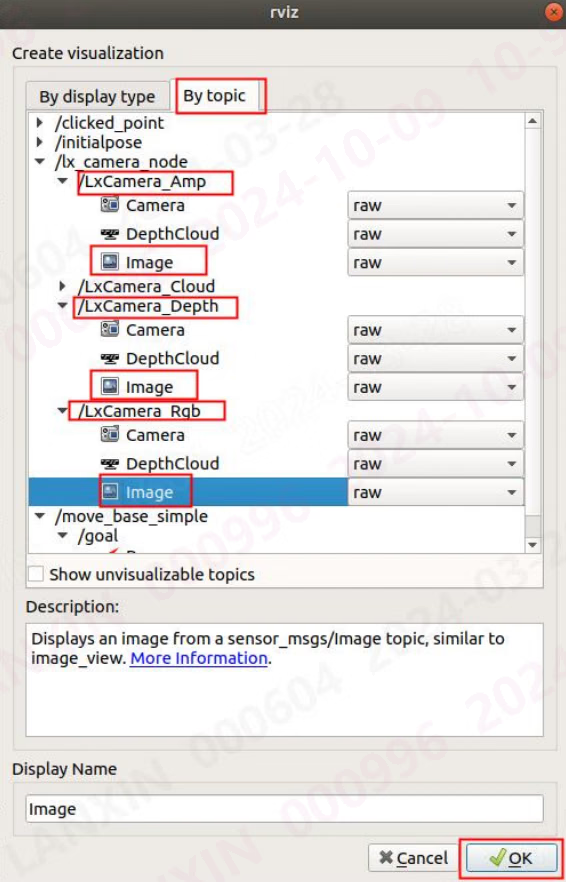
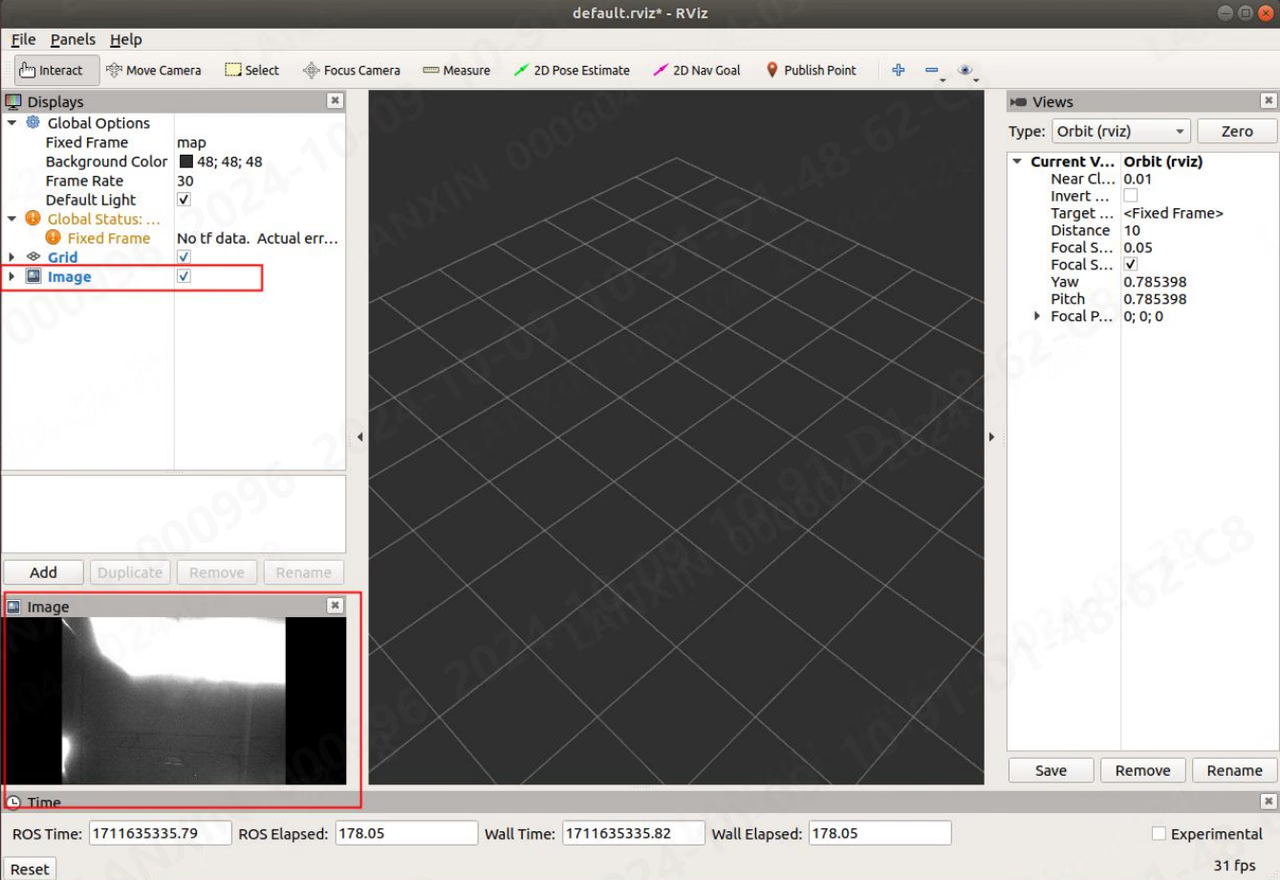
5.3.5.3 Subscribe to image data (ROS2)
You can view the image information output by the node through the image tool that comes with ros2: Enter the command on the console: rqt After entering the command, the following window will pop up: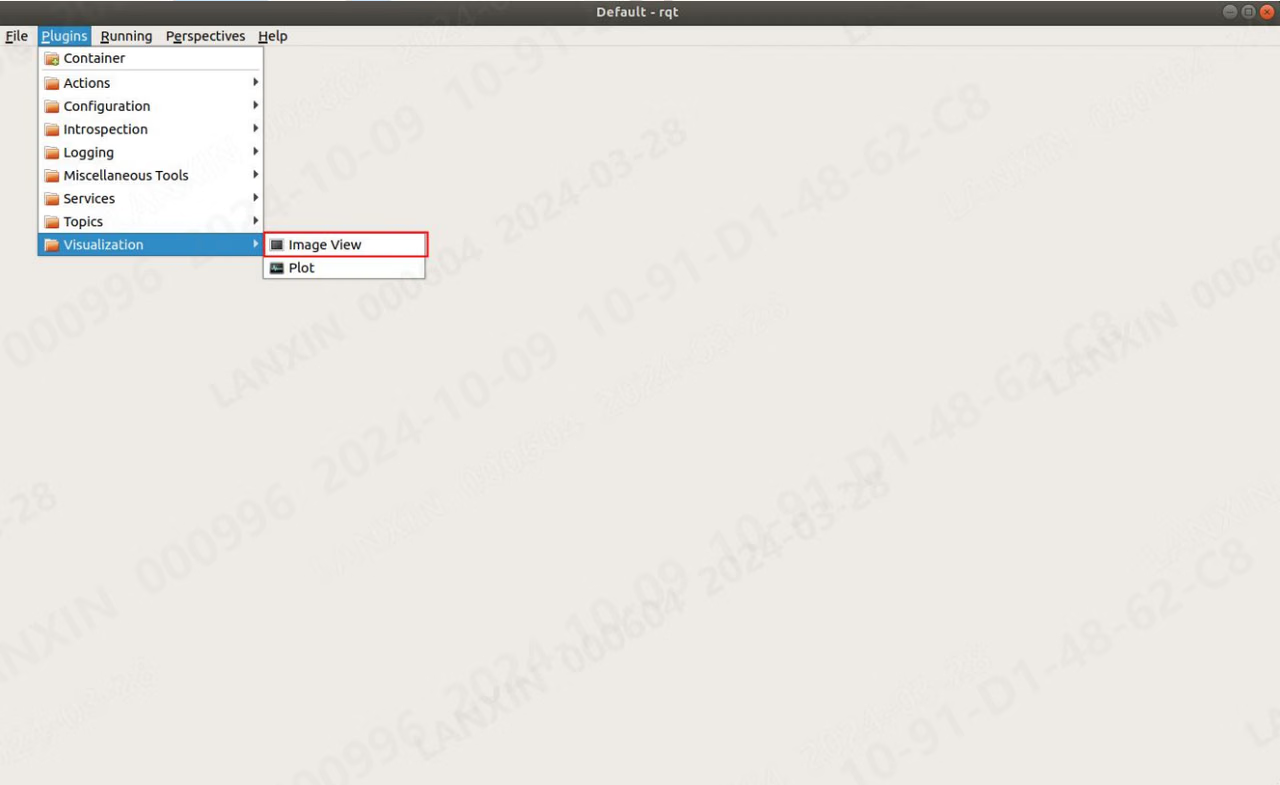
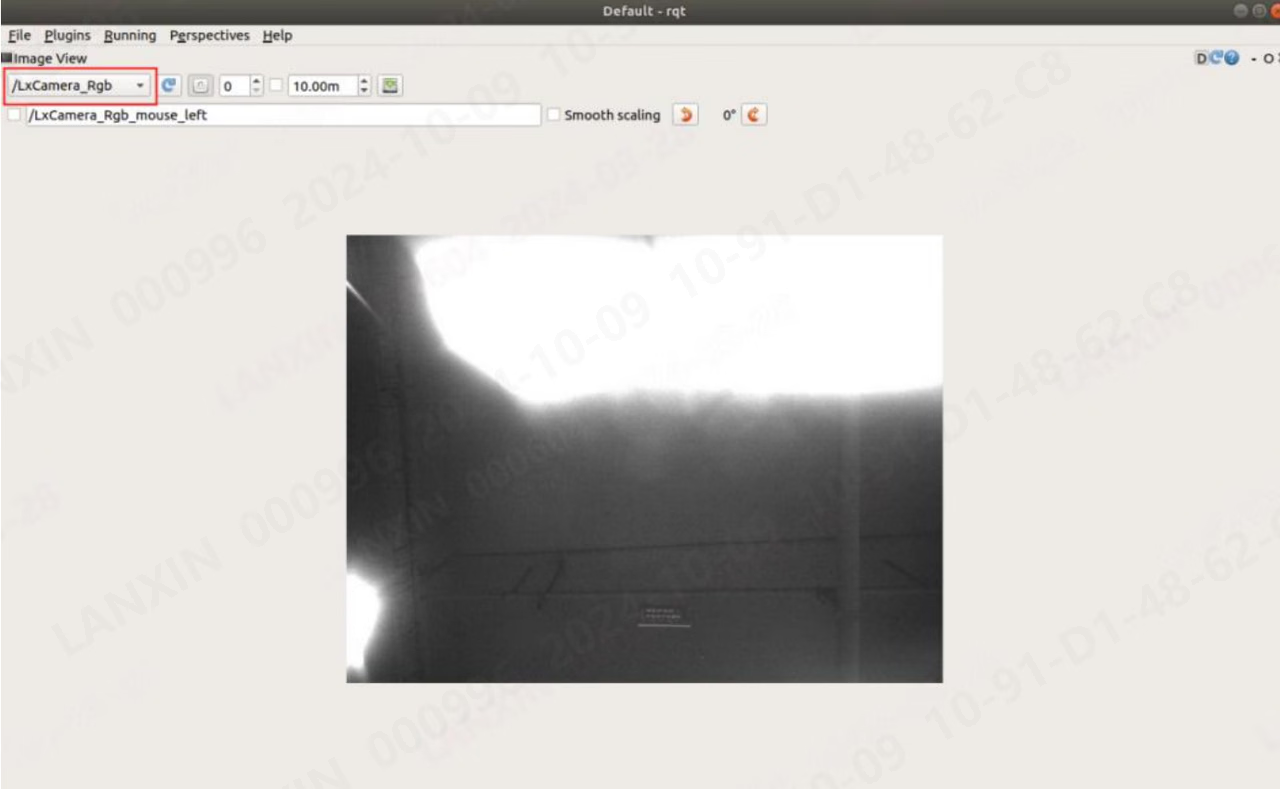
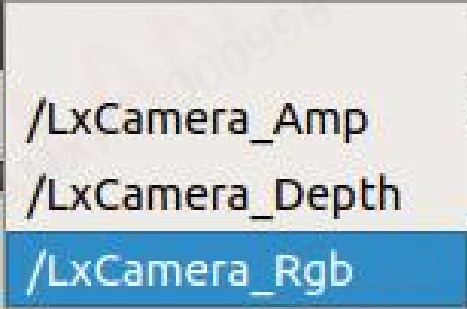
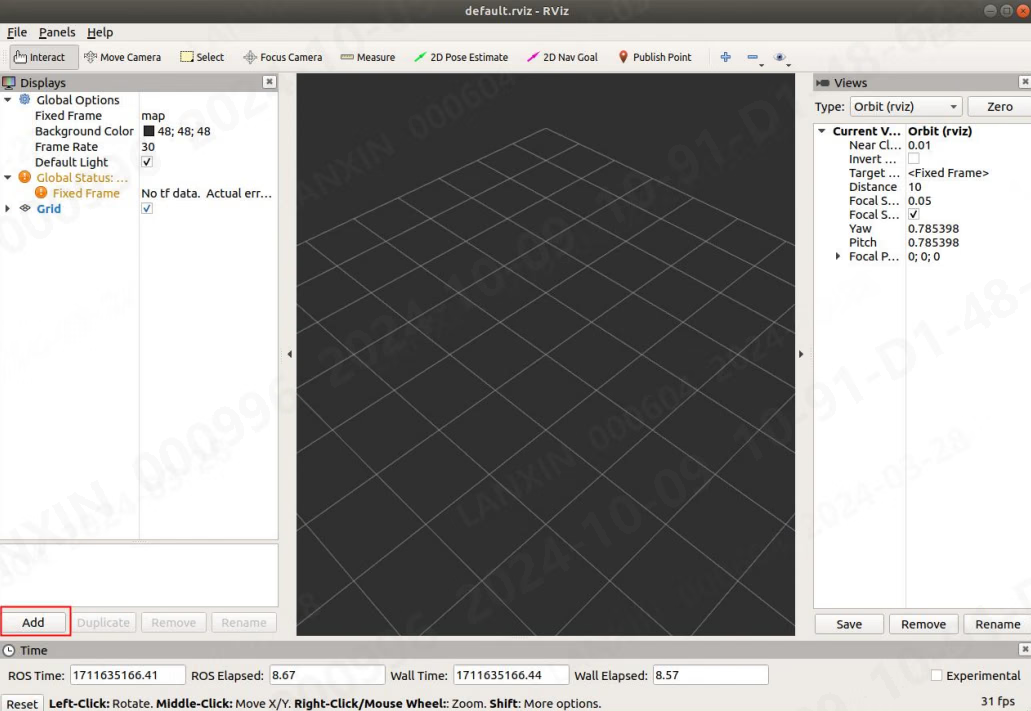
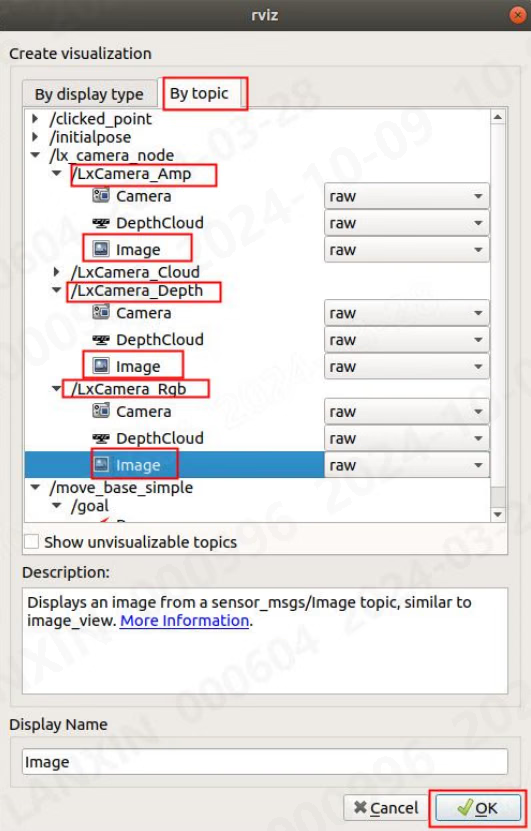
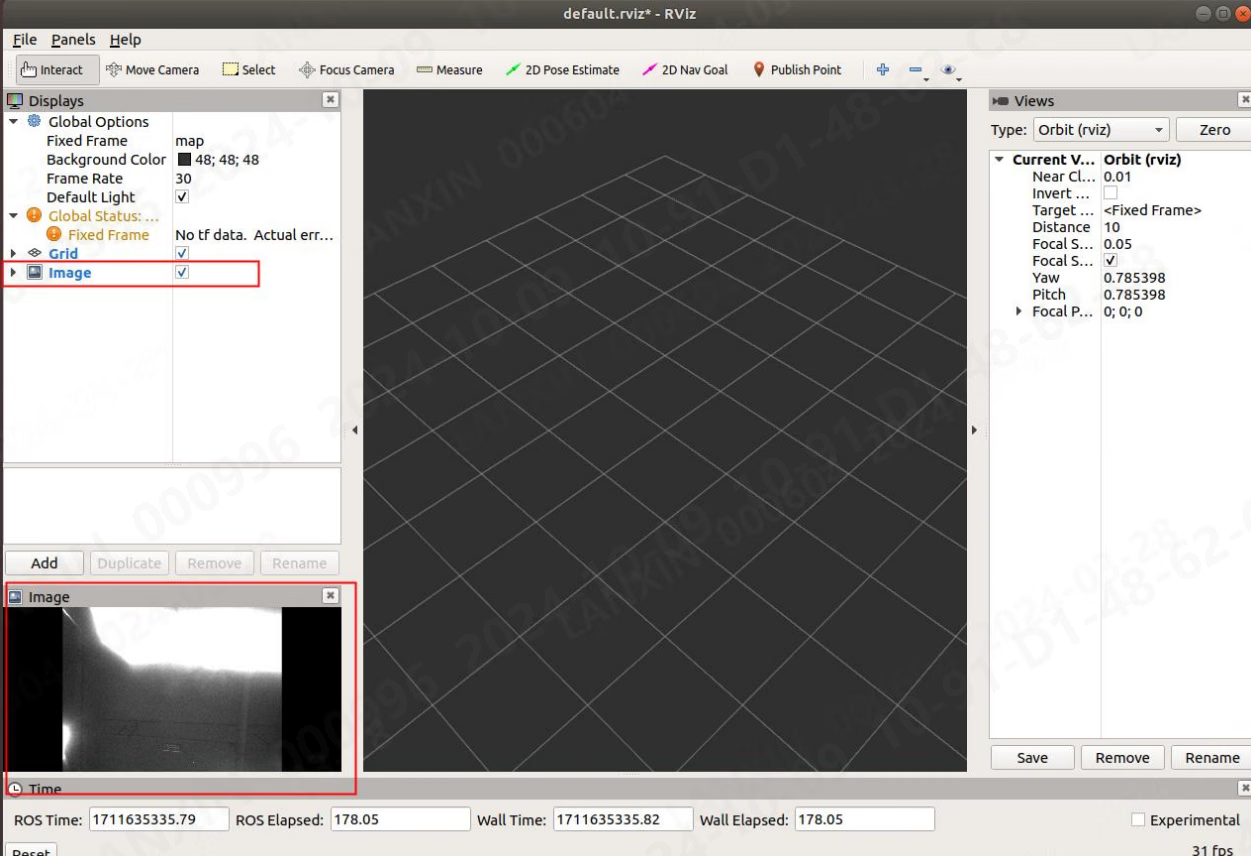
5.3.5.4 Subscribe to point cloud data
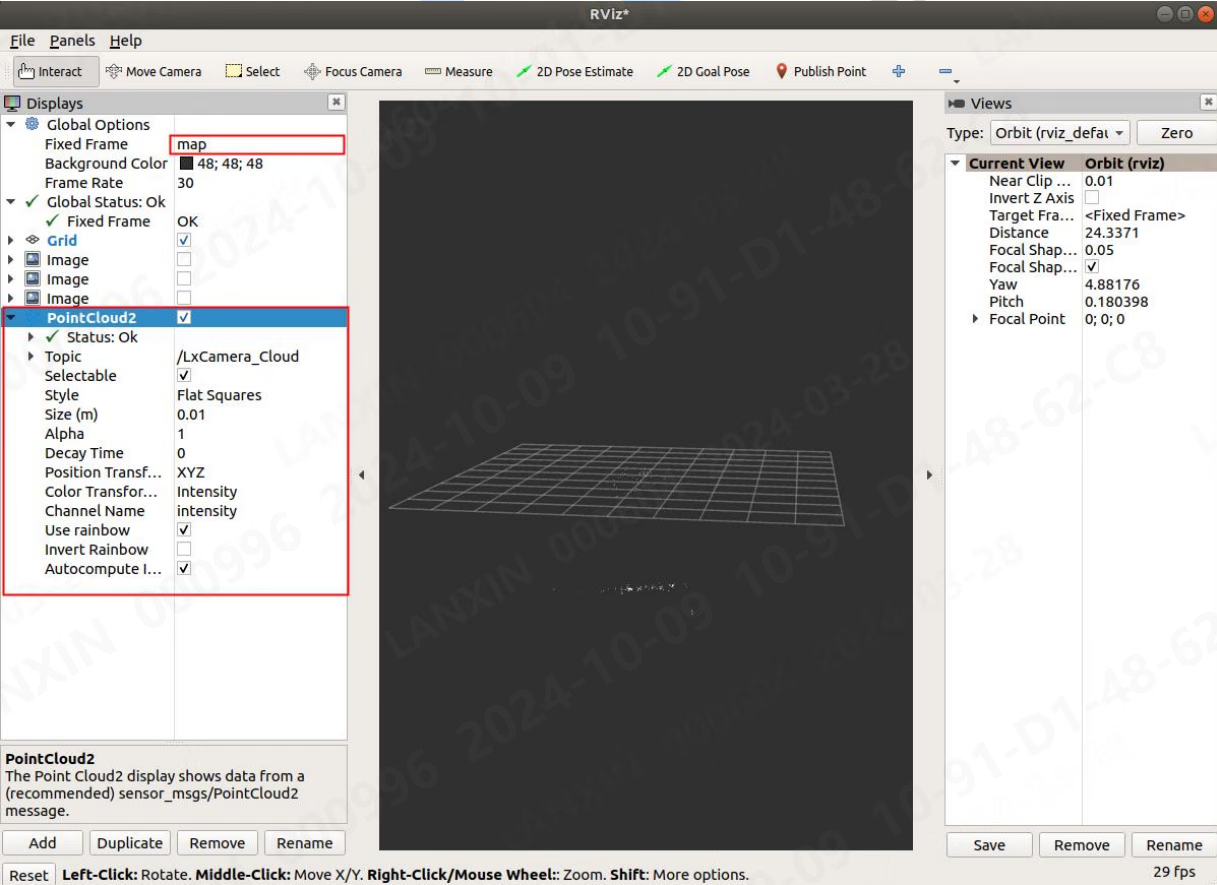
The point cloud information output by the node can be viewed through the point cloud tool provided by ros or ros2: Command: rviz【ROS1】, rviz2【ROS2】 After entering the command, the following window will pop up: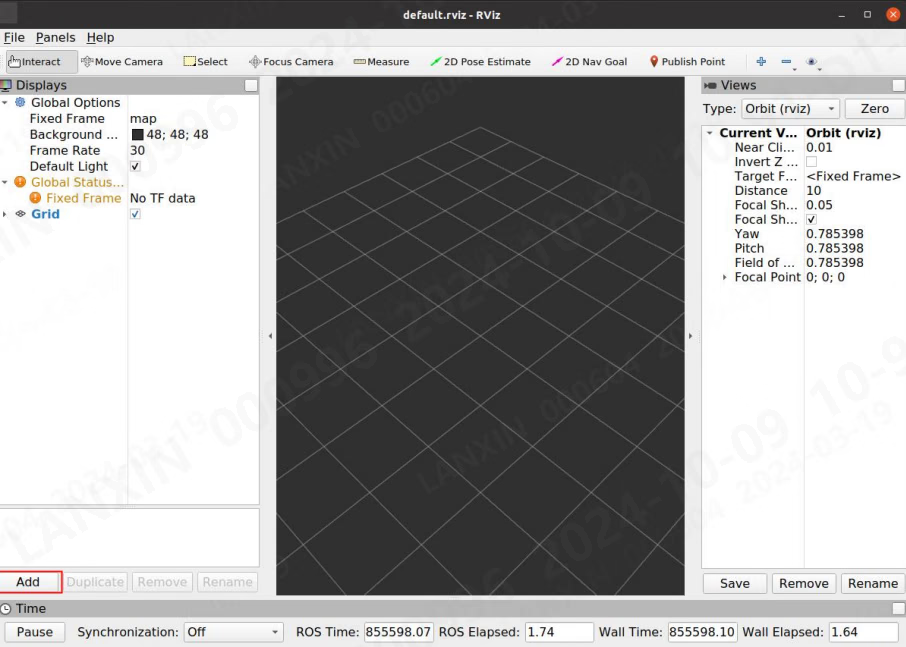
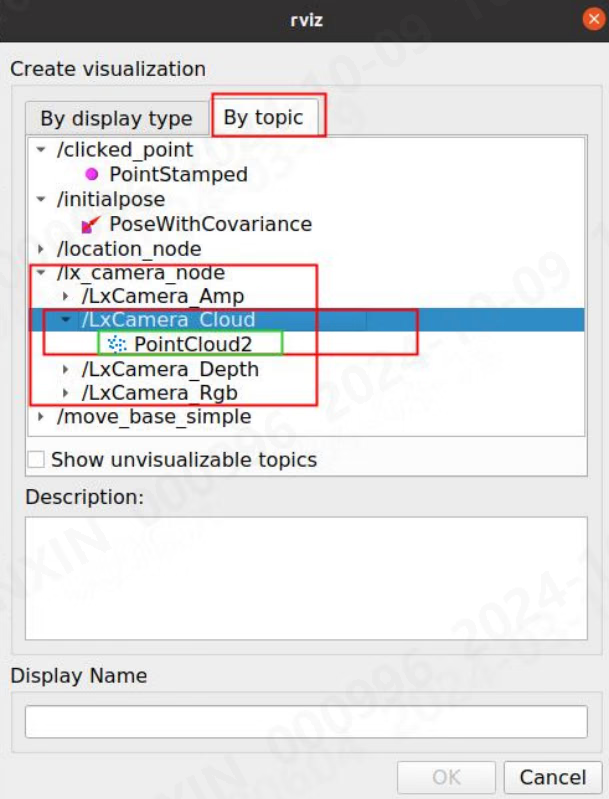
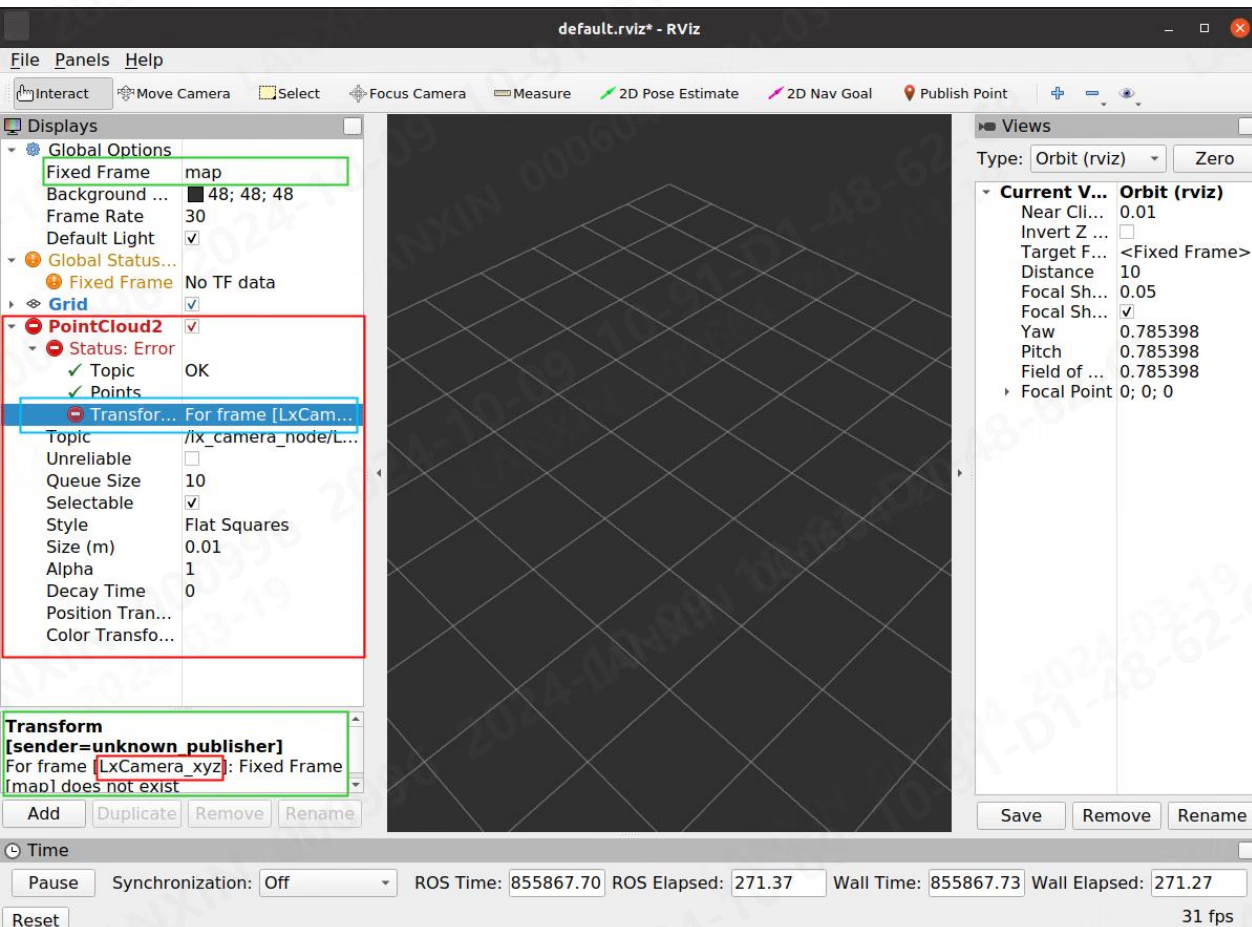
5.3.6 Description of service communication methods
In ROS1, all commands can be completed using the Tab key, but in ROS2, only topics can be completed, and the message part needs to be entered manually. When inputting data in ROS1, you can input it in the completion format. When inputting data in ROS2, you need to input it in the format of the yaml file. After the node is running, open a terminal under the lx_camera_node_ws folder, configure the environment in the terminal, and enter the command: source devel/setup.bash5.3.6.1 Get the list of all parameter numbers (Lx_Cmd)
ros1 Enter in the terminal: rosservice call /lx_camera_node/LxCamera_LxCmd “cmd: 0”
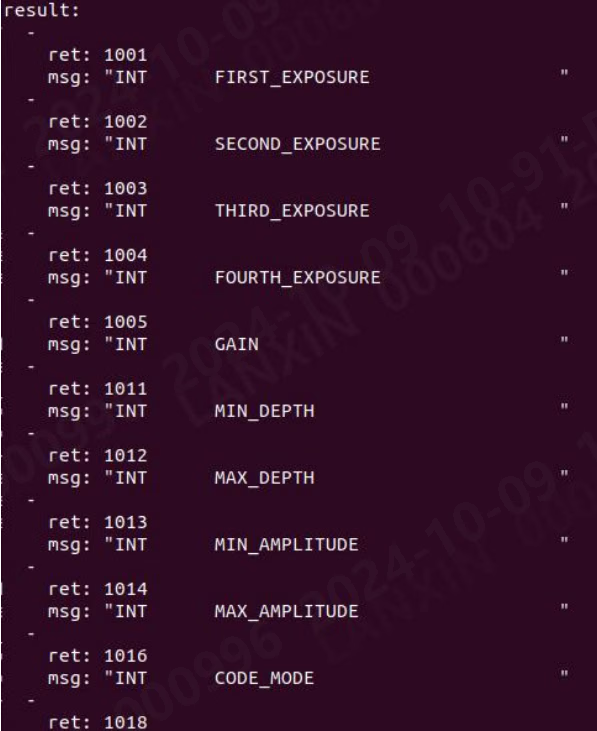

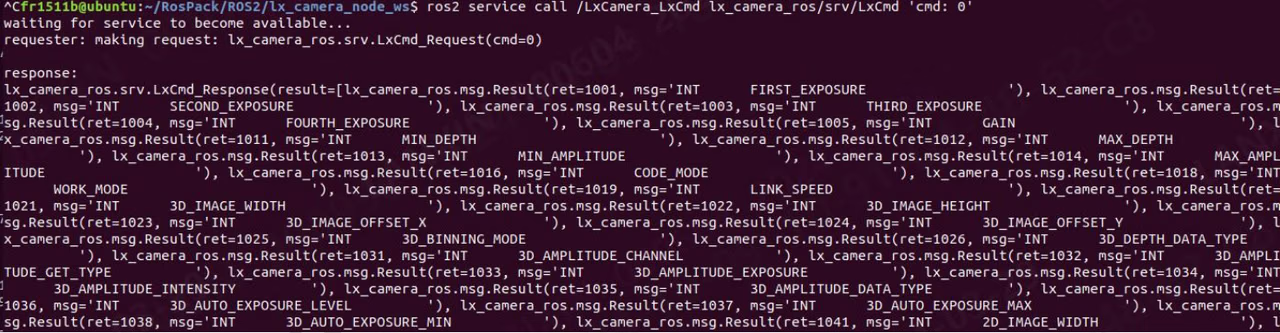
Some parameters need to stop the flow before they can be set, or there is a sequence of settings. Please contact the technical support staff for specific needs.
5.3.6.2 Get Int parameter (Lx_Int)
ROS1 Enter in the terminal: rosservice call /lx_camera_node/LxCamera_LxInt “cmd: 1001 val: 0 is_set: false”

ROS2 Enter in the terminal:
ros2 service call /LxCamera_LxInt lx_camera_ros/srv/LxInt '{cmd: 1001,val: 0,is_set: false}'


5.3.6.3 Set Int parameters (Lx_Int)
ROS1 Enter in the terminal: rosservice call /lx_camera_node/LxCamera_LxInt “cmd: 1001 val: 2000 is_set: true”

ROS2 Enter in the terminal:
ros2 service call /LxCamera_LxInt lx_camera_ros/srv/LxInt '{cmd: 1001,val: 3000,is_set: true}'


5.3.6.4 Get Float parameters (Lx_Float)
ROS1 Enter in the terminal: rosservice call /lx_camera_node/LxCamera_LxFloat “cmd: 2007 val: 0.0 is_set: false”

ROS2 Enter in the terminal:
ros2 service call /LxCamera_LxFloat lx_camera_ros/srv/LxFloat '{cmd: 2007,val: 0,is_set: false}'


5.3.6.5 Set Float parameters (Lx_Float)
ROS1 Enter in the terminal: rosservice call /lx_camera_node/LxCamera_LxFloat “cmd: 2007 val: 5.0 is_set: true”
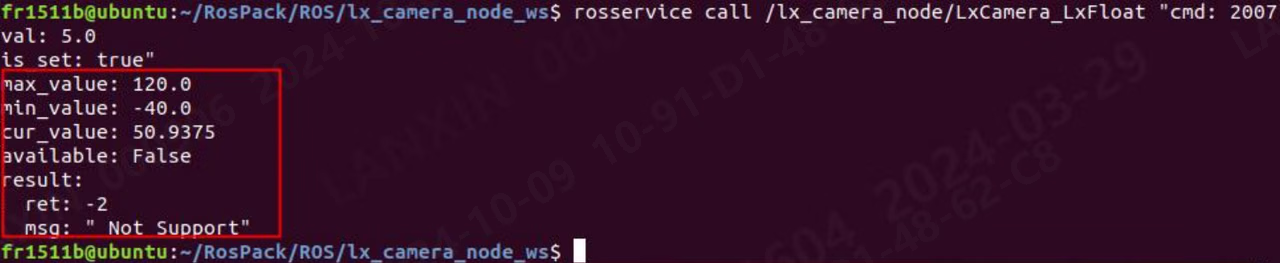
ROS2 Enter in the terminal:
ros2 service call /LxCamera_LxFloat lx_camera_ros/srv/LxFloat '{cmd: 2007,val: 5.0,is_set: true}'


5.3.6.6 Get Bool parameters (Lx_Bool)
ROS1 Enter in the terminal: rosservice call /lx_camera_node/LxCamera_LxBool “cmd: 3012 val: false is_set: false”

ROS2 Enter in the terminal:
ros2 service call /LxCamera_LxBool lx_camera_ros/srv/LxBool '{cmd: 3012,val: false,is_set: false}'


5.3.6.7 Set Bool parameters (Lx_Bool)
ROS1 Enter in the terminal: rosservice call /lx_camera_node/LxCamera_LxBool “cmd: 3012 val: true is_set: true”

ROS2 Enter in the terminal:
ros2 service call /LxCamera_LxBool lx_camera_ros/srv/LxBool '{cmd: 3012,val: true,is_set: true}'


5.3.6.8 Get String parameter (Lx_String)
ROS1 Enter in the terminal: rosservice call /lx_camera_node/LxCamera_LxString “cmd: 4001 val: ” is_set: false”

ROS2 Enter in the terminal:
ros2 service call /LxCamera_LxString lx_camera_ros/srv/LxString '{cmd: 4001,val: '',is_set: false}'


5.3.6.9 Set String parameters (Lx_String)
ROS1 Enter in the terminal: rosservice call /lx_camera_node/LxCamera_LxString “cmd: 4001 val: ‘put:\“123\”’ is_set: true”

ROS2 Enter in the terminal:
ros2 service call /LxCamera_LxString lx_camera_ros/srv/LxString '{cmd: 4001,val: "put:\\"123\\"",is_set: true}'


ROS recommended hardware and resource usage
6.1 Recommended hardware configuration
In the recommended hardware configuration, the analysis is based on CPU core count, CPU usage, and memory size. These are recommended configurations, not minimum requirements. If your hardware is below the recommendation, stable operation may still be possible by reducing stream output, disabling point-cloud computation, or lowering the algorithm load. Running a workload above the available configuration may crash the ROS core or Ubuntu. The second and third sections of this chapter provide detailed usage data. Choose the operating environment and stream configuration that best fits your system. All data here was collected in a VM using an M4 Pro camera. Ubuntu16.04
Ubuntu18.04
Ubuntu20.04
Ubuntu22.04
6.2 CPU details
The CPU details will show the amount of CPU resources occupied by the node under different operating conditions. The test is based on AMD64 [8 cores], 8G memory hardware environment, the test camera is M4 Pro, the test algorithm is tray algorithm, 2D width and height are 1280*960, and 3D width and height are 640*480, 2D anti-distortion is on, 3D anti-distortion is off, and integration 110 - 3000, depth 0 - 8000, ToF frame rate 14, streaming mode, smoothing level 1, noise level 1, time domain level 0, statistics command is TOP. Because the test soft environment is VM virtual machine, it is normal for the data displayed by the physical machine to fluctuate compared with that in the document. For some cameras, such as S2, some algorithms are calculated on the host computer, which results in a large amount of resource usage, which is normal.1. Some nouns are explained as follows: -Single stream: refers to turning on any stream of RGB, depth, and intensity
- Dual stream: refers to turning on any two streams of RGB, depth and intensity
- Four streams: means RGB, depth, intensity, and point cloud are all turned on
- To enable the pallet algorithm, the depth must be enabled
- To turn on the obstacle avoidance algorithm, you must turn on depth
- To turn on the positioning algorithm, you must turn on RGB
The light blue background in the table is the running configuration with point cloud enabled, and the colorless background is the running configuration without point cloud enabled. All the test data below have the algorithm shifted down by default, so for S2 series cameras, all test values may be too small [some algorithms of S2 series cameras are forced to move up]. Ubuntu16.04
Ubuntu18.04
Ubuntu20.04
Ubuntu22.04
6.3 Memory details
The memory details will show the amount of memory resources occupied by the node under different operating conditions. The test is based on AMD64 [8 cores], 8G memory hardware environment, the test camera is M4 Pro, the test algorithm is tray algorithm, 2D width and height are 1280*960, and 3D width and height are 640*480, 2D anti-distortion is on, 3D anti-distortion is off, points 110 - 3000, depth 0 - 8000, ToF frame rate 14, streaming mode, smoothing level 1, noise level 1, time domain level 0, statistics command is TOP. Because the test soft environment is VM virtual machine, it is normal for the data displayed by the physical machine to fluctuate compared with that in the document. For some cameras, such as S2, some algorithms are calculated on the host computer, which results in a large amount of resource usage, which is normal.1. Some nouns are explained as follows: -Single stream: refers to turning on any stream of RGB, depth, and intensity
- Dual stream: refers to turning on any two streams of RGB, depth and intensity
- Four streams: means RGB, depth, intensity, and point cloud are all turned on
- To enable the pallet algorithm, the depth must be enabled
- To turn on the obstacle avoidance algorithm, you must turn on depth
- To turn on the positioning algorithm, you must turn on RGB
- The light blue background in the table is the running configuration with point cloud enabled, and the colorless background is the running configuration without point cloud enabled. All the test data below have the algorithm shifted down by default, so for S2 series cameras, all test values may be too small [some algorithms of S2 series cameras are forced to move up].
Ubuntu18.04
Ubuntu20.04
Ubuntu22.04
Appendix
This appendix provides installation methods for some tools. When using these methods, you need to have at least some basic knowledge of Linux. There is no guarantee that every computer can be successfully installed through the methods shown in the appendix of this document. The environment of each computer is different, and the problems encountered may not be consistent. If you encounter problems not shown in this appendix, please search for solutions yourself.1. Cmake specified version installation method
Go to https://cmake.org/download/ and download the required CMake version. Extract the downloaded package withtar -zxvf cmake-XXX.tar.gz. Enter the extracted directory, then compile and configure it:
./bootstrap
make
sudo make install
Check the Cmake version to see if the installation is successful:
cmake —version
2. Opencv specified version installation method
- Download the required version of opencv: Releases-OpenCV
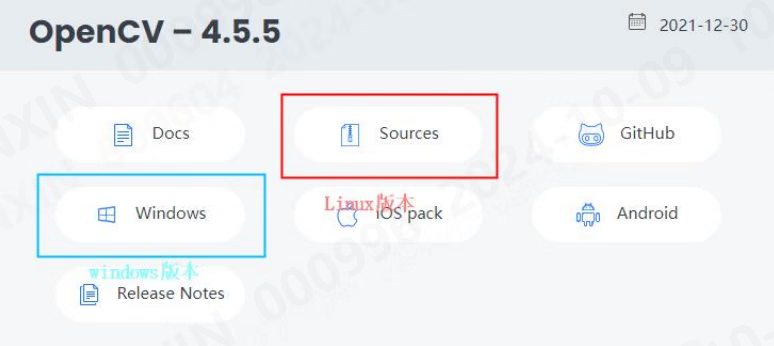
- Environment configuration, execute the following commands in sequence:
- Create a new opencv folder and extract the downloaded source code into the opencv folder.
- Execute the following commands in sequence:
- cd opencv
- mkdir build && cd build
- sudocmake-DCMAKE_BUILD_TYPE=Release-D
- CMAKE_INSTALL_PREFIX=/usr/local ..
- sudo make -j4
- sudo make install and wait for the installation to complete
3. Pcl specified version installation method
- Check the supported pcl version:
- Install the specified pcl version (where 1.10.0 needs to be replaced with the required version number):
4. Install ROS
Ubuntu16.04- Add the software source and set the secret key:
- Add secret key:
- Update source:
- Install complete ros:
- Configure environment variables:
- Complete ROS-related tools:
- Now that the installation of ROS1 is complete, run the example that comes with ROS to check whether the installation is correct:
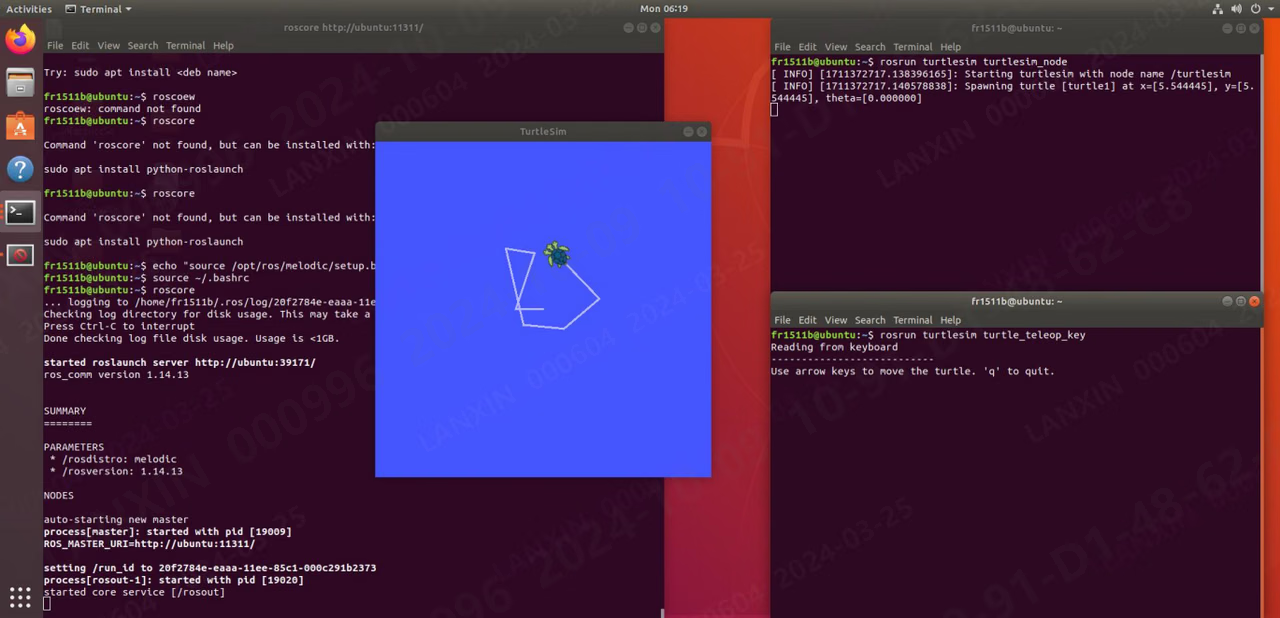
Ubuntu18.04
- Set up the software source:
- Update software list:
- Install Ubuntu18.04 version of ROS1:
- Set environment variables:
- Complete ROS-related tools:
- Now that the installation of ROS1 is complete, run the example that comes with ROS to check whether the installation is correct:
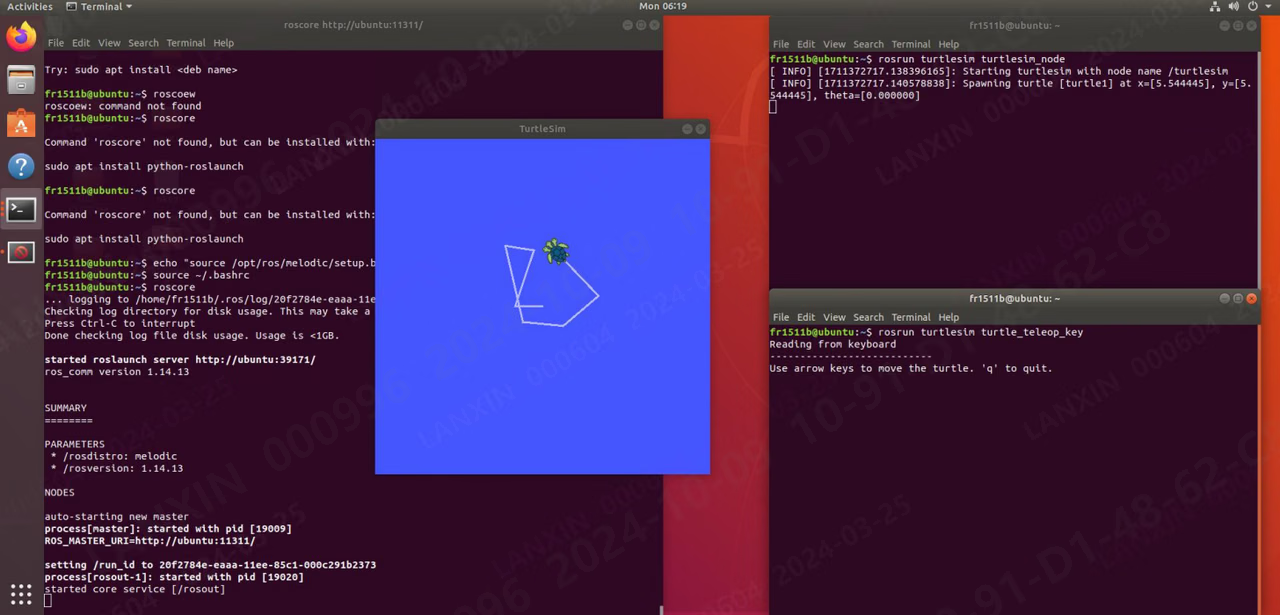
- Configure the public key:
- If it shows that it cannot connect to the server or times out, please update the software source list first:
- After configuring the public key, update the software list again:
- Set environment variables:
- Install ROS tools:
- Now that the installation of ROS1 is complete, run the example that comes with ROS to check whether the installation is correct:
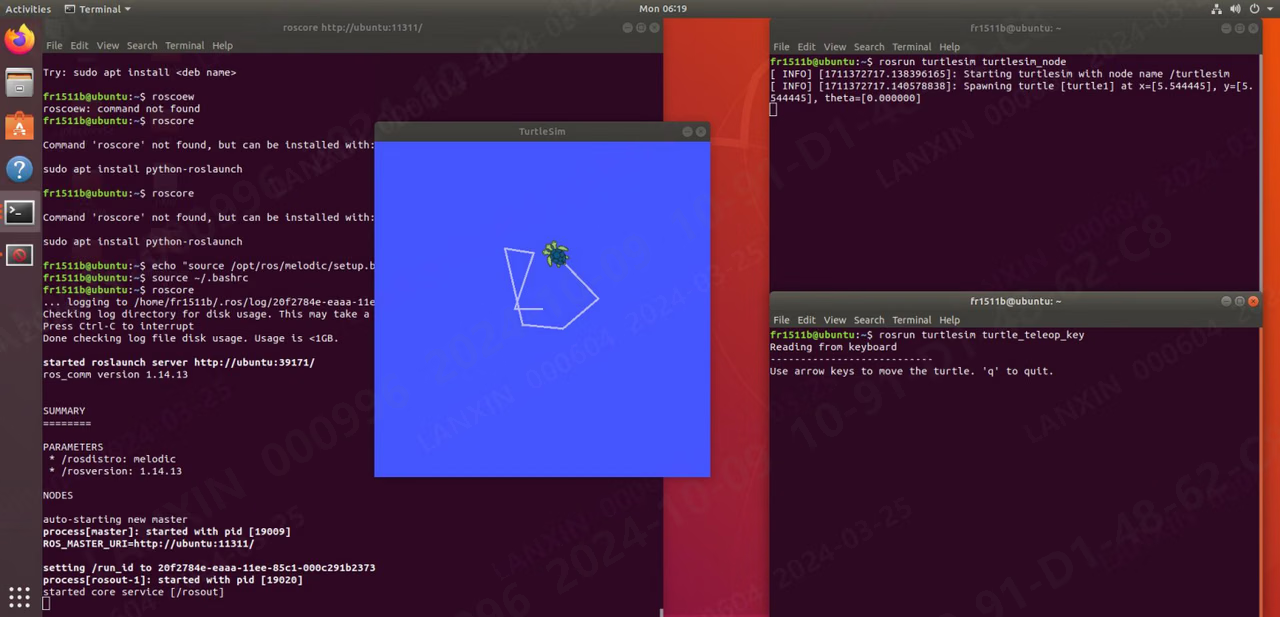
5. How to create a new test package in Ros
- Create a new folder ws, create a new src folder in the ws folder, enter the src folder and execute:
- This creates a new package named example, which depends on std_msgs rospy roscpp
- Then compile this new package: catkin_make This is an empty package, there will not be any executable program, it is just a package
- Next, we will demonstrate how to create a package that can output ‘Hellow world’
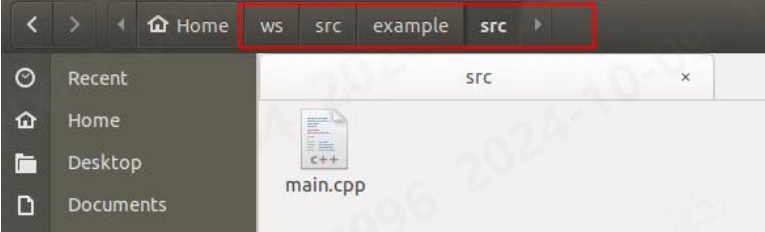
- Based on the package just now, we enter the src folder (src in the package) and create a new main.cpp, as shown below (pay attention to the path):
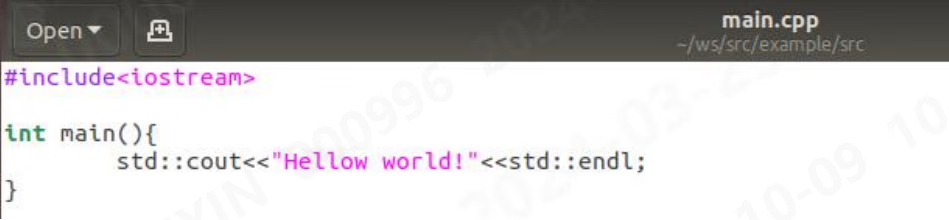
- In main.cpp, we enter some codes:
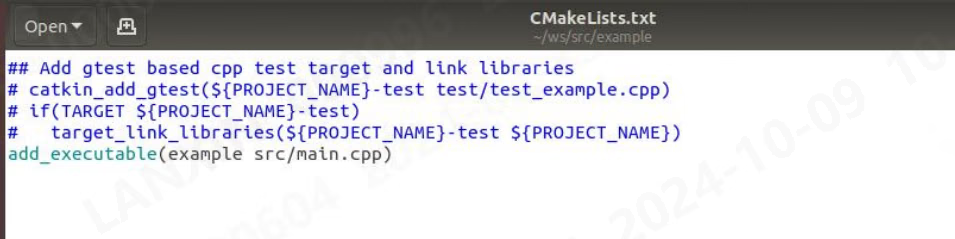
- Then we change the outside CMakeLists.txt and add a line at the bottom: add_executable(example src/main.cpp)
- Then return to the ws directory to compile and execute the command: catkin_make

- Seeing these means the compilation is successful.
- Next we configure the environment:

- Then execute the program and you can see the output:

6. Install ROS2
Ubuntu16.04- Add secret key:
- Add permissions:
- If an error is reported in this step, use VPN to bypass the wall and then open the browser, enter the URL, and copy the content, then create a new ros.asc and copy the content to the file. After the copy is completed, the following is as follows:
- Then re-execute step 3: sudo apt-key add ros.asc
- Continue execution:
- Install ROS2:
- Configure environment variables:
- Install the function package:
- Try running the example program, open a terminal and run:
- Open another interrupt to run:
- The following terminal output proves that the installation is successful:
- Add software source
- If this step reports an error as follows:
- Use VPN to bypass the wall, then open the browser, enter the URL, and copy the content, then create a new ros.asc and copy the content to the file. After the copy is completed, it is as follows:
- Then re-execute step 3: sudo apt-key add ros.asc
- Continue execution:
- After completion, start downloading ros2, in which the red fonts need to be replaced with different versions (see the table above):
- Wait for the installation to complete and continue to install the python library. Execute: sudo apt install -y libpython3-dev python3-pip pip3 install -U argcomplete
- Try running the sample program, open a terminal and run:
- Open another interrupt to run:
- The following terminal output proves that the installation is successful:
- Add software source
- If you encounter the error “ailed to connect to raw.githubusercontent.com port 443 after 13 ms: connection refused”

- Add the following analysis
- The added files are as follows:
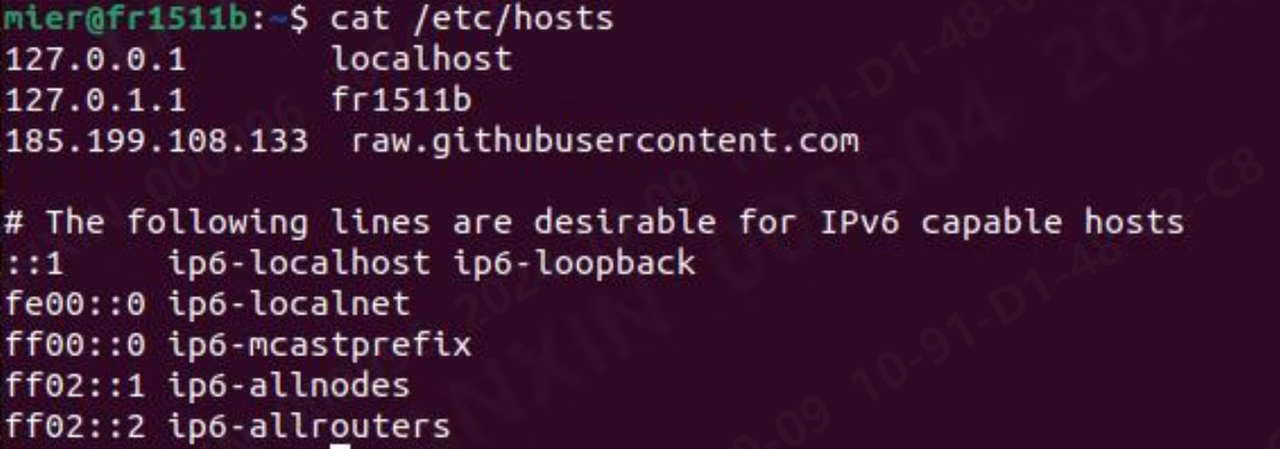
- Continue execution:
- After completion, start downloading ros2:
- Wait for the installation to complete and continue to install the python library. Execute: sudo apt install -y libpython3-dev python3-pip pip3 install -U argcomplete
- Then configure the environment variables:
- Try running the sample program, open a terminal and run:
- Open another interrupt to run:
- The following terminal output proves that the installation is successful:
- Add software source
- If you encounter the error “ailed to connect to raw.githubusercontent.com port 443 after 13 ms: connection refused”

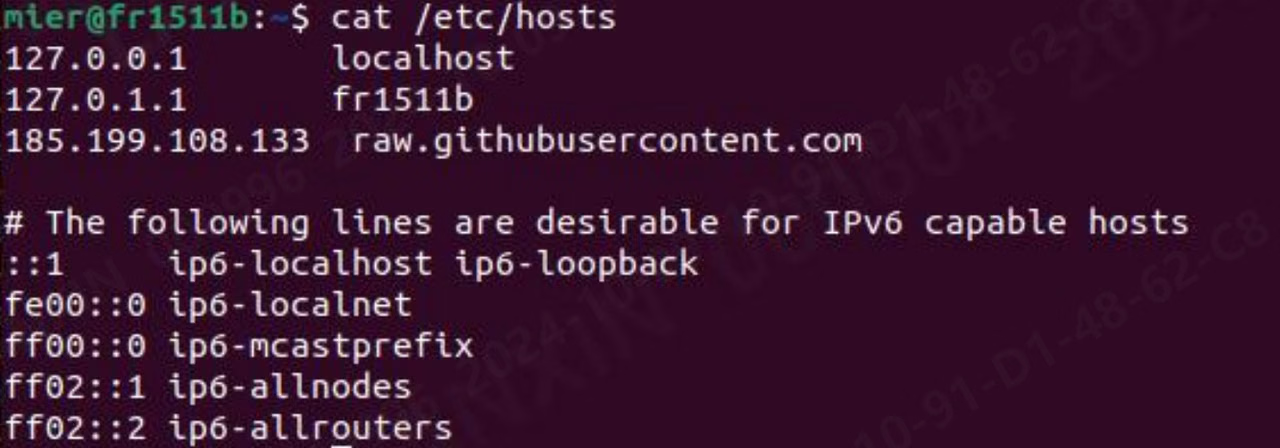
- After completion, start downloading ros2: sudo apt update
- Wait for the installation to complete and continue to install the python library. Execute: sudo apt install -y libpython3-dev python3-pip pip3 install -U argcomplete
- Then configure the environment variables:
- Try running the sample program, open a terminal and run:
- Open another interrupt to run:
- The following terminal output proves that the installation is successful:
7. How to create a new test package in Ros2
- Execute the command:
- You can create a new package named example_p and a node named example_n. After running, it will output: hello world example_p package