
Interface overview
Build a map
Create a map
1
Start mapping
Click Start Mapping in the web interface.
2
Enter a map name
A map name may contain only letters, numbers, and underscores, and must start with a letter.
3
Capture the area and stop mapping
Drive the AGV through the target area. When capture is complete, click Stop Mapping and wait for processing to finish. Processing time depends on the size of the captured area.
4
Confirm the map
After mapping succeeds, open Map Management and confirm that the new map is listed.
Incremental mapping
Use incremental mapping to add an area to an existing map. Before starting, complete relocalization and switch to the map that you want to extend.Incremental mapping is started and stopped with a manual HTTP request at http://192.168.100.201:9998/tool/rob/sendCMD.
- Start incremental mapping
- Stop incremental mapping
Map management
Use Map Management to view, apply, or delete maps. When operating in multiple areas, use this page to switch the active map.Relocalization
Manual relocalization
Click Relocalization, then drag in the map view to provide an approximate vehicle pose so that the LiDAR point cloud matches the contour map. The Localization timeout fault disappears after relocalization succeeds.AprilTag relocalization
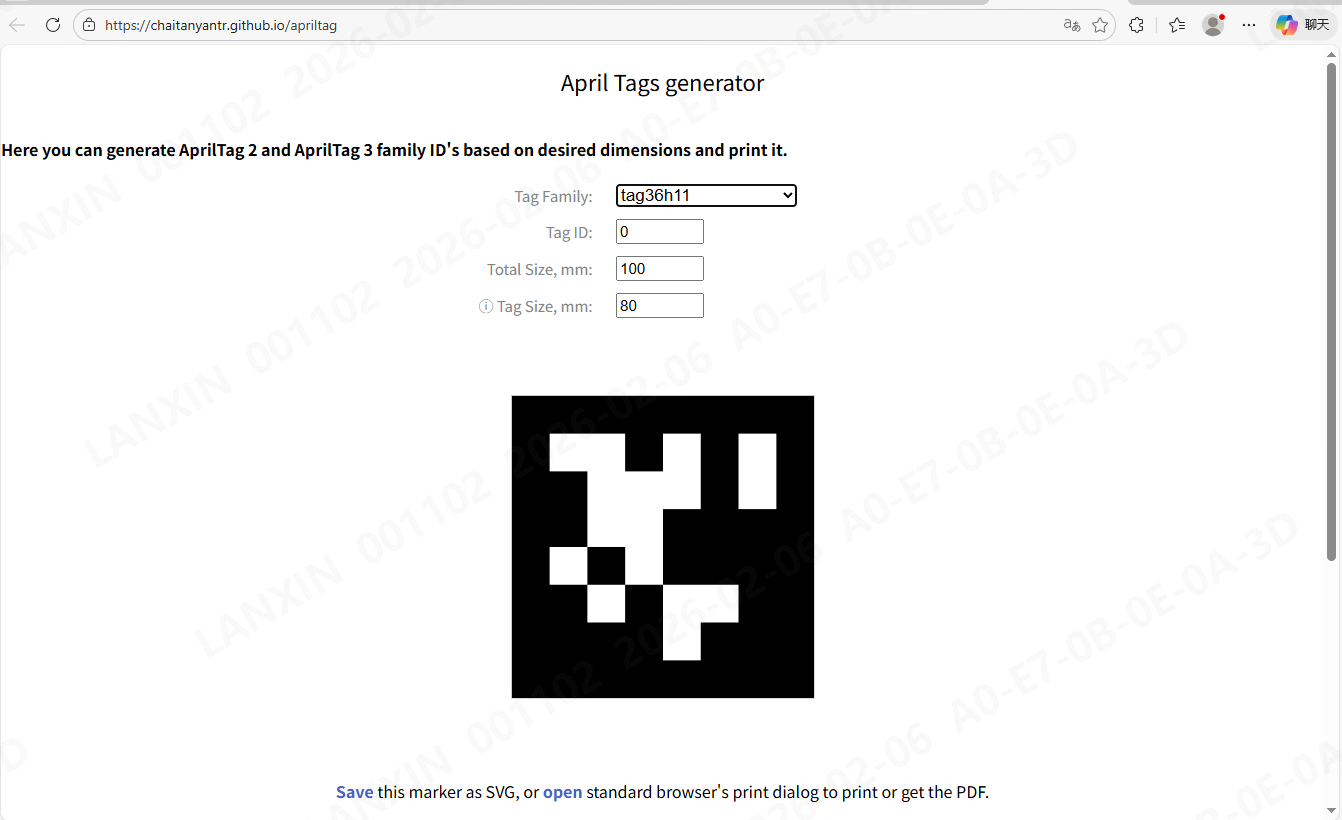
You can place AprilTags at selected locations while building a map. When a complete tag enters the device field of view, the system identifies its map and pose, switches maps if necessary, and relocalizes automatically.- Generate tags with the AprilTag generator.
- Tag IDs must be unique within the visible area of a device.
- Use the fixed tag family shown in the interface example.
Parameters and logs
Configure localization parameters
Use the parameter page to view or configure chassis localization parameters and the LiDAR and camera extrinsic parameters in the sensor calibration values.Export logs
Filter logs by time range and module type. Select the results that you need and export them.Maintenance
Update firmware
Import a local firmware package on the update page to update the chassis, actuator, or camera firmware. A restore package records the version before the previous update and can be used to roll back.