
Overview
The V2 localization module communicates with the host computer’s ROS SDK over UDP. Its built-in web interface supports mapping, localization, and parameter configuration. The ROS SDK exposes the same capabilities, including mapping, relocalization, and map downloads.The default web interface is available at
192.168.100.201:9998. Configure the target IP address and port on both the camera and the ROS SDK, and make sure the values match.Prerequisites
Install the Qt5 Core and Network components and thelibzip dependency. The following example uses Ubuntu:
libzip by following the libzip installation instructions. Then compile the ROS package from /V2-ROS-SDK-service, which is at the same level as src:
Configure and start the node
1
Check the ROS SDK configuration
Open
/V2-ROS-SDK-service/src/lx_camera_ros/launch/mapping.launch. The default camera IP address is 192.168.100.201; if you change the camera IP, update it in this file as well. Set the port to 8001.2
Check the network and module parameters
Connect the camera and host computer to the same switch and network segment. In the web interface, open Parameter Configuration, set
portCode to 8987, and set portName to the IP address of the host computer network adapter running the ROS SDK.3
Start the ROS node
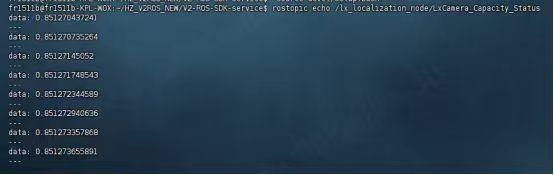
Verify communication
Open a new terminal, enter/V2-ROS-SDK-service, and load the environment:

Build a map and localize
Power on the camera and wait about 30 seconds for the built-in program to start before starting the data-forwarding node.1
Start mapping
true, move the platform through the area to capture the map.
2
Stop mapping
true to confirm that mapping is complete.
3
Switch to the new map
4
Send a relocalization pose
orientation.x, orientation.y, orientation.z, and orientation.w are the orientation quaternion. Populate them according to the ROS message format.5
Subscribe to live localization results
Troubleshooting
The ROS program cannot compile
The ROS program cannot compile
Verify that Qt5 and
libzip are fully installed, then run catkin_make again.The ROS SDK does not respond after sending a message
The ROS SDK does not respond after sending a message
Confirm that the camera and host computer are on the same network segment and that the camera can be opened from the camera host software. Then verify the camera-side and ROS SDK configuration.
A ROS debug message cannot be sent
A ROS debug message cannot be sent
ROS message formats are strict. Keep the field structure from the example and change only the values required for the test.