
Download complete product materials from the Download center.
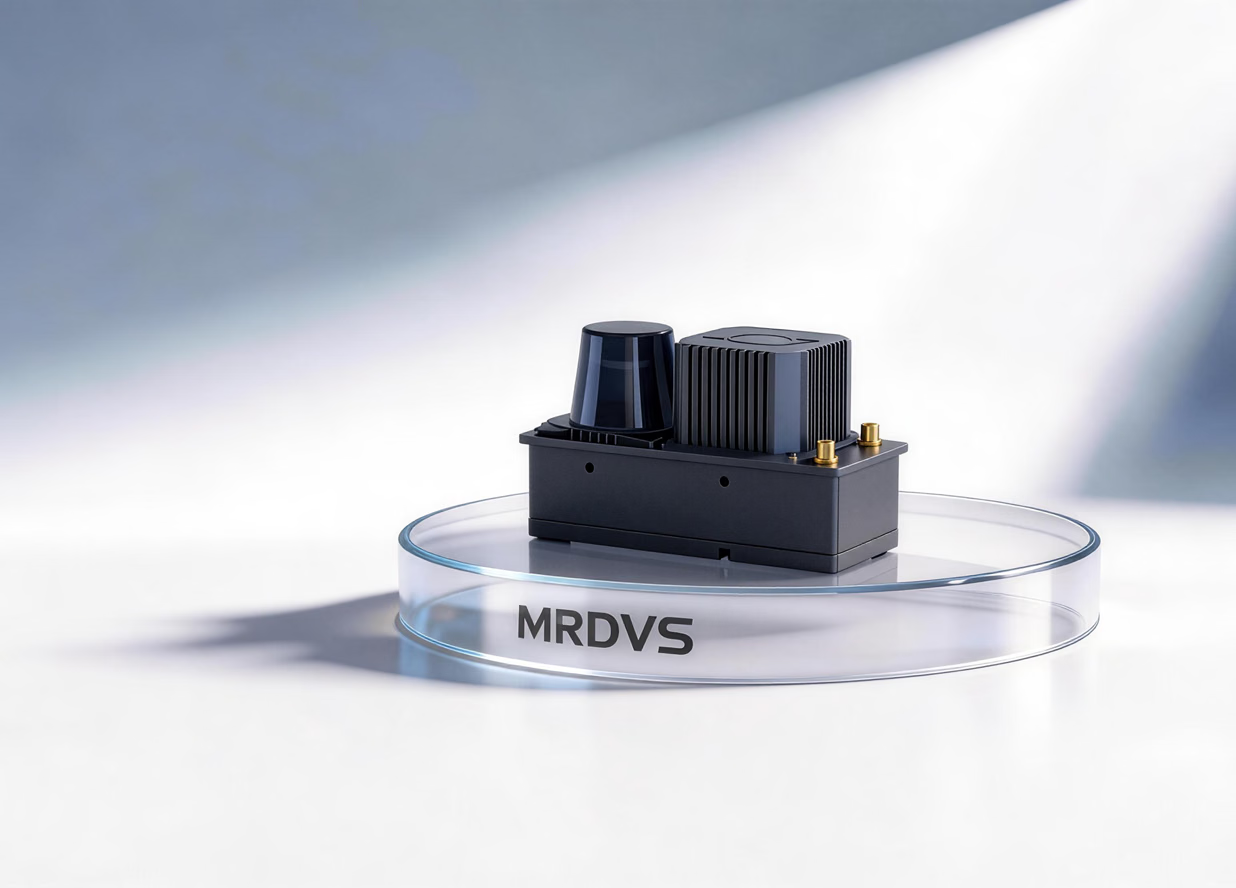
V2 Pro navigation controller
Product overview
How it works
The controller has an integrated compute platform and does not require an external industrial computer. As the robot moves through the target area, the upward-facing camera captures environmental features, the 2D LiDAR provides planar contours, and the IMU provides motion data. The controller fuses these sources to build a map and output localization results.Key features
- Fuses a
108° × 57°upward-facing camera, a270°2D LiDAR scan, and an IMU. - Provides
6 TOPSNPU performance and a visual interface for mapping and map management. - Integrates Wi-Fi 6 and audio output for manual-forklift positioning data, voice prompts, and alerts.
- Supports indoor positioning and navigation integration for mobile robots, AGVs, and manually operated forklifts.
Typical applications
- Factory logistics: Positioning and navigation for robots in warehouses, loading docks, and workshops.
- Manual-forklift upgrades: Add positioning capability to existing forklifts and expose the position data to an upper-layer system.
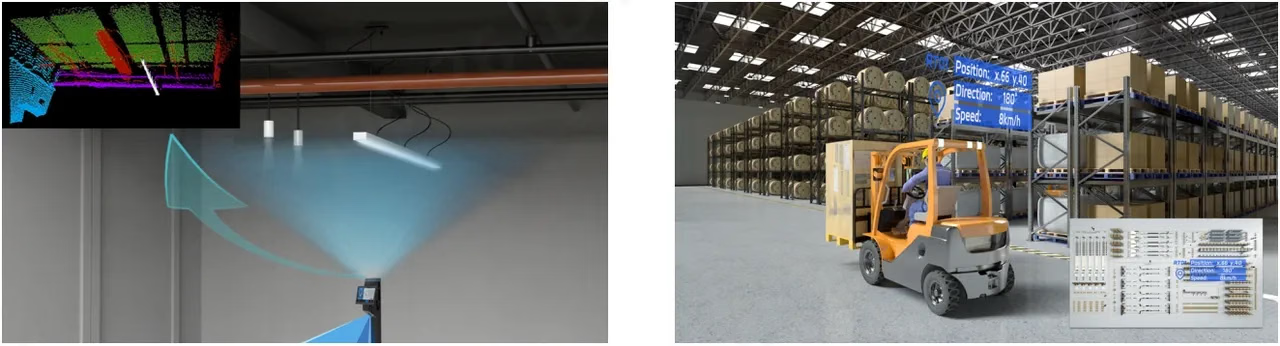
V2 Pro application scenarios
Specifications
Basic specifications
Interface definitions
The controller provides power, Ethernet, CAN, I/O, and audio-output interfaces.CN8 I/O pinout
- Inputs: active high at 5–24 V.
- Outputs: push-pull output supporting 24 V / 100 mA drive.
Product structure
Appearance and dimensions
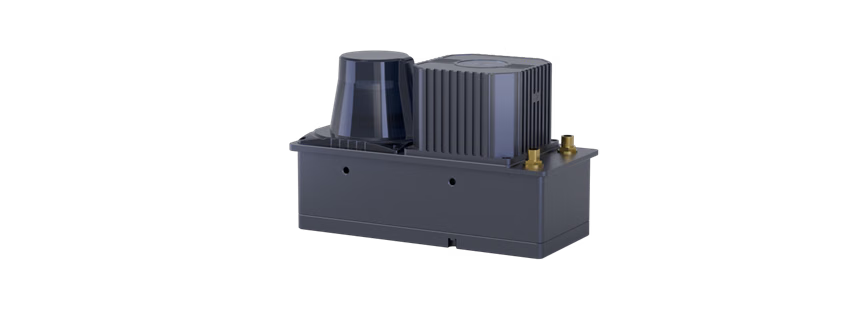
V2 Pro appearance
Components
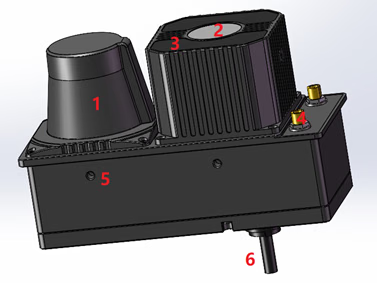
V2 Pro component overview (front)
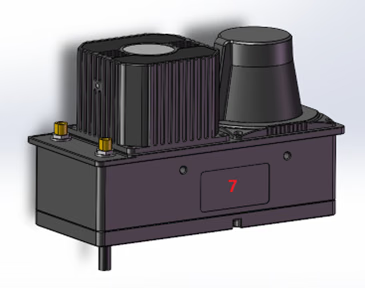
V2 Pro component overview (rear)
Wireless communication module
The controller includes a2T2R wireless adapter with MU-MIMO and dual-stream transmission. Wi-Fi operates in the 2.400–2.4835 GHz ISM band. Actual throughput depends on network configuration, site interference, and connected devices.
Integration and installation
Detection range and coordinate system
Installation
Keep the upward-facing camera and LiDAR fields of view clear of the vehicle, cables, and other structures. After installation, configure chassis-localization parameters and sensor extrinsics.Host application and SDK
Use the host application to view the upward-facing camera image, LiDAR contour, and localization state. For integration, see the MRDVS host application guide and Camera SDK development guide.Environment and reliability
Quickstart
Package contents
Connect and verify the device
1
Connect power
Connect the power cable to the controller’s DC input and connect a
24 V / 3 A DC supply. A slowly flashing blue indicator indicates normal power.If the indicator is off or stays red, check the power connector and adapter.2
Configure the network
Connect the controller’s Ethernet interface directly to the computer with a Cat 6 cable. The factory-default IP is
192.168.100.201; set the computer to the same subnet and allow device communication through the firewall.Open http://192.168.100.201:9998 in a browser on the LAN to sign in to the web interface without a password.3
Check the data stream
Start the host application and confirm that the upward-facing camera image is clear and free of artifacts or stutter. If multiple IP addresses are detected, resolve the LAN conflict and select the correct device.
Interface overview
- Red area: Function menu, including mapping, relocalization, and map management.
- Blue area: Loaded 2D contour map and vehicle-localization icon.
- Green area: Live RGB image from the upward-facing camera.
- Yellow area: Relocalization signal strength, vehicle position and speed, and cursor coordinates. Signal colors are green (excellent), blue (good), and red (poor).
Create a map
1
Start mapping
Select Start mapping in the menu.
2
Enter a map name
A map name may contain letters, numbers, and underscores, but it cannot start with a number.
3
Capture map data
Keep linear speed at or below
0.5 m/s and angular speed at or below 20°/s. The interface displays the LiDAR contour and upward-facing camera image.Drive slowly and steadily, preferably below 0.2 m/s. Use straight paths and right-angle turns, avoid repeated paths and random vibration, maintain approximately one-third overlap along paths in the same direction, and keep parallel paths about 2 m apart. Cover the target area or vehicle route as completely as possible.4
Finish mapping
After scanning the area, select Finish mapping in the menu. Processing time depends on the scanned area.
Deploy and apply maps
1
Deploy the background map
Open Map management, find the new map in the background-map list, and select Deploy. Deploy every map that the host must use; background maps can be edited, exported, or deleted.
2
Apply the host map
Select Apply in Host maps. Restart the controller after applying a map so that it takes effect. Host maps can be exported or deleted.
Relocalization and parameter configuration
In Relocalization, drag the mouse to specify an approximate vehicle pose and match the LiDAR point cloud to the contour map. The localization-timeout message disappears after relocalization succeeds. Check and configure chassis-localization parameters and the LiDAR and upward-facing-camera extrinsic calibration values.Troubleshooting
Safety and compliance
Laser safety
- The product uses a Class 1 laser.
- Under normal use, the emitted laser does not present a hazard to people when used according to EN 60825.
- Follow site laser-safety procedures during installation, maintenance, and troubleshooting. Do not disassemble or modify optical components.
Contains a lithium battery
- Do not disassemble, modify, or replace the built-in battery yourself.
- Protect the device from severe impact, crushing, puncture, high temperatures, and open flame.
- Follow local requirements when transporting, discarding, or recycling equipment that contains a lithium battery.
Related documents
V2 pure-localization operating guide
Configure and use the V2 pure-localization version.
V2 Pro UDP communication protocol
Obtain localization and device data over UDP.
V2 external LiDAR protocol
Integrate an external LiDAR device.
V2 visual-localization HTTP protocol
Communicate with the localization module over HTTP.
V2 Service ROS1
V2 Service ROS1 example.
V2 Service ROS2
V2 Service ROS2 example.
Minimal ROS guide
Start a ROS integration quickly.
Datasheets and manuals
English PDF
Datasheets and manuals
Setup and mapping guide
English · GitHub
Firmware and device IP guide
English · GitHub