
Übersicht
Dieses Handbuch richtet sich an Entwickler, die Kamerageräte integrieren. Es behandelt die APIs des Camera SDK für die Produkte M4, M4 Mega, M4 Pro, V1 Pro, S2, S2 Max und der H3-Serie. Das SDK läuft unter x86-Windows sowie auf x86- oder Arm-Linux-Systemen. Das Camera SDK stellt einheitliche APIs für den Gerätezugriff und die Parametrierung bereit. Es unterstützt die synchrone und asynchrone Erfassung von Tiefen-, Intensitäts-, Punktwolken- und RGB-Daten. Einige Kameramodelle liefern zusätzlich Daten zur Hindernisvermeidung, zum Andocken oder zur Lokalisierung.Die Beispiele und API-Beschreibungen basieren auf der mit dem Produkt ausgelieferten SDK-Version. Verfügbare Parameter können je nach Produkt, Firmware und SDK-Version abweichen.
Einrichten der Umgebung
Empfohlene Hostkonfiguration
Verbinden und installieren
Hardwareverbindung
Die Kamera wird an eine externe 24-V-Spannungsversorgung angeschlossen und über ein Netzwerkkabel mit dem Hostcomputer verbunden, wie in Abbildung 2.1 dargestellt. Abbildung 2.1 Anschlussdiagramm der KameraNetzwerkkonfiguration
- Das Standard-IP-Netzsegment der Kamera lautet: 192.168.100.*
- Lege auf dem Hostcomputer für den mit der Kamera verbundenen Netzwerkanschluss eine IP-Adresse im Netzsegment 192.168.100.x fest und stelle sicher, dass sie nicht mit dem Gerät kollidiert. Die Subnetzmaske lautet 255.255.255.0, wie in der folgenden Abbildung dargestellt:
- Beim Verbinden mit der Kamera wird empfohlen, die Firewall zu deaktivieren, damit die Kameradatenpakete nicht vom Host abgefangen werden, auf dem sich das SDK befindet, wie in der folgenden Abbildung dargestellt:
- Die Netzwerkkonfiguration unter Linux entspricht der unter Windows. Die Firewall-Befehle unterscheiden sich je nach Distribution. Führe unter Ubuntu Folgendes aus:
SDK installieren
Windows
Öffne das Installationspaket und installiere Lanxin-MRDVS-xxx.exe. Wenn du es für alle Benutzer installieren möchtest, benötigst du Administratorrechte, um das Installationspaket auszuführen. Die folgenden Abbildungen zeigen den Installationsvorgang.Linux
- Entpacke das Paket und führe das Installationsskript aus:
/opt/Lanxin-MRDVS und setzt Umgebungsvariablen für den aktuellen Benutzer. Wenn das Programm unter einem anderen Benutzer ausgeführt wird, führe das Skript für diesen Benutzer erneut aus oder füge der ~/.bashrc dieses Benutzers die folgende Zeile hinzu:
Camera SDK verwenden
Verzeichnisstruktur
Das Verzeichnis des Camera SDK enthält die folgenden Verzeichnisse: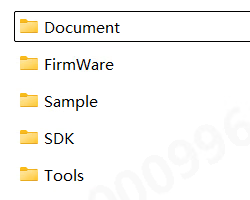
- Document enthält verschiedene Dokumentationen zum SDK
- FirmWare enthält das Firmware-Upgradepaket der Kamera
- Sample enthält Beispielcode für das Camera SDK in verschiedenen Programmiersprachen
- SDK enthält die Header- und Bibliotheksdateien des Camera SDK
Entwicklungsablauf
Projekt konfigurieren
C/C++ wird für die SDK-Integration empfohlen. Das SDK enthält eineCMakeLists.txt-Datei für CMake-Builds, und der Ordner Sample enthält Beispiele in mehreren Sprachen. Einzelheiten findest du in den Beispielen unter Sample und im Benutzerhandbuch zu Linux-Beispielen.
Synchroner Aufrufablauf
Asynchroner Aufrufablauf
Anforderungen an Aufrufe
Parametertypen und zugehörige APIs
- Verwende für Aufzählungstypen mit dem Präfix LX_INT DcSetIntValue oder DcGetIntValue, um Parameter vom Typ INT zu setzen oder abzurufen.
- Verwende für Aufzählungstypen mit dem Präfix LX_FLOAT DcSetFloatValue oder DcGetFloatValue, um Parameter vom Typ FLOAT zu setzen oder abzurufen.
- Verwende für Aufzählungstypen mit dem Präfix LX_BOOL DcSetBoolValue oder DcGetBoolValue, um Parameter vom Typ BOOL zu setzen oder abzurufen.
- Verwende für Aufzählungstypen mit dem Präfix LX_STRING DcSetStringValue oder DcGetStringValue, um Parameter vom Typ String zu setzen oder abzurufen.
- Verwende DcSetCmd, um Befehle für Aufzählungstypen mit dem Präfix LX_CMD auszuführen.
- Verwende für Aufzählungstypen mit dem Präfix LX_PTR DcGetPtrValue, um Ergebnisse vom Typ Pointer abzurufen.
API-Voraussetzungen
1. Wenn der Datenfluss gestartet wurde oder der Arbeitsmodus (LX_INT_WORK_MODE) dem Dauerbetriebsmodus entspricht, dürfen die folgenden Funktionen nicht gesetzt werden:- DcSetRoi
- LX_INT_3D_BINNING_MODE;
- LX_INT_2D_BINNING_MODE;
- LX_BOOL_ENABLE_2D_TO_DEPTH;
- LX_BOOL_ENABLE_MULTI_EXPOSURE_HDR;
- LX_BOOL_ENABLE_MULTI_MACHINE;
- LX_INT_TRIGGER_MODE;
- LX_INT_CALCULATE_UP;
- LX_BOOL_ENABLE_HDR;
- LX_BOOL_ENABLE_TOF_DEPTH_CALIBE;
- LX_BOOL_ENABLE_SYNC_FRAME
- LX_INT_SAVE_PARAMS_GROUP
- LX_INT_TOF_FREQMODE
- LX_BOOL_ENABLE_MULTI_EXPOSURE_HDR ;
- LX_INT_FIRST_EXPOSURE;
- LX_INT_SECOND_EXPOSURE;
- LX_INT_THIRD_EXPOSURE;
- LX_INT_GAIN;
- LX_INT_3D_AUTO_EXPOSURE_LEVEL
- (LX_INT_3D_AUTO_EXPOSURE_MIN)
- LX_INT_2D_MANUAL_EXPOSURE
6. Wenn die 2D-Automatikbelichtung (LX_BOOL_ENABLE_2D_AUTO_EXPOSURE) deaktiviert ist, darf die folgende Funktionsaufzählung nicht verwendet werden:
- LX_INT_2D_AUTO_EXPOSURE_LEVEL;
7.Im Sonderfiltermodus sind die folgenden Einstellungen nicht zulässig:
- LX_INT_FILTER_SMOOTH_LEVEL LX_INT_FILTER_NOISE_LEVEL
- LX_INT_FILTER_TIME_LEVEL
8.Vor dem Aktivieren der 2D-Verzerrungskorrektur muss zuerst die RGB-D-Ausrichtung aktiviert werden:
- LX_BOOL_ENABLE_2D_TO_DEPTH
9.Bei Geräten, die nicht vom Typ S2 sind, muss beim Aktivieren des integrierten Algorithmus zuerst der ToF-Algorithmus gesetzt werden. Die Algorithmusparameter dürfen nur gesetzt werden, wenn der integrierte Algorithmus (LX_INT_ALGORITHM_MODE) aktiviert ist.
- (LX_STRING_ALGORITHM_PARAMS)
10.Um Punktwolkendaten (LX_PTR_XYZ_DATA) abzurufen, musst du zuerst die Tiefenkarte aktivieren.
- (LX_BOOL_ENABLE_3D_DEPTH_STREAM)
Data types
5.1 LX_STATE
Function: SDK interface function return value status code5.2 LX_DATA_TYPE
Function: data format. 3D intensity map and depth map have different data formats. To obtain the data pointer, you need to use the corresponding feature.5.3 LX_BINNING_MODE
Function: Bining mode5.4 LX_STRUCT_LIGHT_CODE_MODE
Function:5.5 LX_ALGORITHM_MODE
Function:5.6 LX_CAMERA_WORK_MODE
Function:5.7 LX_TRIGGER_MODE
Function:5.8 LX_CAMERA_FEATURE
Function: Various readable and writable parameters5.8.1 int type parameters
5.8.1.1 General parameters
5.8.1.2 3D image parameters
5.8.1.4 2D image parameters
5.8.1.5 Trigger parameters
5.8.1.6 Filter parameters
5.8.2 float type parameters
5.8.3 bool type parameter
5.8.4 string type parameters
5.8.5 Command type parameters
5.8.6 ptr type parameters
5.9 LxDeviceInfo
Function: Device attribute information structure5.10 LxIntValueInfo
Function: Device attribute information structure5.11 LxFloatValueInfo
Function: Device attribute information structure5.12 LX_DEVICE_TYPE
Function: device type5.13 LX_OPEN_MODE
Function: device type5.14 FrameDataInfo
Function: Image display information structure5.15 FrameInfo
Function: Data frame information structureAPI reference
API prototypes are defined by the SDK headers and the shipped SDK version. Unless noted otherwise,
LX_SUCCESS indicates a successful call.6.1 Find, connect and close the camera
6.1.1 DcGetDeviceList
Function prototype: Function function: Get a list of supported cameras. Function parameters:- [out]devlist Found camera list
- [out]devnum Number of cameras found
6.1.2 DcOpenDevice
Function prototype:
- [in]open_mode open mode, see OpenMode for details
- [in]param different opening methods, fill in different parameters
- [out]handle is the device handle returned after successful connection. All subsequent interface access depends on this handle.
- [out]info Camera details returned after successful connection
6.1.3 DcCloseDevice
Function prototype:
- [in]handle device handle
6.2 Start streaming and close streaming
6.2.1 DcStartStream
Function prototype:
- [in]handle device handle
6.2.2 DcStopStream
Function prototype:
- [in]handle device handle
6.3 Reading and setting camera parameters
6.3.1 DcSetIntValue
Function prototype:
- [in]handle device handle
- [in]cmd reference LX_CAMERA_FEATURE
- [in]value sets parameter value
6.3.2 DcGetIntValue
Function prototype:
- [in]handle device handle
- [in]cmd reference LX_CAMERA_FEATURE
- [out]value returns the parameter structure, the maximum and minimum values of the parameters, the current value, etc.
6.3.3 DcSetFloatValue
Function prototype:
- [in]handle device handle
- [in]cmd reference LX_CAMERA_FEATURE
- [in]value sets parameter value
6.3.4 DcGetFloatValue
Function prototype:
- [in]handle device handle
- [in]cmd reference LX_CAMERA_FEATURE
- [out]value returns the parameter structure, the maximum and minimum values of the parameters, the current value, etc.
6.3.5 DcSetBoolValue
Function prototype:
- [in]handle device handle
- [in]cmd reference LX_CAMERA_FEATURE
- [in]value sets parameter value
6.3.6 DcGetBoolValue
Function prototype:
- [in]handle device handle
- [in]cmd reference LX_CAMERA_FEATURE
- [out]value return parameters
6.3.7 DcSetStringValue
Function prototype:
- [in]handle device handle
- [in]cmd refer to LX_CAMERA_FEATURE
- [in]value sets parameter value
6.3.8 DcGetStringValue
Function prototype:
- [in]handle device handle
- [in]cmd reference LX_CAMERA_FEATURE
- [out]value returns parameters without external allocation of memory
6.3.9 DcGetPtrValue
Function prototype:
- [in]handle device handle
- [in]cmd reference LX_CAMERA_FEATURE
- [out]value returns parameters without external allocation of memory
6.3.10 DcSetCmd
Function prototype:
- [in]handle device handle
- [in]cmd reference LX_CAMERA_FEATURE
6.4 Save point cloud
6.4.1 DcSaveXYZ
Function prototype:
- handle device handle
- filename file name, supports txt, ply and pcd formats. txt format saves all data in image order, ply and pcd only save non-zero data
6.5 Special Controls
6.5.1 DcSpecialControl
Function prototype:
- [in]handle device handle
- [in]param operation
- [inout]value is the corresponding input parameter when set, and the corresponding outgoing parameter when obtained, without external allocation of memory.
6.6 Set ROI and parameter path
6.6.1 DcSetRoI
Function prototype:
- [in]handle device handle
- [in]offsetx horizontal offset of starting point in pixels
- [in]offsety vertical offset of starting point in pixels
- [in]widthroi width of the target area
- [in]heightroi height of the target area
- [in]type0-3D image 1-2D image
6.7 Set camera IP
6.7.1 DcSetCameraIp
Function prototype: Function function: Set camera IP and subnet mask, gateway Function parameters:- [in]handle device handle,
- [in]ip device IP,
- [in]netmask subnet mask (if empty, the internal default is “255.255.0.0”)
- [in]gateway gateway ip (if empty, the internal default is to set the last network segment of ip to “1” as the gateway)
6.8 Log information and version information
6.8.1 DcGetApiVersion
Function prototype:
6.8.2 DcSetInfoOutput
Function prototype: Function function: Set printing information level Function parameters:- [in]print_level 0: info all debugging information; 1: warn important and warning debugging information; 2: error only output error information
- [in]enable_screen_print whether to print in the window
- [in]log_path The log file saving path (does not include the log file name), can be empty. Windows defaults to the current user path, and Linux defaults to the /var/log path.
- [in]language language (not used yet)
6.8.3 DcLog
Function prototype:
- [in]str The string to be output, terminated by ‘\0’
6.8.4 DcRegisterFrameCallback
Function prototype: Function function: Register a data frame callback function and automatically call it when new data is received. Function parameters:- [in]handle device handle,
- [in]func frame data callback function,
- [in]usr_data user-defined parameters, can be passed empty
6.8.5 DcUnregisterFrameCallback
Function prototype:
- [in]handle device handle,
6.9 Device status callback
6.9.1 DcRegisterCameraStatusCallback
Function prototype: Function function: Register the camera status callback function, which is automatically called when the camera status changes. Function parameters:- [in]handle device handle,
- [in]func frame data callback function,
- [in]usr_data user-defined parameters, can be passed empty
6.9.2 DcUnregisterCameraStatusCallback
Function prototype:
- [in]handle device handle,