
How it works and what it returns
The application detects obstacles within configured 3D regions and reports clear, warning and alarm states. These results inform slowing, stopping or avoidance decisions in the vehicle controller. Three-dimensional sensing can detect low or overhanging obstacles missed by a single scan plane. It provides no semantic person/pallet classification and performs no route planning or motion control.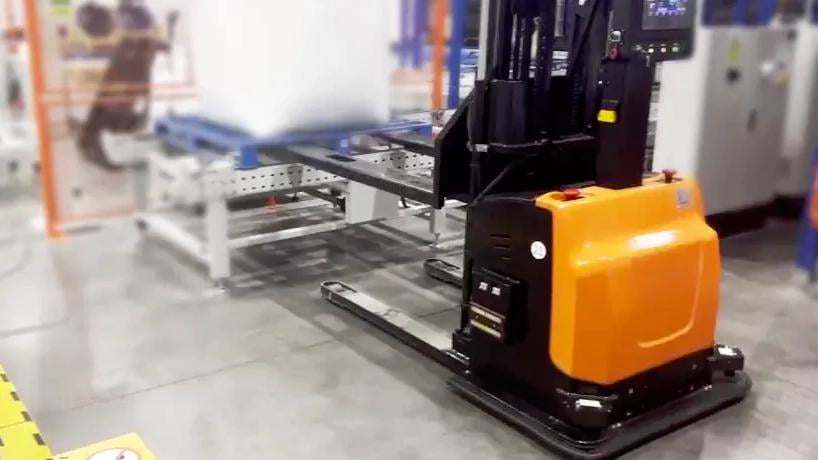
Application example
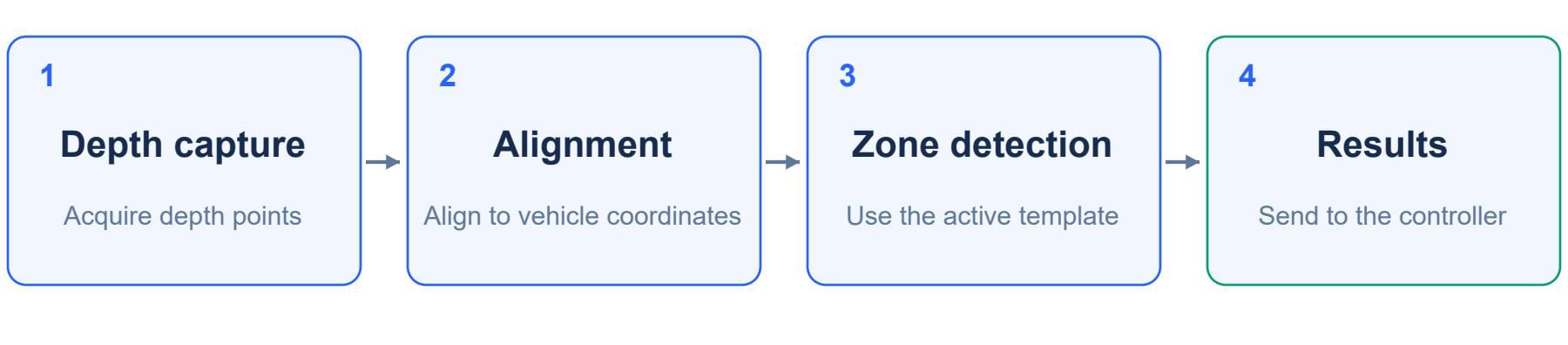
Principle of operation
Software downloads and compatibility
Solution V1 supports S10, S10 Lite and S11 with region states. V2 supports S10 Pro and adds obstacle bounding boxes and depth point clouds. Region detection and algorithm performance are the same in V1 and V2: extra outputs do not imply higher detection accuracy. Reduced output contains only state and bounding-box count; enable detailed data and point clouds as instructed. Use the dedicated Windows x64 Obstacle Workstation, not the general AW3 installation workflow. Workstation 1.0.19, solution labels V1/V2 and camera firmware are separate version systems. Check compatibility before updating. Configure rectangular or sector regions, height limits and up to 20 templates numbered 0–19. An edited preview is not the active device configuration: save, send and verify the selected template. Results cover only configured, observable regions. Do not infer that occluded areas, blind spots or areas outside the regions are clear. Validate braking and the complete vehicle response.Deployment and integration
1
Connect the equipment
Install the workstation and check mounting, power, network and data streams.
2
Calibrate and configure
Calibrate ground and extrinsics; set height limits and regions according to the vehicle’s braking distance.
3
Validate on site
Save the template, send it to the device and verify the active template.
4
Integrate the results
Test obstacles at different heights and positions; validate states, interfaces and the full vehicle response.

Deployment workflow
Latest downloads
Download user manual
V0.1 · English PDF
Download white paper
V0.1 · English PDF
Software downloads
Manual and white paper downloads
Software and document versions are managed separately. Select archived material for the application you have installed.
GitHub