
Versión del documento: V1.0; fecha de revisión: 2024-10-12.
Descripción general
El SDK de cámara MRDVS para Linux incluye ejemplos de C/C++, Java (servicio HTTP), ROS y ROS 2. Los ejemplos muestran el flujo de trabajo básico del SDK; añade la lógica específica de tu aplicación y el control de errores para tu proyecto. Completa primero la configuración del entorno, el script de instalación y las comprobaciones del directorio de ejemplos. Después, sigue la sección de compilación y ejecución correspondiente a tu lenguaje de destino. El apéndice enumera métodos de instalación para dependencias comunes y paquetes de prueba.Sistema y entorno
Sistemas compatibles y versiones de dependencias
Se admiten los siguientes sistemas Linux. A continuación se indican las versiones predeterminadas de los programas:2.2 Comprobar la versión del sistema y de la aplicación
2.2.1 Comprobar la versión del sistema

- Número de versión principal: 5
- Número de versión: 15 [Los números impares son versiones de desarrollo y los pares son versiones estables]
- Número de revisión: 0 [Número de modificaciones]
- N.° de revisión de esta versión: 97
- Versión del kernel: #107~20.0.4.1; normalmente, la versión del sistema es la versión del kernel
2.2.2 Comprobar la versión de Cmake

2.2.3 Comprobar la versión de Gcc

2.2.4 Ver la versión de Opencv

2.2.5 Comprobar la versión de Pcl
2.2.6 Ver la versión de ROS


2.3 Crear un entorno de desarrollo básico
Debes actualizar la lista de instalación antes de instalar: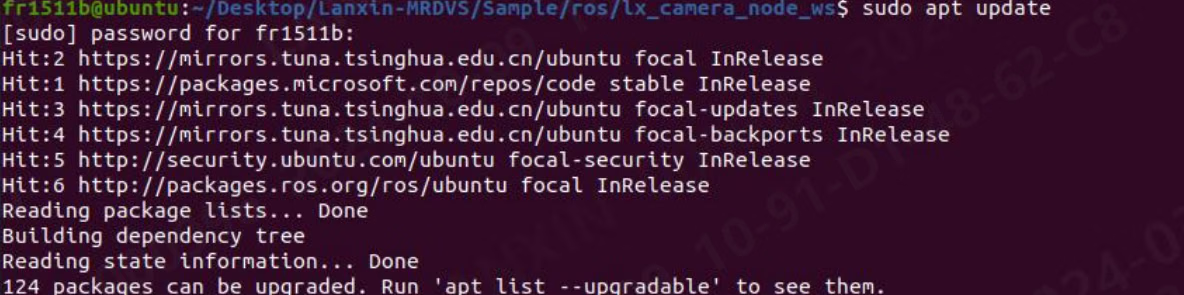
2.3.1 Instalar Cmake

2.3.2 Instalar Gcc

2.4 Crear un entorno de desarrollo opcional
2.4.1 Instalar Opencv [puede mostrar imágenes de la cámara]
![Iconos relacionados con la instalación de Opencv [puede mostrar imágenes de la cámara]](https://mintcdn.com/mrdvs/tL-WJIR2I7zXpd8i/images/developers/camera-sdk-linux-examples-install-opencv-can-display-camera-images.avif?fit=max&auto=format&n=tL-WJIR2I7zXpd8i&q=85&s=2d198482de6242a7b996cf46e67a11e5)
2.4.2 Instalar Pcl [puede mostrar la nube de puntos]
![Iconos relacionados con la instalación de Pcl [puede mostrar la nube de puntos]](https://mintcdn.com/mrdvs/tL-WJIR2I7zXpd8i/images/developers/camera-sdk-linux-examples-install-pcl-can-display-point-cloud.avif?fit=max&auto=format&n=tL-WJIR2I7zXpd8i&q=85&s=d3a7769cccce429095b1c579bfee93b1)
Preparar el código de ejemplo
3.1 Ejecutar el script de instalación
- Descomprime el archivo Lanxin-MRDVS y entra en la carpeta Lanxin-MRDVS

- Haz clic con el botón derecho para abrir la consola
- Ejecuta el script install.sh

- Entra en el directorio /opt/ para comprobar si la instalación se realizó correctamente.

- Si se encuentra la carpeta, la instalación se realizó correctamente.
- Si la instalación falla, debes añadirla manualmente al directorio opt.
- Ejecuta el script set_socket_buffer_size.sh

- En este punto, el script de instalación se ha ejecutado por completo.
3.2 Introducción al código de ejemplo
Entra en el directorio Sample. El contenido del directorio es el siguiente:
- La carpeta C contiene código relacionado con C y C++
- La carpeta Java contiene un servidor HTTP para llamar indirectamente al SDK
- La carpeta Ros contiene un ejemplo de ROS
- La carpeta Ros2 contiene un ejemplo de ROS 2
3.2.1 Código de ejemplo de C y C++
Entra en el directorio C. El contenido del directorio es el siguiente:
- application_obstacle: obtiene datos del flujo de la cámara, activa el algoritmo de evitación de obstáculos y muestra los resultados del algoritmo
- application_pallet: obtiene datos del flujo de la cámara, activa el algoritmo de palés y muestra los resultados del algoritmo
- arm_local_camera: llama al SDK en la cámara [ARM] y obtiene los datos del flujo
- frame_callback: utiliza el método de callback para obtener datos del flujo de la cámara
- multi_cameras: abre varias cámaras y obtiene datos del flujo
- single_camera: abre una sola cámara y obtiene datos del flujo
- single_camera2: obtiene datos de fotogramas mediante una estructura
3.2.2 Código de ejemplo de Java
Entra en el directorio java. El contenido del directorio es el siguiente: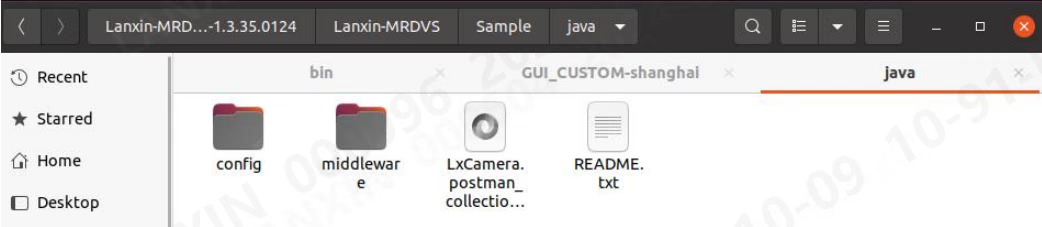
- Config: la carpeta almacena las configuraciones relacionadas con el servidor
- Middleware: tema del servidor
- LxCamera.postman_collection.json: archivo de configuración de Postman
- README: tutorial de uso del servidor virtual de Java
3.2.3 Código de ejemplo de ROS
Entra en el directorio ros. El contenido del directorio es el siguiente: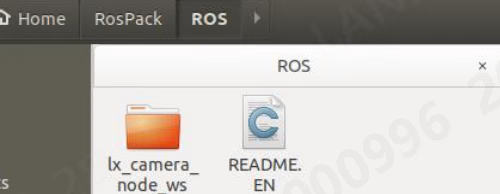
- lx_camera_node_ws: la carpeta contiene un controlador estándar de ROS
- README.EN: explica en inglés cómo compilar un nodo y crear un nodo nuevo
3.2.4 Código de ejemplo de ROS 2
Entra en el directorio ros2. El contenido del directorio es el siguiente: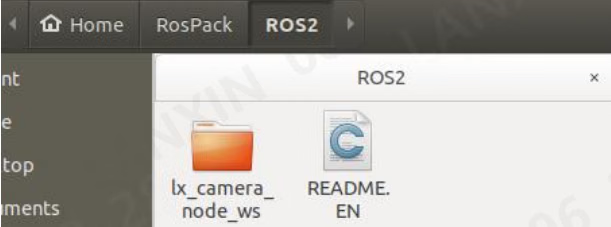
- lx_camera_node_ws: la carpeta contiene un controlador estándar de ROS 2
- README.EN: explica en inglés cómo compilar un nodo y crear un nodo nuevo
3.2.5 Código de ejemplo de ros-v1pro
Entra en el directorio ros-v1pro. El contenido del directorio es el siguiente: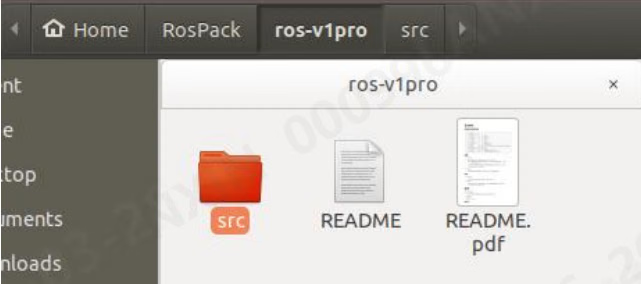
- src: la carpeta contiene un controlador estándar de ROS
- README: explica cómo utilizar este nodo
- README.pdf: explica cómo utilizar este nodo
Compilar y ejecutar los ejemplos
4.1 Compilar y ejecutar el código de ejemplo de C y C++
Ve a la carpeta C del ejemplo:
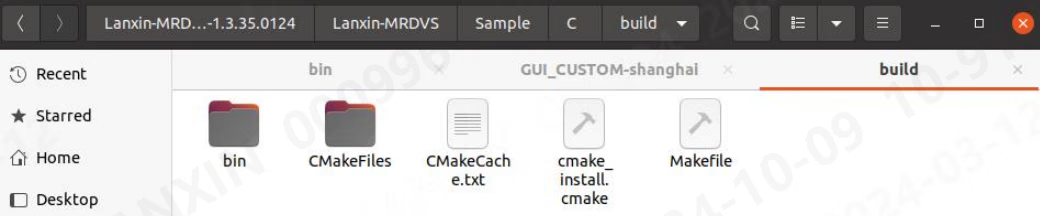
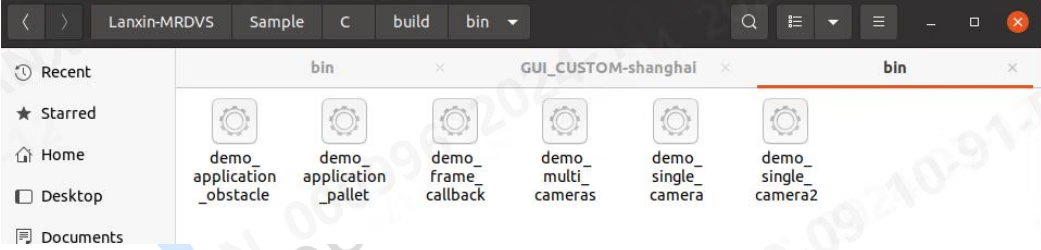
4.2 Proceso de ejecución del ejemplo de Java
Java se diferencia de los demás códigos de ejemplo. No proporciona directamente el código fuente, sino un servidor HTTP y un ejemplo de Postman. Si necesitas controlar la cámara indirectamente mediante HTTP, selecciona el ejemplo de Java y entra en la carpeta java. El contenido de la carpeta es el siguiente: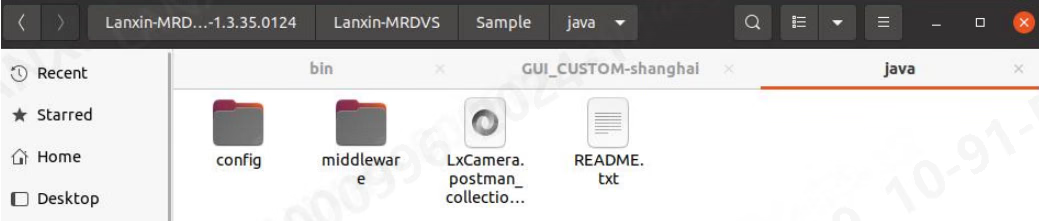
- Entra en la carpeta config y modifica los campos http_sever_host y http_sever_port del archivo Configs.json:
- Entra en la carpeta middleware y ejecuta el script start.sh para activar el servidor de transferencia

- Usa Postman para abrir el archivo LxCamera.postman_collection.json y enviar datos al puerto del ejemplo
4.3 Compilar y ejecutar el código de ejemplo de ROS
Entra en la carpeta ROS, abre una consola y ejecuta: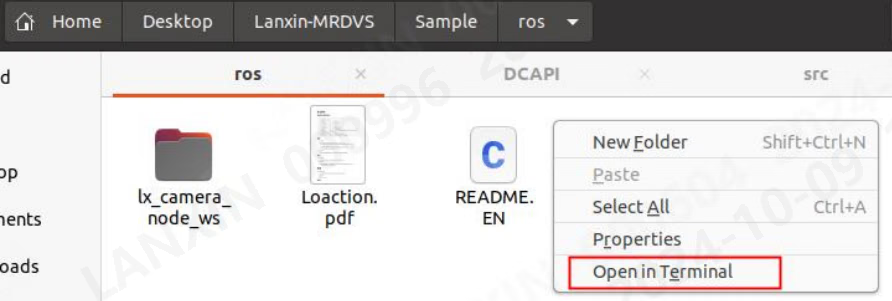

lx_camera_node_ws y ejecuta:


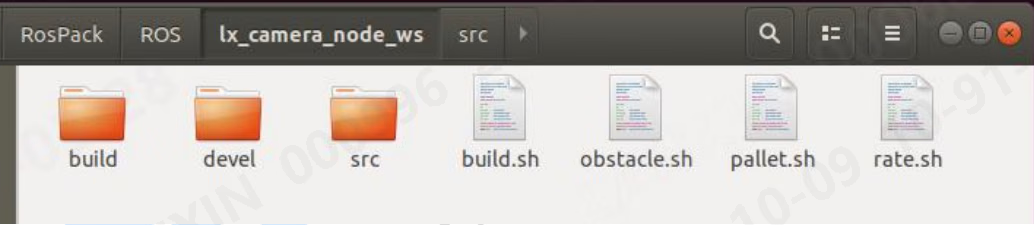
roslaunch:
4.4 Compilar y ejecutar el código de ejemplo de ROS 2
Entra en la carpeta ros2. El contenido de la carpeta es el siguiente: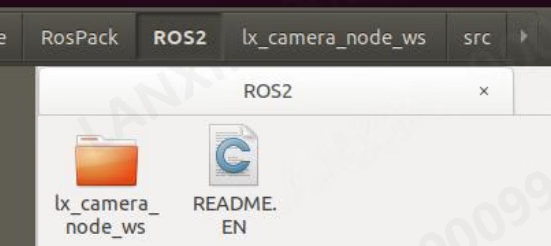

ros-pcl. Sustituye foxy por la distribución de ROS 2 instalada en tu sistema:
lx_camera_node_ws y compila el proyecto:

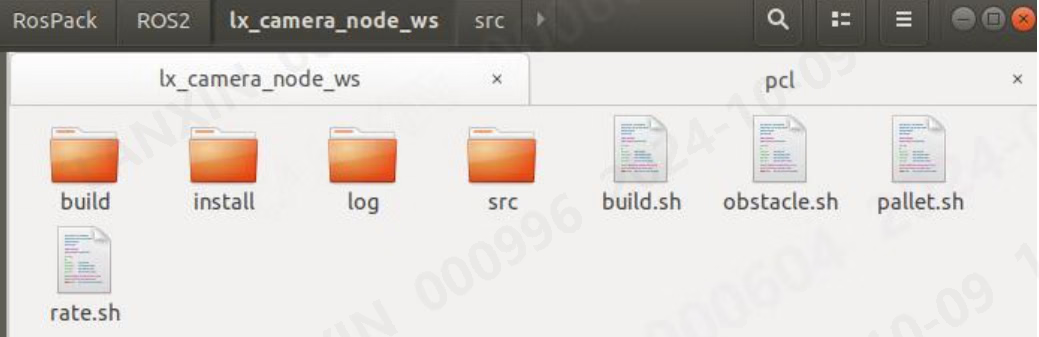
ros2 launch:
4.5 Compilar y ejecutar el código de ejemplo de ros-v1pro
ros-v1pro es un controlador de ROS específico para la cámara V1PRO. En la carpeta ros-v1pro hay un README.pdf que describe el controlador en detalle. Este documento solo ofrece una breve introducción: Entra en la carpetaros-v1pro y compílala:


- roslaunch lx_camera_ros localization.launch
- roslaunch lx_camera_ros mapping.launch
- roslaunch lx_camera_ros sensor_sim.launch
Referencia del código de ejemplo
En esta sección, todo el código y el pseudocódigo se dividirán en varias partes. En general, todo lo que aparece en una sección pertenece al mismo archivo. Salvo los archivos especiales con explicaciones detalladas, los archivos de código fuente solo explican los módulos generales. Las explicaciones detalladas aparecen como comentarios en el código.5.1 C y C++
5.1.1 CMakeLists
5.1.2 application_obstacle y application_pallet
5.1.3 arm_local_camera
5.1.4 frame_callback
5.1.5 multi_cameras
5.1.6 single_camera
5.1.7 single_camera2
5.2 java
El ejemplo de Java solo proporciona un servidor HTTP, por lo que la descripción se limita a la interfaz y al formato de los mensajes. Usa Postman para abrir el archivo de ejemplo como se muestra a continuación: Todos los mensajes utilizan el método POST. Antes de enviar datos, recuerda cambiar la IP por la IP del servidor, pero no modifiques la URL. La URL está codificada internamente en el servidor. El formato y el contenido del mensaje de respuesta se encuentran en el cuerpo. La interfaz proporcionada en el ejemplo es la siguiente: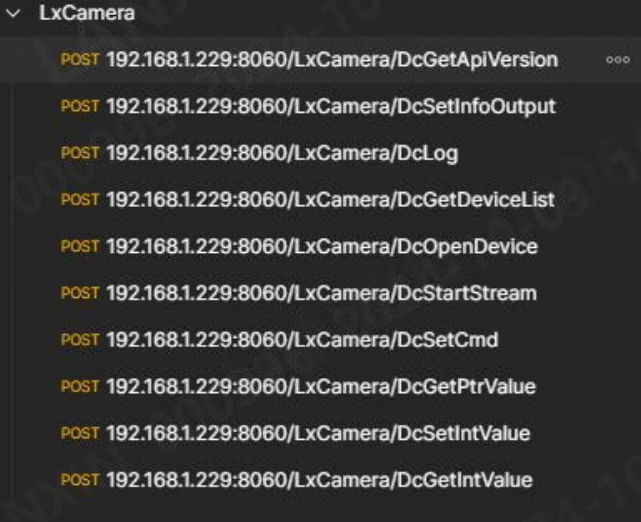
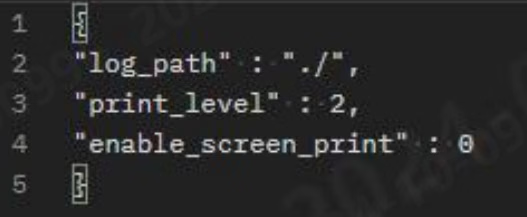
- log_path: ruta de salida de los registros
- print_level: nivel de impresión de los registros
- enable_screen_print: indica si los registros se imprimen en la consola
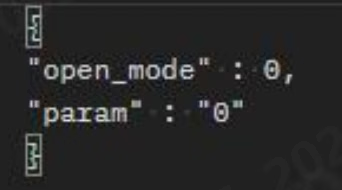
- open_mode: modo de apertura de la cámara
- param: parámetros para abrir la cámara
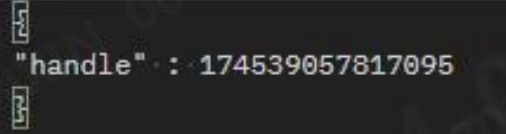
- handle: identificador de la cámara, que se devuelve en DcOpenDevice
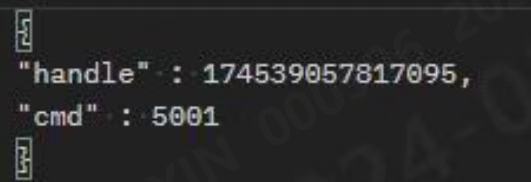
- handle: identificador de la cámara que se va a configurar
- cmd: número del comando
- handle: identificador de la cámara que se va a configurar
- cmd: número del comando
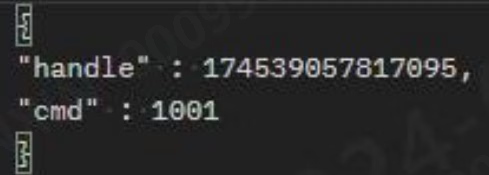
- handle: identificador de la cámara que se va a configurar
- cmd: número del comando
- value: valor que se va a establecer
- handle: identificador de la cámara que se va a configurar
- cmd: número del comando
- Consulta la tabla siguiente para ver otras instrucciones relacionadas:
5.3 ROS1 y ROS2
En la descripción de ROS no hablaremos del código fuente del controlador, sino del contenido correspondiente a la configuración del archivo launch, de cómo ajustar la configuración y de cómo enviar y suscribirse a mensajes. El nodo de ROS proporcionado ya contiene la mayoría de las funciones, por lo que no se recomienda modificar directamente el código fuente del controlador. Si tienes necesidades especiales, primero puedes comprender el flujo del código del ejemplo de C++ y después modificar el código fuente del controlador. Al ejecutar el controlador de ROS, debes asegurarte de que las versiones de opencv y pcl en la ruta predeterminada del sistema sean únicas; de lo contrario, se producirá un error al enlazar la biblioteca de ROS, lo que puede provocar un fallo de compilación o un bloqueo durante la ejecución.5.3.1 Descripción del archivo launch de ROS1
5.3.1.1 Todos los archivos launch
- En la carpeta src/launch se encuentran los siguientes archivos:
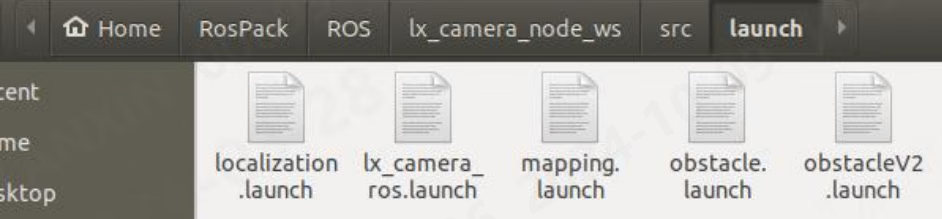
- localization.launch: archivo de ejecución de los nodos de posicionamiento visual
- lx_camera_ros.launch: archivo de ejecución de los nodos normales
- mapping.launch: archivo de ejecución del mapeo para posicionamiento visual
- obstacle.launch: archivo de ejecución del algoritmo de evitación de obstáculos
- obstacleV2.launch: archivo de ejecución de la versión V2 del algoritmo de evitación de obstáculos
- pallet.launch: archivo de ejecución del algoritmo de palés
- sensor_sim.launch: archivo de ejecución para simular datos de posicionamiento
- Puedes ejecutar distintas funciones del nodo mediante diferentes archivos launch. Salvo localization, mapping y sensor, el contenido de los parámetros es el mismo en todos los nodos, pero la configuración es diferente. Esto se explicará en detalle en las secciones siguientes. Para una introducción detallada a los parámetros de los tres archivos launch de localization, mapping y sensor, consulta la introducción del nodo ros-v1pro.
5.3.1.2 IP de la cámara, configuración del flujo, configuración del modo de trabajo, unidad de la nube de puntos, etc.
- ip: IP de la cámara que se debe conectar. Si es 0, se conectará la primera de forma predeterminada.
- log_path: ruta de almacenamiento de los registros del SDK; debes indicar la ruta absoluta
- is_xyz: indica si se deben enviar datos de la nube de puntos
- is_depth: indica si se deben enviar datos de profundidad
- is_amp: indica si se deben enviar datos del mapa de intensidad
- is_rgb: indica si se deben enviar datos de imagen RGB
- lx_work_mode: modo de trabajo
- lx_application: indica si se activa el algoritmo; 0: desactivado, 1: algoritmo de evitación de obstáculos, 2: algoritmo de palés, 3: algoritmo de posicionamiento, 4: algoritmo de evitación de obstáculos V2
- lx_tof_unit: unidad de la nube de puntos; 1 es metro, 0 es milímetro; debes cambiarlo a 1 al visualizar con rviz
5.3.1.3 Configuración de la pose de la cámara
Se pueden configurar el ángulo de rotación y el vector de traslación de la nube de puntos.- X: cantidad de traslación de la cámara desde el centro de la nube de puntos en X
- Y: cantidad de traslación de la cámara desde el centro de la nube de puntos en Y
- Z: cantidad de traslación de la cámara desde el centro de la nube de puntos en Z
- Yaw: ángulo de rotación de la nube de puntos alrededor del eje Z
- Roll: ángulo de rotación de la nube de puntos alrededor del eje X
- Pitch: ángulo de rotación de la nube de puntos alrededor del eje Y
5.3.1.4 Indicar si se utiliza la configuración de launch
Puedes elegir si deseas utilizar la configuración de parámetros de la cámara en el archivo launch.- raw_param: 0: usa la configuración de la cámara; 1: usa la configuración del archivo launch
5.3.1.5 Configuración de parámetros 2D
- lx_2d_binning:0:1x1,1:2x2,2:4x4
- lx_2d_undistort: antidistorsión 2D, 0: desactivada, 1: activada
- lx_2d_undistort_scale: coeficiente de antidistorsión 2D
- lx_2d_auto_exposure: exposición automática 2D, 0: desactivada, 1: activada
- lx_2d_auto_exposure_value: intensidad objetivo de la exposición automática 2D
- lx_2d_exposure: valor de exposición 2D
- lx_2d_gain: ganancia 2D
5.3.1.6 Configuración de parámetros 3D
- lx_rgb_to_tof: alineación RGB
- lx_3d_binning:0:1x1,1:2x2,2:4x4
- lx_mulit_mode: modo multicámara, que puede eliminar las interferencias entre cámaras; 0: desactivado, 1: activado
- lx_3d_undistort: antidistorsión 3D, 0: desactivada, 1: activada
- lx_3d_undistort_scale: coeficiente de antidistorsión 3D
- lx_hdr: HDR, 0: desactivado, 1: activado
- lx_3d_auto_exposure: exposición automática 3D, 0: desactivada, 1: activada
- lx_3d_auto_exposure_value: intensidad objetivo de la exposición automática 3D
- lx_3d_first_exposure: puntos altos 3D
- lx_3d_second_exposure: puntos bajos 3D
- lx_3d_gain: ganancia 3D
5.3.1.7 Profundidad máxima y mínima
- lx_min_depth: profundidad mínima
- lx_max_depth: profundidad máxima
5.3.2 Descripción del archivo launch de ROS 2
5.3.2.1 Todos los archivos launch
En la carpeta src/launch se encuentran los siguientes archivos: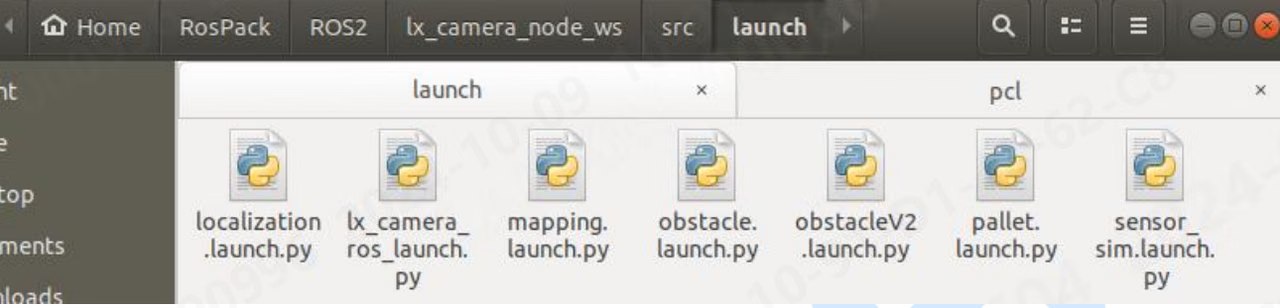
- localization.launch.py: archivo de ejecución del nodo de posicionamiento visual
- lx_camera_ros.launch.py: archivo de ejecución del nodo normal
- mapping.launch.py: archivo de ejecución del mapeo para posicionamiento visual
- obstacle.launch.py: archivo de ejecución del algoritmo de evitación de obstáculos
- obstacleV2.launch.py: archivo de ejecución de la versión V2 del algoritmo de evitación de obstáculos
- pallet.launch.py: archivo de ejecución del algoritmo de palés
- sensor_sim.launch.py: archivo de ejecución para simular datos de posicionamiento
5.3.2.2 IP de la cámara, configuración del flujo, configuración del modo de trabajo, unidad de la nube de puntos, etc.
- ip: IP de la cámara que se debe conectar. Si es 0, se conectará la primera de forma predeterminada.
- log_path: ruta de almacenamiento de los registros del SDK; debes indicar la ruta absoluta
- is_xyz: indica si se deben enviar datos de la nube de puntos
- is_depth: indica si se deben enviar datos de profundidad
- is_amp: indica si se deben enviar datos del mapa de intensidad
- is_rgb: indica si se deben enviar datos de imagen RGB
- lx_work_mode: modo de trabajo
- lx_application: indica si se activa el algoritmo; 0: desactivado, 1: algoritmo de evitación de obstáculos, 2: algoritmo de palés, 3: algoritmo de posicionamiento, 4: algoritmo de evitación de obstáculos V2
- lx_tof_unit: unidad de la nube de puntos; 1 es metro, 0 es milímetro; debes cambiarlo a 1 al visualizar con rviz
5.3.2.3 Configuración de la pose de la cámara
Se pueden configurar el ángulo de rotación y el vector de traslación de la nube de puntos.- X: cantidad de traslación de la cámara desde el centro de la nube de puntos en X
- Y: cantidad de traslación de la cámara desde el centro de la nube de puntos en Y
- Z: cantidad de traslación de la cámara desde el centro de la nube de puntos en Z
- Yaw: ángulo de rotación de la nube de puntos alrededor del eje Z
- Roll: ángulo de rotación de la nube de puntos alrededor del eje X
- Pitch: ángulo de rotación de la nube de puntos alrededor del eje Y
5.3.2.4 Indicar si se utiliza la configuración de launch
Puedes elegir si deseas utilizar la configuración de parámetros de la cámara en el archivo launch.- raw_param: 0: usa la configuración de la cámara; 1: usa la configuración del archivo launch
5.3.2.5 Configuración de parámetros 2D
- lx_2d_binning:0:1x1,1:2x2,2:4x4
- lx_2d_undistort: antidistorsión 2D, 0: desactivada, 1: activada
- lx_2d_undistort_scale: coeficiente de antidistorsión 2D
- lx_2d_auto_exposure: exposición automática 2D, 0: desactivada, 1: activada
- lx_2d_auto_exposure_value: intensidad objetivo de la exposición automática 2D
- lx_2d_exposure: valor de exposición 2D
- lx_2d_gain: ganancia 2D
5.3.2.6 Configuración de parámetros 3D
- lx_rgb_to_tof: alineación RGB
- lx_3d_binning:0:1x1,1:2x2,2:4x4
- lx_mulit_mode: modo multicámara, que puede eliminar las interferencias entre cámaras; 0: desactivado, 1: activado
- lx_3d_undistort: antidistorsión 3D, 0: desactivada, 1: activada
- lx_3d_undistort_scale: coeficiente de antidistorsión 3D
- lx_hdr: HDR, 0: desactivado, 1: activado
- lx_3d_auto_exposure: exposición automática 3D, 0: desactivada, 1: activada
- lx_3d_auto_exposure_value: intensidad objetivo de la exposición automática 3D
- lx_3d_first_exposure: puntos altos 3D
- lx_3d_second_exposure: puntos bajos 3D
- lx_3d_gain: ganancia 3D
5.3.2.7 Profundidad máxima y mínima
- lx_min_depth: profundidad mínima
- lx_max_depth: profundidad máxima
5.3.3 Descripción de los temas exclusivos
Como los tipos de tema exclusivos de ROS1 y ROS2 son iguales, aquí se utiliza ROS1 como ejemplo. En la carpeta src/msg se encuentran los siguientes archivos: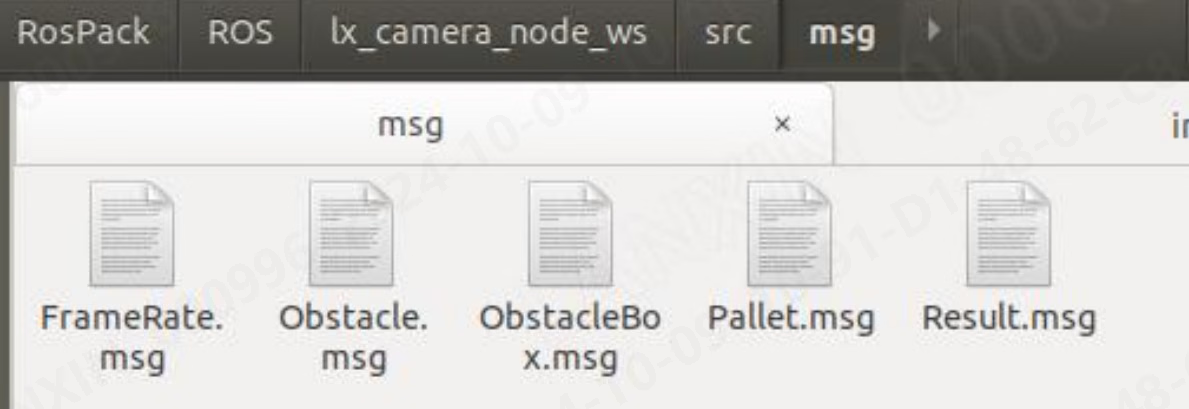
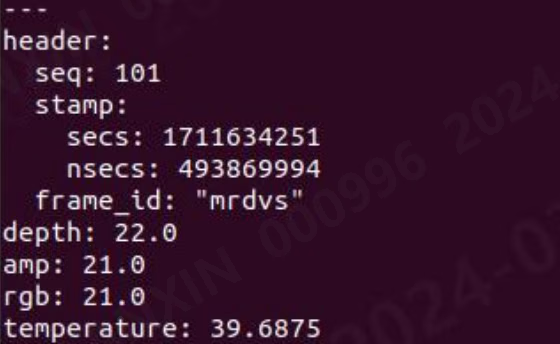
5.3.3.1 FrameRate.msg
Este nodo muestra información sobre la frecuencia de fotogramas. El formato del mensaje es el siguiente: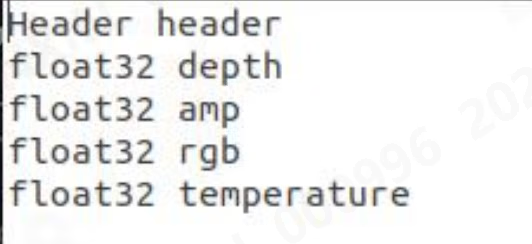
- header: información del fotograma y marca de tiempo de los datos actuales
- depth: cuando el mapa de profundidad está activado, muestra la frecuencia de fotogramas del mapa de profundidad
- amp: cuando el mapa de intensidad está activado, muestra la frecuencia de fotogramas del mapa de intensidad
- rgb: cuando RGB está activado, muestra la frecuencia de fotogramas RGB
- temperature: muestra la temperatura de la cámara
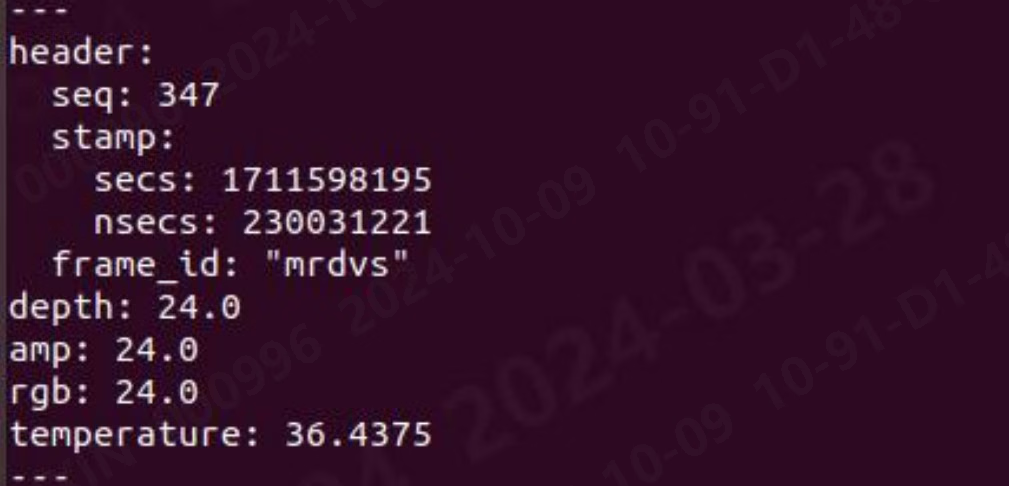
5.3.3.2 Obstacle.msg
obstacle muestra información relacionada con los resultados del algoritmo de evitación de obstáculos. El formato del mensaje obstacle es el siguiente: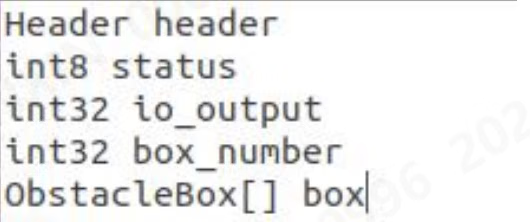
- header: información del fotograma y marca de tiempo de los datos actuales
- status: información de estado devuelta por el algoritmo de evitación de obstáculos
- io_output: información de evitación de obstáculos generada por la interfaz io
- box_number: número de obstáculos
- box: información de los obstáculos, matriz de longitud variable cuya longitud viene determinada por box_number
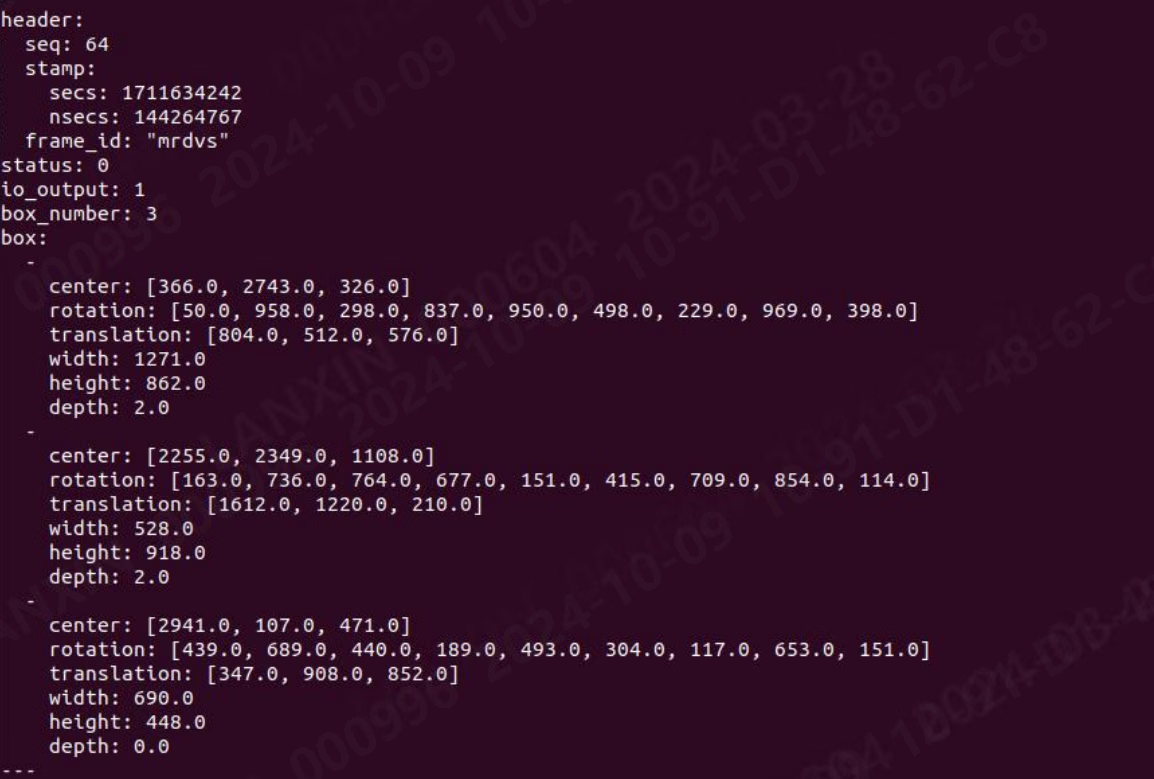
5.3.3.3 Obstacle_box.msg
obstacle_box muestra información relacionada con los obstáculos y el formato del mensaje obstacle_box es el siguiente: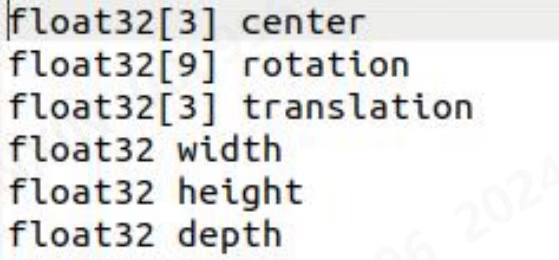
- center: centro de masa del obstáculo en la nube de puntos
- rotation: matriz de rotación de la nube de puntos del obstáculo
- translation: vector de traslación de la nube de puntos del obstáculo
- width: ancho del marco del obstáculo
- height: alto del marco del obstáculo
- depth: profundidad del marco del obstáculo

5.3.3.4 Result.msg
El valor devuelto obtenido después de enviar el mensaje de comando al servicio del nodo se almacena en Result: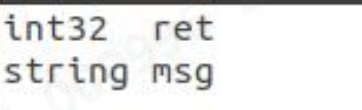
- ret: valor devuelto obtenido al ejecutar el SDK
- msg: descripción del valor devuelto obtenido al ejecutar el SDK
5.3.3.5 Pallet.msg
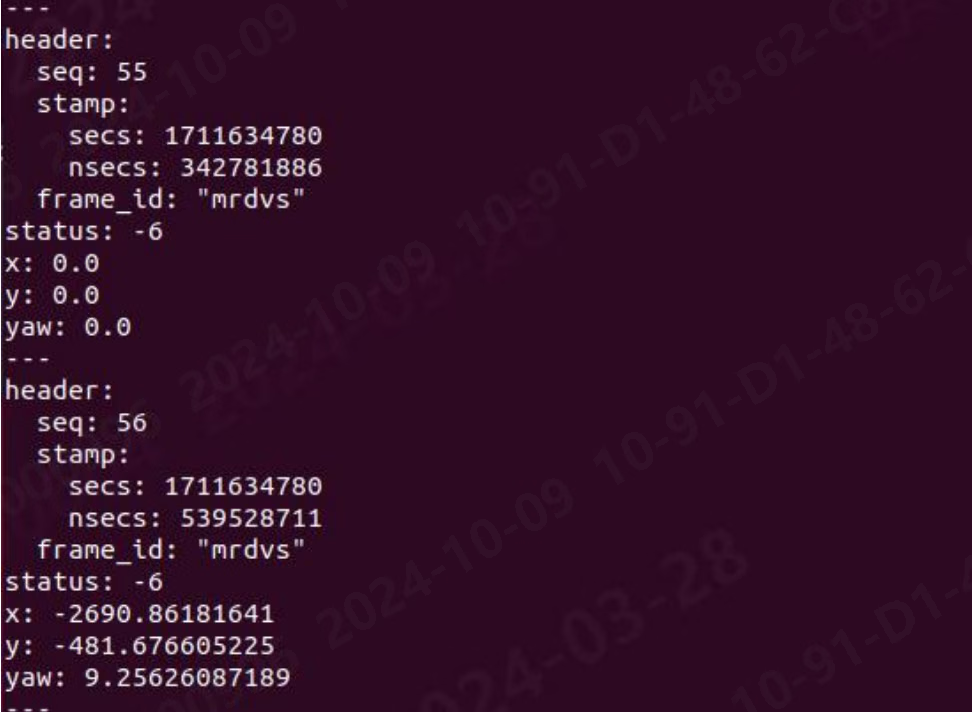
pallet muestra información relacionada con los resultados del algoritmo de palés. El formato del mensaje pallet es el siguiente: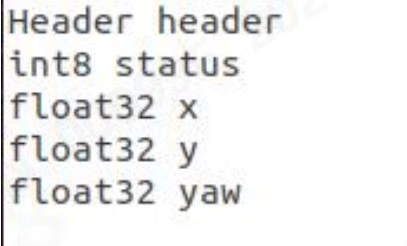
- header: información del fotograma y marca de tiempo de los datos actuales
- status: información de estado devuelta por el reconocimiento de palés:
- x: distancia X entre la bandeja y el centro óptico de la cámara
- y: distancia Y entre la bandeja y el centro óptico de la cámara
- yaw: ángulo theta entre el centro de la bandeja y el centro óptico de la cámara
5.3.4 Unique Service Description
Since the unique service types of ROS1 and ROS2 are the same, ROS1 is used as an example here. There are the following files in the src/srv folder: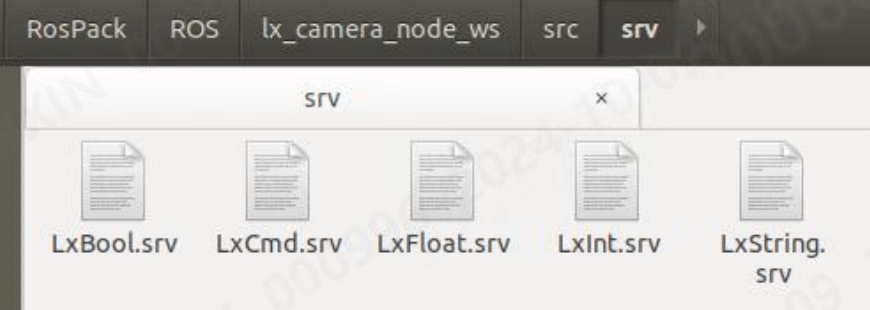
5.3.4.1 LxBool.srv
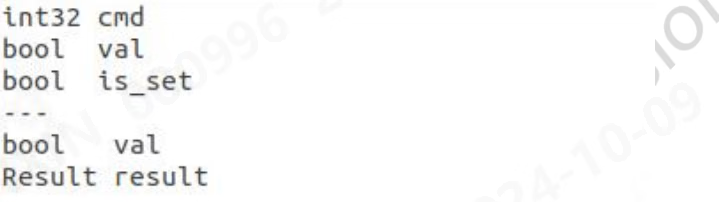
- cmd: the parameter number that needs to be obtained or set
- val: the value set when setting
- is_set: Whether to set the parameter. When it is true, the value in val will be set to the camera. When it is false, the value of this parameter will be read from the camera and displayed.
- val: The value of the camera’s current parameter returned when getting or setting it
- result: the value and information returned by calling the SDK interface
5.3.4.2 LxCmd.srv
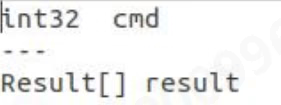
- cmd: The parameter number that needs to be obtained or set. When it is 0, all parameter numbers will be returned.
- result: the value and information returned by calling the SDK interface, cmd may have multiple return values
5.3.4.3 LxFloat.srv
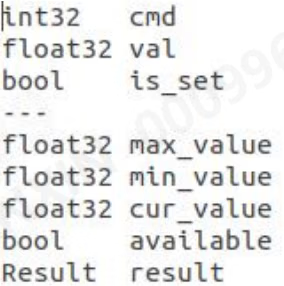
- cmd: the parameter number that needs to be obtained or set
- val: the value set when setting
- is_set: Whether to set the parameter. When it is true, the value in val will be set to the camera. When it is false, the value of this parameter will be read from the camera and displayed.
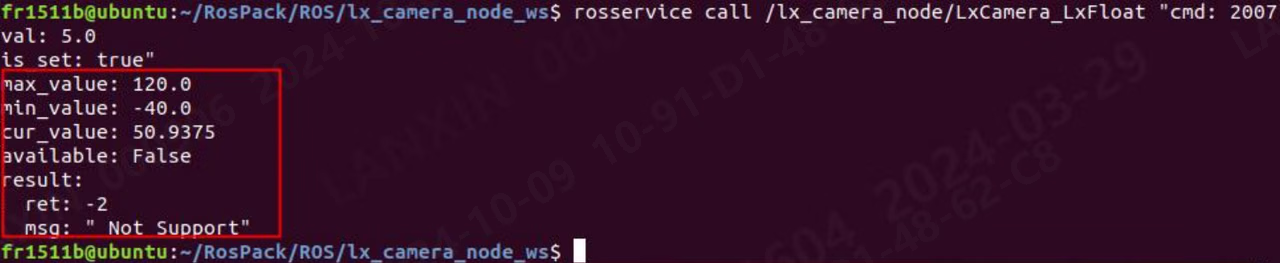
- max_value: the maximum value that can be set for this parameter
- min_value: the minimum value that can be set for this parameter
- cur_value: the current value of this parameter in the camera
- available: whether this parameter supports setting
- result: the value and information returned by calling the SDK interface
5.3.4.4 LxInt.srv
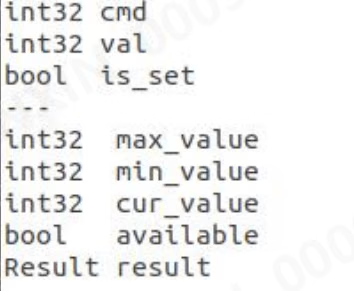
- cmd: the parameter number that needs to be obtained or set
- val: the value set when setting
- is_set: Whether to set the parameter. When it is true, the value in val will be set to the camera. When it is false, the value of this parameter will be read from the camera and displayed.
- max_value: the maximum value that can be set for this parameter
- min_value: the minimum value that can be set for this parameter
- cur_value: the current value of this parameter in the camera
- available: whether this parameter supports setting
- result: the value and information returned by calling the SDK interface
5.3.4.5 LxString.srv
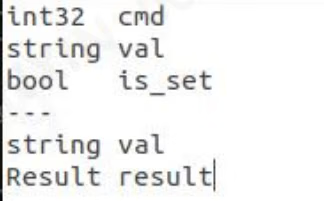
- cmd: the parameter number that needs to be obtained or set
- val: the value set when setting
- is_set: Whether to set the parameter. When it is true, the value in val will be set to the camera. When it is false, the value of this parameter will be read from the camera and displayed.
- val: The value of the camera’s current parameter returned when getting or setting it
- result: the value and information returned by calling the SDK interface
5.3.5 Description of topic subscription methods
5.3.5.1 Subscription frame rate, tray algorithm, obstacle avoidance algorithm output data
Subscribe Frame Rate In the lx_camera_node_ws directory, enter: bash rate.sh

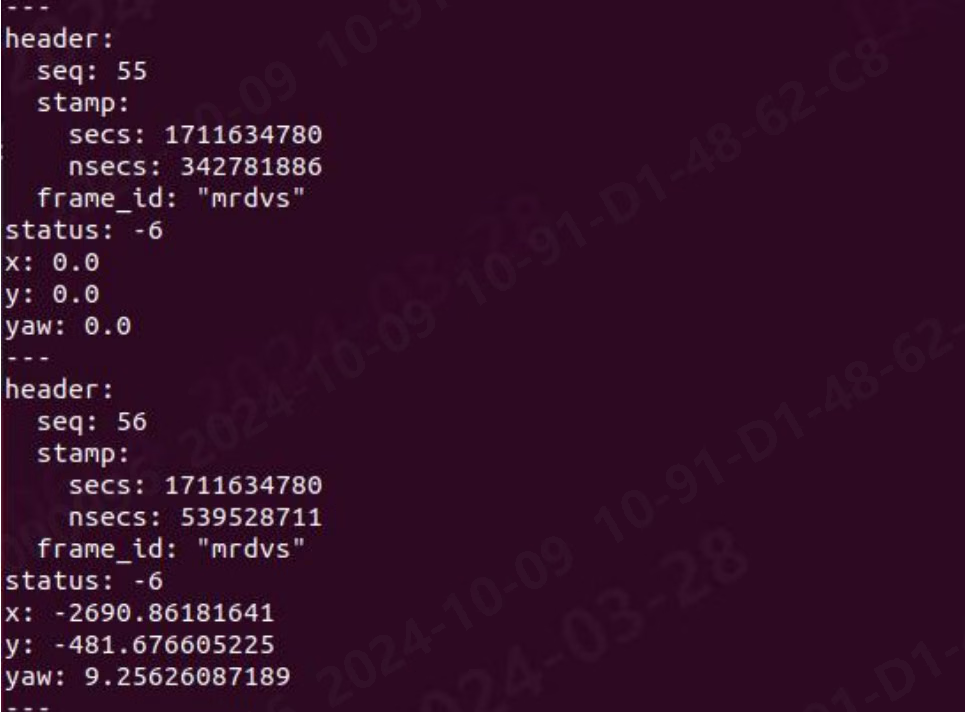

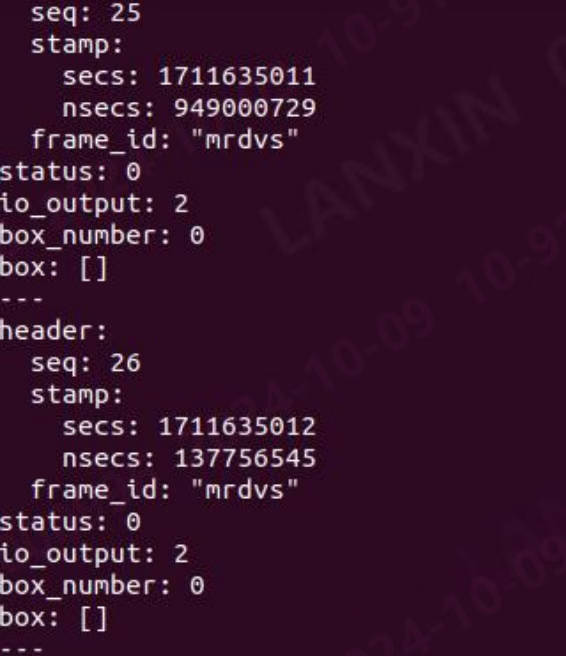
5.3.5.2 Subscribe to image data (ROS1)
You can view the image information output by the node through the image tool that comes with ros: Console input command: rqt_image_view After entering the command, the following window will pop up: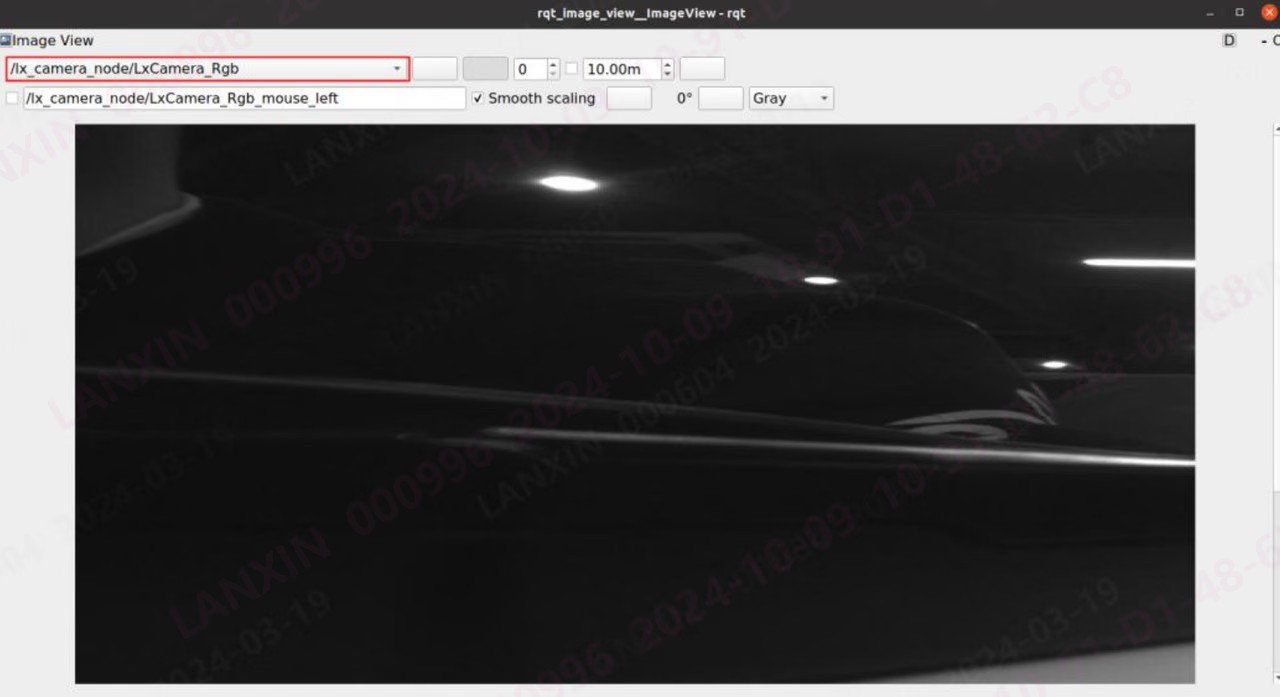
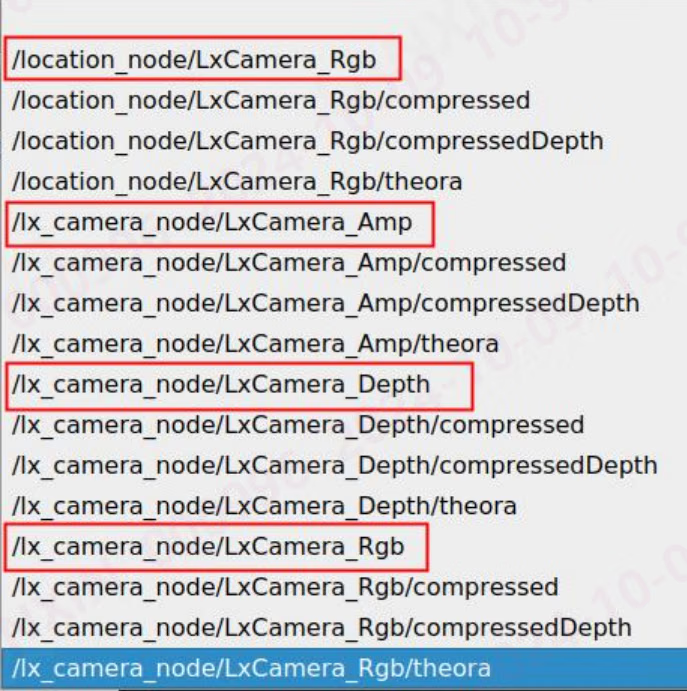
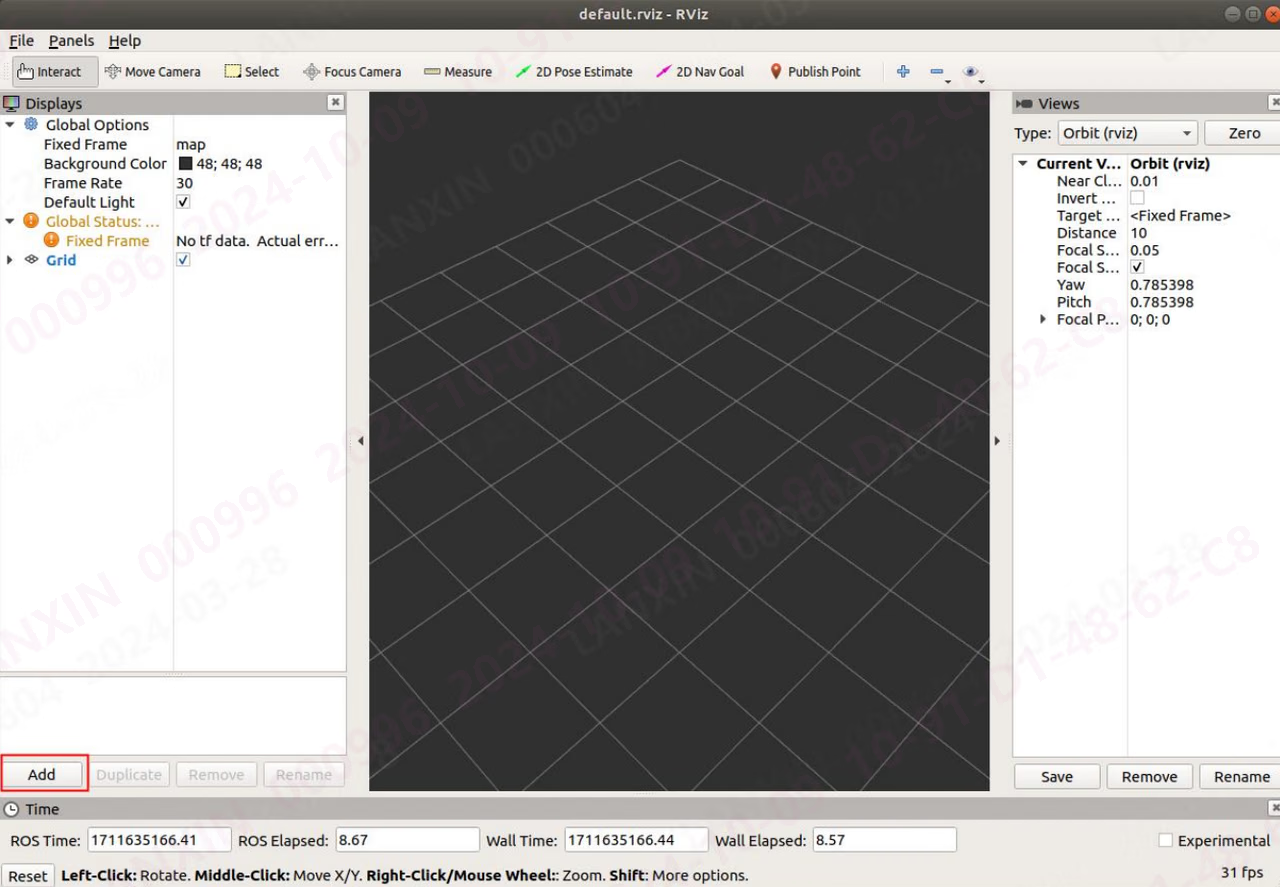
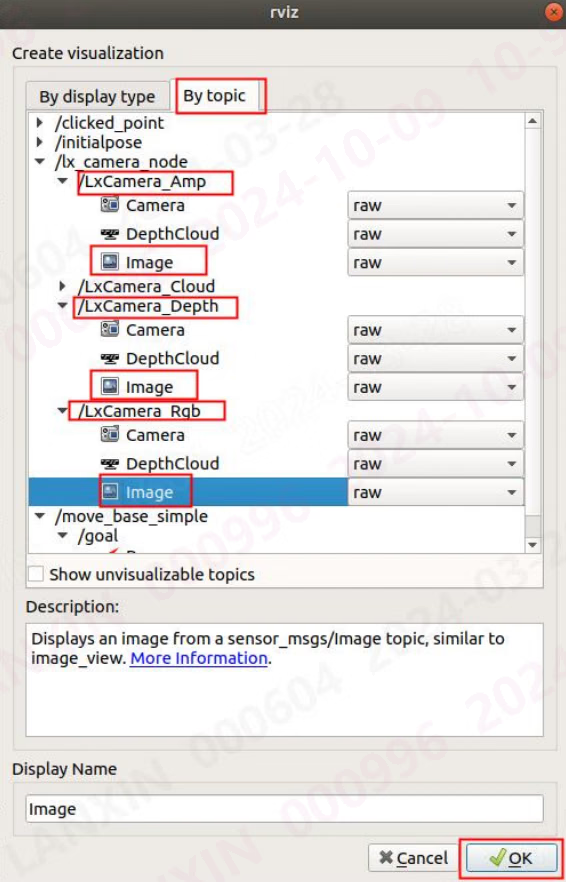
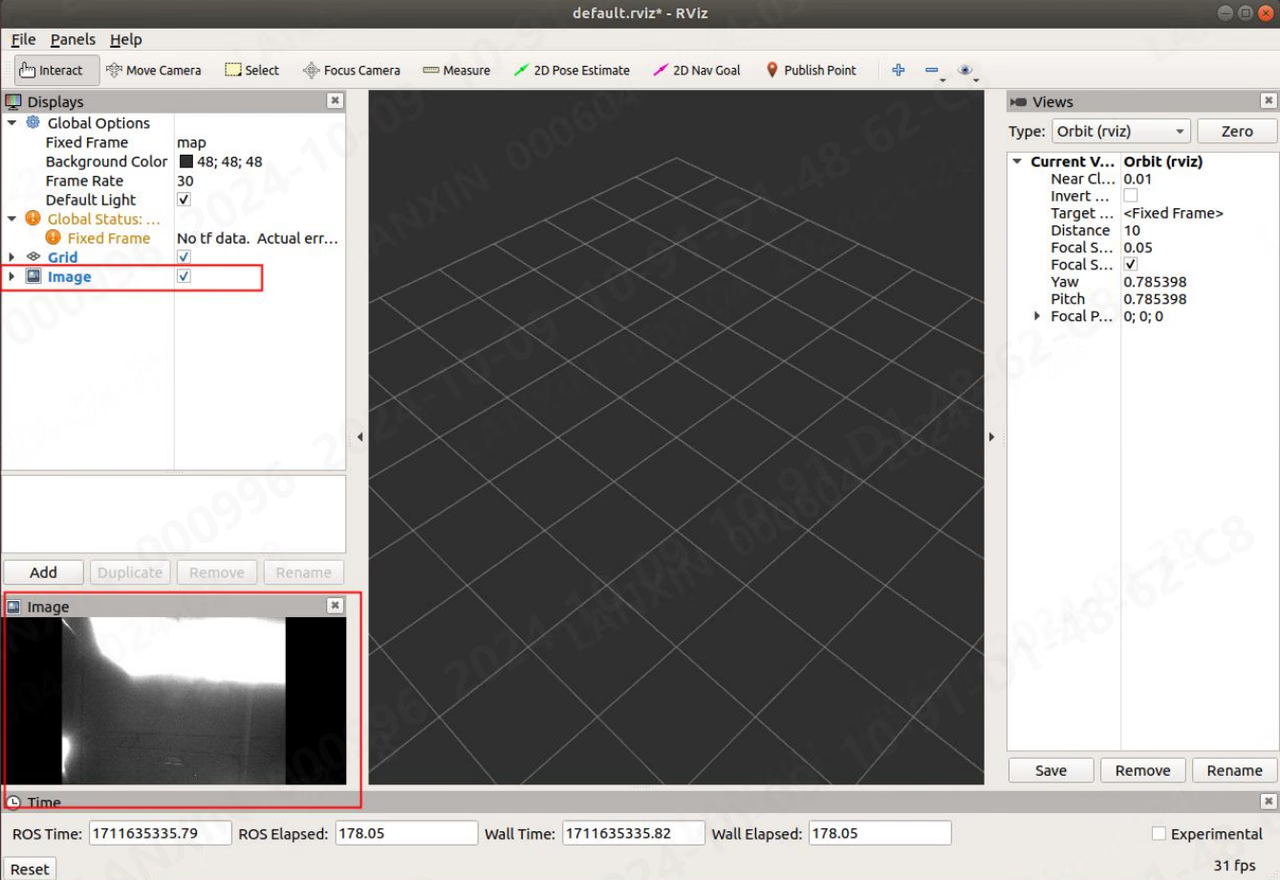
5.3.5.3 Subscribe to image data (ROS2)
You can view the image information output by the node through the image tool that comes with ros2: Enter the command on the console: rqt After entering the command, the following window will pop up: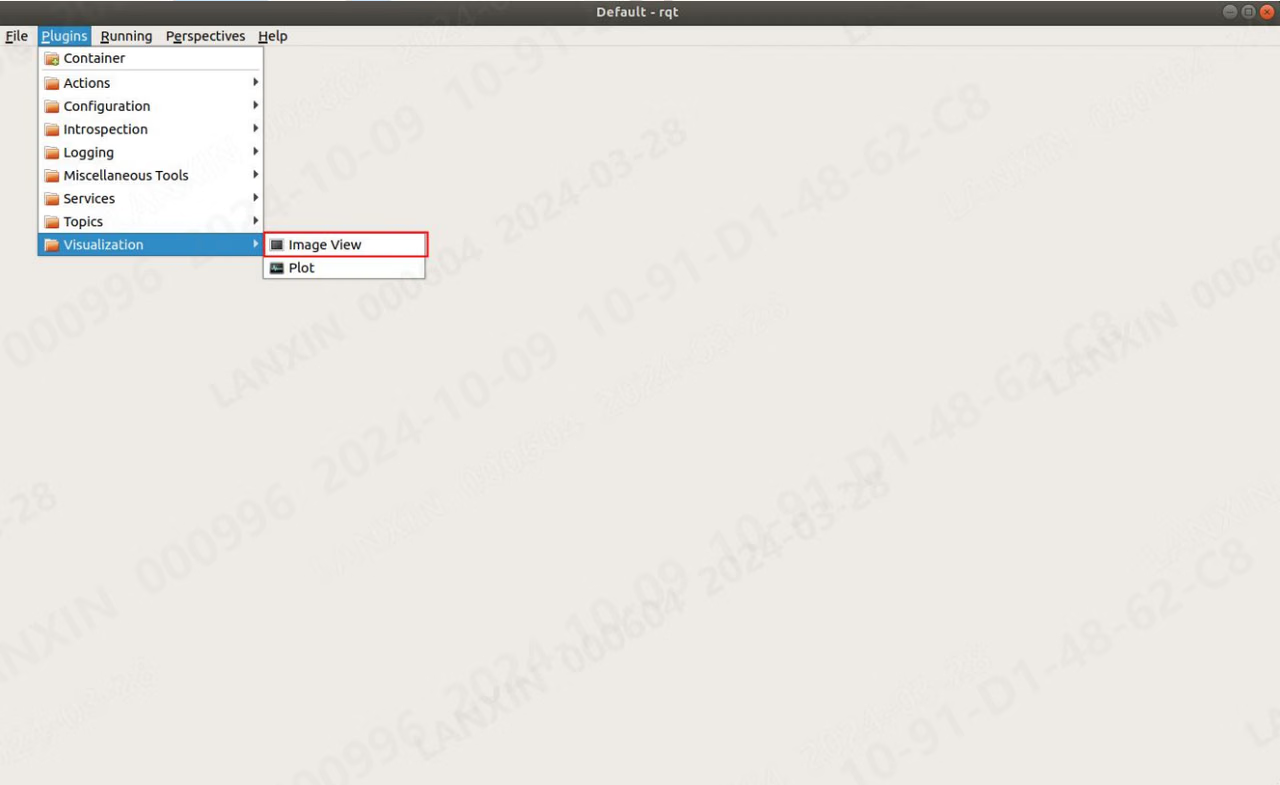
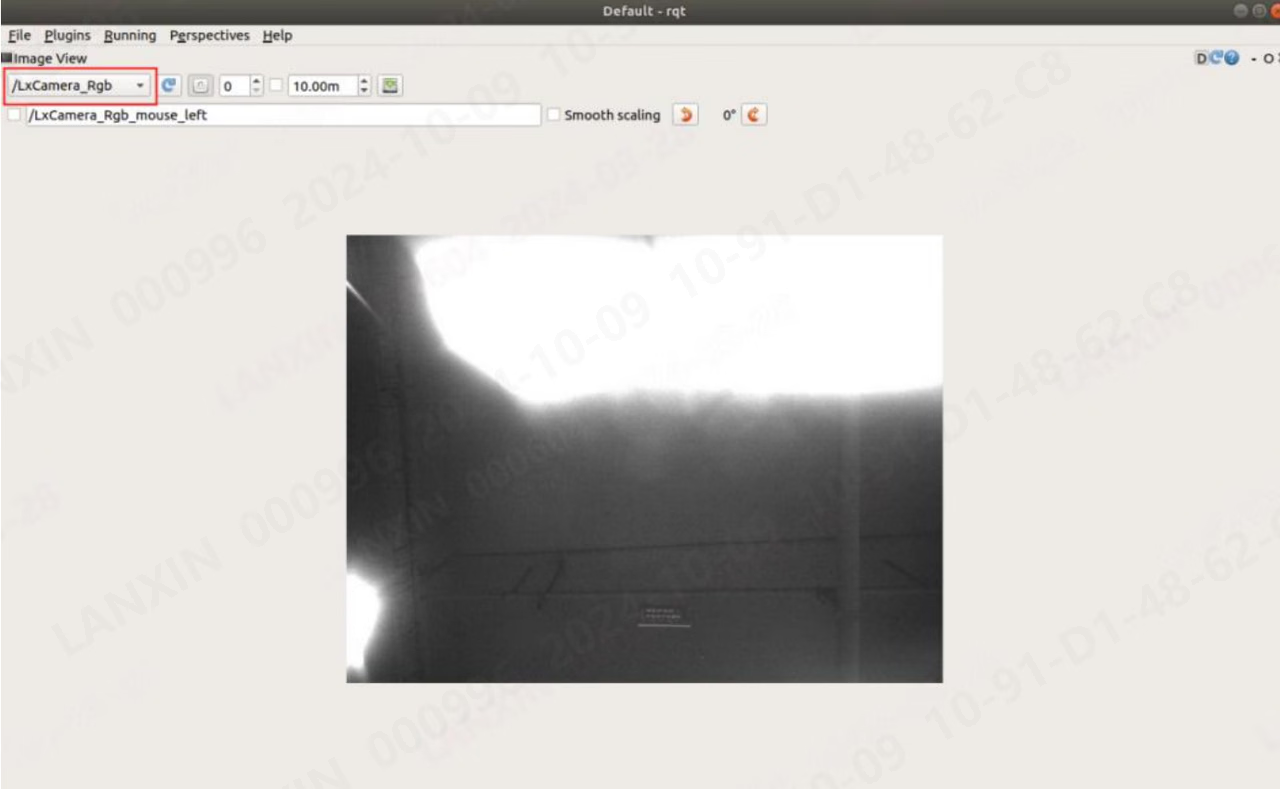
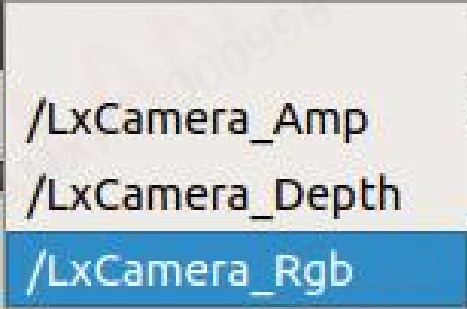
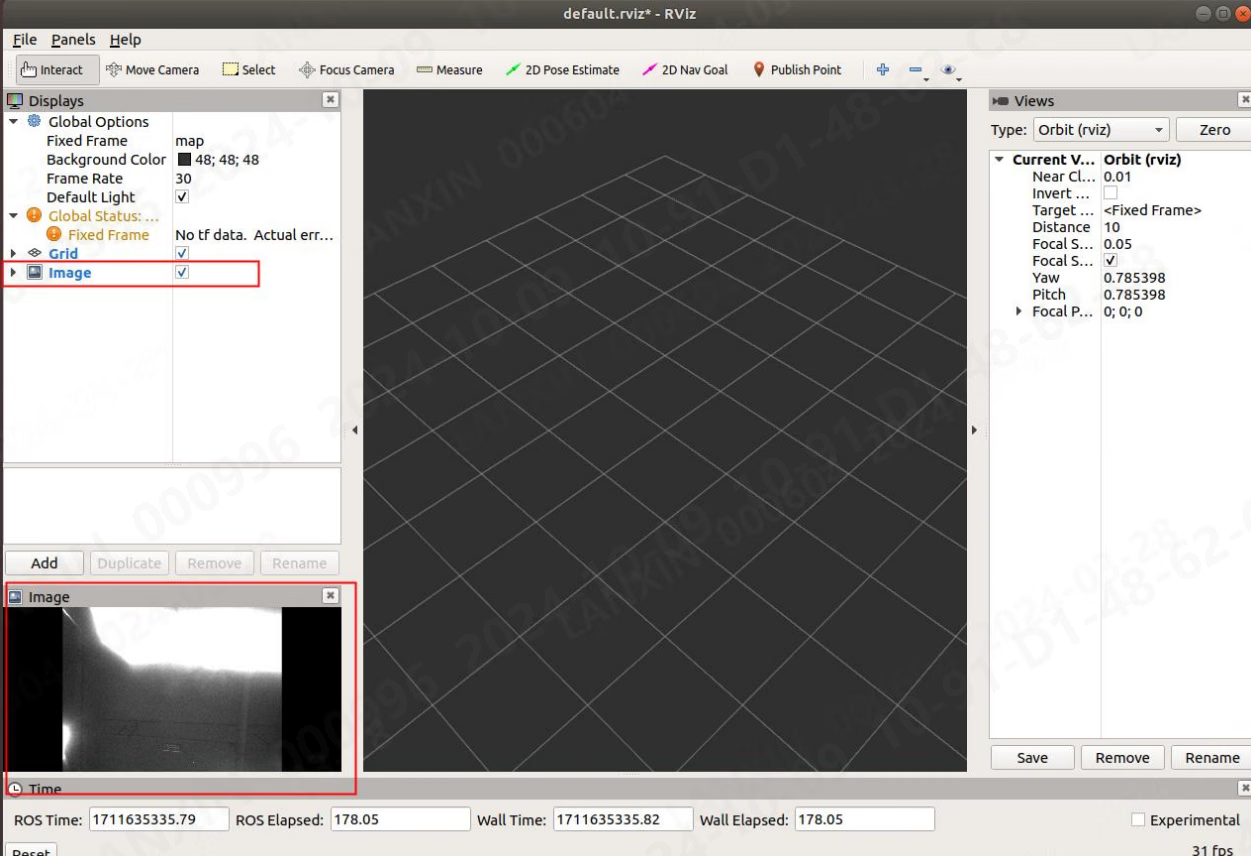
5.3.5.4 Subscribe to point cloud data
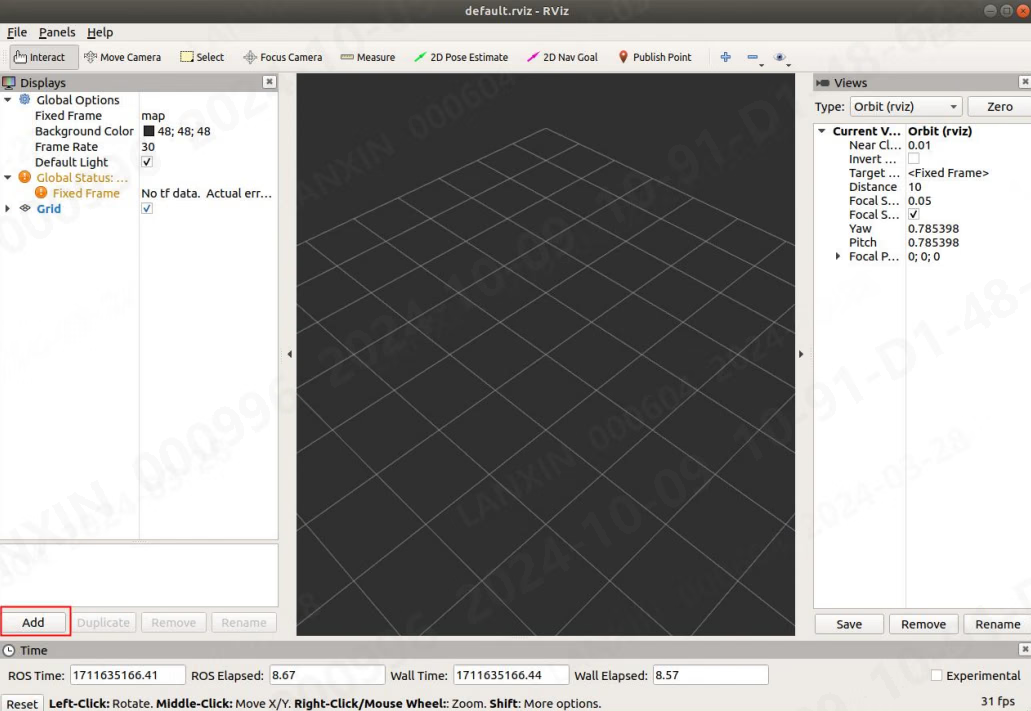
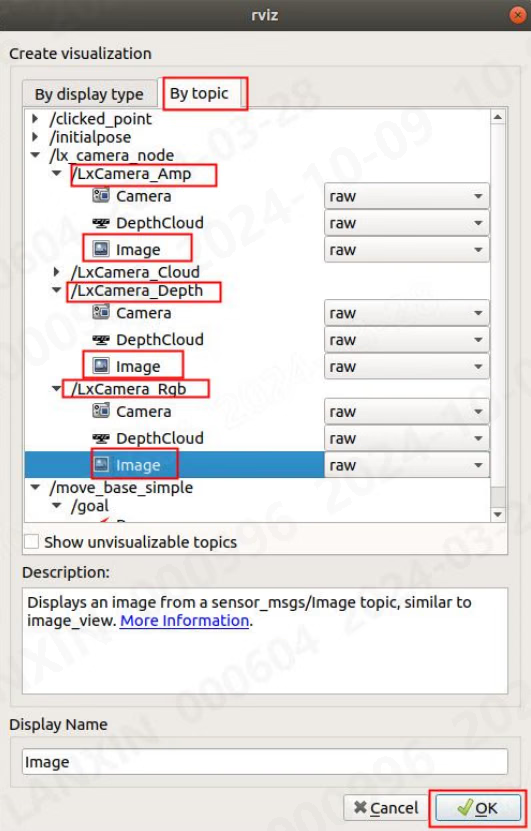
The point cloud information output by the node can be viewed through the point cloud tool provided by ros or ros2: Command: rviz【ROS1】, rviz2【ROS2】 After entering the command, the following window will pop up: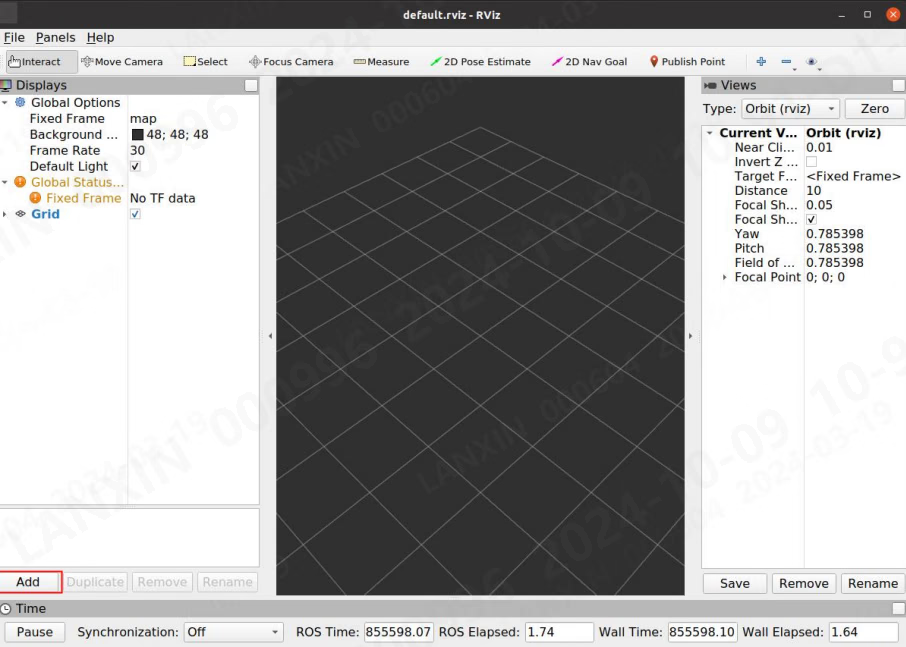
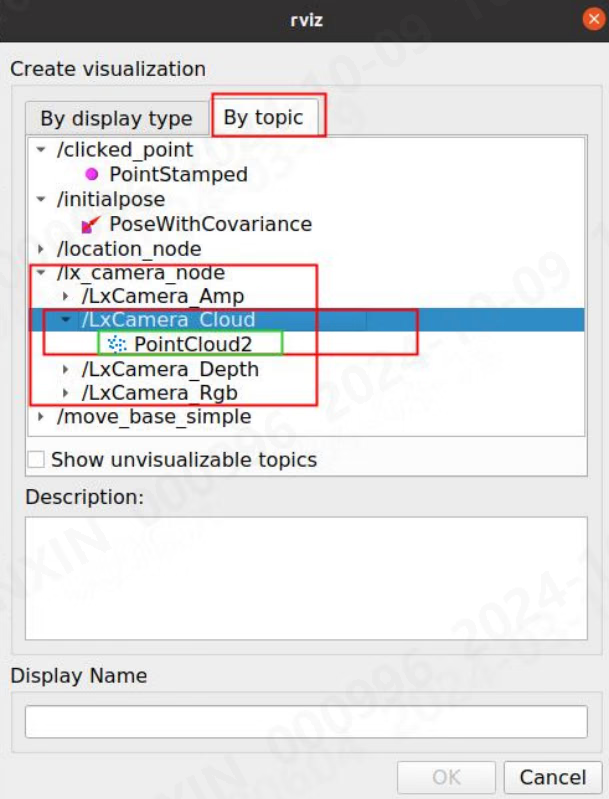
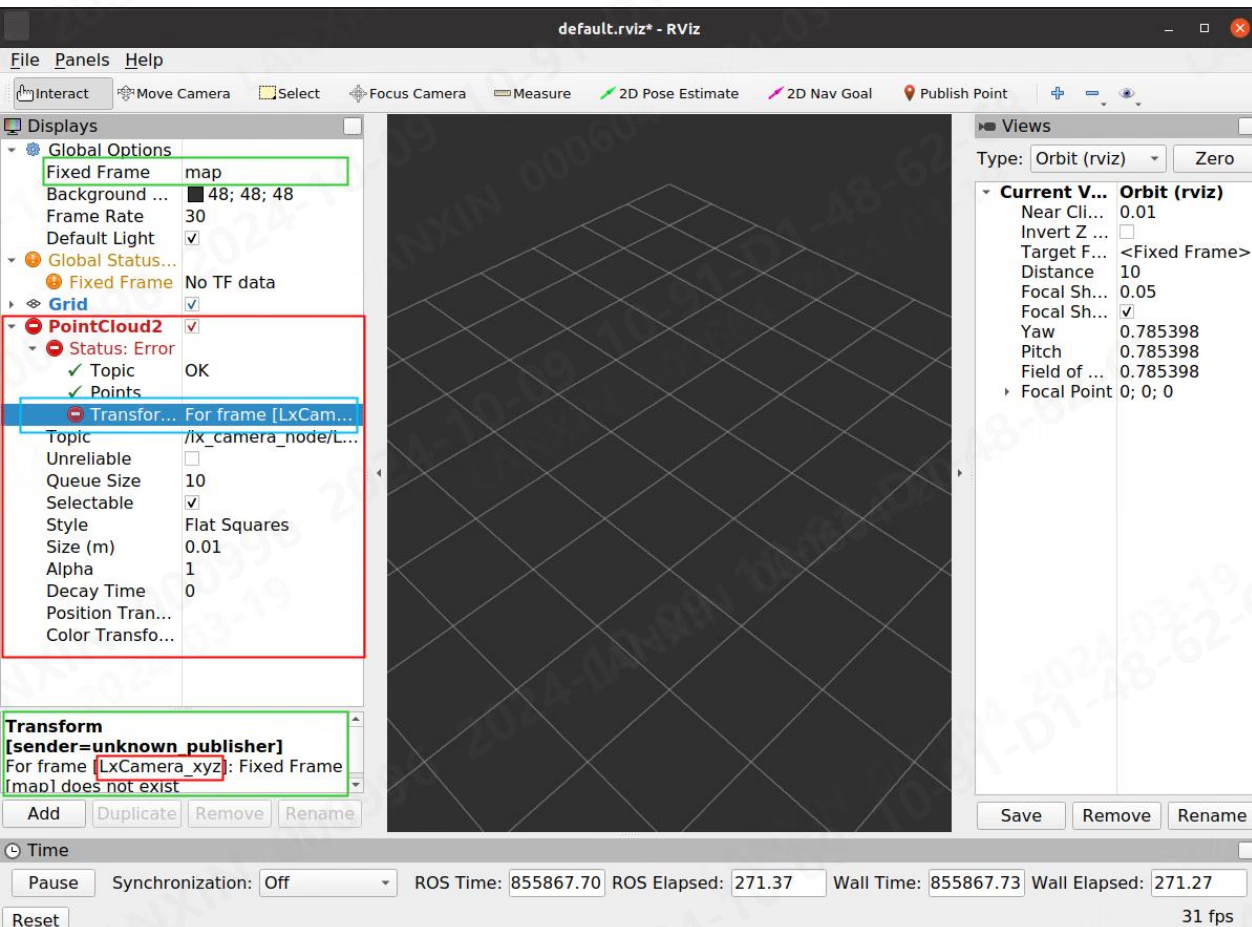
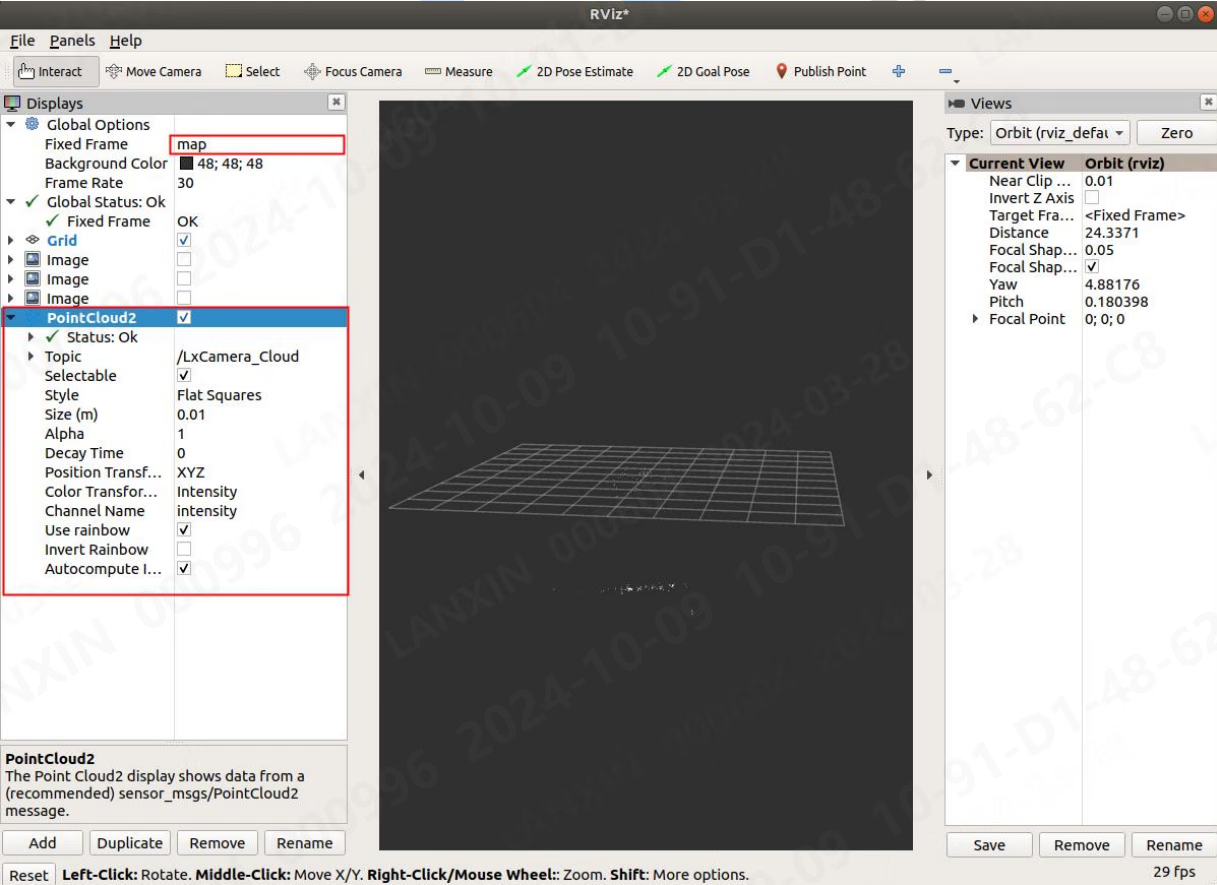
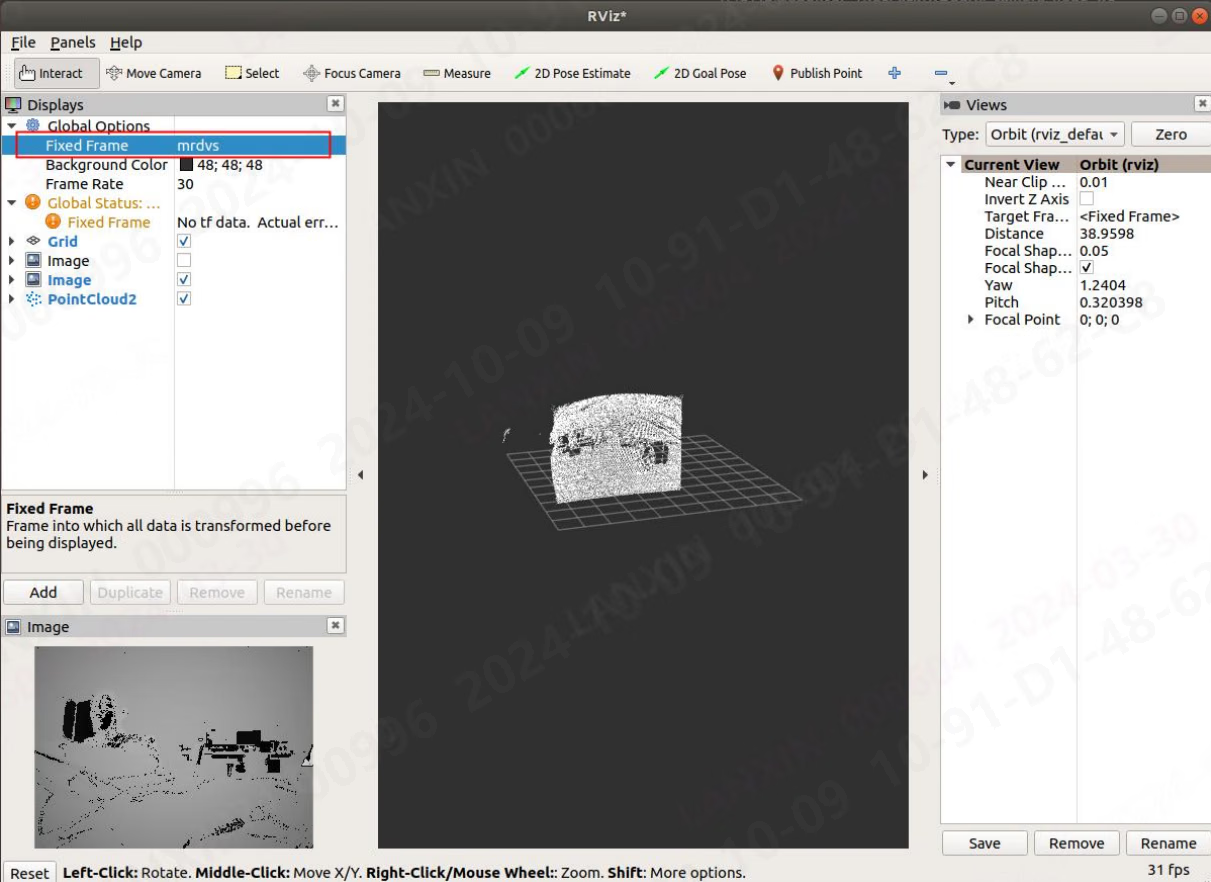
5.3.6 Description of service communication methods
In ROS1, all commands can be completed using the Tab key, but in ROS2, only topics can be completed, and the message part needs to be entered manually. When inputting data in ROS1, you can input it in the completion format. When inputting data in ROS2, you need to input it in the format of the yaml file. After the node is running, open a terminal under the lx_camera_node_ws folder, configure the environment in the terminal, and enter the command: source devel/setup.bash5.3.6.1 Get the list of all parameter numbers (Lx_Cmd)
ros1 Enter in the terminal: rosservice call /lx_camera_node/LxCamera_LxCmd “cmd: 0”
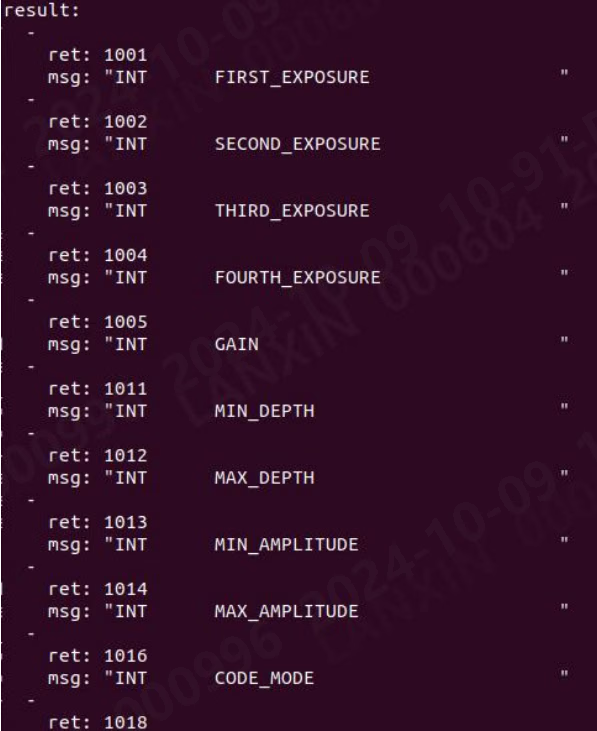

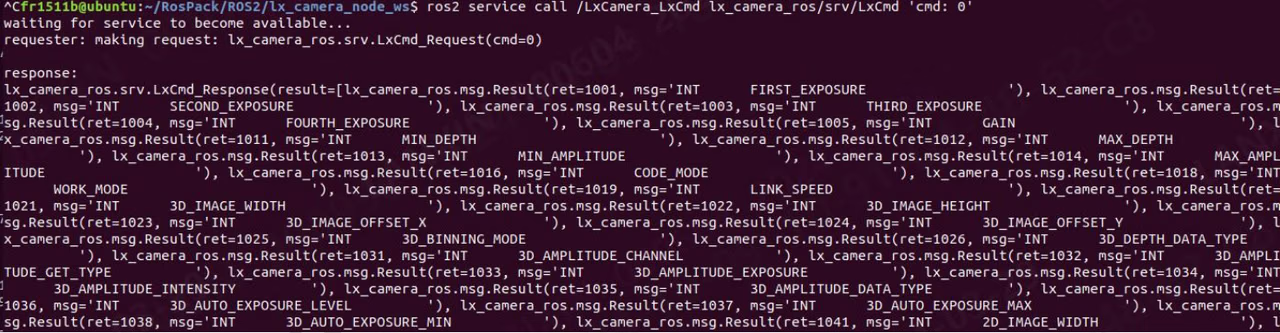
Some parameters need to stop the flow before they can be set, or there is a sequence of settings. Please contact the technical support staff for specific needs.
5.3.6.2 Get Int parameter (Lx_Int)
ROS1 Enter in the terminal: rosservice call /lx_camera_node/LxCamera_LxInt “cmd: 1001 val: 0 is_set: false”

ROS2 Enter in the terminal:
ros2 service call /LxCamera_LxInt lx_camera_ros/srv/LxInt '{cmd: 1001,val: 0,is_set: false}'


5.3.6.3 Set Int parameters (Lx_Int)
ROS1 Enter in the terminal: rosservice call /lx_camera_node/LxCamera_LxInt “cmd: 1001 val: 2000 is_set: true”

ROS2 Enter in the terminal:
ros2 service call /LxCamera_LxInt lx_camera_ros/srv/LxInt '{cmd: 1001,val: 3000,is_set: true}'


5.3.6.4 Get Float parameters (Lx_Float)
ROS1 Enter in the terminal: rosservice call /lx_camera_node/LxCamera_LxFloat “cmd: 2007 val: 0.0 is_set: false”

ROS2 Enter in the terminal:
ros2 service call /LxCamera_LxFloat lx_camera_ros/srv/LxFloat '{cmd: 2007,val: 0,is_set: false}'


5.3.6.5 Set Float parameters (Lx_Float)
ROS1 Enter in the terminal: rosservice call /lx_camera_node/LxCamera_LxFloat “cmd: 2007 val: 5.0 is_set: true”
ROS2 Enter in the terminal:
ros2 service call /LxCamera_LxFloat lx_camera_ros/srv/LxFloat '{cmd: 2007,val: 5.0,is_set: true}'


5.3.6.6 Get Bool parameters (Lx_Bool)
ROS1 Enter in the terminal: rosservice call /lx_camera_node/LxCamera_LxBool “cmd: 3012 val: false is_set: false”

ROS2 Enter in the terminal:
ros2 service call /LxCamera_LxBool lx_camera_ros/srv/LxBool '{cmd: 3012,val: false,is_set: false}'


5.3.6.7 Set Bool parameters (Lx_Bool)
ROS1 Enter in the terminal: rosservice call /lx_camera_node/LxCamera_LxBool “cmd: 3012 val: true is_set: true”

ROS2 Enter in the terminal:
ros2 service call /LxCamera_LxBool lx_camera_ros/srv/LxBool '{cmd: 3012,val: true,is_set: true}'


5.3.6.8 Get String parameter (Lx_String)
ROS1 Enter in the terminal: rosservice call /lx_camera_node/LxCamera_LxString “cmd: 4001 val: ” is_set: false”

ROS2 Enter in the terminal:
ros2 service call /LxCamera_LxString lx_camera_ros/srv/LxString '{cmd: 4001,val: '',is_set: false}'


5.3.6.9 Set String parameters (Lx_String)
ROS1 Enter in the terminal: rosservice call /lx_camera_node/LxCamera_LxString “cmd: 4001 val: ‘put:\“123\”’ is_set: true”

ROS2 Enter in the terminal:
ros2 service call /LxCamera_LxString lx_camera_ros/srv/LxString '{cmd: 4001,val: "put:\\"123\\"",is_set: true}'


ROS recommended hardware and resource usage
6.1 Recommended hardware configuration
In the recommended hardware configuration, the analysis is based on CPU core count, CPU usage, and memory size. These are recommended configurations, not minimum requirements. If your hardware is below the recommendation, stable operation may still be possible by reducing stream output, disabling point-cloud computation, or lowering the algorithm load. Running a workload above the available configuration may crash the ROS core or Ubuntu. The second and third sections of this chapter provide detailed usage data. Choose the operating environment and stream configuration that best fits your system. All data here was collected in a VM using an M4 Pro camera. Ubuntu16.04
Ubuntu18.04
Ubuntu20.04
Ubuntu22.04
6.2 CPU details
The CPU details will show the amount of CPU resources occupied by the node under different operating conditions. The test is based on AMD64 [8 cores], 8G memory hardware environment, the test camera is M4 Pro, the test algorithm is tray algorithm, 2D width and height are 1280*960, and 3D width and height are 640*480, 2D anti-distortion is on, 3D anti-distortion is off, and integration 110 - 3000, depth 0 - 8000, ToF frame rate 14, streaming mode, smoothing level 1, noise level 1, time domain level 0, statistics command is TOP. Because the test soft environment is VM virtual machine, it is normal for the data displayed by the physical machine to fluctuate compared with that in the document. For some cameras, such as S2, some algorithms are calculated on the host computer, which results in a large amount of resource usage, which is normal.1. Some nouns are explained as follows: -Single stream: refers to turning on any stream of RGB, depth, and intensity
- Dual stream: refers to turning on any two streams of RGB, depth and intensity
- Four streams: means RGB, depth, intensity, and point cloud are all turned on
- To enable the pallet algorithm, the depth must be enabled
- To turn on the obstacle avoidance algorithm, you must turn on depth
- To turn on the positioning algorithm, you must turn on RGB
The light blue background in the table is the running configuration with point cloud enabled, and the colorless background is the running configuration without point cloud enabled. All the test data below have the algorithm shifted down by default, so for S2 series cameras, all test values may be too small [some algorithms of S2 series cameras are forced to move up]. Ubuntu16.04
Ubuntu18.04
Ubuntu20.04
Ubuntu22.04
6.3 Memory details
The memory details will show the amount of memory resources occupied by the node under different operating conditions. The test is based on AMD64 [8 cores], 8G memory hardware environment, the test camera is M4 Pro, the test algorithm is tray algorithm, 2D width and height are 1280*960, and 3D width and height are 640*480, 2D anti-distortion is on, 3D anti-distortion is off, points 110 - 3000, depth 0 - 8000, ToF frame rate 14, streaming mode, smoothing level 1, noise level 1, time domain level 0, statistics command is TOP. Because the test soft environment is VM virtual machine, it is normal for the data displayed by the physical machine to fluctuate compared with that in the document. For some cameras, such as S2, some algorithms are calculated on the host computer, which results in a large amount of resource usage, which is normal.1. Some nouns are explained as follows: -Single stream: refers to turning on any stream of RGB, depth, and intensity
- Dual stream: refers to turning on any two streams of RGB, depth and intensity
- Four streams: means RGB, depth, intensity, and point cloud are all turned on
- To enable the pallet algorithm, the depth must be enabled
- To turn on the obstacle avoidance algorithm, you must turn on depth
- To turn on the positioning algorithm, you must turn on RGB
- The light blue background in the table is the running configuration with point cloud enabled, and the colorless background is the running configuration without point cloud enabled. All the test data below have the algorithm shifted down by default, so for S2 series cameras, all test values may be too small [some algorithms of S2 series cameras are forced to move up].
Ubuntu18.04
Ubuntu20.04
Ubuntu22.04
Appendix
This appendix provides installation methods for some tools. When using these methods, you need to have at least some basic knowledge of Linux. There is no guarantee that every computer can be successfully installed through the methods shown in the appendix of this document. The environment of each computer is different, and the problems encountered may not be consistent. If you encounter problems not shown in this appendix, please search for solutions yourself.1. Cmake specified version installation method
Go to https://cmake.org/download/ and download the required CMake version. Extract the downloaded package withtar -zxvf cmake-XXX.tar.gz. Enter the extracted directory, then compile and configure it:
./bootstrap
make
sudo make install
Check the Cmake version to see if the installation is successful:
cmake —version
2. Opencv specified version installation method
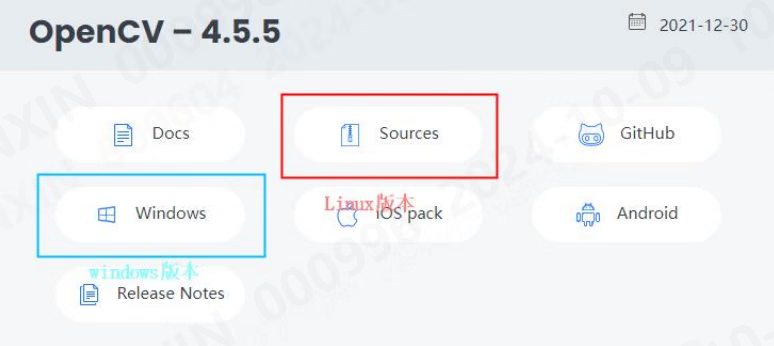
- Download the required version of opencv: Releases-OpenCV
- Environment configuration, execute the following commands in sequence:
- Create a new opencv folder and extract the downloaded source code into the opencv folder.
- Execute the following commands in sequence:
- cd opencv
- mkdir build && cd build
- sudocmake-DCMAKE_BUILD_TYPE=Release-D
- CMAKE_INSTALL_PREFIX=/usr/local ..
- sudo make -j4
- sudo make install and wait for the installation to complete
3. Pcl specified version installation method
- Check the supported pcl version:
- Install the specified pcl version (where 1.10.0 needs to be replaced with the required version number):
4. Install ROS
Ubuntu16.04- Add the software source and set the secret key:
- Add secret key:
- Update source:
- Install complete ros:
- Configure environment variables:
- Complete ROS-related tools:
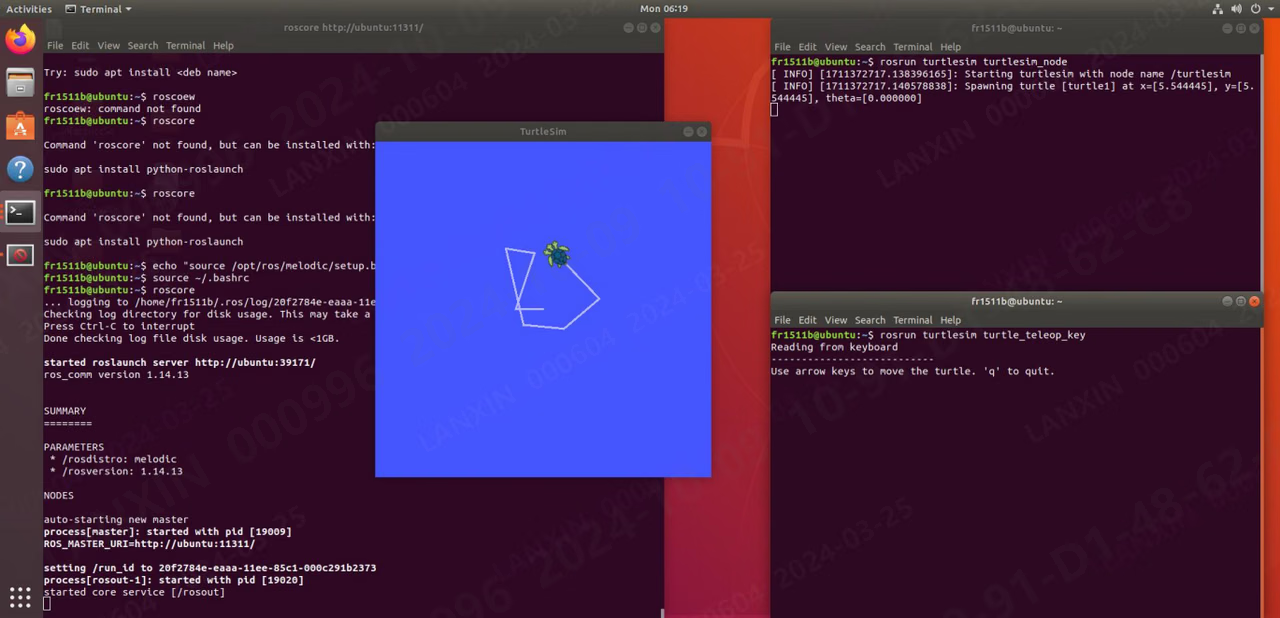
- Now that the installation of ROS1 is complete, run the example that comes with ROS to check whether the installation is correct:
Ubuntu18.04
- Set up the software source:
- Update software list:
- Install Ubuntu18.04 version of ROS1:
- Set environment variables:
- Complete ROS-related tools:
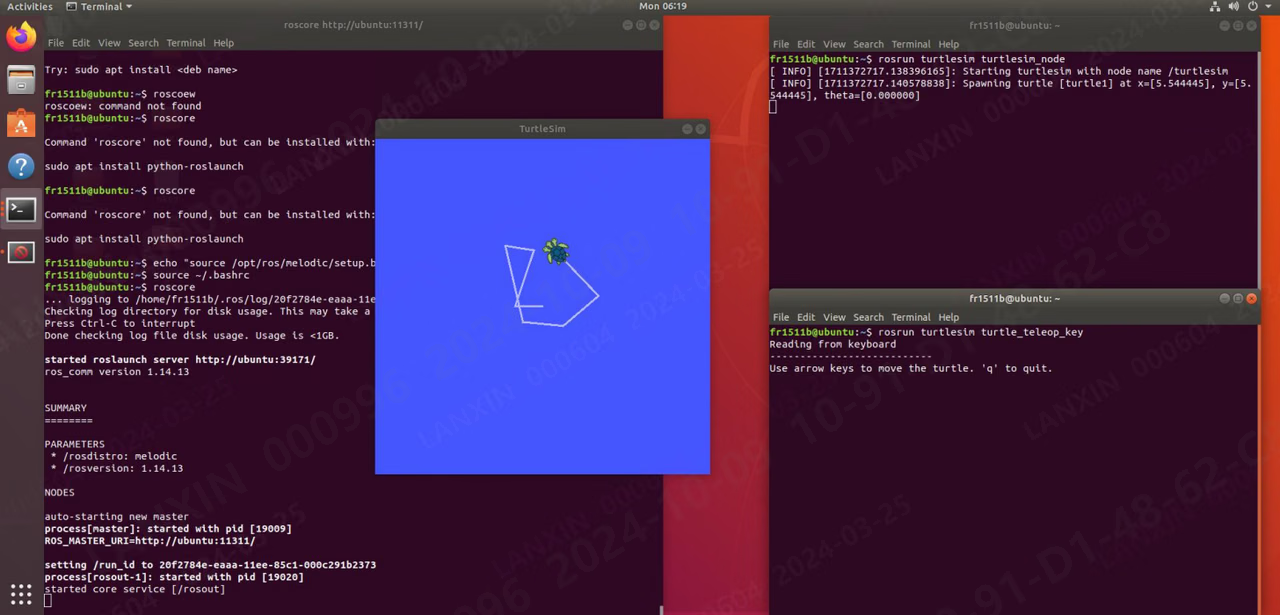
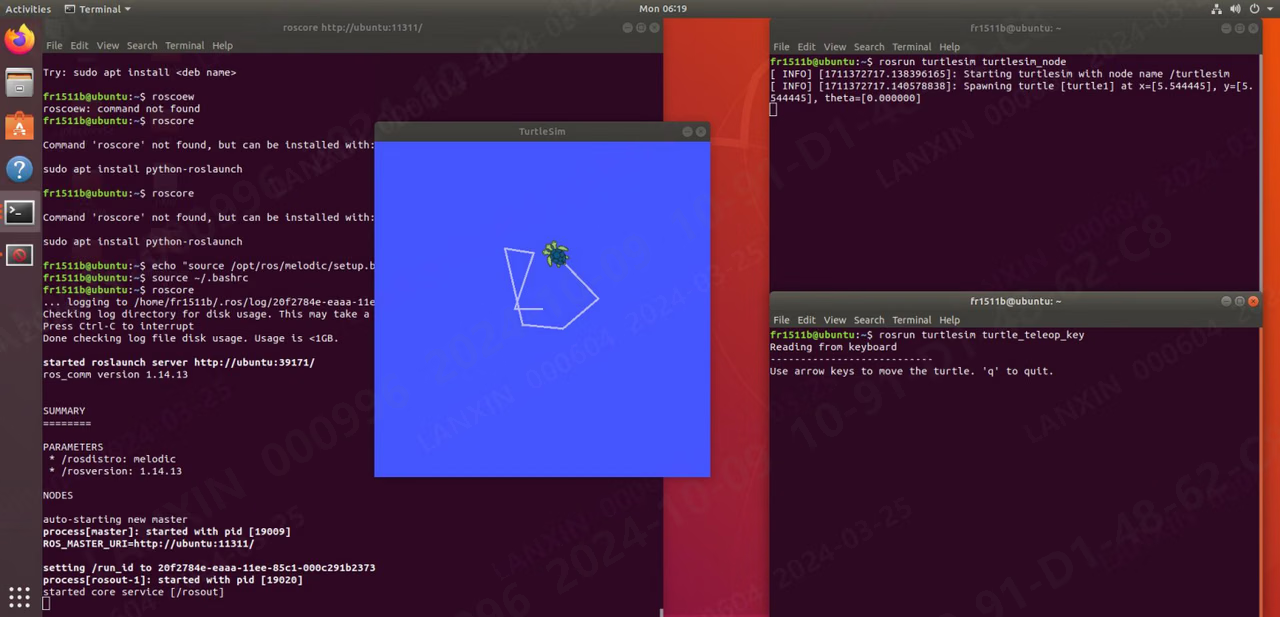
- Now that the installation of ROS1 is complete, run the example that comes with ROS to check whether the installation is correct:
- Configure the public key:
- If it shows that it cannot connect to the server or times out, please update the software source list first:
- After configuring the public key, update the software list again:
- Set environment variables:
- Install ROS tools:
- Now that the installation of ROS1 is complete, run the example that comes with ROS to check whether the installation is correct:
5. How to create a new test package in Ros
- Create a new folder ws, create a new src folder in the ws folder, enter the src folder and execute:
- This creates a new package named example, which depends on std_msgs rospy roscpp
- Then compile this new package: catkin_make This is an empty package, there will not be any executable program, it is just a package
- Next, we will demonstrate how to create a package that can output ‘Hellow world’
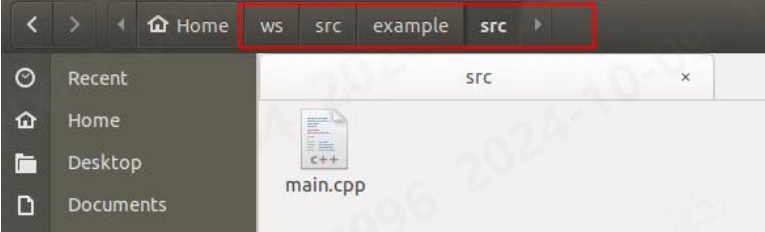
- Based on the package just now, we enter the src folder (src in the package) and create a new main.cpp, as shown below (pay attention to the path):
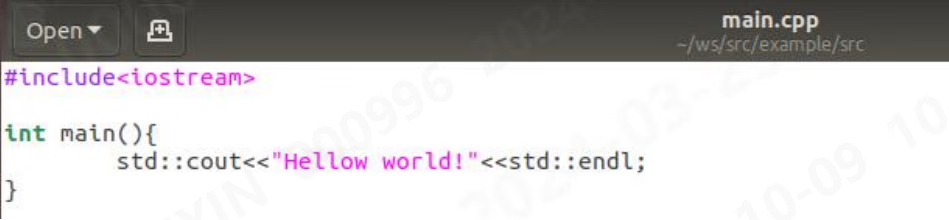
- In main.cpp, we enter some codes:
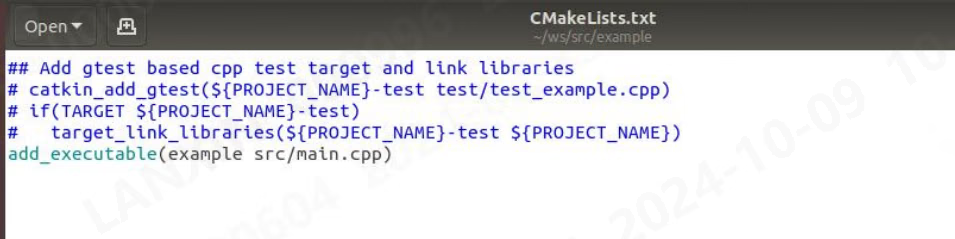
- Then we change the outside CMakeLists.txt and add a line at the bottom: add_executable(example src/main.cpp)
- Then return to the ws directory to compile and execute the command: catkin_make

- Seeing these means the compilation is successful.
- Next we configure the environment:

- Then execute the program and you can see the output:

6. Install ROS2
Ubuntu16.04- Add secret key:
- Add permissions:
- If an error is reported in this step, use VPN to bypass the wall and then open the browser, enter the URL, and copy the content, then create a new ros.asc and copy the content to the file. After the copy is completed, the following is as follows:
- Then re-execute step 3: sudo apt-key add ros.asc
- Continue execution:
- Install ROS2:
- Configure environment variables:
- Install the function package:
- Try running the example program, open a terminal and run:
- Open another interrupt to run:
- The following terminal output proves that the installation is successful:
- Add software source
- If this step reports an error as follows:
- Use VPN to bypass the wall, then open the browser, enter the URL, and copy the content, then create a new ros.asc and copy the content to the file. After the copy is completed, it is as follows:
- Then re-execute step 3: sudo apt-key add ros.asc
- Continue execution:
- After completion, start downloading ros2, in which the red fonts need to be replaced with different versions (see the table above):
- Wait for the installation to complete and continue to install the python library. Execute: sudo apt install -y libpython3-dev python3-pip pip3 install -U argcomplete
- Try running the sample program, open a terminal and run:
- Open another interrupt to run:
- The following terminal output proves that the installation is successful:
- Add software source
- If you encounter the error “ailed to connect to raw.githubusercontent.com port 443 after 13 ms: connection refused”

- Add the following analysis
- The added files are as follows:
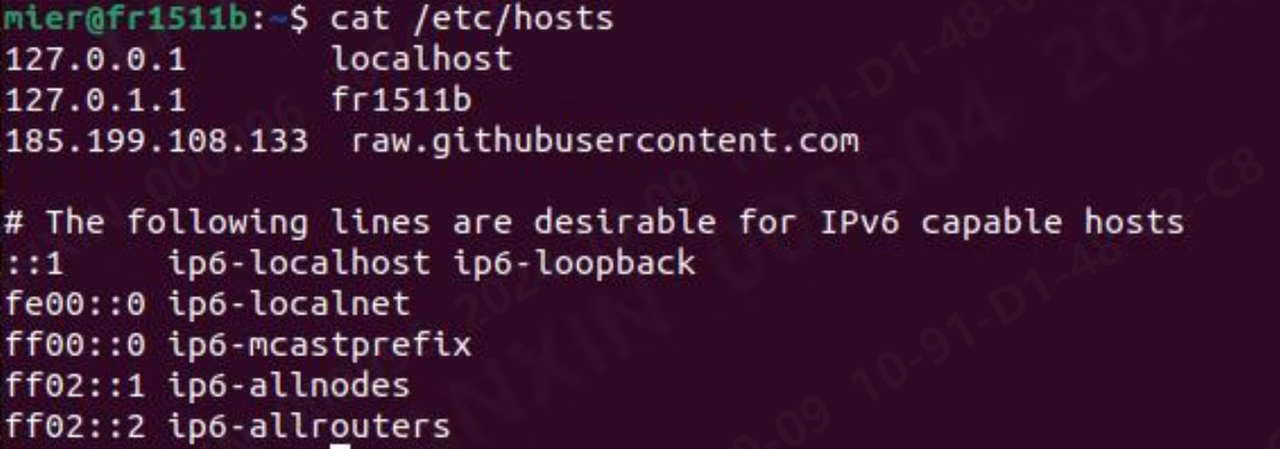
- Continue execution:
- After completion, start downloading ros2:
- Wait for the installation to complete and continue to install the python library. Execute: sudo apt install -y libpython3-dev python3-pip pip3 install -U argcomplete
- Then configure the environment variables:
- Try running the sample program, open a terminal and run:
- Open another interrupt to run:
- The following terminal output proves that the installation is successful:
- Add software source
- If you encounter the error “ailed to connect to raw.githubusercontent.com port 443 after 13 ms: connection refused”

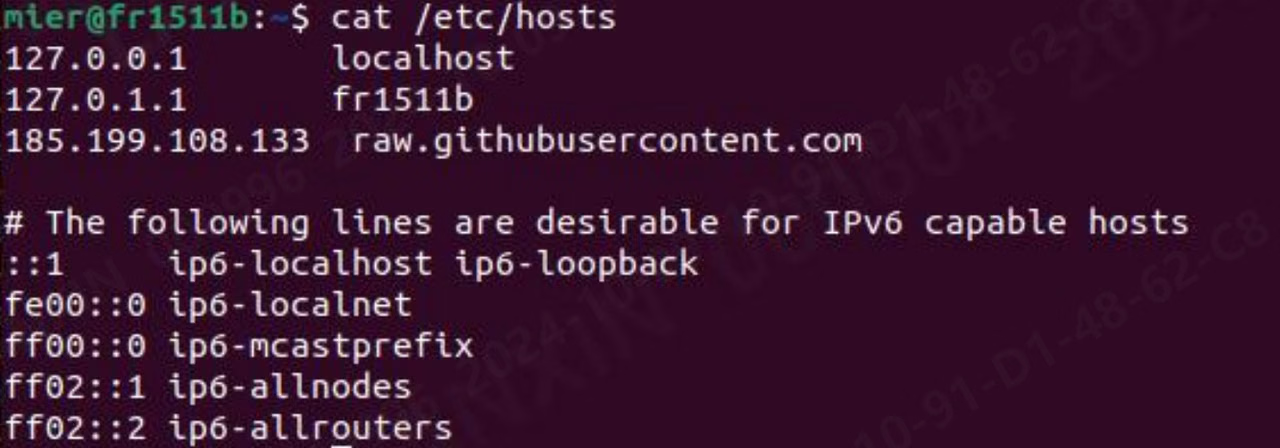
- After completion, start downloading ros2: sudo apt update
- Wait for the installation to complete and continue to install the python library. Execute: sudo apt install -y libpython3-dev python3-pip pip3 install -U argcomplete
- Then configure the environment variables:
- Try running the sample program, open a terminal and run:
- Open another interrupt to run:
- The following terminal output proves that the installation is successful:
7. How to create a new test package in Ros2
- Execute the command:
- You can create a new package named example_p and a node named example_n. After running, it will output: hello world example_p package