
Скачать ПО
Скачать ПО для Windows
LxCameraViewer / SDK · V2.4.70 · EXE · 42.5 MB
Скачать ПО для Linux
Графическая версия для Ubuntu 20.04 · TAR.GZ · 62.1 MB
Установка и настройка сети
Рекомендуемая конфигурация системы
Настройка IP-адреса и шлюза
Камера использует статический IP-адрес. Ее IP-адрес по умолчанию —192.168.100.82, а шлюз по умолчанию можно оставить пустым. В Windows используйте маску подсети 255.255.0.0, а в Linux — 255.255.255.0.
Для Ethernet-адаптера компьютера, подключенного к камере, задайте адрес 192.168.100.x, где x — любое число от 3 до 254, не совпадающее с IP-адресом камеры. Например, если IP-адрес камеры — 192.168.100.12, задайте компьютеру IP-адрес 192.168.100.89.
Установка ПО
1
Запустите установщик
Дважды щелкните
Lanxin-MRDVS-x.x.x.xxxx.exe и разрешите приложению вносить изменения на устройстве.2
Выберите язык и путь установки
Выберите язык и путь установки. Если нет особых требований, оставьте путь по умолчанию и выберите Create desktop shortcut.
3
Запустите ПО впервые
После установки щелкните правой кнопкой мыши значок на рабочем столе и выберите Run as administrator.
Настройка брандмауэра
Если ПО не может открыть камеру, временно отключите брандмауэр для адаптера камеры в доверенной отладочной сети. В следующем примере используется Windows 10. Откройте ПО и нажмите Other Tools. Выберите Network Card Configuration Tool на панели справа. В инструменте настройки сетевой карты нажмите Open/Close.
Использование LxCameraViewer
Обзор интерфейса ПО
Обзор интерфейса ПО
Камера не открыта
Начальный интерфейс содержит следующие области:- Панель списка: список устройств, текущие сведения и сведения об устройстве.
- Верхняя строка меню: выбор инструментов и языка интерфейса.
- Область отображения изображений: представления облака точек, глубины, интенсивности и RGB.
- Дважды щелкните строку меню, чтобы развернуть или восстановить окно. Перетащите строку меню, чтобы переместить окно.
Камера открыта
После открытия камеры справа появляется панель функций.- Basic tools: настройки отображения изображений, настройки 2D и 3D, фильтрация, аппаратный интерфейс, настройки сбора и функциональные настройки.
- Application algorithms: настройки рабочего режима и режима алгоритма, версия алгоритма и подробные настройки алгоритма.
- Other tools: загрузка локальных облаков точек, настройка IP, захват пакетов, настройка сетевой карты, связь, включение GPU и уровень журнала.
Открытие и закрытие устройств
Открытие и закрытие устройств
Список устройств
- Список устройств находится в левом верхнем углу. Используйте Refresh для поиска камер и соседнюю кнопку, чтобы свернуть или развернуть список.
- Для каждого устройства отображаются состояние открытия, идентификатор камеры и IP-адрес. Наведите указатель на идентификатор камеры, чтобы просмотреть ее IP-адрес.
- Нажмите Open или Close, чтобы управлять подключением. Кнопка также показывает текущее состояние.
- Выбранное устройство отображается синим цветом. Если пропускной способности сети достаточно, можно открыть несколько устройств; нажмите идентификатор камеры, чтобы переключаться между устройствами.
Текущие сведения
Текущие сведения
- Область текущих сведений находится в средней левой части интерфейса. В ней отображаются сведения о камере, операции ПО, результаты операций и результаты потоков.
- Для просмотра длинного содержимого используйте нижнюю полосу прокрутки или колесо мыши. В области сохраняется до 25 записей; более старые записи перезаписываются.
- Нажмите кнопку сворачивания, чтобы скрыть эту область.
Сведения об устройстве
Сведения об устройстве
-
Область сведений об устройстве находится в левом нижнем углу и показывает для выбранного устройства:
- Серийный номер
- идентификатор камеры, который SDK использует для открытия устройства
- IP-адрес
- MAC-адрес
- Версия ПО
- Версия алгоритма (отображается после открытия камеры)
- Скорость сети (при закрытом устройстве соединение отсутствует; при открытом — 100 Mbps или Gigabit в зависимости от адаптера и кабеля)
- Модель камеры
- Версия изображения (отображается после открытия камеры)
- Нажмите кнопку сворачивания, чтобы скрыть область. Щелкните элемент правой кнопкой мыши, чтобы скопировать его значение.
Image preview and saving
Image preview and saving
Preview
- The middle area of the image and image data and image related operation software (inside the red box in Figure 1)
- [Start/Stop Flow] [Single Save] [Depth Map] [Intensity Map] [RGB] [Point Cloud] is the image operation control
- The three images in the middle are depth images, intensity images, point cloud images, and RGB images obtained from the device.
- The white font at the bottom is camera and image data (as shown in Figure 2)
Image stream control
- [Start/stop flow] button: Click to start or stop the flow of the device
-
[Single Save] button: Save the image of the stream data that has been turned on
- For example, Figure 2 only saves the depth image and point cloud image. The RGB image and intensity image are not turned on so they are not saved.
- The suffix for depth map and intensity map files is .pgm, the suffix for RGB image files is .png, and the suffix for point cloud image files is .pcd
- The saved depth image, intensity image and point cloud image are the original images without adding false colors.
- You can click multiple times to save continuously, but you can save up to three times in a row.
- [Depth Map] checkbox: whether to display (turn on) the depth map
- [Intensity graph] check box: whether to display (turn on) the intensity graph
- [Point Cloud] check box: whether to display (turn on) the point cloud image
- [RGB] check box: whether to turn on RGB image
- After unchecking RGB/intensity map, the device will stop collecting RGB/intensity map images, but the device will only stop collecting depth data when the depth map and point cloud map are turned off at the same time.
- In Figure 2, the device starts streaming and displays depth images, point cloud images, RGB images, and intensity images.
- In Figure 3, the device stops flowing and no type of picture can be seen.
Image data
- Display camera temperature (red box in Figure 4)
- Display the depth map frame rate when the depth map is checked (green box in Figure 4)
- Display intensity map frame rate when intensity map is checked (blue box in Figure 4)
- Display RGB image frame rate when RGB image is checked (rouge color box in Figure 4)
- When the RGB image is checked, the value of the selected pixel in the RGB image is displayed (black box in Figure 4)
- When the depth map is checked, the value of the selected pixel in the depth map is displayed (yellow box in Figure 4)
- When the intensity map is checked, the value of the selected pixel in the intensity map is displayed (orange box in Figure 4)
- When the point cloud map is checked, the point cloud value corresponding to the selected pixel in the depth map is displayed (purple box in Figure 4)
- When no pixel is selected, the (0,0) pixel is selected by default
- When the frame rate is higher than 12, the background color is green, if it is greater than 6 and less than 12, it is orange, and if it is less than 6, it is red.
Image display
-
You can choose different display methods:
- Single screen: When one of the four images is checked, a single screen will be displayed (as shown in Figure 5)
- Dual screen: When two of the four images are checked, a dual screen will be displayed (as shown in Figure 6)
- Three pictures: When three of the four images are checked, three pictures will be displayed (as shown in Figure 7)
- Quad screen: When all four images are checked, four screens will be displayed (as shown in Figure 8)
- When moving the mouse over the image, you can use the mouse wheel to zoom in or out with the mouse as the center, hold down the left mouse button and drag (compare the RGB images in Figure 5 and Figure 6)
- Left-click the image to select pixels, and the arrow keys can move the selected pixels (Figure 6)
Point cloud operations
- Press and hold the left button on the point cloud image and drag to rotate the camera perspective
- Press and hold the middle of the mouse and drag to move the focus
- Hold down the right mouse button and drag the mouse up or down, or use the mouse wheel to zoom in or out of the point cloud
- Point cloud image shortcut key operations are as follows:
Function bar
Function bar
Display functions
- Collapse the right column (red box in Figure 1)
- Expand all and collapse all (in the blue box in Figure 1, the superscript means collapse all, the subscript means expand all)
-
Click the function name to display the corresponding setting information in the SDK (in the blue box at the bottom of Figure 1)
- For example, in the picture, anti-distortion in the 2D settings is clicked (text in the green box), and the API interface and enumeration value when calling this function are displayed in the blue box.
- Expanded state and collapsed state (2D in Figure 1 is set to the expanded state, others are set to the collapsed state)
Basic tools
- Click [Basic Tools] on the menu bar to see the relevant settings of the basic tools on the right side of the interface (Figure 1)
- The basic tools include [Image Display Settings] [2D Settings] [3D Settings] [Filtering] [Hardware Interface] [Acquisition Settings] [Function Settings] (Figure 2)
- The function name and enumeration value corresponding to the interface are displayed in the blue box below (Figure 2)
Image display settings
- [Display camera model] Display (Figure 4) or not display (Figure 5) the camera model on the point cloud image
- [Display false colors] Display depth colors on point clouds, and display RGB colors after turning on RGB alignment
- [Point Cloud Stability] Turning on can stabilize the point cloud display when the point cloud disappears due to adaptation reasons on some computers.
- [Strong Image Synchronization] Modify the minimum depth of the depth map and point cloud map displayed on the interface, and the camera output remains unchanged.
- [Keep interference frames] Modify the maximum depth of the depth map and point cloud map displayed on the interface, and the camera output remains unchanged.
- [Minimum depth] Modify the minimum depth of the depth map and point cloud map displayed on the interface, and the camera output remains unchanged.
- [Maximum depth] Modify the maximum depth of the depth map and point cloud map displayed on the interface, and the camera output remains unchanged.
- [Minimum intensity] Modify the minimum intensity of the depth map and point cloud image displayed on the interface, and the camera output remains unchanged.
- [Maximum intensity] Modify the maximum intensity of the depth map and point cloud image displayed on the interface, and the camera output remains unchanged.
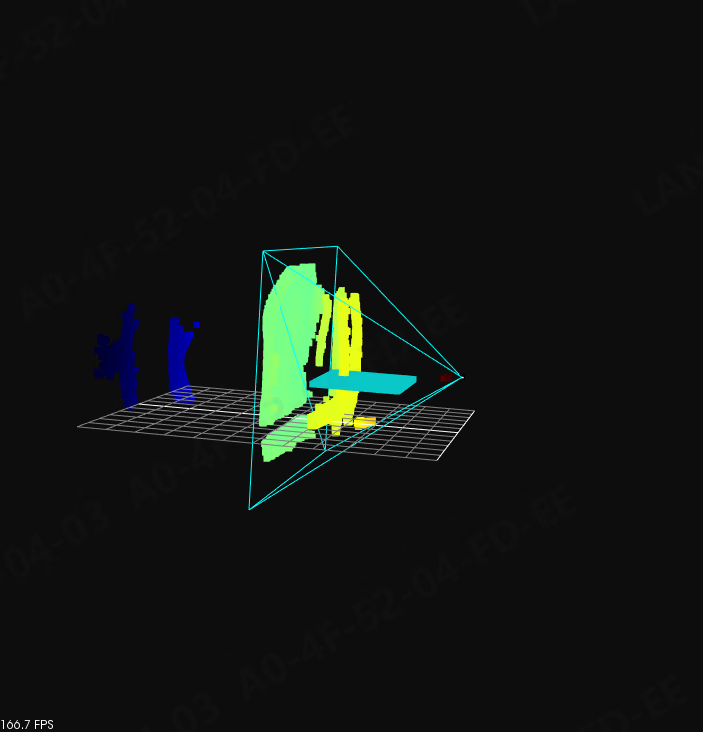
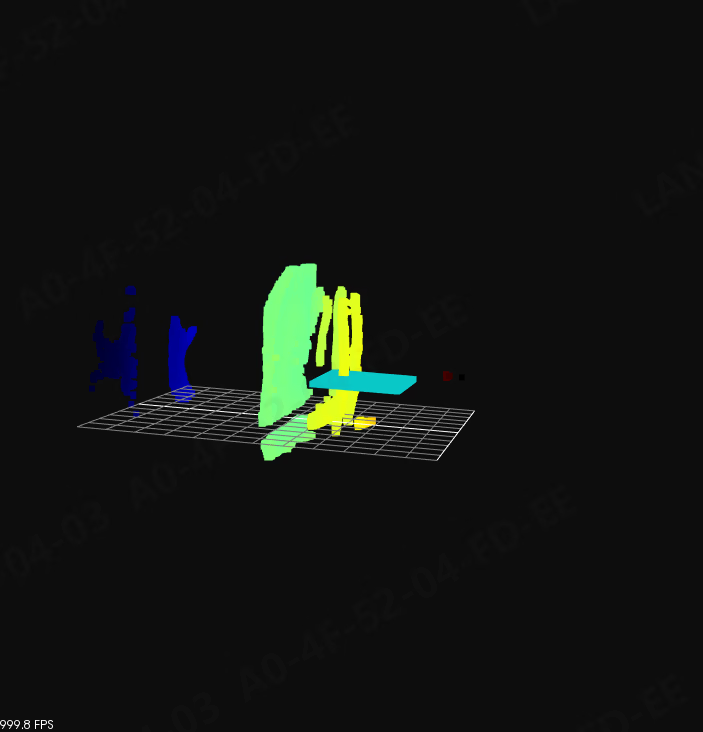
2D settings
- [RGB Width] RGB image pixel width, determined by the device model and cannot be set
- [RGB height] RGB image pixel height, determined by the device model and cannot be set
- [Pixel binning] Press 1*1 or 2*2 or N*N to add the pixel values in the matrix and divide by 2*2 or N*N to obtain the binning image (the image size becomes the original size divided by the binning pixel size horizontally and vertically);
- [Anti-distortion] Call the distortion parameters in the internal parameters to remove the distortion of the image in the interface display
- [Anti-distortion coefficient] Adjust the distortion coefficient to enhance or weaken the distortion of the shielded image
- [Auto Exposure] Turn on or off the camera to automatically set the RGB exposure value
- [Exposure] Manual exposure, can be set when automatic exposure is turned off
- [Gain] Manual gain, can be set when automatic exposure is turned off
3D settings
- [3D Width] The width of the point cloud image is determined by the device model and cannot be set.
- [3D Height] The height of the point cloud image is determined by the device model and cannot be set.
- [Pixel binning] Press 1*1 or 2*2 or N*N to add the pixel values in the matrix and divide by 2*2 or N*N to get the binning image, which can be modified after stopping the flow (the image size becomes the original size and is divided by the binning pixel size horizontally and vertically)
- [RGB Alignment] Align the depth map, intensity map, point cloud and RGB image. After the alignment, the depth map and intensity map will have the same width and height as the RGB image. The point cloud data will increase and can be modified after stopping the flow.
- [Multi-camera mode] Turning on when using multiple cameras at the same time can eliminate interference from other cameras, and can be modified after stopping the flow.
- [Multi-machine algorithm sensitivity] The built-in parameters of the device are determined by the device model and cannot be set.
- [Anti-distortion] Call the distortion parameters in the internal parameters to remove the distortion of the image in the interface display
- [Anti-distortion coefficient] Adjust the distortion coefficient to enhance or weaken the distortion of the shielded image
- [Frequency Mode] The built-in parameters of the device are determined by the device model (the frequency of some cameras is fixed and cannot be set)
- [HDR Enable] Turning on HDR enable can improve the picture clarity in scenes with strong changes in light and dark.
- [Auto Exposure] When turned on, the device automatically adjusts the exposure parameters according to the ambient light intensity.
- [Target intensity] Intensity threshold when acquiring depth images (cannot be set)
- [Auto exposure upper limit] Set the upper limit of automatic exposure
- [Auto exposure lower limit] Set the lower limit for automatic exposure (cannot be set)
- [Gain] can increase the intensity value by multiples (cannot be set)
- The x coordinate of the upper left corner of the ROI area set, which can be modified after the flow is stopped.
- [y] Set the y coordinate of the upper left corner of the ROI area, which can be modified after the flow is stopped.
- [High integration] High integration time (increasing it allows the camera to measure distance further)
- [Low Integration] Low integration time (mainly controls distance measurement at a closer distance, generally does not need to be changed)
- [x offset] offset value in the width direction, which can be modified after stopping the flow
- [y offset] The offset value in the high direction, which can be modified after the flow is stopped.
- [Width] The width of the set ROI area, which can be modified after stopping the flow.
- [High] The height of the ROI area set, which can be modified after stopping the flow.
- [3D Frame Rate] Set the point cloud frame rate within the device frame rate range
Filter settings
- [Minimum depth] The lower limit of the depth map’s false color or distance. Below this value, the false color is displayed as black and is forcibly set to zero.
- [Maximum depth] The upper limit of the depth map’s false color or distance. Above this value, the false color is displayed as black and is forcibly set to zero.
- [Low signal threshold] The lower limit of the intensity value. Below this value, the corresponding pixels in the depth map are forcibly set to zero (not effective for the intensity map)
- [High signal threshold] The upper limit of the intensity value. If it is higher than this value, the corresponding pixels in the depth map are forcibly set to zero (does not take effect on the intensity map)
- [Small signal measurement] Set the small signal detection level. The higher the level, the easier it is to detect.
- [Filter Mode] Set filter shielding level
- [Smoothing Level] Controls the smoothing intensity of spatial filtering, retaining object edge details while smoothing noise
- [Noise Level] Set the threshold for noise filtering (the larger the value, the more noise)
- [Temporal Level] Control the intensity of temporal filtering and use historical multi-frame data to improve the continuity of depth data
- Note: Setting the smoothing level, noise level, and time domain level to 0 means turning off filtering.
Hardware interface
- [IO output mode] You can set the IO interface output format
- [IO user control mode] The built-in parameters of the device define the IO interface and cannot be modified.
- [CAN baud rate] The default value is 250000. The baud rate must be consistent when communicating with other devices via CAN.
- [CAN protocol type] The default is MRDVS official protocol type, which can be modified to kcrobots
- [CAN address] CAN communication starting address, the default is 18
- [MODBUS address] MODBUS communication starting address, the default is 23
- [Get IO status] Get the current IO interface return status
Collection settings
- [Frame synchronization] Control the environmental conditions of each type of image capture to be consistent when saving images
- [Trigger Mode] Control the flow mode to be continuous, passive or active
-
[Point cloud saving method]
- Regular (unordered point cloud): The number of point clouds remains unchanged, width = width*height, height = 1, as shown in Figure 3
- Ordered point cloud: The number of point clouds remains unchanged, width = ToF width, height = ToF height, as shown in Figure 4
-
[Point cloud saving format] Set the data format for saving point clouds
- BINARY: Save in binary format
- ASCII: Save in ascii code format, that is, save in text mode
- [Point cloud value unit] Set the measurement unit of the data in the point cloud image.
- [Start saving pictures] Continuously save the currently selected type of pictures
- [Open Save Path] Open the path to save pictures with the [Single Save] function
Function settings
- [Select configuration] You can select the camera parameter configuration that has been set
- [Save Configuration] Manually save the current parameter configuration of the camera
- [Load configuration] Apply the already set camera parameter configuration to the current camera
- [Export configuration to file] Package the current camera parameter configuration into a json format file and export it
- [Load configuration from file] Import the json file with camera parameter configuration into the current camera and apply the configuration
- [User-defined ID] Customize the ID of the current parameter configuration
- [Algorithm Move Up] Migrate the current built-in algorithm to the upper platform for running
- [Get internal parameters] View the camera’s built-in parameter configuration
- [Restore Factory Settings] Restore the camera to its factory state. This operation will forget all set configurations, including but not limited to camera IP. The camera will automatically turn off and needs to be turned back on manually.
- [Firmware Upgrade] Upgrade the camera’s firmware. After clicking, a file selection dialog box will pop up. Select the file with the .bin suffix.
- [Camera Restart] Restart the camera. The camera will not turn off automatically, but it will enter the reconnection state. Please do not do other operations when reconnecting.
Application algorithms
- Click [Apply Algorithm] on the menu bar to see the relevant settings of the application algorithm on the right side of the interface (Figure 1)
- [Working Mode] You can set the camera to continue outputting algorithm results even when it is disconnected from the host computer.
-
[Application Algorithm] Select the application algorithm to be enabled:
- [Close] (Picture 2)
- [Obstacle avoidance algorithm 2.0] (Figure 3)
- [Pallet positioning and expansion] (Figure 4)
- [Algorithm version] displays the version number of the currently selected algorithm
Obstacle avoidance algorithm
- Set the application algorithm to obstacle avoidance algorithm, and obstacle avoidance related configurations will be displayed.
- [Display car body] You can turn off or turn on the car model that displays the position of the car body in the point cloud image.
- [Obstacle avoidance index] Obstacle avoidance can have multiple configurations, set through this option
- [Camera Angle Roll (x-axis)] Camera external parameter, roll angle, the default camera is 180
- [Camera angle Pitch (y-axis)] Camera external parameter, pitch angle, default vertical installation, is 90
- [Camera angle Yaw (z-axis)] Camera external parameter, heading angle yaw, default is 90
- [Camera position (distance x)] Camera external parameter, the distance between the x direction and the origin, unit: meters.
- [Camera position (width y)] Camera external parameter, the distance between the y direction and the origin, if installed in the middle, it is 0. Unit: Meter.
- [Camera position (height z)] The external parameter of the camera, the distance between the z direction and the origin, can be understood as the height of the camera from the ground, unit: meters.
- [Early Warning Distance (x far)] Obstacle avoidance range, the distance from the center of the car in the x direction. Obstacles beyond this distance are considered safe; the distance between the early warning distance and the alarm distance is considered early warning deceleration, and the interface displays a yellow area. Unit: meter.
- [Alarm distance (x center)] Obstacle avoidance range, the distance from the center of the car in the x direction. Obstacles below this distance are regarded as alarm stops, and the interface displays a red area; the distance between the pre-warning distance and the alarm distance is regarded as an early warning deceleration, and the interface displays a yellow area. Unit: meter.
- [Shielding distance (near x)] Obstacle avoidance range, the distance in the x direction from the center of the car. Obstacles within this distance will be ignored. Unit: meter.
- [Obstacle avoidance range left (y left)] Obstacle avoidance range, the distance from the left side of the y direction to the center of the car. Unit: meter.
- [Obstacle avoidance range right (y right)] Obstacle avoidance range, the distance from the right side of the y direction to the center of the car. Unit: meter.
- [Obstacle avoidance height lower (z lower)] Obstacle avoidance range, height from the ground, below this height will not be processed. If the setting is too small, false alarms may occur due to ranging errors; if the setting is too large, large obstacles on the ground may be filtered out, resulting in false alarms. Unit: meter.
- [Obstacle avoidance height upper (z upper)] Obstacle avoidance range, height from the ground, higher than this height will not be processed. Unit: Meter.
- [Obstacle avoidance output] Output obstacle avoidance results
- [Reset camera external parameters] Restore all parameters that have not been written to the camera
- [Set external parameters] Write all parameters to the camera
- For detailed obstacle avoidance settings, please see the obstacle avoidance documentation.
Pallet positioning
- Set the application algorithm to pallet positioning, and obstacle avoidance related configurations will be displayed.
- [Project Name] Name the current pallet recognition parameter configuration
- [Quick Configuration] Several configurations provided by the camera by default
- [Camera Angle Roll (x-axis)] The tilt angle of the camera relative to the X-axis
- [Camera angle Pitch (y-axis)] The tilt angle of the camera relative to the Y-axis
- [Camera Angle Yaw (z-axis)] The tilt angle of the camera relative to the Z-axis
- [Camera position (distance x)] The relative distance between the camera optical center and the forklift rotation center in the X direction
- [Camera position (width y)] The relative distance between the camera optical center and the forklift rotation center in the Y direction
- [Camera position (height z)] The relative distance between the camera optical center and the forklift rotation center in the Z direction
- [Ground Height] The distance from the optical center of the camera to the ground
- [Maximum pallet leg width] Must be compatible with the maximum width of pallet legs in the pallet type
- [Minimum Pallet Leg Width] Must be compatible with the minimum width of pallet legs in the pallet type
- [Distance from the tray] The distance from the optical center of the camera to the tray after the insertion is completed
- [Installation method] Set according to the fixed direction of the camera, the default is formal installation (0)
- [Minimum Z value] Identify the closest depth distance of the pallet
- [Maximum Z value] Identify the farthest depth distance of the pallet
- [Minimum X value] Identify the lateral boundary of the pallet (the left boundary with the camera as the center)
- [Maximum X value] Identify the lateral boundary of the pallet (the right boundary with the camera centered)
- [Pallet algorithm output] displays the results of the pallet algorithm
- [Calibration Instructions] Automatically calibrate when the ground is flat and there is no obstruction in front of the pallet. The pallet is of standard size.
- [Restore default parameters] Restore all parameters to factory defaults
- [Read external parameters from camera] Read all parameters from the camera, all unsent parameters will be overwritten
- [Send parameters] Write all parameters to the camera
- For detailed settings of pallet detection, please refer to the pallet detection function documentation.
Other tools
- [Load local point cloud] You can open point cloud files in .pcl, .png format and view them. Please refer to the tool description for details.
- [IP Configuration Tool] You can configure the camera’s IP, subnet mask, and gateway
- [Packet Capture Tool] can be used to capture network card packet data, please see the tool description for details
- [Network Card Configuration Tool] supports setting up network cards and firewalls, please see the tool description for details
- [Communication Tool] Supports TCP, UDP, MODBUS, FTP communication, please refer to the tool description for details
- [GPU Enable] Allows the use of gpu calculations to process graphics
- [Log Level] Control the detail level of log printing information
Резервное копирование и восстановление параметров
Перед изменением параметров экспортируйте проверенную конфигурацию. После импорта конфигурации перед началом работы проверьте модель камеры, внешние параметры установки и изображение на целевом устройстве.Параметры объезда препятствий
Экспорт
1
Откройте настройки объезда препятствий
В разделе Application algorithm выберите алгоритм объезда препятствий и настройте зоны объезда препятствий и внешние параметры.
2
Отправьте параметры
В разделе Obstacle avoidance settings выберите Send parameters.
3
Найдите файл
Откройте папку
params в каталоге хост-приложения, затем откройте каталог с идентификатором камеры. Сохраненные параметры находятся в файле avoidance.D:\\Program Files\\Lanxin-MRDVS\\Tools\\params
Импорт
В разделе Obstacle avoidance settings выберите Load configuration from file и укажите экспортированный файл. Отправьте конфигурацию, затем проверьте зону в представлении облака точек и состояние выхода.Параметры изображения и фильтров
Экспорт
- Настройте параметры изображения и фильтров в разделе Basic tools.
- Остановите поток с камеры. Во время потоковой передачи конфигурацию сохранить нельзя.
- В разделе Function settings выберите Export configuration to file и создайте отдельную папку для конфигурации.
Импорт
В разделе Function settings выберите Load configuration from file и укажите экспортированный файл. Перезапустите поток и проверьте качество изображения и фильтрацию.Параметры паллет PalletPro
PalletPro1.4.6 и более поздних версий может управлять внешними параметрами распознавания паллет в активном каталоге алгоритма.
Импорт
1
Откройте каталог камеры
Запустите PalletPro, выберите Basic operations → Camera operations → Open directory и откройте каталог алгоритма, который в данный момент использует камера.
2
Замените файл параметров
Скопируйте или перетащите внешние параметры распознавания паллет в каталог и подтвердите замену соответствующего файла.
3
Повторите калибровку
После импорта повторно выполните калибровку внешних параметров стыковки паллет и проверьте результаты распознавания.
Экспорт
После завершения и сохранения калибровки откройте активный каталог алгоритма по тому же пути и создайте резервную копию файла параметров распознавания паллет.Регулярное обслуживание
Основные операции с ПО
Используйте LxCameraViewer для настройки сети, проверки версий и обслуживания камеры. Перед изменением настроек выберите нужную камеру в списке устройств.
Доступ к системе камеры
-
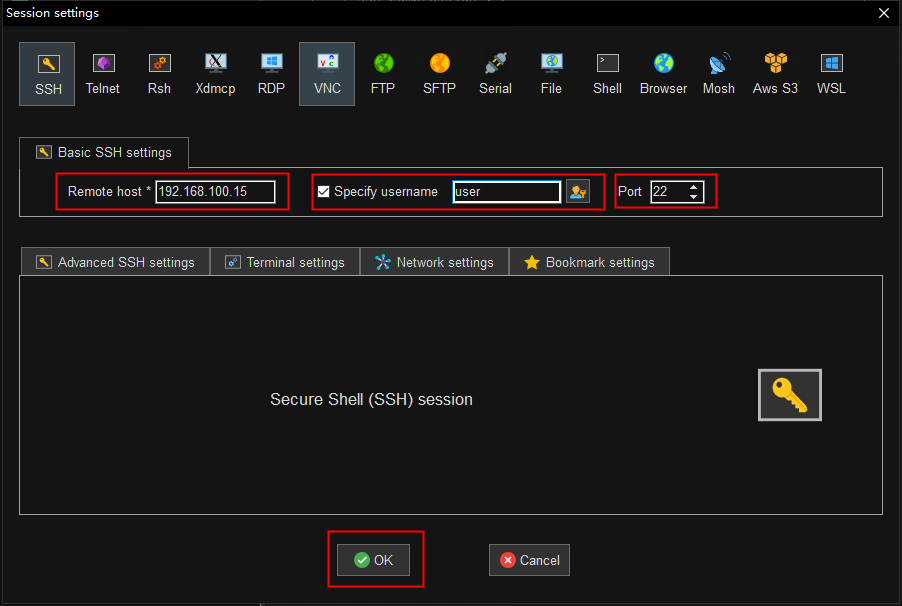
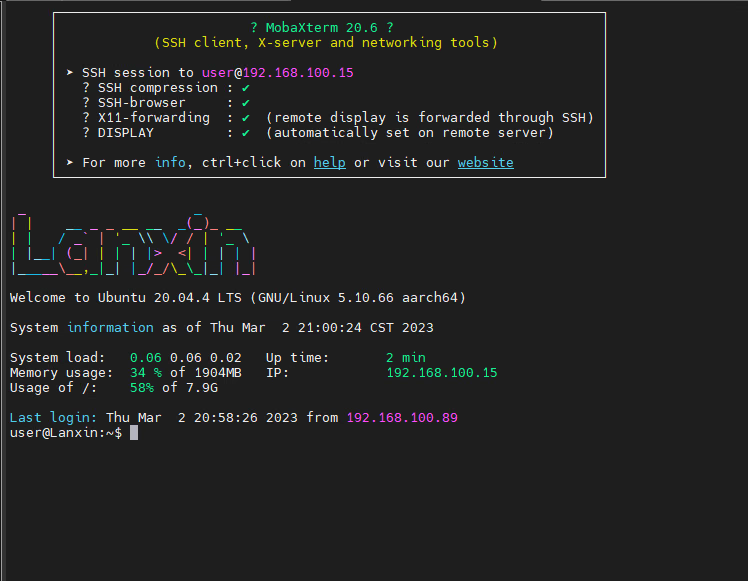
Connect via ssh to the camera’s IP address, port 22
- Take MobaXterm as an example, assuming the camera IP is 192.168.100.15 (Figure 1, Figure 2)
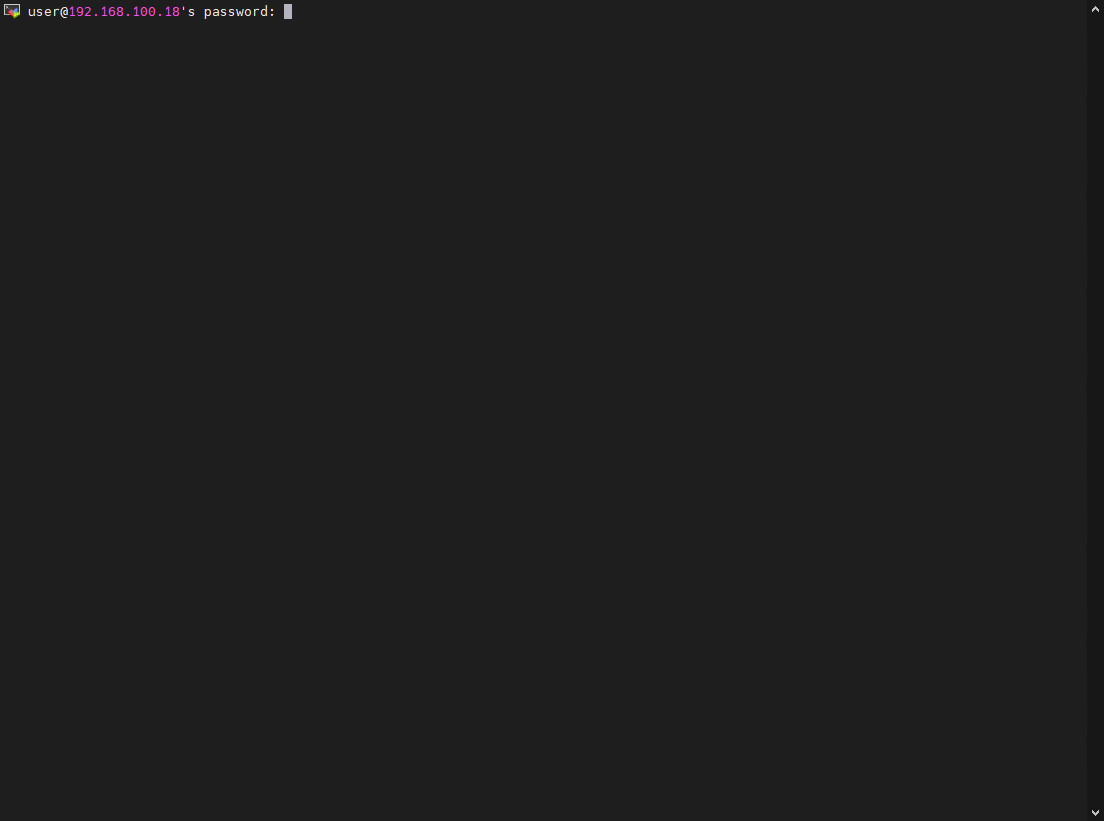
- Username: user, password: user. After successful login, you will see the interface as shown in Figure 3.
- The system comes with configuration as shown in the table below
Note: Please do not modify the system’s built-in configuration at will, as it may cause the system to crash
Описание инструментов
IP configuration tool
- After opening the [IP Configuration Tool], as shown in Figure 1
- Double-click the information after the MAC address to copy, double-click the information after the IP address, subnet mask, and gateway to write, click other options to cancel the modification, and press Enter to confirm the modification, as shown in Figure 2
Communication tools
- Open [Communication Tools] as shown in Figure 1
- Communication tools support TCP, UDP, FTP, Modbus TCP, Modbus RTU, CAN (linux)
- Communication tools support multiple opening of different tabs
Network-card configuration tool
- After opening the [Local Point Cloud Tool], as shown in Figure 1
- The network card configuration tool can set up the firewall
- After selecting the network card, you can open the network card properties and configuration interface that comes with Windows.
- Support opening task manager
- Language automatically follows this software