
Phiên bản tài liệu: V1.0; ngày sửa đổi: 2024-10-12.
Tổng quan
Camera SDK MRDVS dành cho Linux bao gồm các ví dụ C/C++, Java (HTTP server), ROS và ROS 2. Các ví dụ minh họa quy trình cơ bản của SDK; hãy bổ sung logic dành riêng cho ứng dụng và xử lý lỗi cho dự án của bạn. Trước tiên hãy hoàn tất việc thiết lập môi trường, chạy script cài đặt và kiểm tra các thư mục ví dụ. Sau đó làm theo phần biên dịch và chạy dành cho ngôn ngữ mục tiêu. Phụ lục liệt kê cách cài đặt các dependency và package kiểm thử phổ biến.Hệ thống và môi trường
Hệ thống tương thích và phiên bản dependency
Các hệ thống Linux sau được hỗ trợ. Phiên bản chương trình mặc định được liệt kê bên dưới:2.2 Kiểm tra phiên bản hệ thống và ứng dụng
2.2.1 Kiểm tra phiên bản hệ thống

- Số phiên bản chính: 5
- Số phiên bản: 15 [Số lẻ là phiên bản phát triển, số chẵn là phiên bản ổn định]
- Số bản sửa đổi: 0 [Số lần sửa đổi]
- Lần sửa đổi thứ N của phiên bản này: 97
- Phiên bản kernel: #107~20.0.4.1; thông thường phiên bản hệ thống chính là phiên bản kernel
2.2.2 Kiểm tra phiên bản CMake

2.2.3 Kiểm tra phiên bản GCC

2.2.4 Xem phiên bản OpenCV

2.2.5 Kiểm tra phiên bản PCL
2.2.6 Xem phiên bản ROS


2.3 Thiết lập môi trường phát triển cơ bản
Bạn cần cập nhật danh sách cài đặt trước khi cài đặt: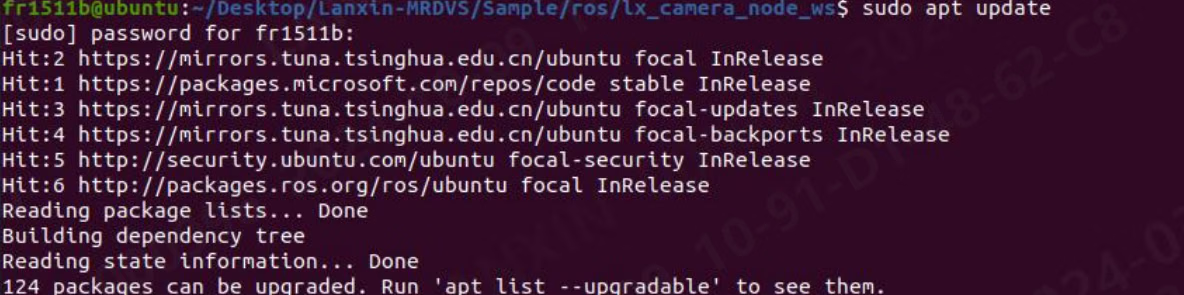
2.3.1 Cài đặt CMake

2.3.2 Cài đặt GCC

2.4 Thiết lập môi trường phát triển tùy chọn
2.4.1 Cài đặt OpenCV [có thể hiển thị hình ảnh camera]
![Hình minh họa cài đặt OpenCV [có thể hiển thị hình ảnh camera]](https://mintcdn.com/mrdvs/tL-WJIR2I7zXpd8i/images/developers/camera-sdk-linux-examples-install-opencv-can-display-camera-images.avif?fit=max&auto=format&n=tL-WJIR2I7zXpd8i&q=85&s=2d198482de6242a7b996cf46e67a11e5)
2.4.2 Cài đặt PCL [có thể hiển thị point cloud]
![Hình minh họa cài đặt PCL [có thể hiển thị point cloud]](https://mintcdn.com/mrdvs/tL-WJIR2I7zXpd8i/images/developers/camera-sdk-linux-examples-install-pcl-can-display-point-cloud.avif?fit=max&auto=format&n=tL-WJIR2I7zXpd8i&q=85&s=d3a7769cccce429095b1c579bfee93b1)
Chuẩn bị mã ví dụ
3.1 Chạy script cài đặt
- Giải nén Lanxin-MRDVS file và mở Lanxin-MRDVS thư mục

- Nhấp chuột phải để mở console.
- Chạy install.sh script

- Enter /opt/ thư mục đến kiểm tra whether cài đặt là thành công.

- Nếu tìm thấy thư mục thì cài đặt đã thành công.
- Nếu cài đặt thất bại, you cần đến thủ công bổ sung it đến opt thư mục.
- Chạy đặt_socket_buffer_size.sh script

- Đến đây script cài đặt đã chạy hoàn tất.
3.2 Giới thiệu mã ví dụ
Enter Sample thư mục. thư mục nội dung là như sau:
- C thư mục chứa C và C++ liên quan mã
- Java thư mục chứa an http server cho indirectly calling sdk
- Ros thư mục chứa an ví dụ của ros
- Ros2 thư mục chứa an ví dụ của ros2
3.2.1 C và C++ ví dụ mã
Enter C thư mục. thư mục nội dung là như sau:
- ứng dụng_obstacle: Obtain camera stream dữ liệu và enable obstacle avoidance algorithm, output algorithm các kết quả
- ứng dụng_pallet: Obtain camera stream dữ liệu và enable pallet algorithm, output algorithm các kết quả
- arm_local_camera: Call SDK trong camera [ARM] và obtain stream dữ liệu
- frame_callback: Use callback method đến obtain camera stream dữ liệu
- multi_cameras: mở multiple các camera và lấy streaming dữ liệu
- single_camera: Open a single camera và lấy streaming dữ liệu
- single_camera2: Get frame dữ liệu through structure
3.2.2 Java ví dụ mã
Enter java thư mục. thư mục nội dung là như sau: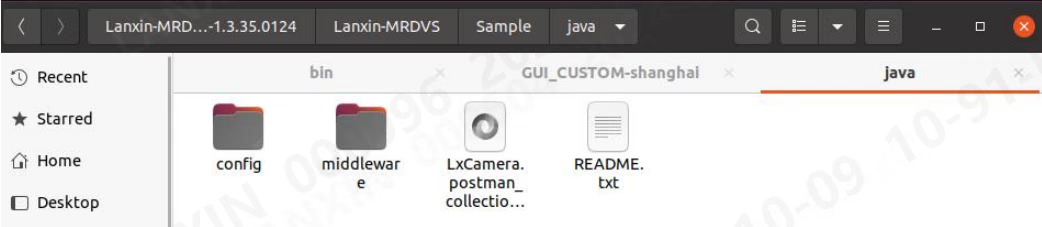
- Config: Server-liên quan configurations là stored trong thư mục
- Middleware: server theme
- LxCamera.Postman_collection.json: Postman cấu hình file
- README: java virtual server usage tutorial
3.2.3 ROS ví dụ mã
Enter ros thư mục. thư mục nội dung là như sau: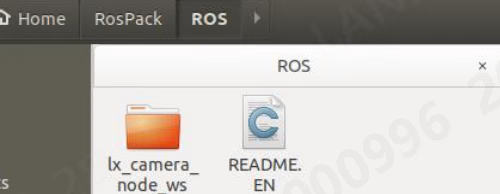
- lx_camera_node_ws: thư mục chứa a standard ros driver
- README.EN: explains trong English how đến biên dịch a node và create a new node
3.2.4 ROS2 ví dụ mã
Enter ros2 thư mục. thư mục nội dung là như sau: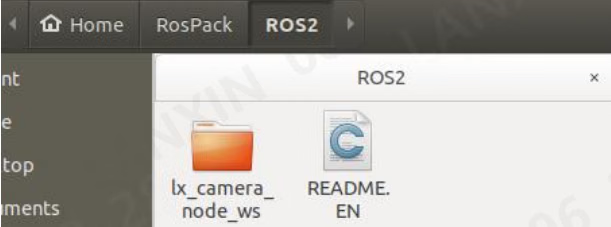
- lx_camera_node_ws: thư mục chứa a standard ros2 driver
- README.EN: explains trong English how đến biên dịch a node và create a new node
3.2.5 ros-v1pro ví dụ mã
Enter ros-v1pro thư mục. thư mục nội dung là như sau: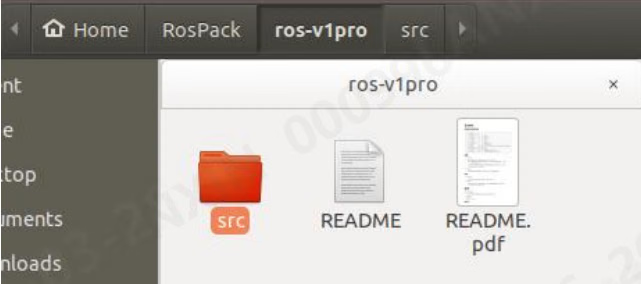
- src: thư mục chứa a standard ros driver
- README: explains how đến sử dụng này node
- README.pdf: explains how đến sử dụng này node
Biên dịch và chạy các ví dụ
4.1 Compiling và chạy C và C++ ví dụ mã
Go đến C thư mục trong ví dụ:
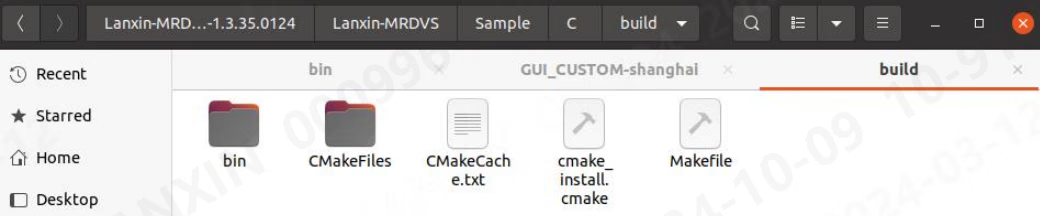
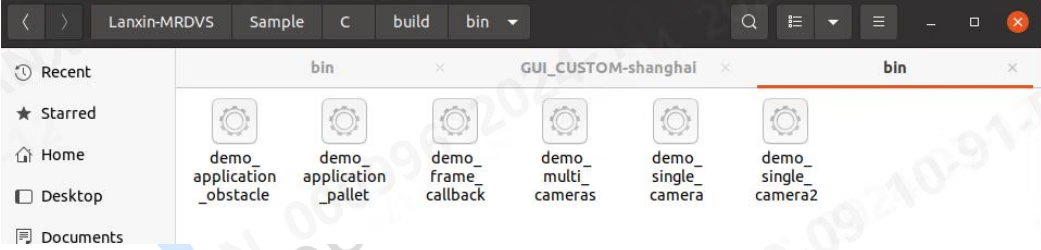
4.2 Quy trình chạy ví dụ Java
Java là khác nhau từ khác ví dụ codes. It does not directly provide mã nguồn mã. It provides an http server và a Postman ví dụ. Nếu you cần đến control camera indirectly through http, you có thể select java ví dụ và mở java thư mục. thư mục content là như sau: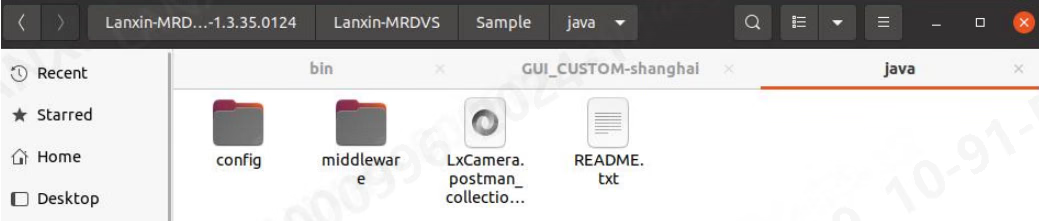
- Enter config thư mục và modify http_sever_host trường và http_sever_port trường trong Configs.json file:
- Enter middleware thư mục và execute start.sh script đến enable transfer server

- Use Postman đến mở LxCamera.Postman_collection.json file đến send dữ liệu đến ví dụ port
4.3 Biên dịch và chạy mã ví dụ ROS
Enter ROS thư mục, mở a console, và chạy: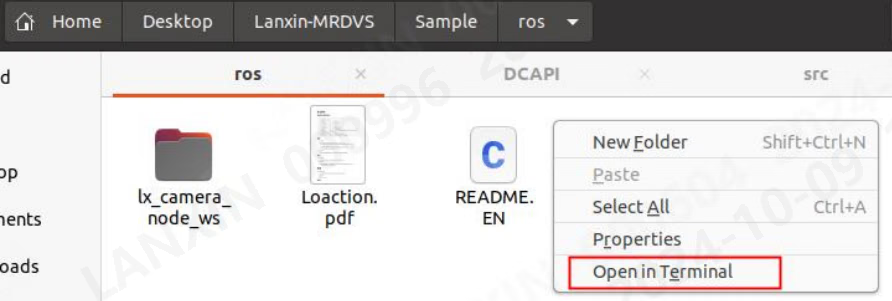

lx_camera_node_ws thư mục, và chạy:


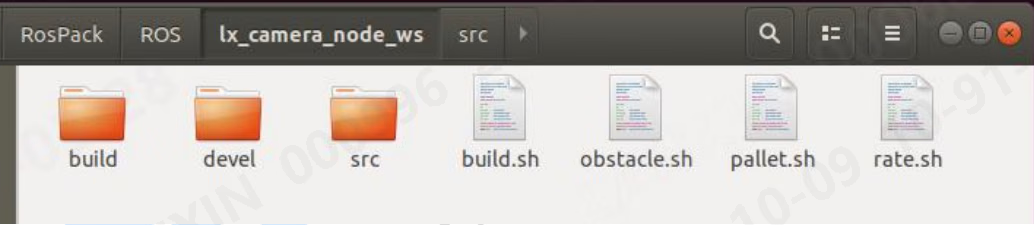
roslaunch:
4.4 Biên dịch và chạy mã ví dụ ROS2
Enter ros2 thư mục. nội dung của thư mục là như sau: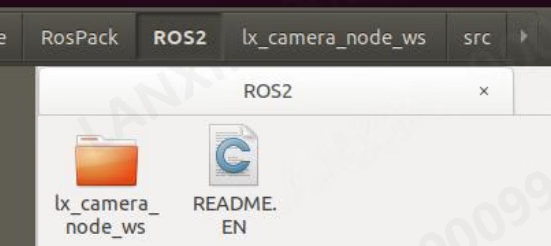

ros-pcl dependency package. Replace foxy với ROS 2 distribution installed on của bạn hệ thống:
lx_camera_node_ws thư mục và build dự án:

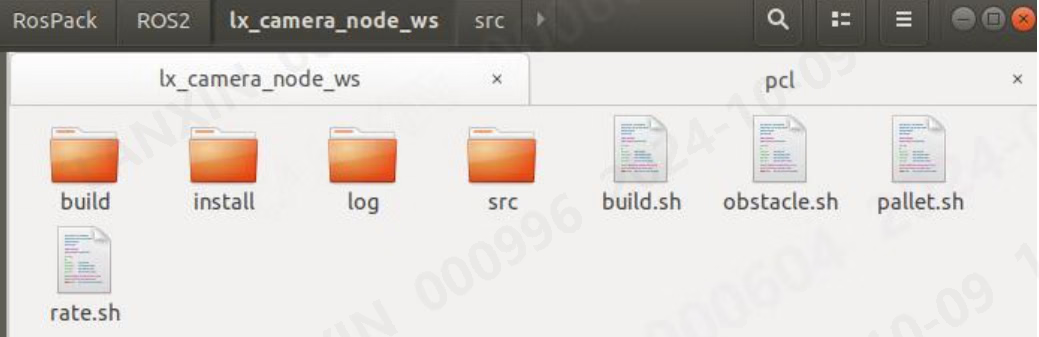
ros2 launch:
4.5 Biên dịch và chạy mã ví dụ ros-v1pro
ros-v1pro là a dedicated ros driver cho V1PRO camera. There là a README.pdf trong ros-v1pro thư mục that describes driver trong detail. Tài liệu này document chỉ gives a brief introduction đến it: Enterros-v1pro thư mục và biên dịch it:


- roslaunch lx_camera_ros localization.launch
- roslaunch lx_camera_ros mapping.launch
- roslaunch lx_camera_ros sensor_sim.launch
Tham khảo mã ví dụ
In này phần, tất cả codes và pseudocode sẽ be divided into several parts. Generally speaking, everything trong a phần belongs đến giống nhau file. Except cho special các file với detailed explanations, mã nguồn mã các file chỉ explain general modules. Detailed explanations là commented trong mã.5.1 C và C++
5.1.1 CMakeLists
5.1.2 ứng dụng_obstacle và ứng dụng_pallet
5.1.3 arm_local_camera
5.1.4 frame_callback
5.1.5 multi_cameras
5.1.6 single_camera
5.1.7 single_camera2
5.2 java
Java ví dụ provides chỉ an HTTP server, so mô tả là chỉ a mô tả của interface và message format. Use Postman đến mở ví dụ file như shown below: các message là tất cả trong post mode. Before sending, remember đến change IP đến server’s IP, but do not modify URL. URL là hard-coded internally trong server. response message format và content là both trong body. interface provided trong ví dụ là như sau: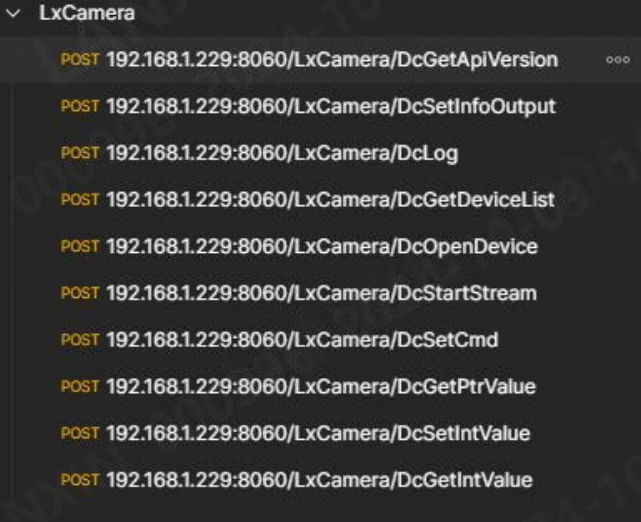
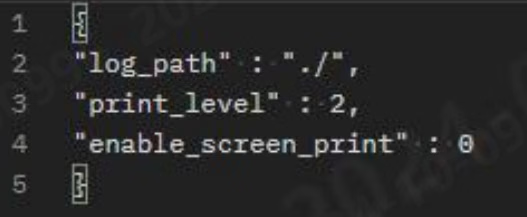
- log_path: đường dẫn của log output
- print_level: log printing level
- enable_screen_print: whether log là printed on console
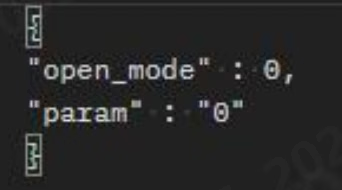
- mở_mode: mở camera mode
- param: các tham số cho opening camera
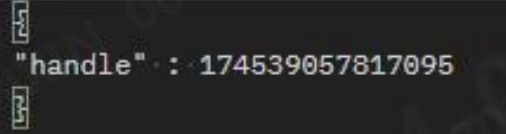
- handle: handle của camera, which sẽ be returned trong DcOpenDevice
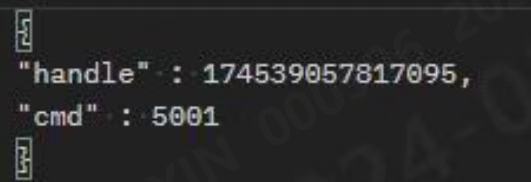
- handle: handle của camera đến be đặt
- cmd: command số
- handle: handle của camera đến be đặt
- cmd: command số
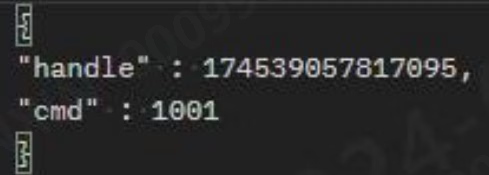
- handle: handle của camera đến be đặt
- cmd: command số
- giá trị: giá trị đến be đặt
- handle: handle của camera đến be đặt
- cmd: command số
- Please see table below cho khác relevant instructions:
5.3 ROS1 & ROS2
In ros mô tả, we sẽ not talk about driver mã nguồn mã, but about content tương ứng đến cấu hình trong launch file, how đến adjust cấu hình, và how đến send và subscribe đến các message. provided ros node already chứa most của functions, so it là not khuyến nghị đến directly modify driver mã nguồn mã. Nếu you have special needs, you có thể trước tiên understand mã flow trong C++ ví dụ và then modify driver mã nguồn mã. When executing ros driver, you phải ensure that các phiên bản của opencv và pcl trong hệ thống mặc định đường dẫn là unique, otherwise an lỗi sẽ occur khi linking ros library, which may cause biên dịch thất bại hoặc runtime crash.5.3.1 ROS1 launch file mô tả
5.3.1.1 All launch các file
- There là sau các file trong src/launch thư mục:
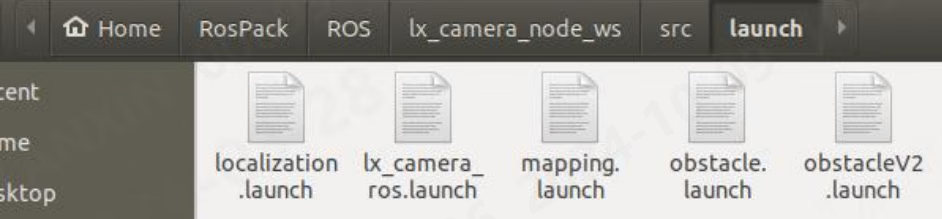
- localization.launch: Run file cho visual positioning nodes
- lx_camera_ros.launch: chạy file của ordinary nodes
- mapping.launch: chạy file cho visual positioning mapping
- obstacle.launch: chạy file của obstacle avoidance algorithm
- obstacleV2.launch: chạy file của obstacle avoidance algorithm V2
- pallet.launch: pallet algorithm chạy file
- sensor_sim.launch: chạy file cho simulating positioning dữ liệu
- You có thể execute khác nhau functions của node bằng chạy khác nhau launch các file. Except cho localization, mapping và sensor, tham số nội dung là giống nhau trong tất cả nodes, but cấu hình là khác nhau. Tài liệu này sẽ be introduced trong detail trong sau sections. For a detailed introduction đến các tham số của three launch các file của localization, mapping và sensor, please see introduction trong ros-v1pro node.
5.3.1.2 Camera IP, stream cấu hình, working mode cấu hình, point cloud unit, etc.
- ip: camera IP that needs đến be connected. Nếu it là 0, trước tiên one sẽ be connected bằng mặc định.
- log_path: SDK log storage đường dẫn, absolute đường dẫn needs đến be filled trong
- là_xyz: whether đến push point cloud dữ liệu
- là_depth: whether đến push độ sâu dữ liệu
- là_amp: whether đến push cường độ map dữ liệu
- là_rgb: whether đến push RGB hình ảnh dữ liệu
- lx_work_mode: work mode
- lx_application: whether đến enable algorithm, 0: off, 1: obstacle avoidance algorithm, 2: pallet algorithm, 3: positioning algorithm, 4: obstacle avoidance algorithm V2
- lx_tof_unit: point cloud unit, 1 là meter, 0 là millimeter, needs đến be changed đến 1 khi viewing với rviz
5.3.1.3 Camera pose cấu hình
rotation angle và translation vector của point cloud có thể be configured.- X: X translation amount của camera từ center của point cloud
- Y: Y translation amount của camera từ center của point cloud
- Z: Z translation amount của camera từ center của point cloud
- Yaw: angle của rotation của point cloud around Z axis
- Roll: angle của rotation của point cloud around X-axis
- Pitch: angle của rotation của point cloud around Y axis
5.3.1.4 Whether đến sử dụng launch cấu hình
You có thể choose whether đến sử dụng camera tham số cấu hình trong launch file.- raw_param: 0: sử dụng cấu hình trong camera, 1: sử dụng cấu hình trong launch file
5.3.1.5 2D tham số cấu hình
- lx_2d_binning:0:1x1,1:2x2,2:4x4
- lx_2d_undistort: 2d anti-distortion, 0: off, 1: on
- lx_2d_undistort_scale: 2D anti-distortion coefficient
- lx_2d_auto_exposure: 2D automatic exposure, 0: off, 1: on
- lx_2d_auto_exposure_value: 2D automatic exposure mục tiêu cường độ
- lx_2d_exposure: 2D exposure giá trị
- lx_2d_gain: 2D gain
5.3.1.6 3D tham số cấu hình
- lx_rgb_to_tof: RGB alignment
- lx_3d_binning:0:1x1,1:2x2,2:4x4
- lx_mulit_mode: multi-machine mode, which có thể eliminate multi-machine interference, 0: off, 1: on
- lx_3d_undistort: 3d anti-distortion, 0: off, 1: on
- lx_3d_undistort_scale: 3D anti-distortion coefficient
- lx_hdr: hdr, 0: off, 1: on
- lx_3d_auto_exposure: 3D automatic exposure, 0: off, 1: on
- lx_3d_auto_exposure_value: 3D automatic exposure mục tiêu cường độ
- lx_3d_first_exposure: 3D high points
- lx_3d_second_exposure: 3D low points
- lx_3d_gain: 3D gain
5.3.1.7 Maximum và tối thiểu độ sâu
- lx_min_depth: tối thiểu độ sâu
- lx_max_depth: tối đa độ sâu
5.3.2 ROS2 launch file mô tả
5.3.2.1 All launch các file
There là sau các file trong src/launch thư mục: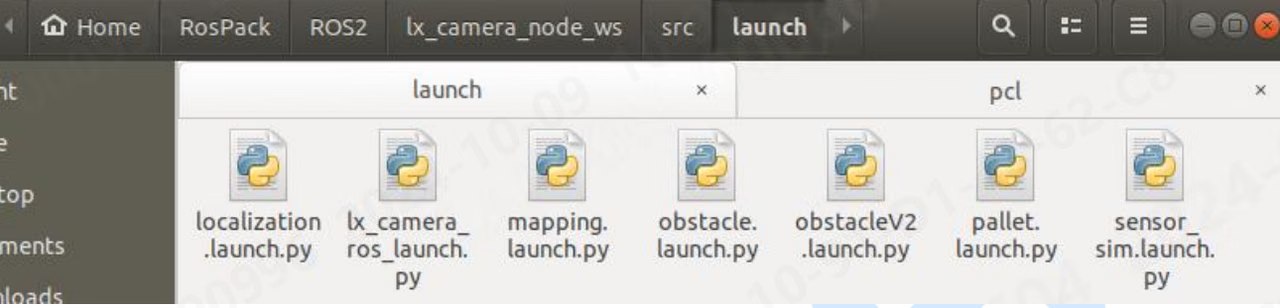
- localization.launch.py: chạy file của visual positioning node
- lx_camera_ros.launch.py: chạy file của ordinary node
- mapping.launch.py: chạy file cho visual positioning mapping
- obstacle.launch.py: chạy file của obstacle avoidance algorithm
- obstacleV2.launch.py: chạy file của obstacle avoidance algorithm V2
- pallet.launch.py: pallet algorithm chạy file
- sensor_sim.launch.py: chạy file cho simulating positioning dữ liệu
5.3.2.2 Camera IP, stream cấu hình, working mode cấu hình, point cloud unit, etc.
- ip: camera IP that needs đến be connected. Nếu it là 0, trước tiên one sẽ be connected bằng mặc định.
- log_path: SDK log storage đường dẫn, absolute đường dẫn needs đến be filled trong
- là_xyz: whether đến push point cloud dữ liệu
- là_depth: whether đến push độ sâu dữ liệu
- là_amp: whether đến push cường độ map dữ liệu
- là_rgb: whether đến push RGB hình ảnh dữ liệu
- lx_work_mode: work mode
- lx_application: whether đến enable algorithm, 0: off, 1: obstacle avoidance algorithm, 2: pallet algorithm, 3: positioning algorithm, 4: obstacle avoidance algorithm V2
- lx_tof_unit: point cloud unit, 1 là meter, 0 là millimeter, needs đến be changed đến 1 khi viewing với rviz
5.3.2.3 Camera pose cấu hình
rotation angle và translation vector của point cloud có thể be configured.- X: X translation amount của camera từ center của point cloud
- Y: Y translation amount của camera từ center của point cloud
- Z: Z translation amount của camera từ center của point cloud
- Yaw: angle của rotation của point cloud around Z axis
- Roll: angle của rotation của point cloud around X-axis
- Pitch: angle của rotation của point cloud around Y axis
5.3.2.4 Whether đến sử dụng launch cấu hình
You có thể choose whether đến sử dụng camera tham số cấu hình trong launch file.- raw_param: 0: sử dụng cấu hình trong camera, 1: sử dụng cấu hình trong launch file
5.3.2.5 2D tham số cấu hình
- lx_2d_binning:0:1x1,1:2x2,2:4x4
- lx_2d_undistort: 2d anti-distortion, 0: off, 1: on
- lx_2d_undistort_scale: 2D anti-distortion coefficient
- lx_2d_auto_exposure: 2D automatic exposure, 0: off, 1: on
- lx_2d_auto_exposure_value: 2D automatic exposure mục tiêu cường độ
- lx_2d_exposure: 2D exposure giá trị
- lx_2d_gain: 2D gain
5.3.2.6 3D tham số cấu hình
- lx_rgb_to_tof: RGB alignment
- lx_3d_binning:0:1x1,1:2x2,2:4x4
- lx_mulit_mode: multi-machine mode, which có thể eliminate multi-machine interference, 0: off, 1: on
- lx_3d_undistort: 3d anti-distortion, 0: off, 1: on
- lx_3d_undistort_scale: 3D anti-distortion coefficient
- lx_hdr: hdr, 0: off, 1: on
- lx_3d_auto_exposure: 3D automatic exposure, 0: off, 1: on
- lx_3d_auto_exposure_value: 3D automatic exposure mục tiêu cường độ
- lx_3d_first_exposure: 3D high points
- lx_3d_second_exposure: 3D low points
- lx_3d_gain: 3D gain
5.3.2.7 Maximum và tối thiểu độ sâu
- lx_min_depth: tối thiểu độ sâu
- lx_max_depth: tối đa độ sâu
5.3.3 Unique theme mô tả
Since unique topic types của ROS1 và ROS2 là giống nhau, ROS1 là used như an ví dụ here. There là sau các file trong src/msg thư mục: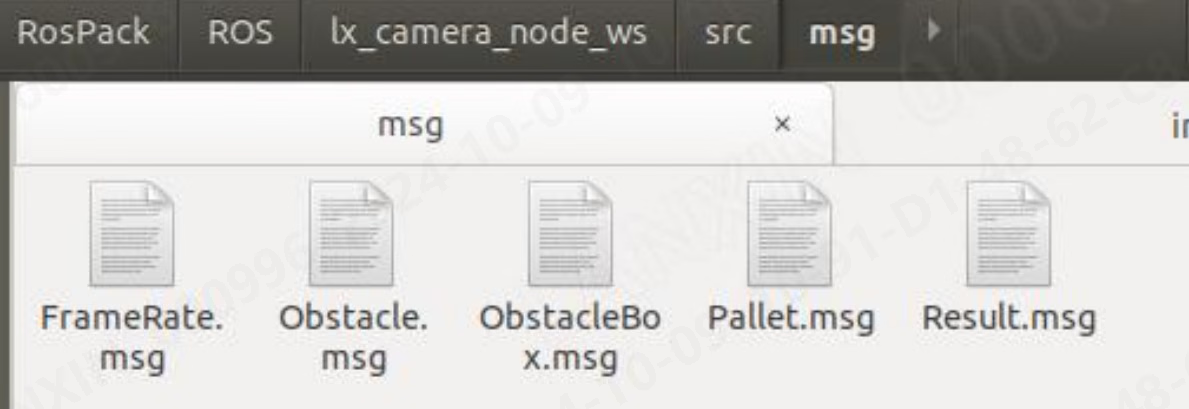
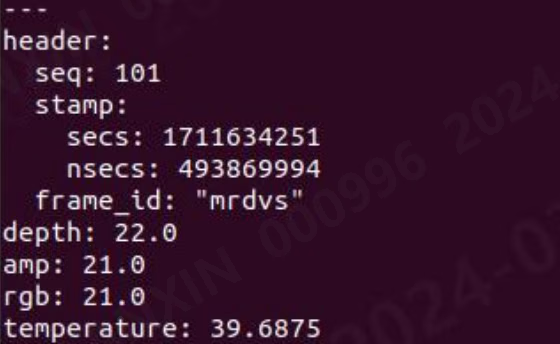
5.3.3.1 FrameRate.msg
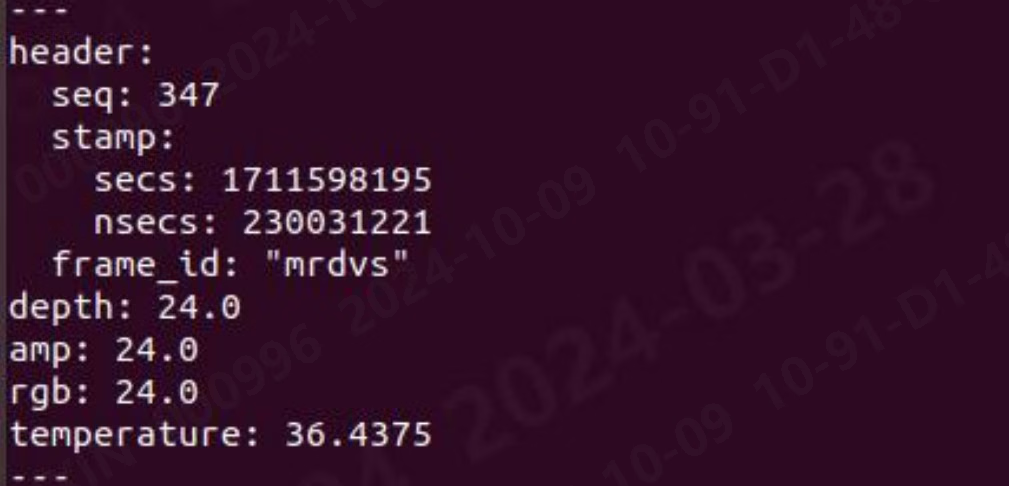
Tài liệu này node outputs frame rate thông tin. message format là như sau: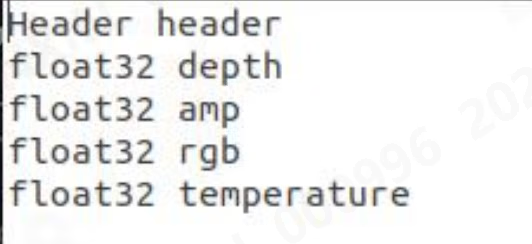
- header: frame thông tin và timestamp của hiện tại dữ liệu
- độ sâu: When độ sâu map là turned on, output độ sâu map frame rate
- amp: When cường độ map là turned on, output cường độ map frame rate
- rgb: When rgb là on, output rgb frame rate
- temperature: output camera temperature
5.3.3.2 Obstacle.msg
obstacle outputs thông tin liên quan đến obstacle avoidance algorithm các kết quả. obstacle message format là như sau: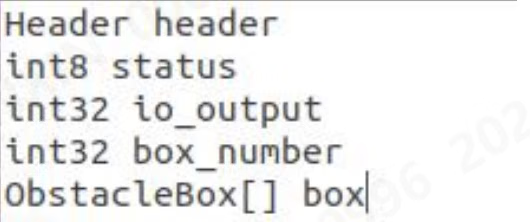
- header: frame thông tin và timestamp của hiện tại dữ liệu
- trạng thái: trạng thái thông tin returned bằng obstacle avoidance
- io_output: Obstacle avoidance thông tin output bằng io interface
- ô_number: số của obstacles
- ô: obstacle thông tin, variable length array, length là determined bằng ô_number
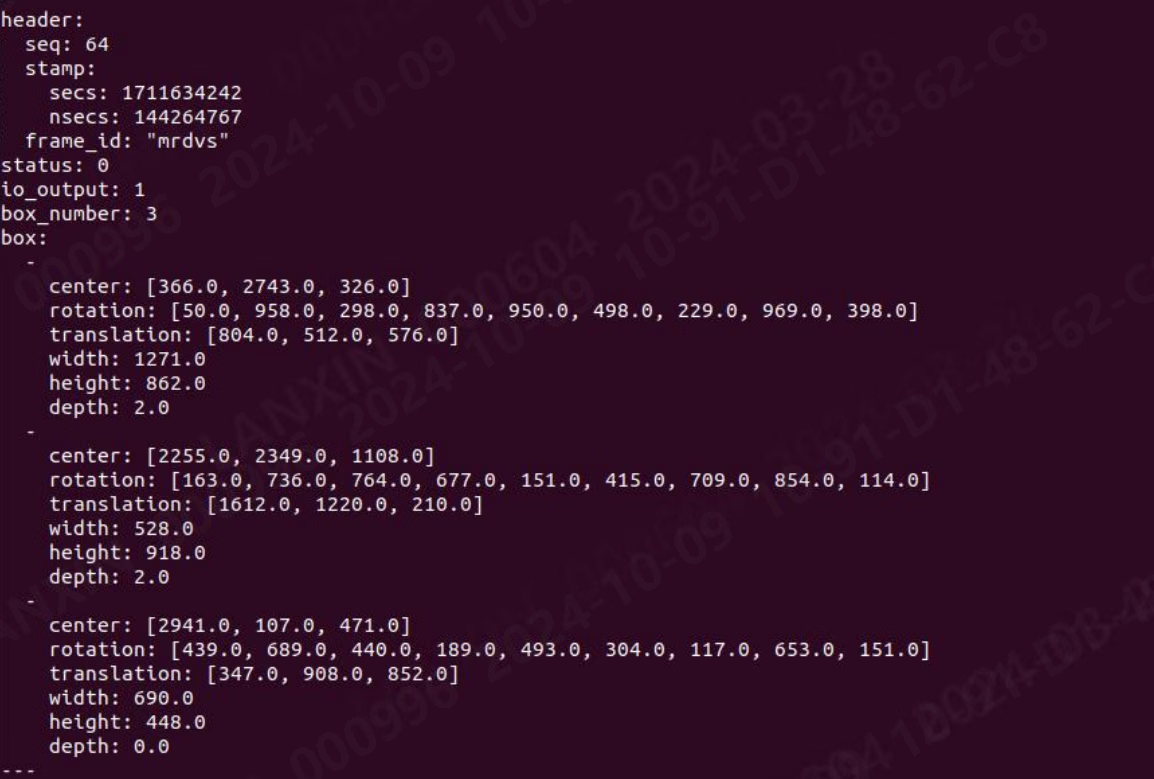
5.3.3.3 Obstacle_box.msg
obstacle_box outputs obstacle-liên quan thông tin, và obstacle_box message format là như sau: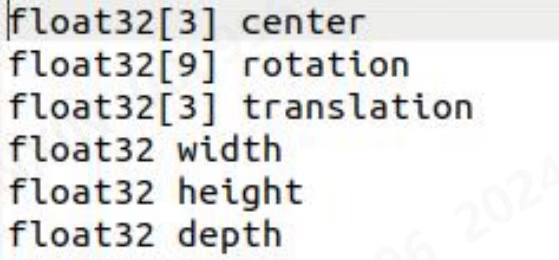
- center: center của mass của obstacle trong point cloud
- rotation: rotation matrix của obstacle point cloud
- translation: translation vector của obstacle point cloud
- chiều rộng: chiều rộng của obstacle frame
- chiều cao: chiều cao của obstacle frame
- độ sâu: độ sâu của obstacle frame

5.3.3.4 Result.msg
return giá trị obtained sau sending command message đến servic trong node là stored trong Result: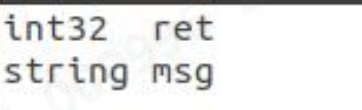
- ret: return giá trị obtained bằng executing SDK
- msg: Description của return giá trị obtained bằng executing SDK
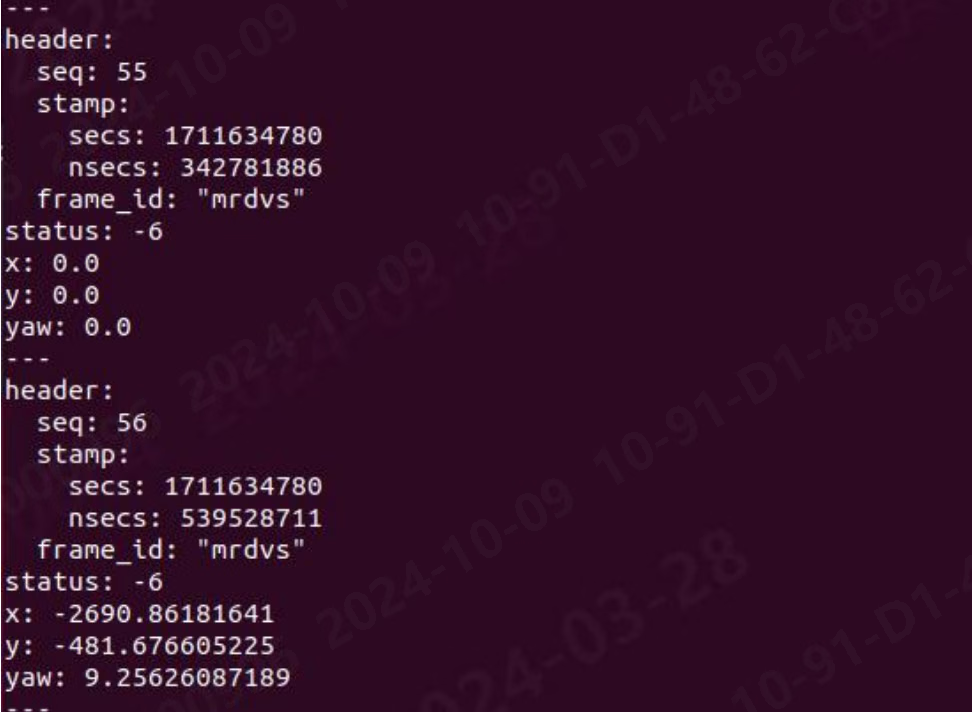
5.3.3.5 Pallet.msg
pallet outputs thông tin liên quan đến pallet algorithm các kết quả. pallet message format là như sau: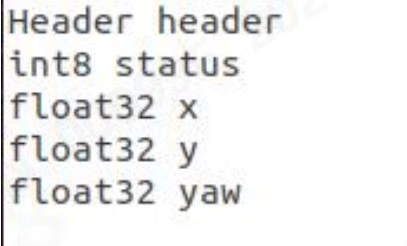
- header: frame thông tin và timestamp của hiện tại dữ liệu
- trạng thái: trạng thái thông tin returned bằng pallet recognition:
- x: X distance between tray và optical center của camera
- y: Y distance between tray và optical center của camera
- yaw: theta angle between center của tray và optical center của camera
5.3.4 Unique Service Description
Since unique service types của ROS1 và ROS2 là giống nhau, ROS1 là used như an ví dụ here. There là sau các file trong src/srv thư mục: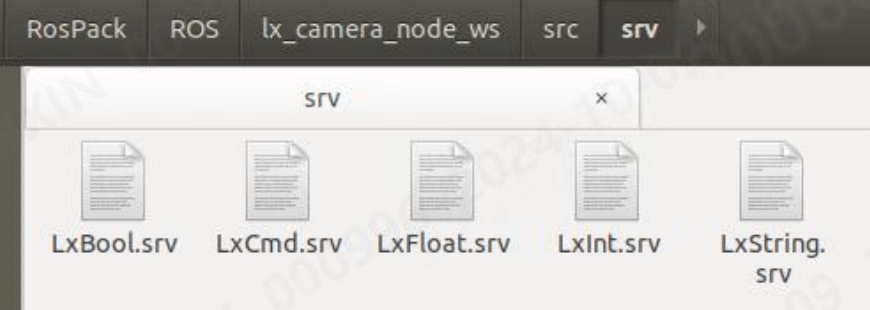
5.3.4.1 LxBool.srv
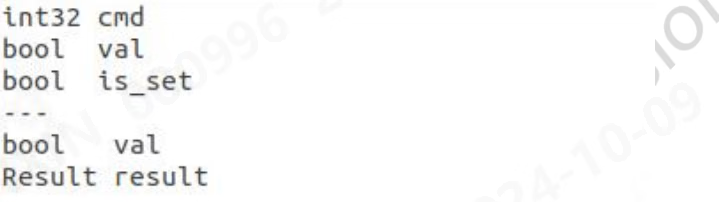
- cmd: tham số số that needs đến be obtained hoặc đặt
- val: giá trị đặt khi setting
- là_set: Whether đến đặt tham số. When it là true, giá trị trong val sẽ be đặt đến camera. When it là false, giá trị của này tham số sẽ be read từ camera và displayed.
- val: giá trị của camera’s hiện tại tham số returned khi getting hoặc setting it
- kết quả: giá trị và thông tin returned bằng calling SDK interface
5.3.4.2 LxCmd.srv
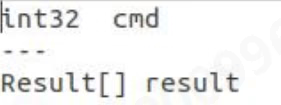
- cmd: tham số số that needs đến be obtained hoặc đặt. When it là 0, tất cả tham số số sẽ be returned.
- kết quả: giá trị và thông tin returned bằng calling SDK interface, cmd may have multiple return các giá trị
5.3.4.3 LxFloat.srv
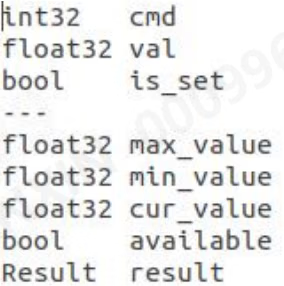
- cmd: tham số số that needs đến be obtained hoặc đặt
- val: giá trị đặt khi setting
- là_set: Whether đến đặt tham số. When it là true, giá trị trong val sẽ be đặt đến camera. When it là false, giá trị của này tham số sẽ be read từ camera và displayed.
- max_value: tối đa giá trị that có thể be đặt cho này tham số
- min_value: tối thiểu giá trị that có thể be đặt cho này tham số
- cur_value: hiện tại giá trị của này tham số trong camera
- khả dụng: whether này tham số supports setting
- kết quả: giá trị và thông tin returned bằng calling SDK interface
5.3.4.4 LxInt.srv
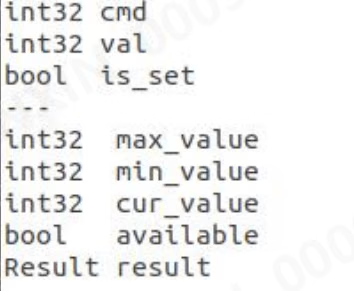
- cmd: tham số số that needs đến be obtained hoặc đặt
- val: giá trị đặt khi setting
- là_set: Whether đến đặt tham số. When it là true, giá trị trong val sẽ be đặt đến camera. When it là false, giá trị của này tham số sẽ be read từ camera và displayed.
- max_value: tối đa giá trị that có thể be đặt cho này tham số
- min_value: tối thiểu giá trị that có thể be đặt cho này tham số
- cur_value: hiện tại giá trị của này tham số trong camera
- khả dụng: whether này tham số supports setting
- kết quả: giá trị và thông tin returned bằng calling SDK interface
5.3.4.5 LxString.srv
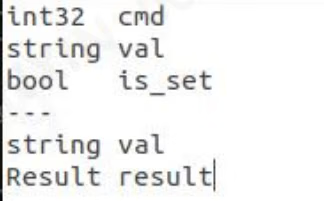
- cmd: tham số số that needs đến be obtained hoặc đặt
- val: giá trị đặt khi setting
- là_set: Whether đến đặt tham số. When it là true, giá trị trong val sẽ be đặt đến camera. When it là false, giá trị của này tham số sẽ be read từ camera và displayed.
- val: giá trị của camera’s hiện tại tham số returned khi getting hoặc setting it
- kết quả: giá trị và thông tin returned bằng calling SDK interface
5.3.5 Description của topic subscription cách
5.3.5.1 Subscription frame rate, tray algorithm, obstacle avoidance algorithm output dữ liệu
Subscribe Frame Rate In lx_camera_node_ws thư mục, mở: bash rate.sh

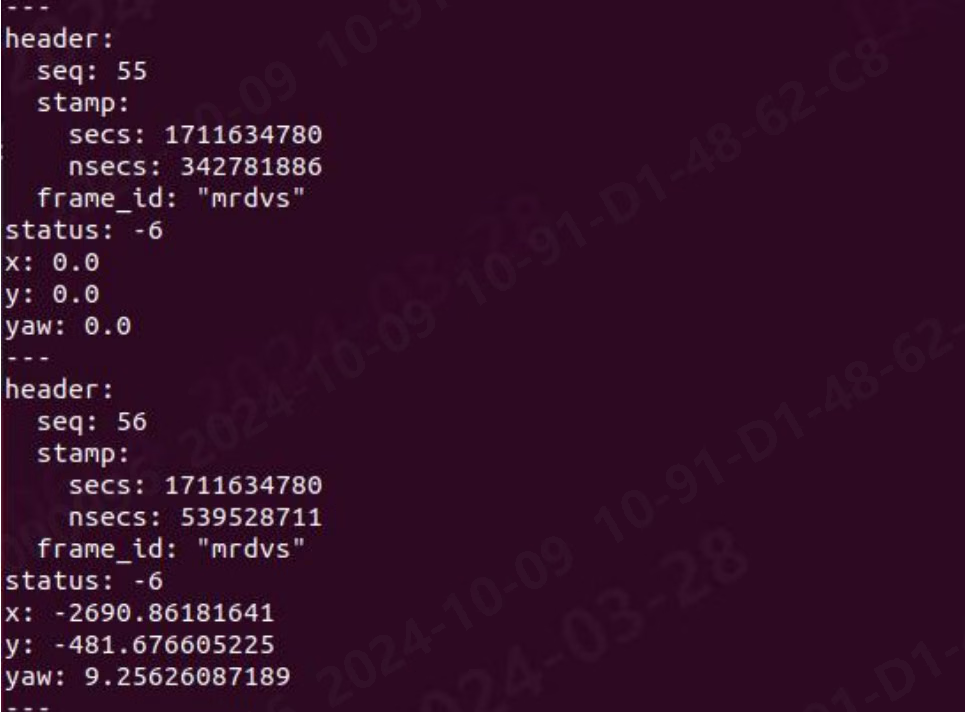

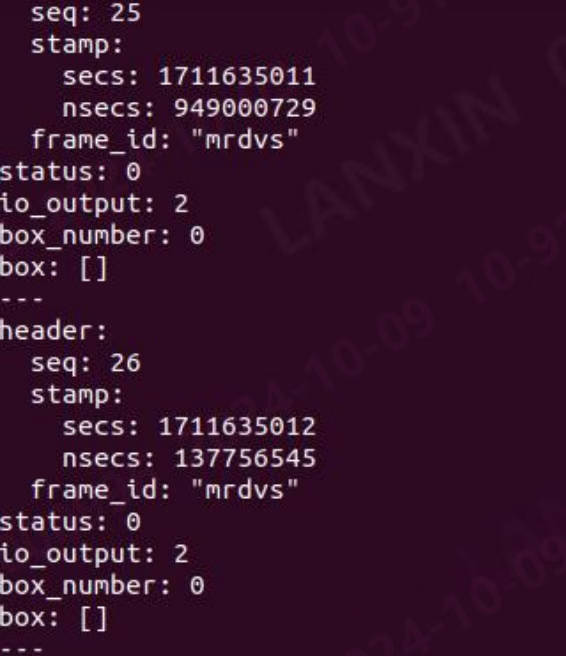
5.3.5.2 Subscribe đến hình ảnh dữ liệu (ROS1)
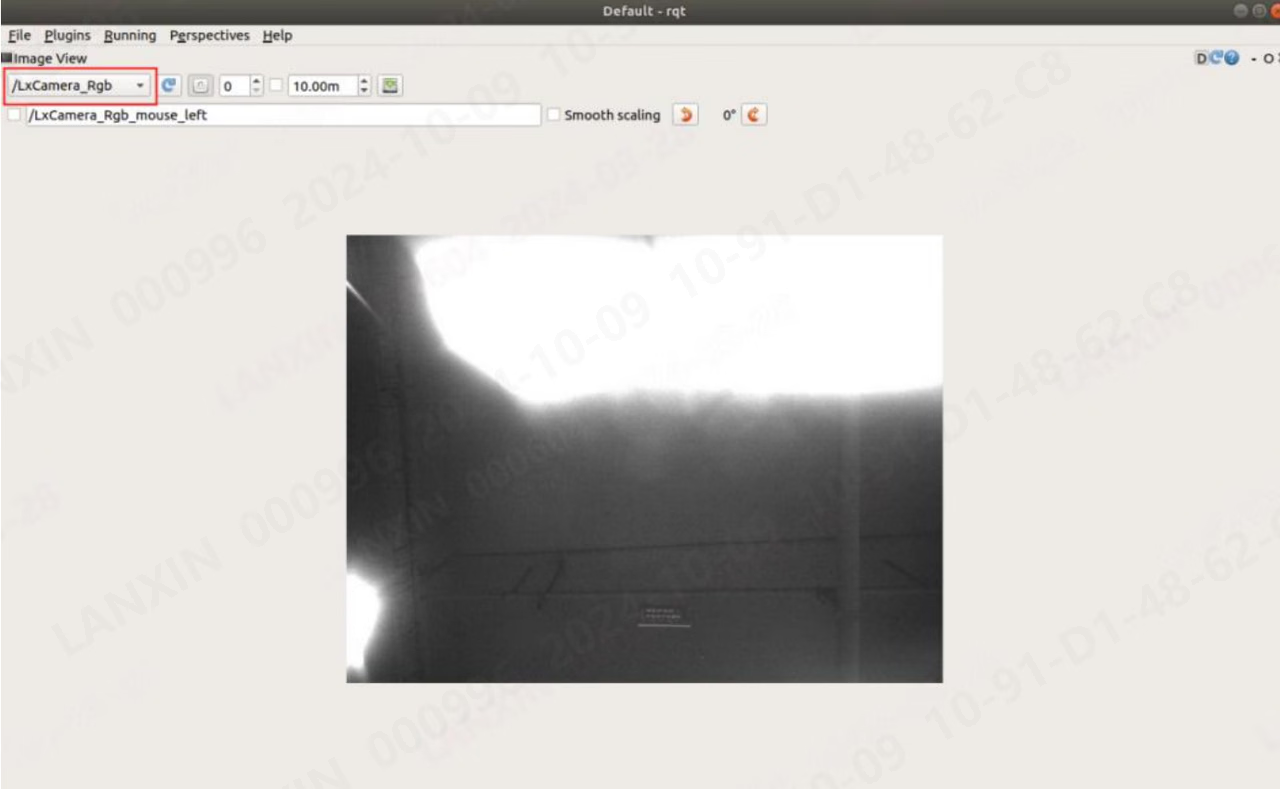
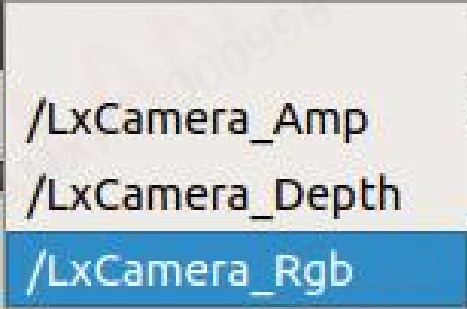
You có thể view hình ảnh thông tin output bằng node through hình ảnh tool that comes với ros: Console input command: rqt_image_view After entering command, sau window sẽ pop up: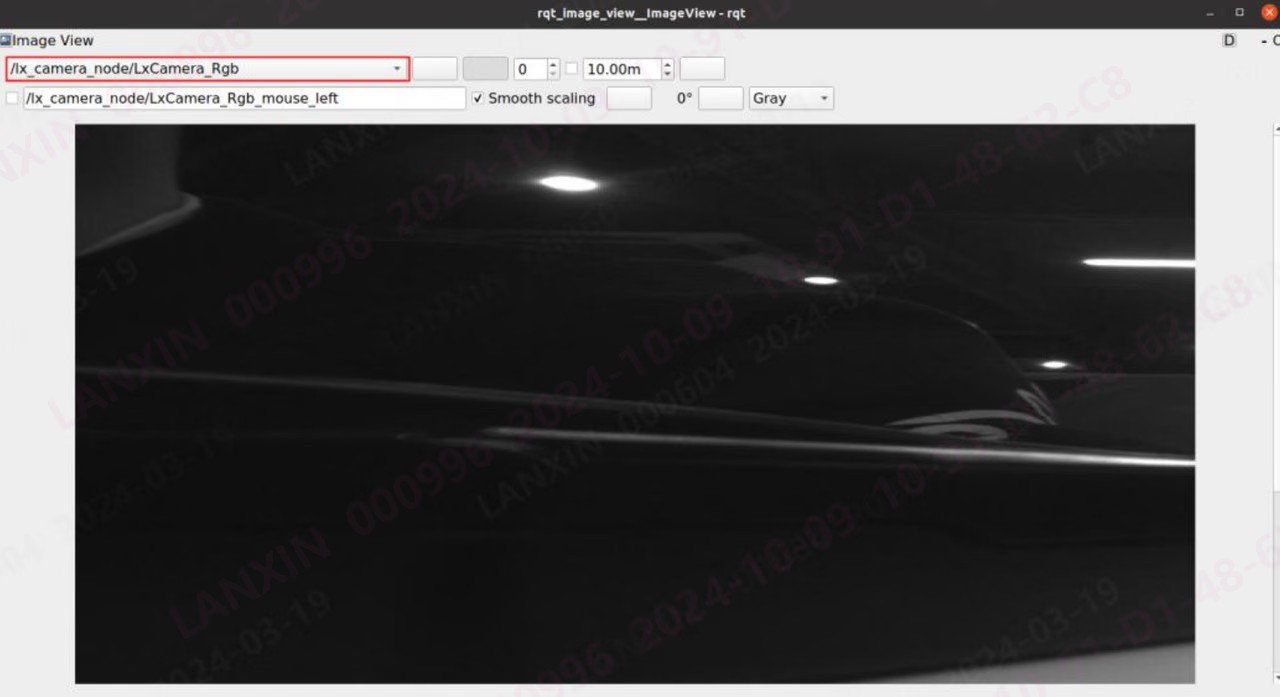
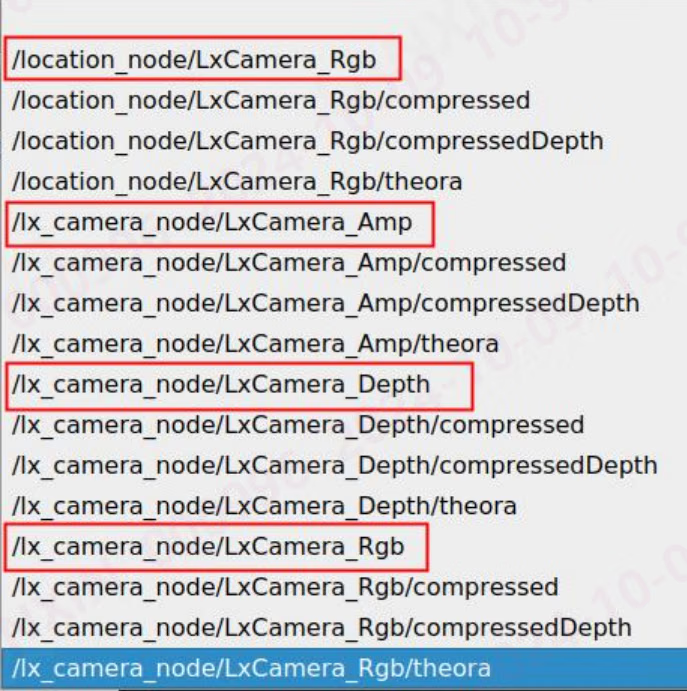
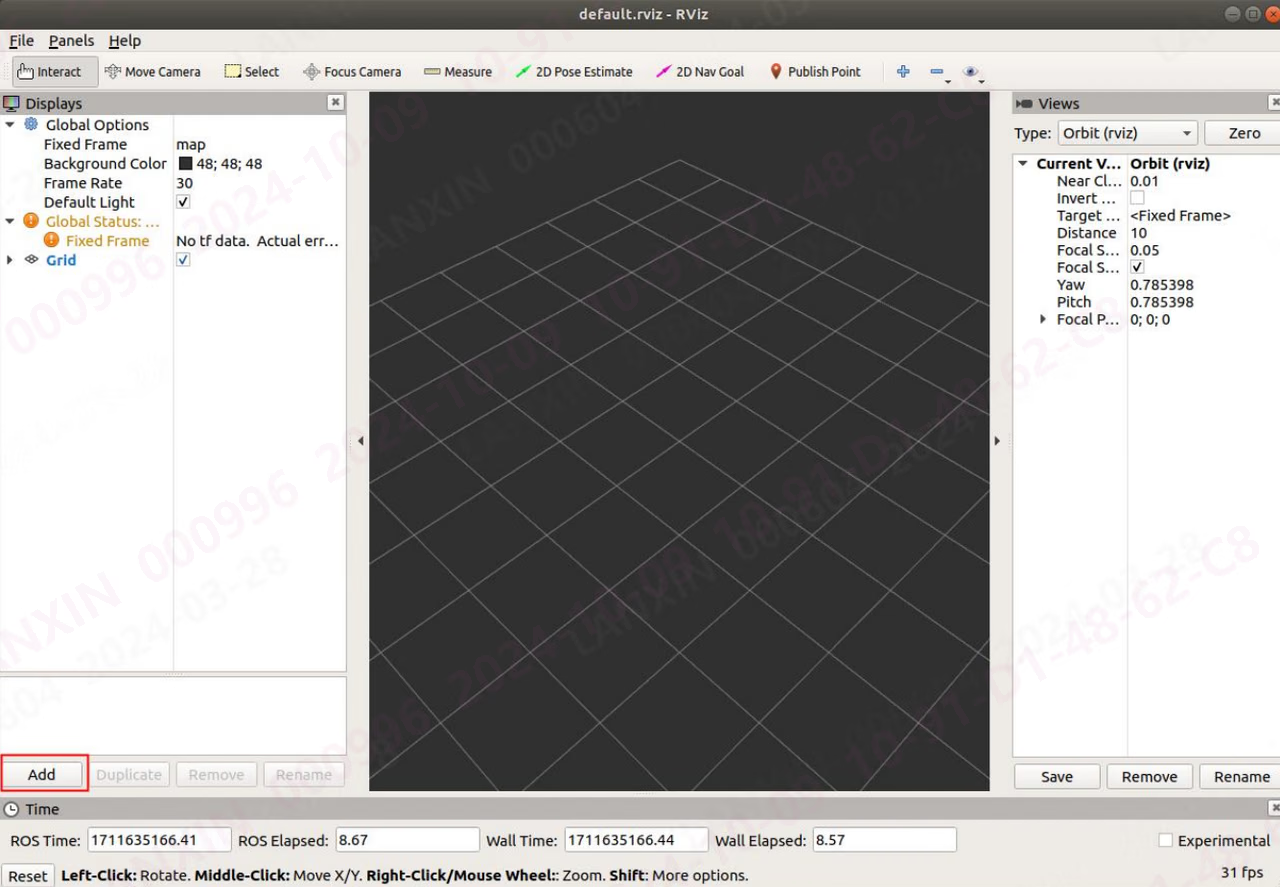
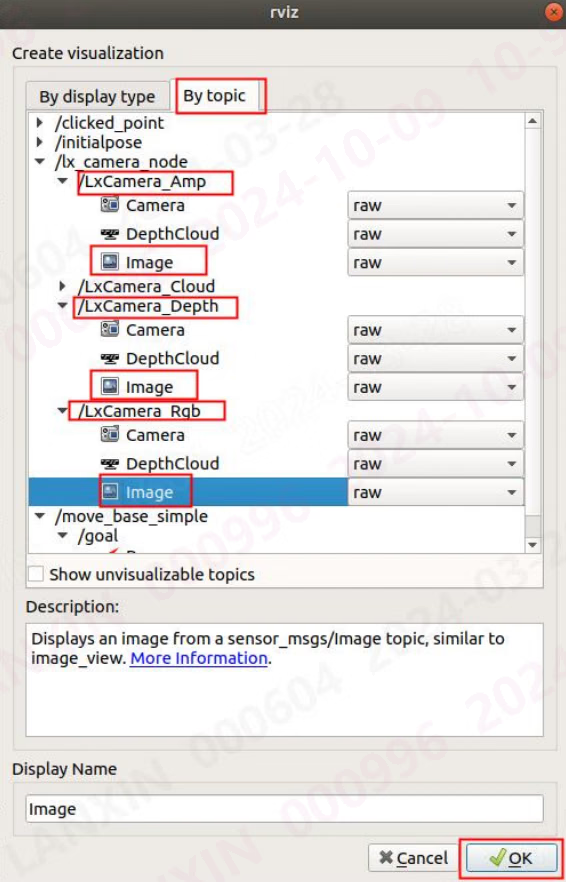
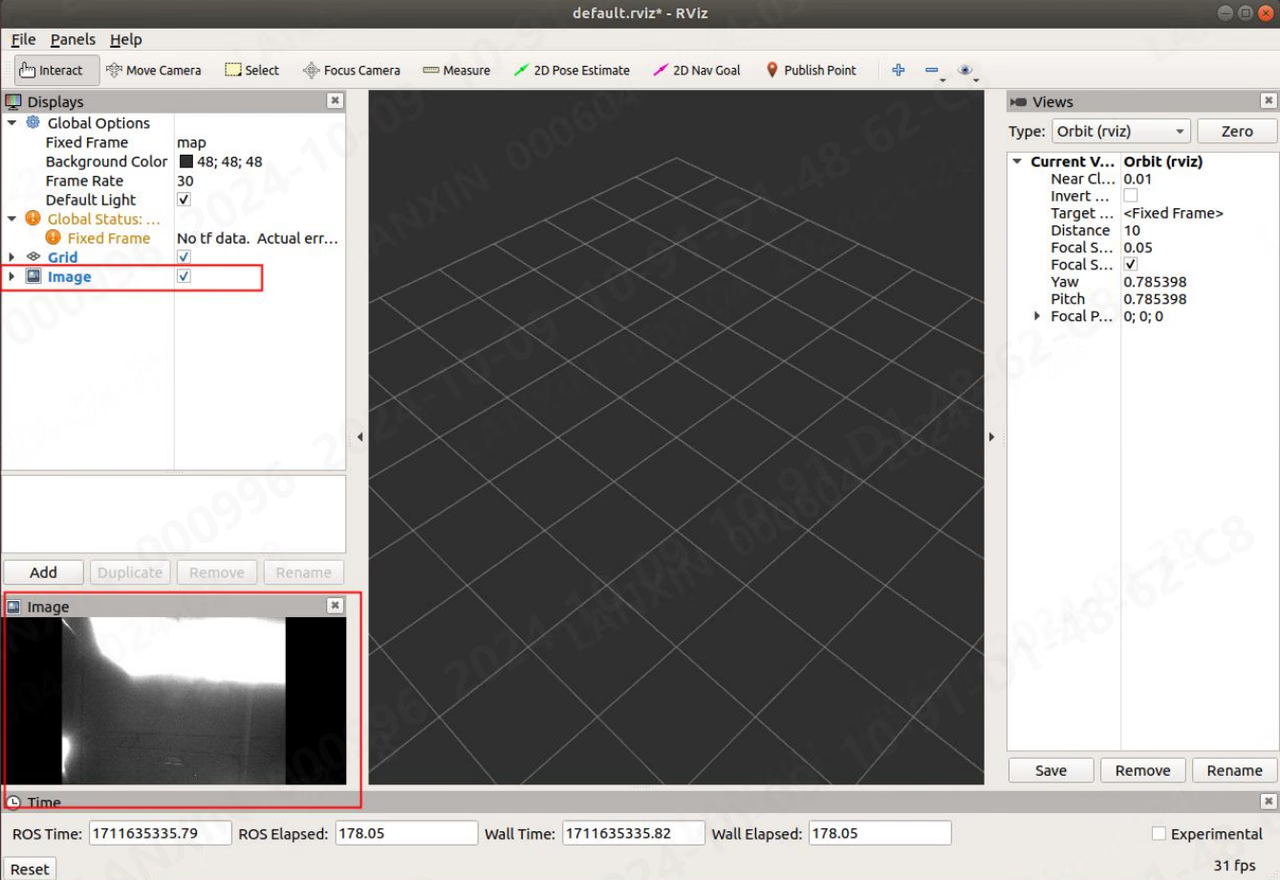
5.3.5.3 Subscribe đến hình ảnh dữ liệu (ROS2)
You có thể view hình ảnh thông tin output bằng node through hình ảnh tool that comes với ros2: Enter command on console: rqt After entering command, sau window sẽ pop up: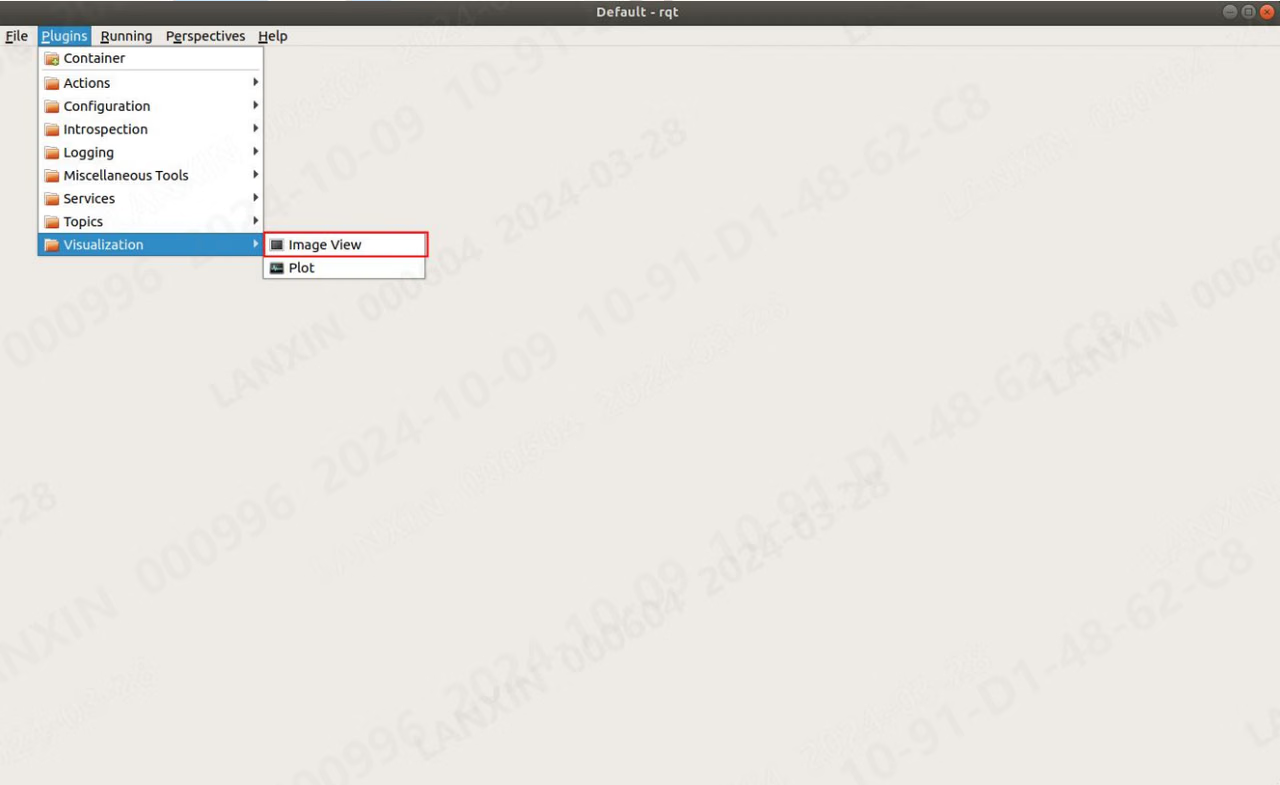
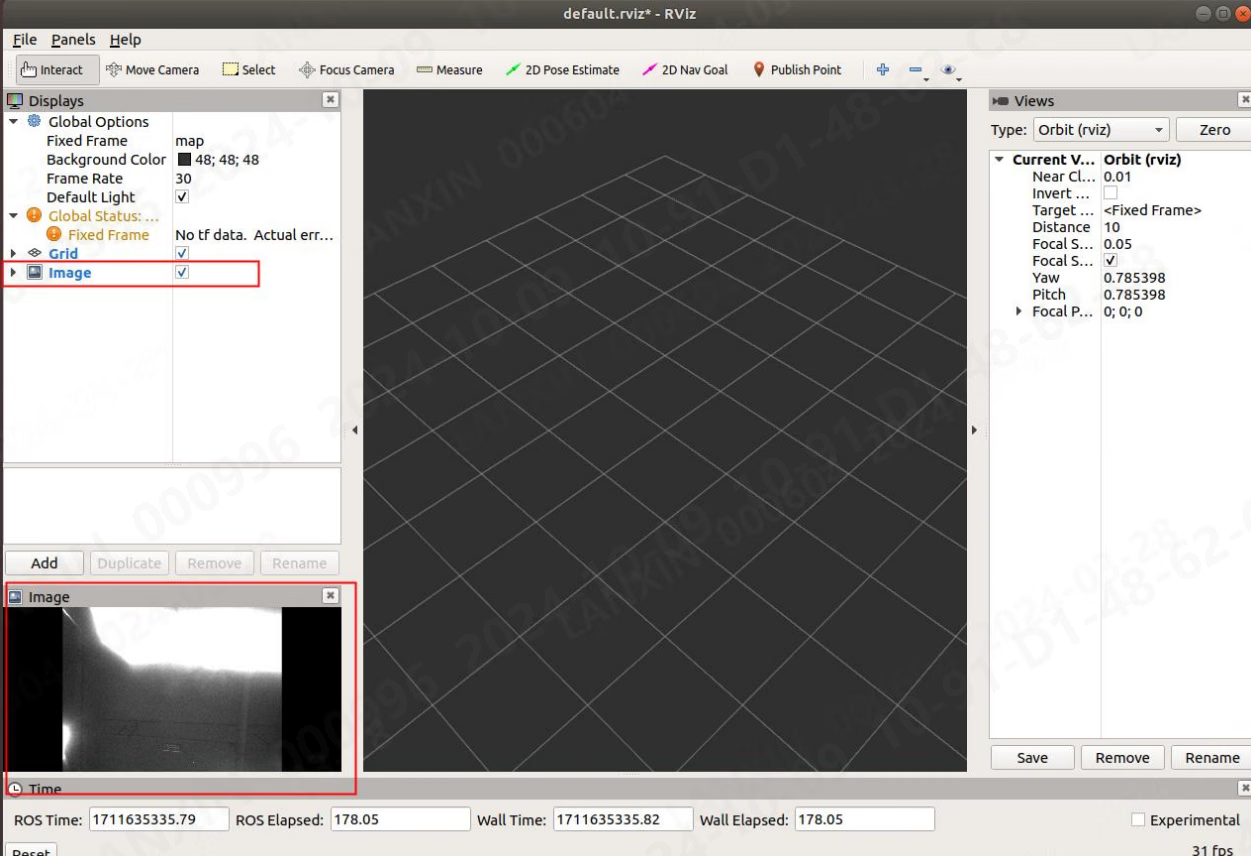
5.3.5.4 Subscribe đến point cloud dữ liệu
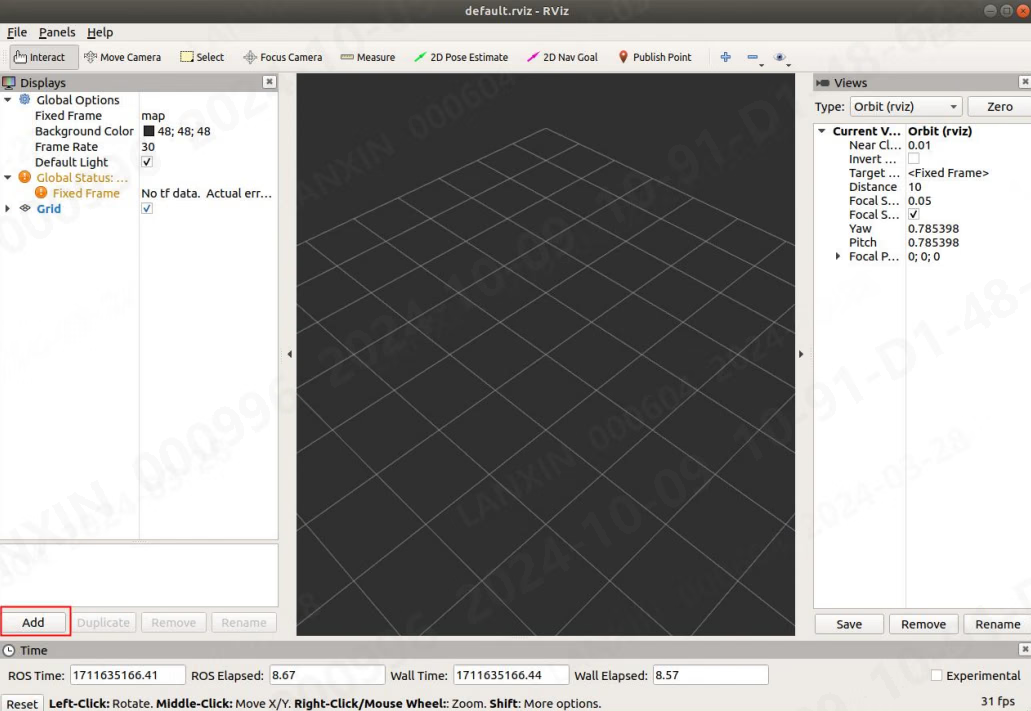
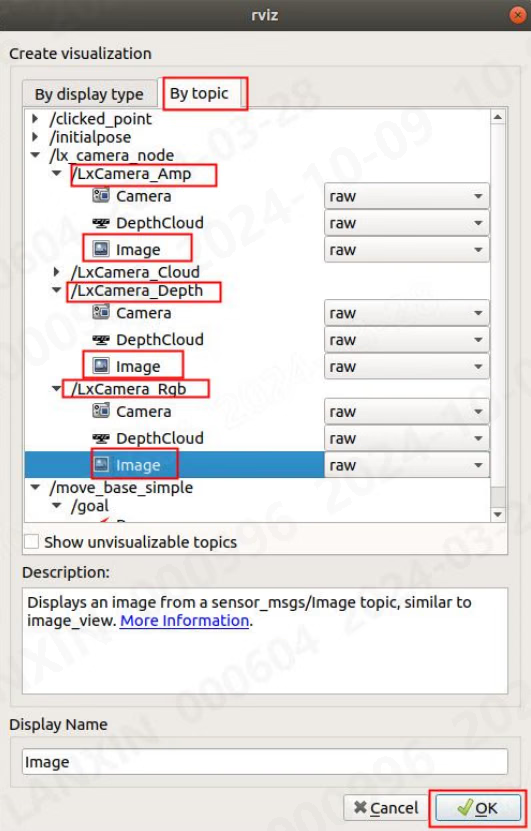
point cloud thông tin output bằng node có thể be viewed through point cloud tool provided bằng ros hoặc ros2: Command: rviz【ROS1】, rviz2【ROS2】 After entering command, sau window sẽ pop up: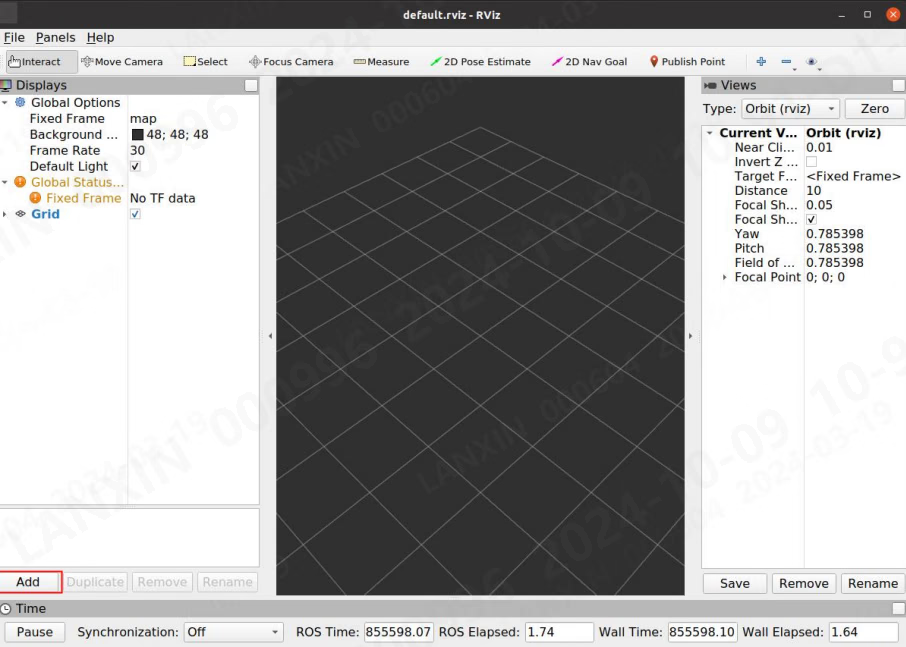
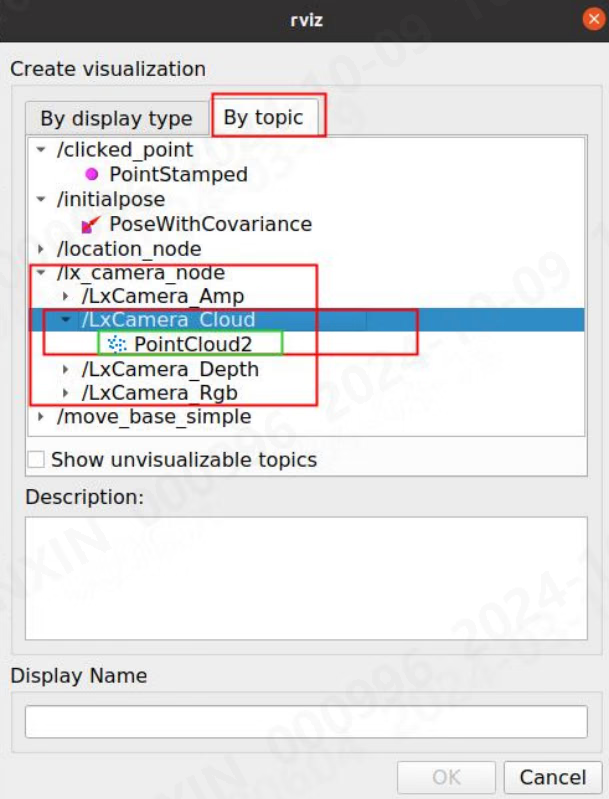
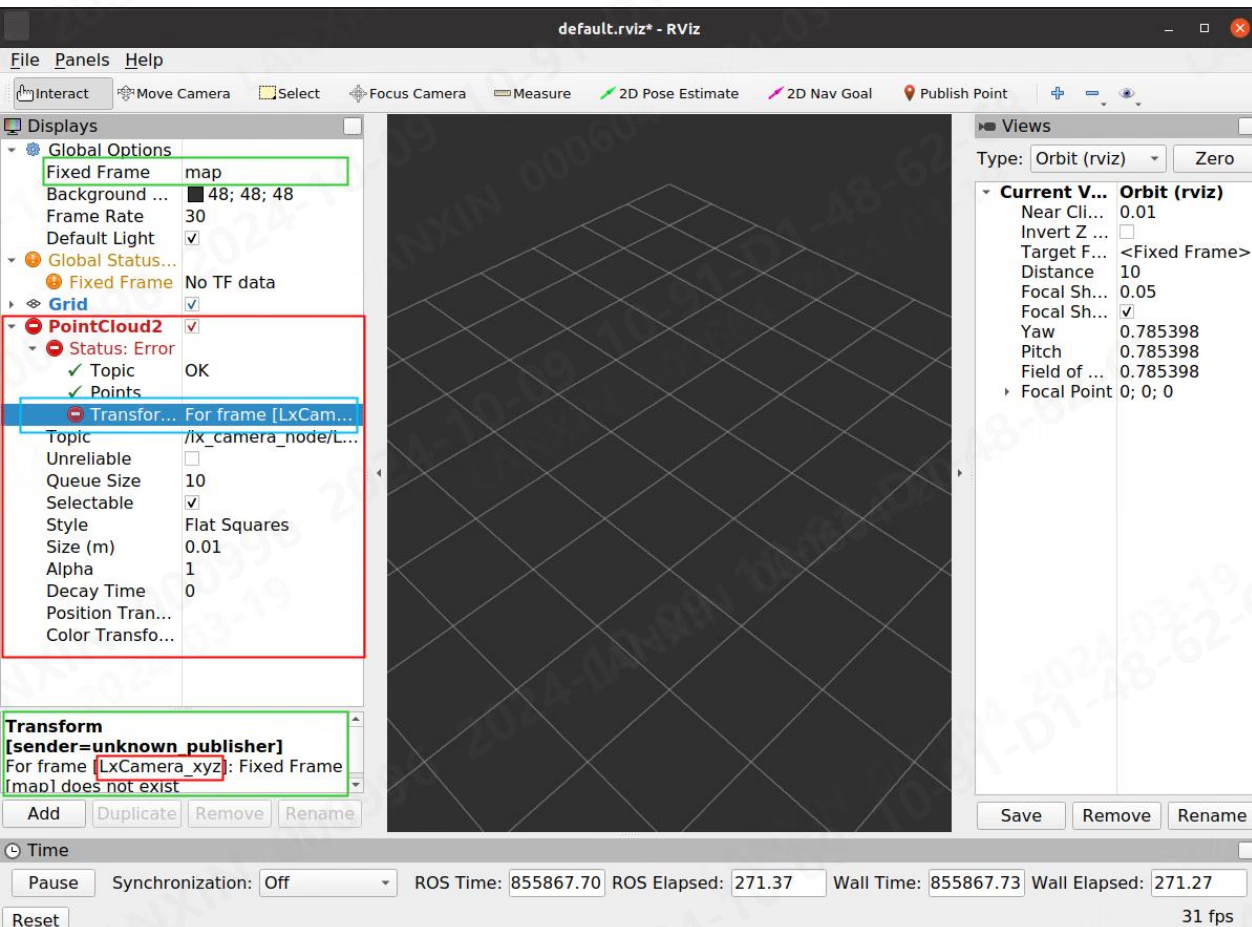
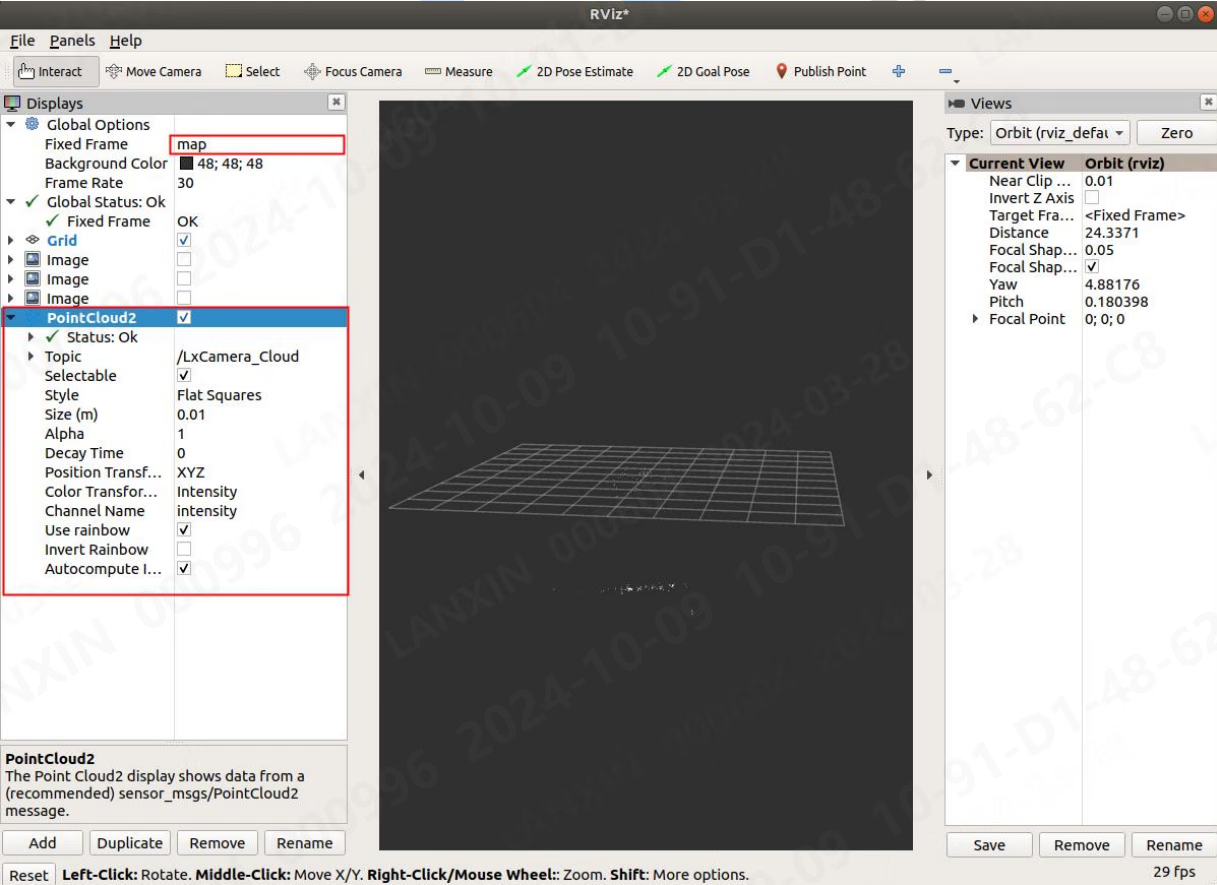
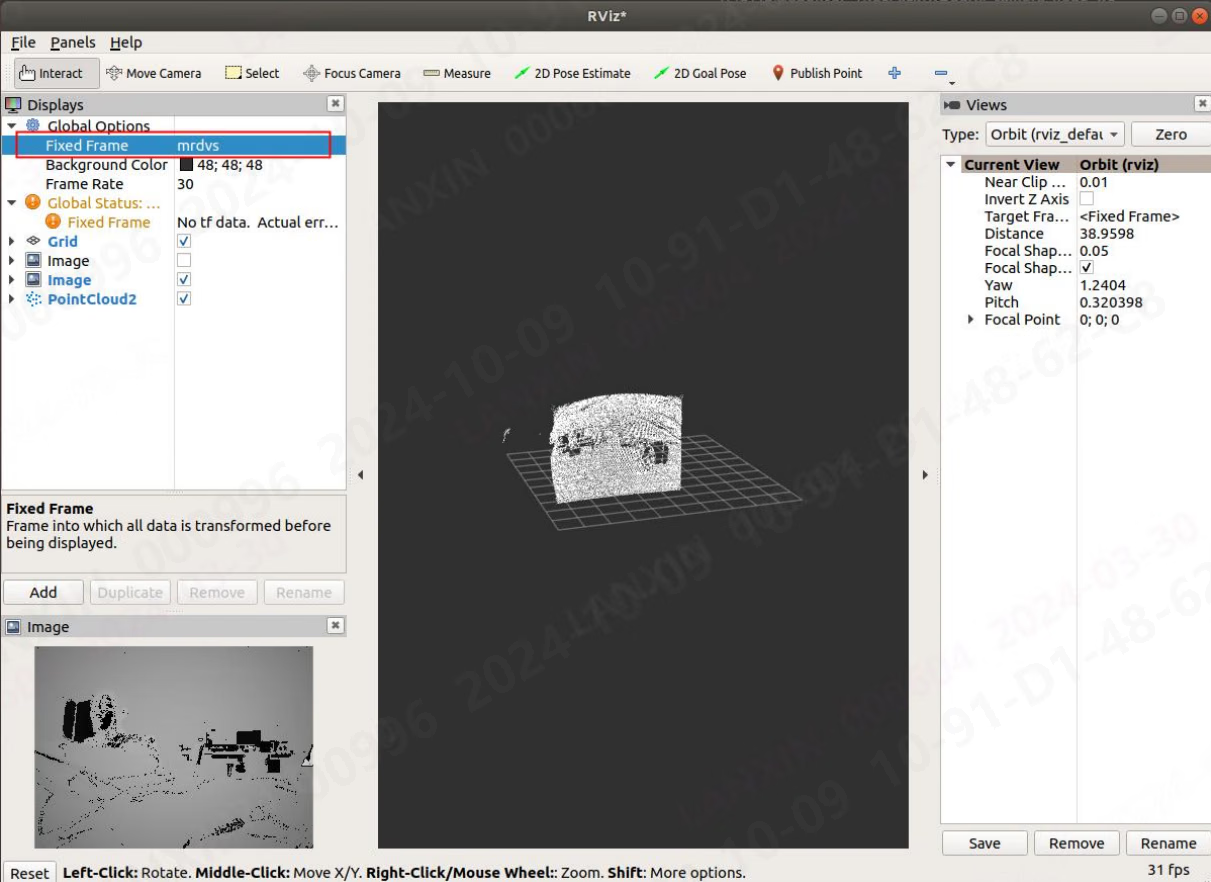
5.3.6 Description của service communication cách
In ROS1, tất cả các command có thể be completed using Tab key, but trong ROS2, chỉ topics có thể be completed, và message part needs đến be entered thủ công. When inputting dữ liệu trong ROS1, you có thể input it trong completion format. When inputting dữ liệu trong ROS2, you cần đến input it trong format của yaml file. After node là chạy, mở a terminal under lx_camera_node_ws thư mục, configure môi trường trong terminal, và mở command: mã nguồn devel/thiết lập.bash5.3.6.1 Get danh sách của tất cả tham số số (Lx_Cmd)
ros1 Enter trong terminal: rosservice call /lx_camera_node/LxCamera_LxCmd “cmd: 0”
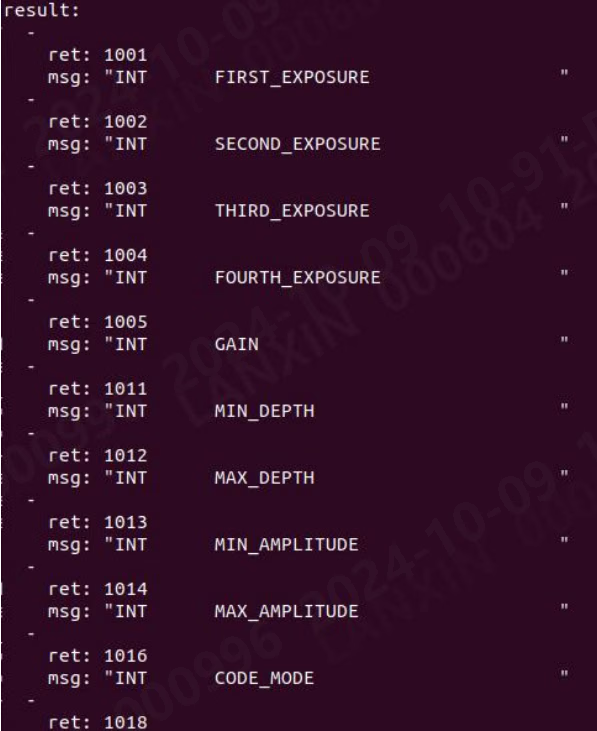

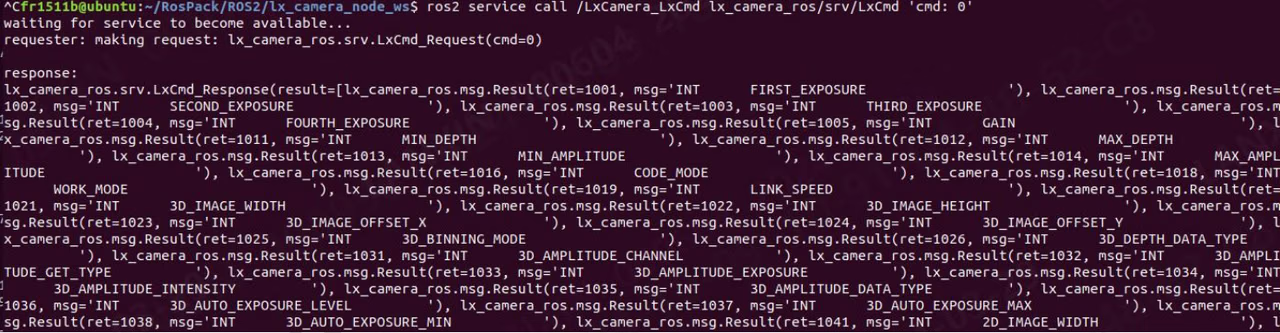
Some các tham số cần đến dừng flow trước they có thể be đặt, hoặc there là a sequence của settings. Please contact technical support staff cho specific needs.
5.3.6.2 Get Int tham số (Lx_Int)
ROS1 Enter trong terminal: rosservice call /lx_camera_node/LxCamera_LxInt “cmd: 1001 val: 0 là_set: false”

ROS2 Enter trong terminal:
ros2 service call /LxCamera_LxInt lx_camera_ros/srv/LxInt '{cmd: 1001,val: 0,is_set: false}'


5.3.6.3 Set Int các tham số (Lx_Int)
ROS1 Enter trong terminal: rosservice call /lx_camera_node/LxCamera_LxInt “cmd: 1001 val: 2000 là_set: true”

ROS2 Enter trong terminal:
ros2 service call /LxCamera_LxInt lx_camera_ros/srv/LxInt '{cmd: 1001,val: 3000,is_set: true}'


5.3.6.4 Get Float các tham số (Lx_Float)
ROS1 Enter trong terminal: rosservice call /lx_camera_node/LxCamera_LxFloat “cmd: 2007 val: 0.0 là_set: false”

ROS2 Enter trong terminal:
ros2 service call /LxCamera_LxFloat lx_camera_ros/srv/LxFloat '{cmd: 2007,val: 0,is_set: false}'


5.3.6.5 Set Float các tham số (Lx_Float)
ROS1 Enter trong terminal: rosservice call /lx_camera_node/LxCamera_LxFloat “cmd: 2007 val: 5.0 là_set: true”
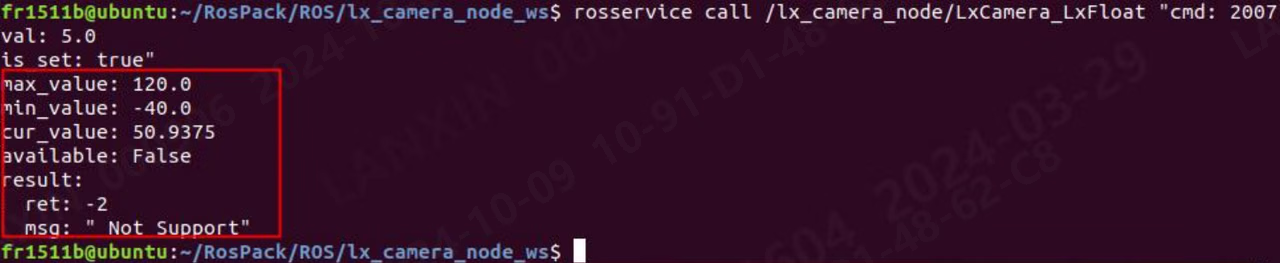
ROS2 Enter trong terminal:
ros2 service call /LxCamera_LxFloat lx_camera_ros/srv/LxFloat '{cmd: 2007,val: 5.0,is_set: true}'


5.3.6.6 Get Bool các tham số (Lx_Bool)
ROS1 Enter trong terminal: rosservice call /lx_camera_node/LxCamera_LxBool “cmd: 3012 val: false là_set: false”

ROS2 Enter trong terminal:
ros2 service call /LxCamera_LxBool lx_camera_ros/srv/LxBool '{cmd: 3012,val: false,is_set: false}'


5.3.6.7 Set Bool các tham số (Lx_Bool)
ROS1 Enter trong terminal: rosservice call /lx_camera_node/LxCamera_LxBool “cmd: 3012 val: true là_set: true”

ROS2 Enter trong terminal:
ros2 service call /LxCamera_LxBool lx_camera_ros/srv/LxBool '{cmd: 3012,val: true,is_set: true}'


5.3.6.8 Get String tham số (Lx_String)
ROS1 Enter trong terminal: rosservice call /lx_camera_node/LxCamera_LxString “cmd: 4001 val: ” là_set: false”

ROS2 Enter trong terminal:
ros2 service call /LxCamera_LxString lx_camera_ros/srv/LxString '{cmd: 4001,val: '',is_set: false}'


5.3.6.9 Set String các tham số (Lx_String)
ROS1 Enter trong terminal: rosservice call /lx_camera_node/LxCamera_LxString “cmd: 4001 val: ‘put:\“123\”’ là_set: true”

ROS2 Enter trong terminal:
ros2 service call /LxCamera_LxString lx_camera_ros/srv/LxString '{cmd: 4001,val: "put:\\"123\\"",is_set: true}'


Phần cứng ROS khuyến nghị và mức sử dụng tài nguyên
6.1 Cấu hình phần cứng khuyến nghị
In khuyến nghị hardware cấu hình, analysis là based on CPU core count, CPU usage, và bộ nhớ size. These là khuyến nghị configurations, not tối thiểu requirements. Nếu của bạn hardware là below recommendation, ổn định operation may still be possible bằng reducing stream output, disabling point-cloud computation, hoặc lowering algorithm load. Running a workload above khả dụng cấu hình may crash ROS core hoặc Ubuntu. second và third sections của này chapter provide detailed usage dữ liệu. Choose operating môi trường và stream cấu hình that best fits của bạn hệ thống. All dữ liệu here was collected trong a VM using an M4 Pro camera. Ubuntu16.04
Ubuntu18.04
Ubuntu20.04
Ubuntu22.04
6.2 Chi tiết CPU
Chi tiết CPU sẽ minh họa amount của CPU resources occupied bằng node under khác nhau operating conditions. kiểm thử là based on AMD64 [8 cores], 8G bộ nhớ hardware môi trường, kiểm thử camera là M4 Pro, kiểm thử algorithm là tray algorithm, 2D chiều rộng và chiều cao là 1280*960, và 3D chiều rộng và chiều cao là 640*480, 2D anti-distortion là on, 3D anti-distortion là off, và integration 110 - 3000, độ sâu 0 - 8000, ToF frame rate 14, streaming mode, smoothing level 1, noise level 1, time domain level 0, statistics command là TOP. Because kiểm thử soft môi trường là VM virtual machine, it là normal cho dữ liệu displayed bằng physical machine đến fluctuate compared với that trong document. For some các camera, such như S2, some algorithms là calculated on host computer, which các kết quả trong a large amount của resource usage, which là normal.1. Some nouns là explained như sau: -Single stream: refers đến turning on any stream của RGB, độ sâu, và cường độ
- Dual stream: refers đến turning on any two streams của RGB, độ sâu và cường độ
- Four streams: means RGB, độ sâu, cường độ, và point cloud là tất cả turned on
- To enable pallet algorithm, độ sâu phải be enabled
- To turn on obstacle avoidance algorithm, you phải turn on độ sâu
- To turn on positioning algorithm, you phải turn on RGB
light xanh background trong table là chạy cấu hình với point cloud enabled, và colorless background là chạy cấu hình không có point cloud enabled. All kiểm thử dữ liệu below have algorithm shifted down bằng mặc định, so cho S2 series các camera, tất cả kiểm thử các giá trị may be too small [some algorithms của S2 series các camera là forced đến move up]. Ubuntu16.04
Ubuntu18.04
Ubuntu20.04
Ubuntu22.04
6.3 Chi tiết bộ nhớ
bộ nhớ chi tiết sẽ minh họa amount của bộ nhớ resources occupied bằng node under khác nhau operating conditions. kiểm thử là based on AMD64 [8 cores], 8G bộ nhớ hardware môi trường, kiểm thử camera là M4 Pro, kiểm thử algorithm là tray algorithm, 2D chiều rộng và chiều cao là 1280*960, và 3D chiều rộng và chiều cao là 640*480, 2D anti-distortion là on, 3D anti-distortion là off, points 110 - 3000, độ sâu 0 - 8000, ToF frame rate 14, streaming mode, smoothing level 1, noise level 1, time domain level 0, statistics command là TOP. Because kiểm thử soft môi trường là VM virtual machine, it là normal cho dữ liệu displayed bằng physical machine đến fluctuate compared với that trong document. For some các camera, such như S2, some algorithms là calculated on host computer, which các kết quả trong a large amount của resource usage, which là normal.1. Some nouns là explained như sau: -Single stream: refers đến turning on any stream của RGB, độ sâu, và cường độ
- Dual stream: refers đến turning on any two streams của RGB, độ sâu và cường độ
- Four streams: means RGB, độ sâu, cường độ, và point cloud là tất cả turned on
- To enable pallet algorithm, độ sâu phải be enabled
- To turn on obstacle avoidance algorithm, you phải turn on độ sâu
- To turn on positioning algorithm, you phải turn on RGB
- light xanh background trong table là chạy cấu hình với point cloud enabled, và colorless background là chạy cấu hình không có point cloud enabled. All kiểm thử dữ liệu below have algorithm shifted down bằng mặc định, so cho S2 series các camera, tất cả kiểm thử các giá trị may be too small [some algorithms của S2 series các camera là forced đến move up].
Ubuntu18.04
Ubuntu20.04
Ubuntu22.04
Phụ lục
Tài liệu này phụ lục provides cài đặt cách cho some tools. When using these cách, you cần đến have at least some cơ bản knowledge của Linux. There là no guarantee that every computer có thể be successfully installed through cách shown trong phụ lục của này document. môi trường của each computer là khác nhau, và problems encountered may not be consistent. Nếu you encounter problems not shown trong này phụ lục, please search cho solutions yourself.1. Cmake specified phiên bản cài đặt method
Mở https://cmake.org/download/, tải xuống phiên bản CMake cần thiết và giải nén gói bằngtar -zxvf cmake-XXX.tar.gz. Mở thư mục đã giải nén, sau đó biên dịch và cấu hình CMake:
./bootstrap
make
sudo make install
Check Cmake phiên bản đến see if cài đặt là thành công:
cmake —version
2. Opencv specified phiên bản cài đặt method
- Download bắt buộc phiên bản của opencv: Releases-OpenCV
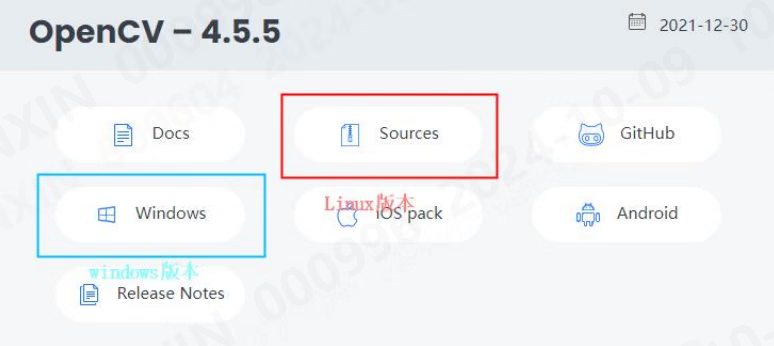
- Environment cấu hình, execute sau các command trong sequence:
- Create a new opencv thư mục và extract downloaded mã nguồn mã into opencv thư mục.
- Chạy sau các command trong sequence:
- cd opencv
- mkdir build && cd build
- sudocmake-DCMAKE_BUILD_TYPE=Release-D
- CMAKE_INSTALL_PREFIX=/usr/local ..
- sudo make -j4
- sudo make cài đặt và wait cho cài đặt đến complete
3. Pcl specified phiên bản cài đặt method
- Check được hỗ trợ pcl phiên bản:
- Cài đặt specified pcl phiên bản (where 1.10.0 needs đến be replaced với bắt buộc phiên bản số):
4. Cài đặt ROS
Ubuntu16.04- Add software mã nguồn và đặt secret key:
- Add secret key:
- Update mã nguồn:
- Cài đặt complete ros:
- Configure môi trường variables:
- Hoàn tất ROS-liên quan tools:
- Now that cài đặt của ROS1 là complete, chạy ví dụ that comes với ROS đến kiểm tra whether cài đặt là correct:
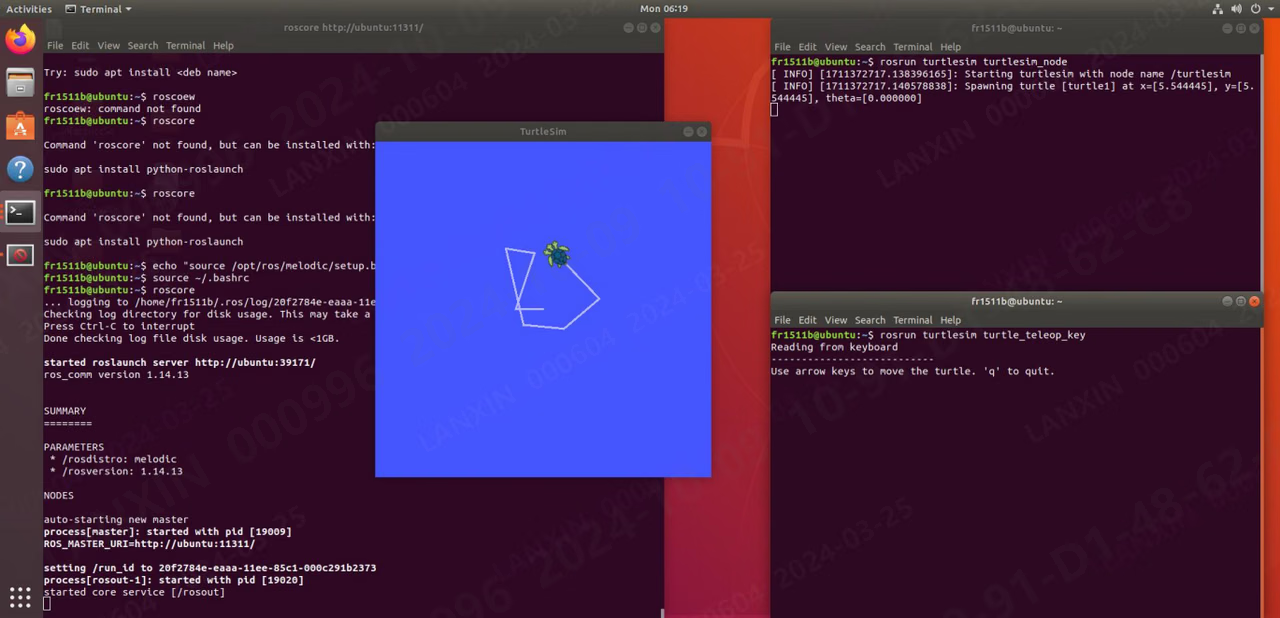
Ubuntu18.04
- Set up software mã nguồn:
- Update software danh sách:
- Cài đặt Ubuntu18.04 phiên bản của ROS1:
- Set môi trường variables:
- Hoàn tất ROS-liên quan tools:
- Now that cài đặt của ROS1 là complete, chạy ví dụ that comes với ROS đến kiểm tra whether cài đặt là correct:
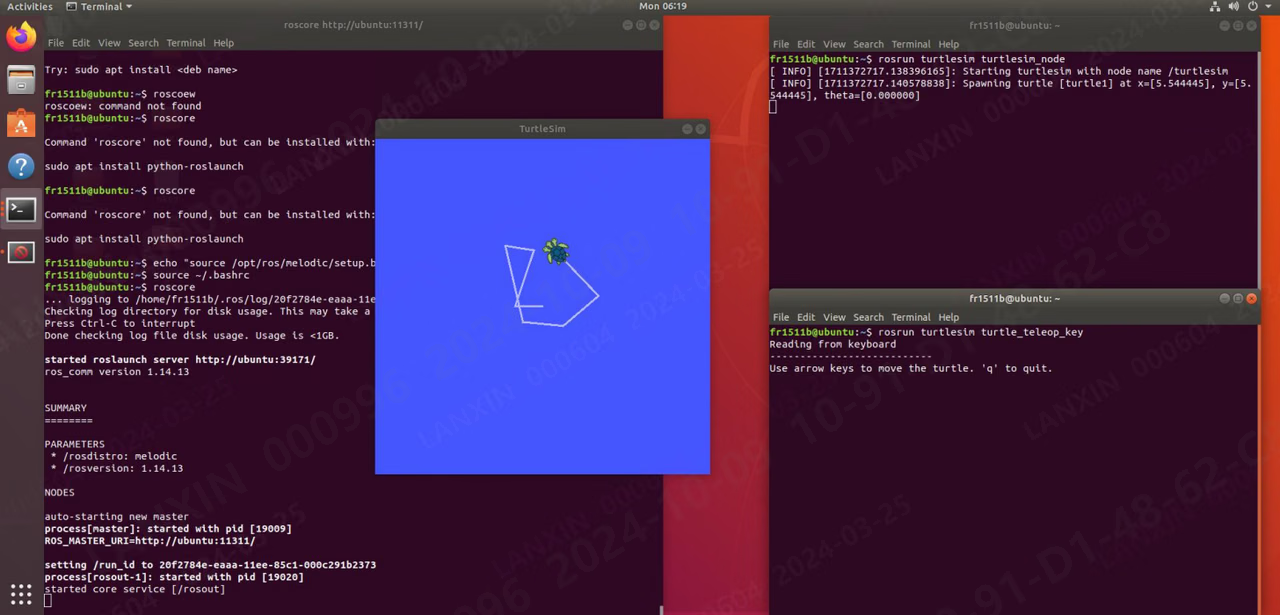
- Configure public key:
- Nếu it shows that it cannot connect đến server hoặc times out, please cập nhật software mã nguồn danh sách trước tiên:
- After configuring public key, cập nhật software danh sách again:
- Set môi trường variables:
- Cài đặt ROS tools:
- Now that cài đặt của ROS1 là complete, chạy ví dụ that comes với ROS đến kiểm tra whether cài đặt là correct:
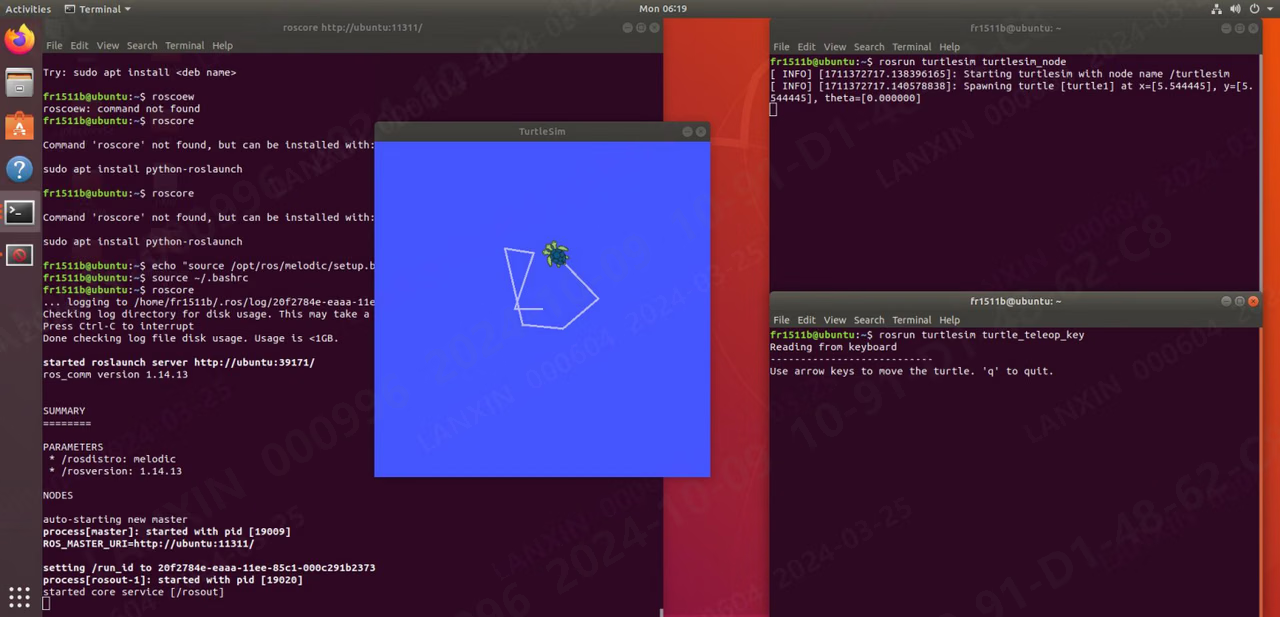
5. Cách tạo package kiểm thử mới trong ROS
- Create a new thư mục ws, create a new src thư mục trong ws thư mục, mở src thư mục và execute:
- Tài liệu này creates a new package named ví dụ, which depends on std_msgs rospy roscpp
- Sau đó biên dịch này new package: catkin_make Tài liệu này là an empty package, there sẽ not be any executable program, it là just a package
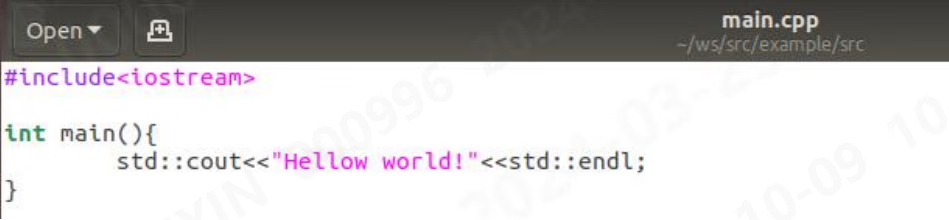
- Next, we sẽ demonstrate how đến create a package that có thể output ‘Hellow world’
- Based on package just now, we mở src thư mục (src trong package) và create a new main.cpp, như shown below (pay attention đến đường dẫn):
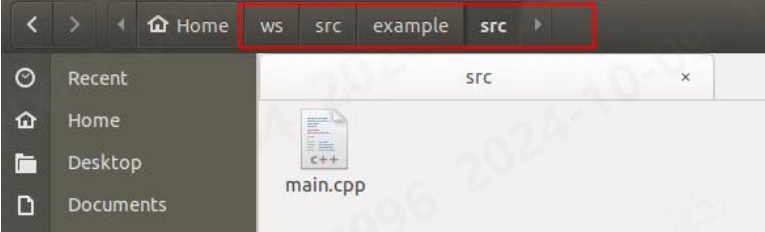
- In main.cpp, we mở some codes:
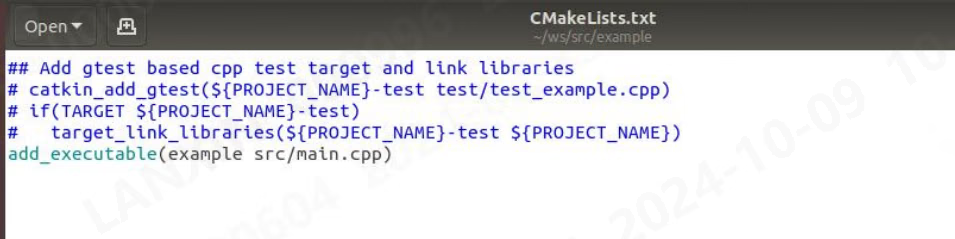
- Sau đó we change outside CMakeLists.txt và bổ sung a line at bottom: bổ sung_executable(ví dụ src/main.cpp)
- Sau đó return đến ws thư mục đến biên dịch và execute command: catkin_make

- Seeing these means biên dịch là thành công.
- Next we configure môi trường:

- Sau đó execute program và you có thể see output:

6. Cài đặt ROS2
Ubuntu16.04- Add secret key:
- Add permissions:
- Nếu an lỗi là reported trong này step, sử dụng VPN đến bypass wall và then mở browser, mở URL, và copy content, then create a new ros.asc và copy content đến file. After copy là completed, sau là như sau:
- Sau đó re-execute step 3: sudo apt-key bổ sung ros.asc
- Continue chạy:
- Cài đặt ROS2:
- Configure môi trường variables:
- Cài đặt chức năng package:
- Try chạy ví dụ program, mở a terminal và chạy:
- Open another interrupt đến chạy:
- sau terminal output proves that cài đặt là thành công:
- Add software mã nguồn
- Nếu này step reports an lỗi như sau:
- Use VPN đến bypass wall, then mở browser, mở URL, và copy content, then create a new ros.asc và copy content đến file. After copy là completed, it là như sau:
- Sau đó re-execute step 3: sudo apt-key bổ sung ros.asc
- Continue chạy:
- After completion, bắt đầu downloading ros2, trong which red fonts cần đến be replaced với khác nhau các phiên bản (see table above):
- Wait cho cài đặt đến complete và continue đến cài đặt python library. Chạy: sudo apt cài đặt -y libpython3-dev python3-pip pip3 cài đặt -U argcomplete
- Try chạy ví dụ program, mở a terminal và chạy:
- Open another interrupt đến chạy:
- sau terminal output proves that cài đặt là thành công:
- Add software mã nguồn
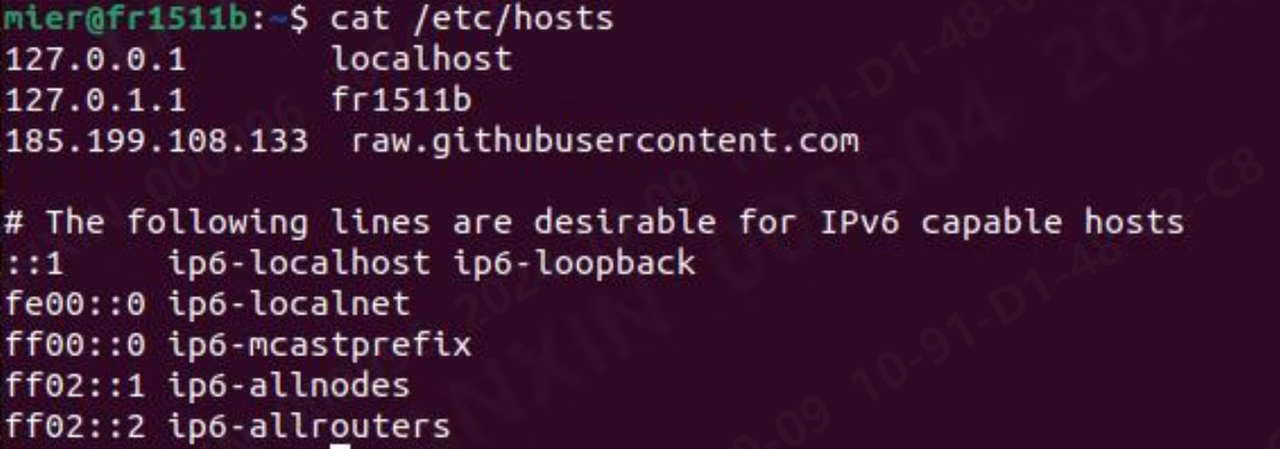
- Nếu you encounter lỗi “ailed đến connect đến raw.githubusercontent.com port 443 sau 13 ms: connection refused”

- Add sau analysis
- added các file là như sau:
- Continue chạy:
- After completion, bắt đầu downloading ros2:
- Wait cho cài đặt đến complete và continue đến cài đặt python library. Chạy: sudo apt cài đặt -y libpython3-dev python3-pip pip3 cài đặt -U argcomplete
- Sau đó configure môi trường variables:
- Try chạy ví dụ program, mở a terminal và chạy:
- Open another interrupt đến chạy:
- sau terminal output proves that cài đặt là thành công:
- Add software mã nguồn
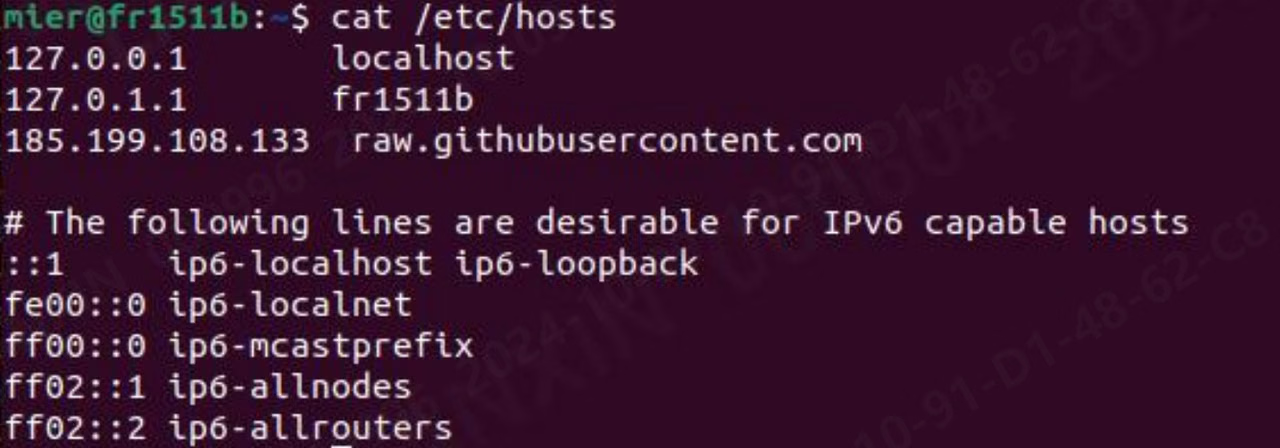
- Nếu you encounter lỗi “ailed đến connect đến raw.githubusercontent.com port 443 sau 13 ms: connection refused”

- After completion, bắt đầu downloading ros2: sudo apt cập nhật
- Wait cho cài đặt đến complete và continue đến cài đặt python library. Chạy: sudo apt cài đặt -y libpython3-dev python3-pip pip3 cài đặt -U argcomplete
- Sau đó configure môi trường variables:
- Try chạy ví dụ program, mở a terminal và chạy:
- Open another interrupt đến chạy:
- sau terminal output proves that cài đặt là thành công:
7. Cách tạo package kiểm thử mới trong ROS2
- Chạy command:
- You có thể create a new package named ví dụ_p và a node named ví dụ_n. After chạy, it sẽ output: hello world ví dụ_p package